
1. Introducción
Thank you for choosing the WIMAXIT Portable Monitor M1560CT3. This 15.6-inch touchscreen monitor is designed to enhance your productivity and entertainment experience on the go. Featuring a Full HD 1920x1080 IPS panel with HDR support and anti-glare technology, it delivers vibrant visuals and comfortable viewing. Its versatile connectivity, including dual USB Type-C and Mini-HDMI ports, ensures compatibility with a wide range of devices such as laptops, smartphones, PCs, and gaming consoles.
2. ¿Qué hay en la caja?
Verifique el contenido del paquete para asegurarse de que todos los artículos estén presentes:
- 1x WIMAXIT M1560CT3 Portable Monitor (with Smart Cover)
- 1x cable USB-C a USB-C
- 1 cable HDMI a mini HDMI
- 1x USB-A (3.0) to USB-C Cable
- 1x adaptador de corriente CC
- 1x Manual de usuario
- 1x paño de limpieza
- 1x Tarjeta de garantía

Image: Contents of the WIMAXIT Portable Monitor M1560CT3 package, showing the monitor, various connection cables (USB-C, HDMI), power adapter, and documentation.
3. Instrucciones de configuración
Follow these steps to connect your WIMAXIT Portable Monitor to your device:
3.1. Encendido del monitor
The monitor can be powered via the included DC Power Adapter or through a compatible USB-C port on your device that supports power delivery.
3.2. Connecting to a Laptop/PC (USB-C for Video & Touch)
For devices with a full-featured USB-C port (supporting DisplayPort Alternate Mode and Power Delivery), a single USB-C to USB-C cable can provide both video, power, and touchscreen functionality.
- Connect one end of the USB-C to USB-C cable to the monitor's USB-C port (labeled USB-C1 or USB-C2).
- Connect the other end of the USB-C to USB-C cable to your laptop's full-featured USB-C port.
- The monitor should automatically detect the signal and display your laptop's screen.
Video: A seller demonstrates connecting the WIMAXIT Portable Monitor to a laptop using a single USB-C cable, showcasing its touchscreen capabilities and various settings.
3.3. Connecting to a Laptop/PC (HDMI for Video, USB for Touch/Power)
For devices without a full-featured USB-C port, or if you prefer HDMI for video, you will need both an HDMI and a USB cable.
- Conecte un extremo del cable Mini-HDMI a HDMI al puerto Mini-HDMI del monitor.
- Connect the other end of the HDMI cable to your laptop's HDMI port.
- For touchscreen functionality and additional power (if needed), connect the USB-A to USB-C cable from your laptop's USB-A port to the monitor's USB-C port.
- If your laptop cannot provide sufficient power, connect the DC Power Adapter to the monitor.
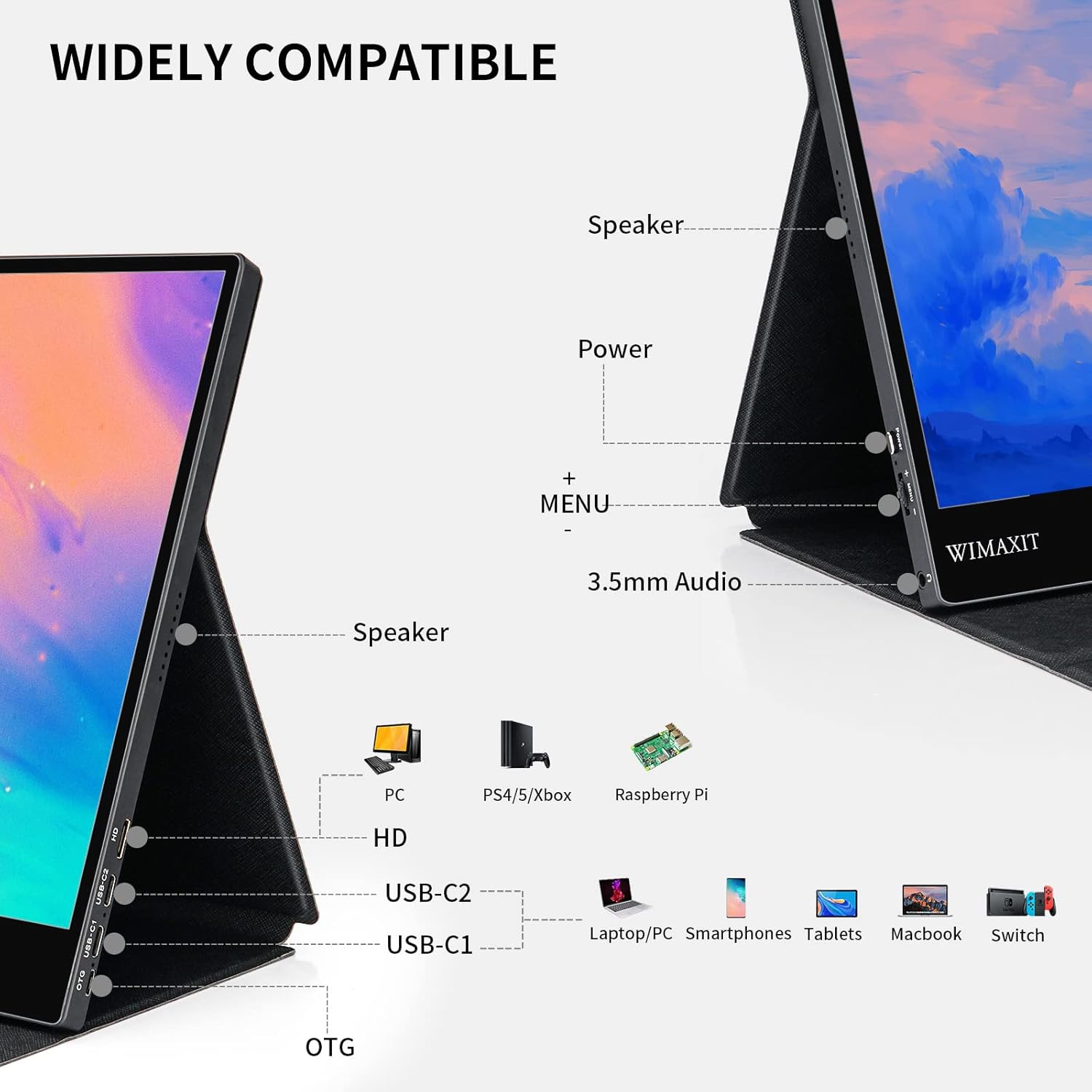
Image: Close-up of the WIMAXIT Portable Monitor's side, highlighting the various ports including Mini-HDMI, USB-C, and the menu control wheel.
3.4. Conexión a consolas de juegos (p. ej., Nintendo Switch, PS4/5, Xbox)
Use the Mini-HDMI to HDMI cable for video and the USB-A to USB-C cable for power. Some consoles may require external power for the monitor.
- Connect the Mini-HDMI to HDMI cable between the monitor and your gaming console.
- Connect the DC Power Adapter to the monitor for stable power.
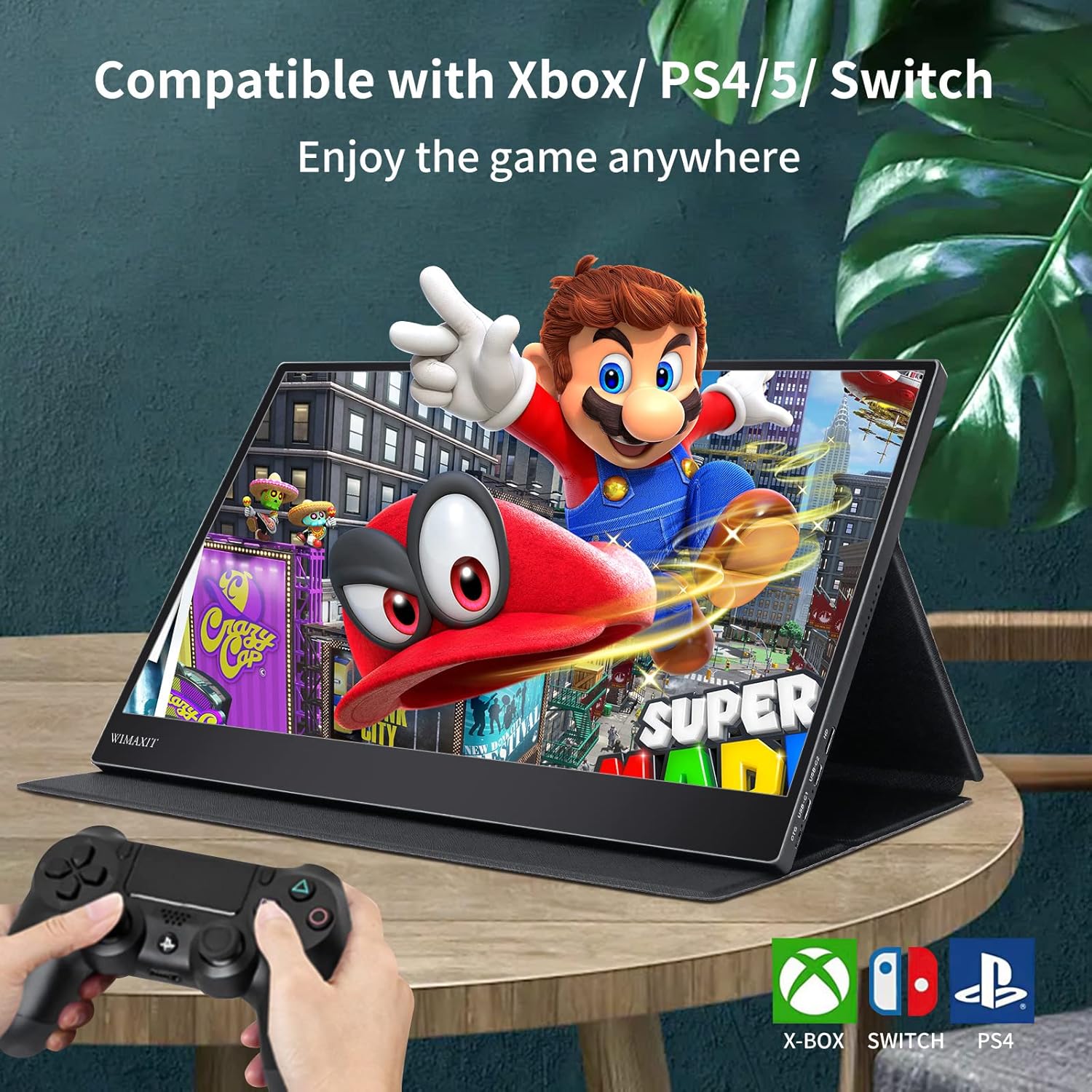
Image: The WIMAXIT Portable Monitor displaying a Nintendo Switch game, demonstrating its use as a portable gaming screen.
4. Instrucciones de funcionamiento
4.1. Controles básicos
- Botón de encendido: Press and hold to turn the monitor On/Off.
- Menu Control Wheel: Press to open the OSD (On-Screen Display) menu. Roll up/down to navigate, press to select.
4.2. Navegación por el menú OSD
The OSD menu allows you to adjust various settings:
- Brillo/Contraste: Adjust display brightness and contrast levels.
- Volumen: Control the built-in speaker volume.
- Configuración de color: Customize color temperature, hue, saturation, etc.
- Fuente de entrada: Manually select between USB-C1, USB-C2, or HDMI inputs.
- Flip de imagen: Adjust screen orientation (e.g., for teleprompter use).
- Modo HDR: Habilitar o deshabilitar el alto rango dinámico.
- Idioma: Seleccione el idioma del menú OSD.
Video: A seller demonstrates how to set up dual screens and activate touch functions on the WIMAXIT Portable Monitor, including navigating the OSD menu for brightness and volume adjustments.
4.3. Orientación de la pantalla
The monitor supports both landscape and portrait modes. You can adjust this in your connected device's display settings.

Image: The WIMAXIT Portable Monitor shown in both landscape and portrait orientations, demonstrating its versatility for different viewnecesidades de inversión.
5. Características
- Great Visual Experience: 15.6-inch IPS screen with 1920x1080 native resolution, 16:9 aspect ratio, 250cd/m2 brightness, and 800:1 Contrast Ratio.
- Conectar y usar: Equipped with 2 USB Type-C ports and a Mini-HDMI port for easy connection to various devices with a single cable solution.
- Portable Touchscreen: Supports 10-point capacitive touch function for Windows OS and Mac OS (single touch with full functions for 2019 and later MacBook versions via Type-C).
- Boosting Work Efficiency: Easily add extra screen space to your laptop. Connect a keyboard or mouse via the micro USB OTG adapter for enhanced productivity.
- Portable Anti-Glare Monitor: Lightweight and compact design with a premium black metal appearance. Features 2 built-in speakers and a friendly menu control wheel.
6. Especificaciones
| Característica | Especificación |
|---|---|
| Tamaño de pantalla | 15.6 pulgadas |
| Resolución | 1920 x 1080 píxeles (FHD 1080p) |
| Relación de aspecto | 16:9 |
| Brillo de la imagen | 250 cd/m2 |
| Relación de contraste | 800:1 |
| Tipo de panel | IPS |
| Superficie de la pantalla | Glossy (Anti-Glare) |
| Función táctil | Táctil capacitivo de 10 puntos |
| Conectividad | 2x USB Type-C, 1x Mini-HDMI, 1x Micro USB OTG, 1x 3.5mm Audio Jack |
| Altavoces incorporados | Sí (2 altavoces) |
| Peso del artículo | 1.7 libras |
| Dimensiones del producto | 11.81 x 1.97 x 7.87 pulgadas |
| Montaje VESA | Yes (75*75mm design) |
7. Mantenimiento
- Limpieza: Use the provided cleaning cloth to gently wipe the screen. For stubborn smudges, use a screen-safe cleaning solution applied to the cloth, not directly to the screen.
- Almacenamiento: When not in use, fold the magnetic smart cover to protect the screen. Store in a cool, dry place away from direct sunlight and extreme temperatures.
- Manejo: Evite dejar caer el monitor o someterlo a impactos fuertes. No coloque objetos pesados sobre él.
8. Solución de problemas
- Sin señal: Ensure all cables are securely connected. Verify that your device's output settings are configured to extend or duplicate the display. Try selecting the input source manually via the OSD menu.
- Sin funcionalidad de pantalla táctil: For Windows, ensure the USB-C to USB-C cable is connected to a full-featured USB-C port on your laptop that supports data, video, and power. If using HDMI, ensure a separate USB cable is connected for touch data. For Mac OS, touchscreen functionality is supported for 2019 and later MacBook versions via Type-C.
- Pantalla parpadeante: Check cable connections. Ensure the monitor is receiving adequate power. Try adjusting the refresh rate or resolution on your device.
- Sin sonido: Check the monitor's volume settings in the OSD menu. Ensure your device's audio output is directed to the monitor. If using an external audio device, ensure it's connected to the 3.5mm audio jack.
- Problemas de energía: Ensure the power adapter is correctly connected or that your USB-C source provides sufficient power.
9. Garantía y soporte
WIMAXIT provides professional support for its products. For any connection issues or technical assistance, please contact the 24/7 professional support team. Refer to the included Warranty Card for detailed warranty information and terms.
Manufacturer: wimaxit