
1. Introducción
This manual provides detailed instructions for the RisoPhy Wireless Mechanical Keyboard. This keyboard offers versatile connectivity options, customizable RGB backlighting, and programmable keys, designed for both gaming and everyday use. Please read this manual thoroughly to ensure proper setup and operation of your device.
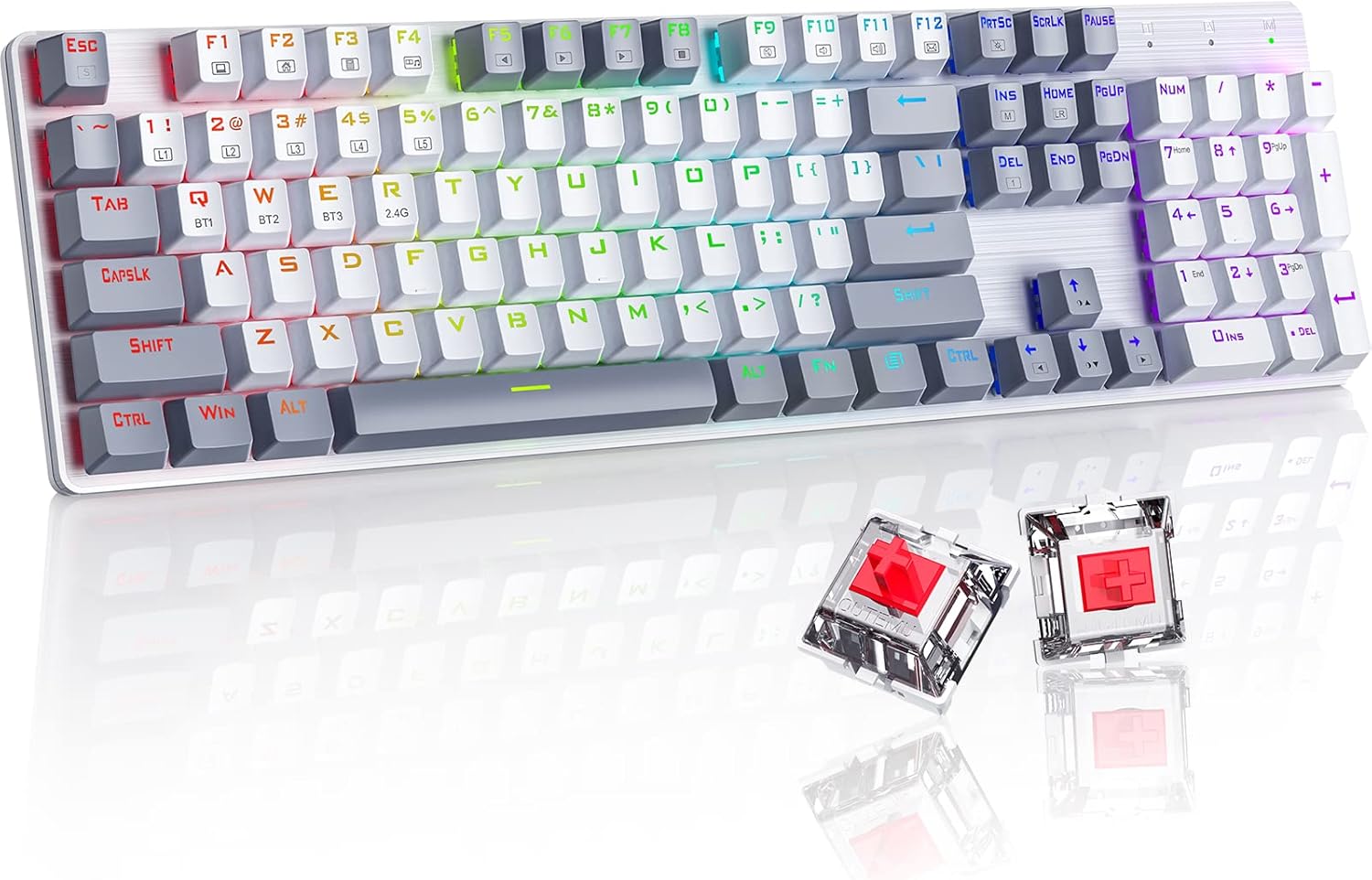
Image: The RisoPhy Wireless Mechanical Keyboard, showcasing its full 104-key layout, RGB backlighting, and two red mechanical switches detached for display.
2. Contenido del paquete
Verifique que todos los artículos estén presentes en su paquete:
- 1 x RisoPhy Wireless Mechanical Keyboard
- 1 x cable USB tipo C
- 1 receptor USB de 2.4 GHz.
- 1 x Manual de usuario (este documento)
- 1 x Extractor de teclas

Image: A visual representation of the package contents, including the keyboard, USB-C cable, 2.4GHz receiver, user manual, and keycap puller.
3. Configuración y conectividad
The RisoPhy keyboard supports three connection modes: Wired (USB-C), 2.4GHz Wireless, and Bluetooth. You can connect up to 5 devices simultaneously (1 via 2.4G, 3 via Bluetooth, 1 via Wired).

Image: An illustration demonstrating the three connectivity modes: Bluetooth 5.0, 2.4G Wireless, and Wired Mode, with the keyboard connected to a PC, laptop, and tablet.
3.1 Modo cableado
- Connect the provided USB Type-C cable to the keyboard's port and the other end to your computer's USB port.
- El teclado será reconocido automáticamente y estará listo para usarse.
3.2 Modo inalámbrico de 2.4 GHz
- Locate the 2.4GHz USB receiver in the keyboard's storage compartment (usually on the underside).
- Conecte el receptor USB a un puerto USB disponible en su computadora.
- Switch the keyboard's mode selector to 2.4G. The keyboard will connect automatically.
3.3 Modo Bluetooth
El teclado admite hasta tres dispositivos Bluetooth (BT1, BT2, BT3).
- Cambie el selector de modo del teclado a Bluetooth.
- To pair a new device, press and hold FN + Q (BT1), FN + W (BT2), o FN + E (BT3) Durante 3-5 segundos hasta que la tecla correspondiente (Q, W o E) parpadee rápidamente. Esto indica el modo de emparejamiento.
- En su dispositivo (PC, computadora portátil, tableta, teléfono), habilite Bluetooth y busque nuevos dispositivos.
- Select "RisoPhy Keyboard" (or similar name) from the list of available devices to complete pairing.
- Una vez emparejado, la tecla (Q, W o E) dejará de parpadear y permanecerá encendida.
3.4 Cambiar entre dispositivos conectados
To switch between paired Bluetooth devices or the 2.4G connection:
- For Bluetooth devices: Briefly press FN+Q, FN + W, o FN + E to switch to the corresponding paired device.
- For 2.4G Wireless: Ensure the mode selector is set to 2.4G.
4. Características de funcionamiento
4.1 Control de retroiluminación RGB
The keyboard features 20 RGB backlight modes, 16.8 million colors, and 5 brightness levels. Use the following FN key combinations to control the backlighting:
- FN + INS: Switch Backlight Mode (cycle through 20 modes).
- FN + ↑:Aumenta el brillo de la luz de fondo.
- FN + ↓:Disminuir el brillo de la luz de fondo.
- FN + ←: Speed Down Backlight Effect.
- FN + →: Speed Up Backlight Effect.
- FN + Supr: Switch Backlight Color (for modes that support color changes).
- FN + PRTSC: Turn On/Off Backlight.

Image: A close-up of the keyboard's right side, highlighting the FN key combinations for controlling RGB backlight modes, brightness, speed, and color.
4.2 Custom Lighting Modes
The keyboard offers 5 custom lighting modes (FN+1 to FN+5).
- Prensa FN + 1~5 to enter one of the custom lighting modes.
- While in a custom mode, press FN + Inicio to begin customizing the light.
- Press each key you wish to customize to set its light to your preferred color.
- After customization, press FN + Inicio again to save the settings for that custom mode.
4.3 Teclas programables y macros
All 104 keys can be reassigned, and macros can be created using the dedicated driver software. This allows for personalized key functions and complex command sequences for enhanced productivity or gaming.
- Download the RisoPhy keyboard driver software from the official websitio.
- Instale el software en su computadora.
- Use the software interface to remap keys, create macros, and fine-tune RGB lighting effects.

Image: A screenshot of the RisoPhy keyboard's software interface, showing options for backlight customization, programmable key settings, and macro creation.
4.4 Teclas multimedia y de función
The keyboard includes dedicated FN key combinations for multimedia control and system functions:
| Combinación de teclas | Función |
|---|---|
| FN + F1 | Mi computadora |
| FN + F2 | Página de inicio |
| FN + F3 | Calculadora |
| FN + F4 | Reproductor multimedia |
| FN + F5 | Canción anterior |
| FN + F6 | Próxima canción |
| FN + F7 | Reproducir/Pausa |
| FN + F8 | Deje de Jugar |
| FN + F9 | Silenciar |
| FN + F10 | Bajar volumen |
| FN + F11 | Subir volumen |
| FN + F12 | Correo electrónico |

Image: A visual guide to the FN key combinations (F1-F12) and their corresponding multimedia and system functions.
5. Mantenimiento
5.1 Limpieza del teclado
La limpieza regular ayuda a mantener el rendimiento y la apariencia del teclado.
- Desconecte el teclado de todas las fuentes de alimentación antes de limpiarlo.
- Utilice un paño suave y sin pelusa ligeramente seco.ampLimpie con agua o una solución de limpieza suave las teclas y el chasis.
- Para eliminar el polvo y los residuos entre las teclas, utilice aire comprimido.
- Evite utilizar productos químicos agresivos o materiales abrasivos.
5.2 Extracción y reemplazo de teclas
The keyboard features durable PBT keycaps. You can remove them for deeper cleaning or customization using the provided keycap puller.
- Coloque con cuidado el extractor de teclas en la tecla que desea quitar.
- Pull upwards with steady, even pressure until the keycap detaches from the switch stem.
- Para reemplazarlo, alinee la tecla con el vástago del interruptor y presione firmemente hasta que encaje en su lugar.

Image: A close-up showing keycaps removed from the keyboard, revealing the mechanical switches underneath, alongside a keycap puller tool.
6. Solución de problemas
If you encounter issues with your RisoPhy keyboard, refer to the following common solutions:
| Problema | Posible solución |
|---|---|
| El teclado no responde en modo inalámbrico. | Ensure the keyboard is charged. Check if the 2.4G receiver is properly plugged in or if Bluetooth is paired. Switch to wired mode to confirm basic functionality. |
| Problemas de conexión Bluetooth. | Ensure the keyboard is in Bluetooth mode and the correct BT channel (Q, W, or E) is selected. Forget the device on your computer/phone and re-pair. Ensure your device's Bluetooth is enabled. |
| Backlighting not working or incorrect. | Prensa FN + PRTSC to toggle backlighting. Adjust brightness with FN + ↑/↓. Cycle modes with FN + INS. |
| Keys double-typing or not registering. | Clean under the keycaps. If the issue persists, it might indicate a switch problem. Contact customer support if under warranty. |
| El teclado no se carga. | Ensure the USB Type-C cable is securely connected to both the keyboard and a working USB port. Try a different cable or USB port. |
7. Especificaciones
- Modelo: RisoPhy
- Conectividad: Conexión inalámbrica 2.4G, Bluetooth 5.0, cable USB-C
- Recuento de claves: 104 teclas
- Tipo de interruptor: Interruptores rojos mecánicos
- Teclas: Bicolor PBT Keycaps
- Contraluz: RGB (20 modes, 16.8 million colors, 5 brightness levels)
- Programabilidad: All keys programmable, macro support via driver
- Anti-efecto fantasma: Cambio de teclas N
- Dispositivos compatibles: PC, Laptop, Gaming Console, Phone, Tablet
- Material: Acrilonitrilo butadieno estireno (ABS)
- Peso del artículo: Aproximadamente 2.01 libras (0.91 kg)
- Dimensiones del paquete: 17.68 x 5.91 x 2.17 pulgadas (44.9 x 15 x 5.5 cm)

Image: A close-up of the mechanical red switches, detailing their specifications such as 80 million click life, 40g force, and 2.0mm distance, along with a force-travel diagram.
8. Garantía y soporte
RisoPhy products are designed for reliability and performance. For warranty information, please refer to the documentation included with your purchase or visit the official RisoPhy website. If you require technical assistance or have questions not covered in this manual, please contact RisoPhy customer support.
Puede encontrar más información y datos de contacto en el RisoPhy Store.

Imagen: Un representante de atención al cliente usa un auricular, lo que simboliza la asistencia disponible para consultas sobre productos.