1. Introducción
This manual provides detailed instructions for the operation and maintenance of your CamGo 4K 30FPS WiFi HD Underwater Waterproof Action Camera. Please read this manual thoroughly before using the camera to ensure proper function and to maximize your experience. This camera is designed for capturing high-quality video and photos in various environments, including underwater up to 30 meters.
2. Información de seguridad
- Ensure the waterproof case is properly sealed before submerging the camera in water. Failure to do so will result in water damage and void the warranty.
- No exponga la cámara a temperaturas extremas ni a la luz solar directa durante períodos prolongados.
- Utilice únicamente cargadores y accesorios aprobados.
- Mantenga la cámara y los accesorios fuera del alcance de los niños.
- Evite dejar caer o someter la cámara a impactos fuertes.
- After underwater use, rinse the waterproof case with fresh water and allow it to dry completely before opening.
3. Contenido del paquete
Verifique que todos los artículos estén presentes en su paquete:
- CamGo 4K Action Camera
- Estuche impermeable
- Batería recargable de iones de litio
- Cable USB
- Various Mounts and Accessories (e.g., helmet mount, bicycle mount, adhesive mounts, bandages, cleaning cloth)
- Manual de usuario

Figura 3.1: Included accessories for the CamGo 4K Action Camera. This image displays the camera's waterproof housing, various mounting brackets, straps, a USB charging cable, and a cleaning cloth, illustrating the comprehensive set of tools provided for diverse usage scenarios.
4. Producto terminadoview
Familiarícese con los componentes y controles de la cámara.
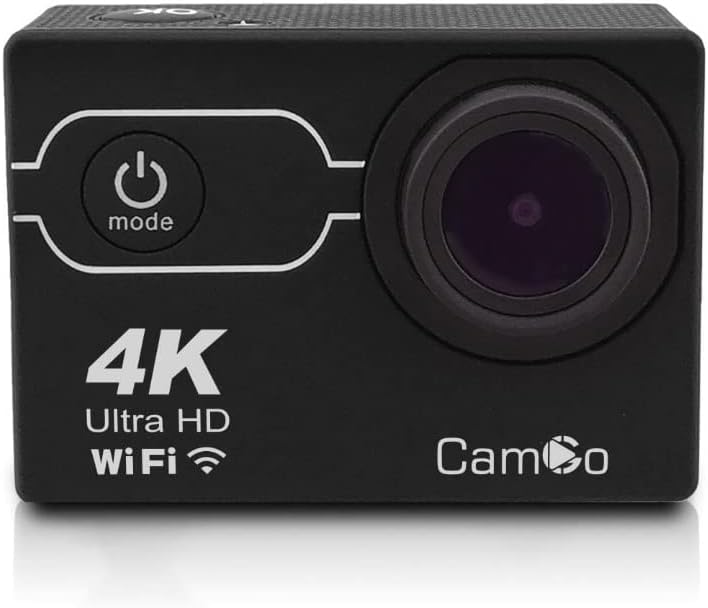
Figura 4.1: Frente view of the CamGo 4K Action Camera. This image shows the camera's lens, power/mode button, and the '4K Ultra HD WiFi' branding on the front panel, indicating its core features.
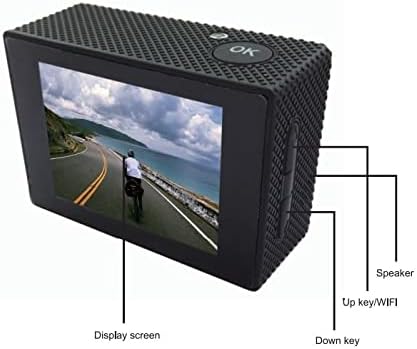
Figura 4.2: Atrás view of the CamGo 4K Action Camera. This image highlights the display screen, the 'OK' button, and labels for the 'Up key/WiFi' and 'Down key' on the side, along with the speaker, providing a clear guide to the camera's rear controls and display.

Figura 4.3: Lado view diagram of the CamGo 4K Action Camera. This technical drawing illustrates the placement of the Micro SD card slot, USB port, HD OUT port, and MIC input, along with the Up/WiFi and Down buttons and speaker, detailing the camera's connectivity and controls.
4.1. Botones y puertos
- Botón de encendido / modo: Located on the front. Press to power on/off, short press to switch modes.
- Botón OK: Located on top. Press to confirm selections or start/stop recording.
- Up/WiFi Button: Located on the side. Used for navigation in menus and to activate WiFi.
- Botón Abajo: Located on the side. Used for navigation in menus.
- Ranura para tarjeta micro SD: Para insertar la tarjeta de memoria.
- Puerto USB: Para carga y transferencia de datos.
- Puerto HDMI: Para conectar a un televisor o monitor.
- Vocero: Para reproducción de audio.
5. Configuración
5.1. Instalación y carga de la batería
- Abra la tapa del compartimiento de la batería en la parte inferior de la cámara.
- Inserte la batería de iones de litio, asegurándose de la polaridad correcta.
- Cierre bien la tapa del compartimento de la batería.
- Connect the camera to a power source using the provided USB cable for charging. The charging indicator will illuminate during charging and turn off when fully charged.
5.2. Instalación de la tarjeta MicroSD
A Class 10 or higher MicroSD card (up to 64GB) is required for recording. The card is not included.
- Localice la ranura para tarjeta MicroSD en el costado de la cámara.
- Inserte la tarjeta MicroSD con los contactos dorados hacia la parte posterior de la cámara hasta que encaje en su lugar.
- Para quitarla, empuje suavemente la tarjeta hasta que salga.
5.3. Uso de la funda impermeable
La carcasa impermeable permite sumergir la cámara hasta 30 metros.
- Asegúrese de que la cámara esté limpia y seca antes de colocarla dentro del estuche.
- Carefully place the camera into the waterproof case.
- Close the latch securely. Ensure the rubber seal is clean and free of debris to prevent leaks.
- Before first use, or after any maintenance, it is recommended to test the waterproof case without the camera inside by submerging it in water for a short period to check for leaks.

Figura 5.1: CamGo 4K Action Camera in its waterproof case. This image displays the camera securely housed within its transparent waterproof casing, ready for underwater use, highlighting the protective design.
6. Instrucciones de funcionamiento
6.1. Encendido y apagado
- Encendido: Mantenga presionado el botón de Encendido/Modo durante 3-5 segundos.
- Apagado: Mantenga presionado el botón de Encendido/Modo durante 3-5 segundos.
6.2. Selección de modo
After powering on, short press the Power/Mode button to cycle through the main modes:
- Modo de grabación de vídeo
- Modo fotografía
- Modo de reproducción
- Menú de configuración
6.3. Grabación de vídeo
- Switch to Video Recording Mode. The video icon will appear on the screen.
- Press the OK button to start recording. A red dot or timer will indicate recording is in progress.
- Presione el botón OK nuevamente para detener la grabación.
6.4. Tomar fotografías
- Switch to Photo Mode. The camera icon will appear on the screen.
- Presione el botón OK para tomar una foto.
6.5. WiFi Connectivity (XDV App)
The camera features built-in WiFi for remote control and file transfer via the XDV app.
- Download the 'XDV' app from your smartphone's app store (available for Android and iOS).
- On the camera, short press the Up/WiFi button to activate WiFi. The WiFi icon will appear on the screen.
- On your smartphone, go to WiFi settings and connect to the camera's WiFi network (e.g., 'CamGo_XXXX'). The default password is usually '1234567890'.
- Abra la aplicación XDV para controlar la cámara, view vivir footage, y descargar files.
6.6. Connecting to TV/PC
- Salida HDMI: Connect the camera to a TV or monitor using an HDMI cable (not included) to view photos and videos on a larger screen.
- Conexión USB: Conecte la cámara a una computadora mediante el cable USB. La cámara aparecerá como un disco extraíble, lo que le permitirá transferir files.
6.7. Modos de grabación especiales
Access these modes via the Settings Menu:
- Grabación en bucle: Records video in segments, overwriting the oldest files cuando la tarjeta de memoria está llena.
- Lapso de tiempo: Captures photos at set intervals to create a time-lapse video.
- Cámara lenta: Graba vídeo a una velocidad de cuadros más alta para reproducción en cámara lenta.
- Modo de buceo: Adjusts color balance for underwater shooting to compensate for blue/green hues.
- Modo coche: Functions as a dashcam, starting recording automatically when powered on.
7. Mantenimiento
- Limpieza: Utilice un paño suave y sin pelusa para limpiar la lente y la pantalla de la cámara. En caso de usar la carcasa impermeable, enjuáguela con agua dulce después de usarla en agua salada y déjela secar al aire.
- Almacenamiento: Guarde la cámara en un lugar fresco y seco, alejada de la luz solar directa. Retire la batería si la va a guardar durante un tiempo prolongado.
- Cuidado de la batería: Cargue completamente la batería antes del primer uso. Evite descargarla por completo con frecuencia para prolongar su vida útil.
8. Solución de problemas
| Problema | Posible solución |
|---|---|
| La cámara no se enciende. | Asegúrese de que la batería esté cargada e insertada correctamente. Intente cargar la cámara. |
| No se pueden grabar vídeos ni tomar fotografías. | Check if a MicroSD card is inserted and has sufficient free space. Ensure the card is Class 10 or higher. Format the MicroSD card if necessary (this will erase all data). |
| Fuga de agua en carcasa impermeable. | Ensure the rubber seal is clean and free of debris. Verify the latch is securely closed. Do not use the camera underwater if leaks persist. |
| Problemas de conexión WiFi. | Ensure WiFi is enabled on the camera. Check your smartphone's WiFi settings and reconnect. Verify the correct password. |
| Mala calidad de imagen/video. | Clean the camera lens. Ensure adequate lighting. Check resolution settings in the camera menu. |
9. Especificaciones
| Característica | Especificación |
|---|---|
| Resolución de vídeo | 4K (30 FPS) |
| Resolución de la fotografía | 16MP (Sony 179 CMOS) |
| Lente | Gran angular de 170° |
| Conjunto de chips | Allwinner V3 |
| Profundidad impermeable | Hasta 30 metros (con carcasa impermeable) |
| Pantalla de visualización | LCD de 2.0 pulgadas |
| Almacenamiento | Micro SD Card, Class 10 or higher, up to 64GB |
| Conectividad | WiFi (Android & iOS App: XDV), HDMI, USB |
| Batería | 1 ion de litio (incluido) |
| Características especiales | Loop Recording, Diving Mode, Slow Motion, Time-Lapse, Car Mode |
10. Garantía y soporte
Your CamGo Action Camera is covered by a standard manufacturer's warranty against defects in materials and workmanship. Please refer to the warranty card included in your package for specific terms and conditions. For technical support or warranty claims, please contact your retailer or visit the official CamGo webSitio para obtener ayuda.
For further information or to download the XDV app, please visit the CamGo Store on Amazon.