
Introducción
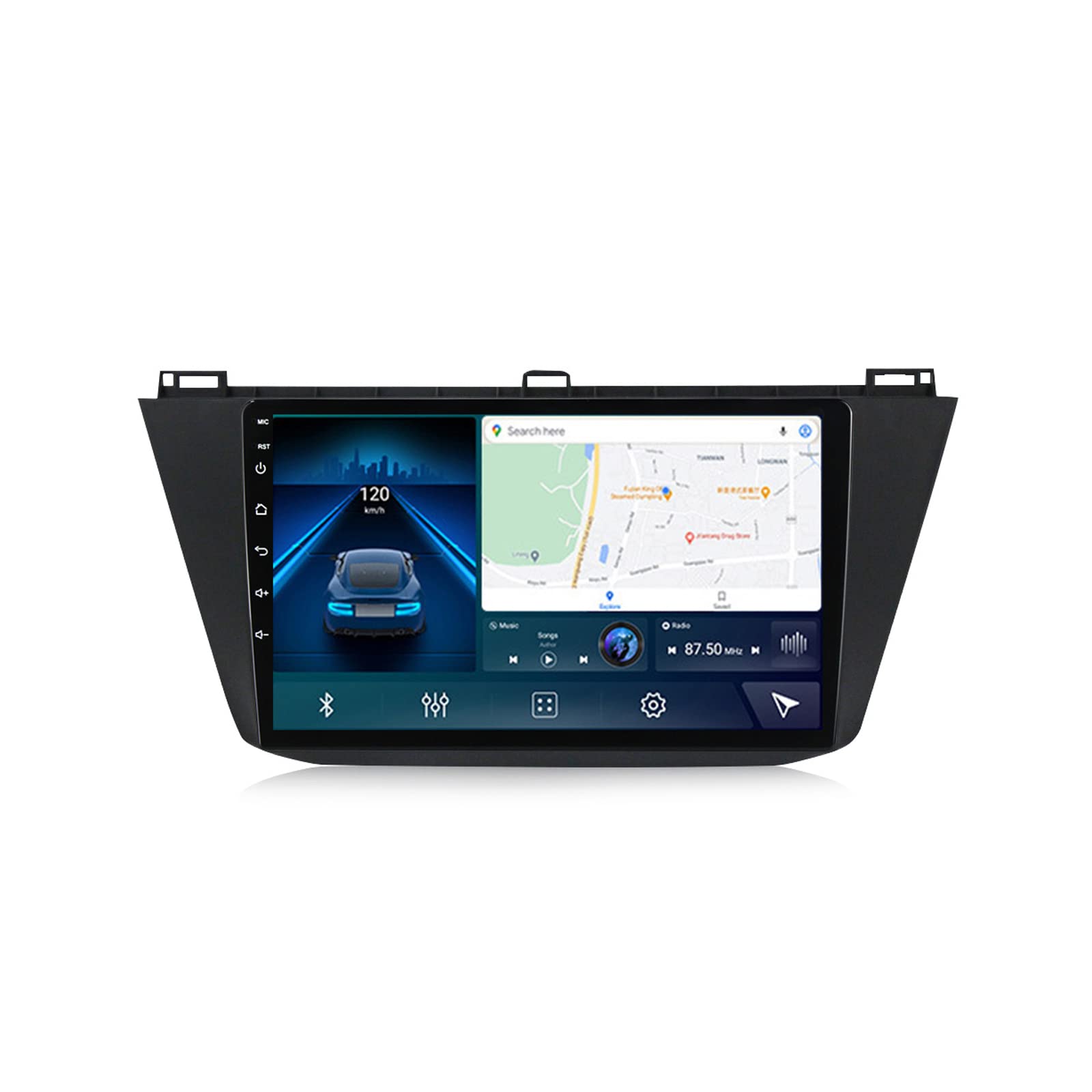
This manual provides comprehensive instructions for the installation, operation, and maintenance of your WDXSFR Android 11 Car Radio Multimedia Player. Designed for Volkswagen Tiguan models from 2017 to 2019, this system offers advanced features including GPS navigation, multimedia playback, and smart connectivity.
For successful installation, it is recommended that individuals with DIY experience refer to this manual or online video tutorials. If you are not familiar with car electronics, professional installation by a qualified auto repair shop is strongly advised.
Should you have any questions or require assistance, please contact our customer support for satisfactory after-sales service within 24 hours.
Contenido del paquete
Al desembalar, verifique que todos los componentes enumerados a continuación estén presentes y en buenas condiciones:
- Car multimedia radio unit (frame + headunit) x1
- Cable RCA x1
- Cable de salida de audio x1
- Reversing camera set x1
- Microphone (MIC) x1
- Antena GPS x1
- Antena 4G x1
- USB cables x2

Image: Various cables and antennas included with the car multimedia player, such as RCA, audio out, reversing camera, microphone, GPS antenna, 4G antenna, and USB cables.
Presupuesto
The WDXSFR Android 11 Car Radio Multimedia Player features advanced hardware and software for optimal performance:
| Característica | Descripción |
|---|---|
| Sistema operativo | Androide 11 |
| Procesador | Octa-core (7862 chip: Unisoc UIS7862, 2*Cortex A75 + 6*Cortex A55; 9863 chip: Unisoc UIS8581A, 8*Cortex A55) |
| Memoria (RAM + ROM) | Available in 2GB+32GB, 3GB+32GB (current model), 4GB+64GB, 6GB+128GB, 8GB+128GB configurations |
| Mostrar | Pantalla táctil IPS, resolución de 1280 x 720 |
| Reproducción de vídeo | Supports 1080P video |
| Bluetooth | Built-in Bluetooth 5.0 (supports music playback and hands-free calling) |
| Radio | FM/RDS Radio (DAB+ optional for EU countries) |
| Integración de teléfonos inteligentes | CarPlay inalámbrico integrado y Android Auto |
| Procesamiento de audio | Built-in DSP function, preset EQ and user customized 16-band EQ options |
| Navegación | Supports online and offline maps (GPS, BDS, GLONASS) |
| Conectividad | 4G card slot, 5GHz WIFI (802.11 b/g/n) |
| Características adicionales | Split screen function, Steering Wheel Control (SWC), Support for external devices (DVR, OBDII, TPMS) |
| Número de pieza | 1712980526--64000741 |

Image: A detailed table outlining the specifications for various car multimedia player models, including processor type, RAM/ROM, resolution, and supported features like CarPlay and DSP.
Configuración e instalación
This section provides general guidance for the physical installation and initial setup of your car multimedia player. Due to the complexity of vehicle wiring, professional installation is highly recommended.
Pasos de instalación física
- Preparación: Asegúrese de que la batería del vehículo esté desconectada antes de comenzar la instalación para evitar cortocircuitos eléctricos.
- Retire la unidad antigua: Carefully remove the existing car radio unit from the dashboard. Refer to your vehicle's specific service manual for detailed instructions on trim panel removal.
- Conectar el arnés de cableado: Connect the provided wiring harness to the car multimedia player and then to your vehicle's factory wiring. Ensure all connections are secure.
- Conectar periféricos: Connect the GPS antenna, 4G antenna, USB cables, microphone, and reversing camera (if applicable) to their respective ports on the new unit.
- Funcionalidad de prueba: Before fully reassembling the dashboard, temporarily connect the battery and power on the unit to test basic functions like power, display, and audio.
- Unidad segura: Once tested, carefully slide the new car multimedia player into the dashboard opening and secure it with the appropriate mounting brackets.
- Reensamblar el tablero: Reinstall all removed trim panels and components.

Image: The WDXSFR car multimedia player seamlessly integrated into the dashboard of a Volkswagen Tiguan, showcasing its large display and fit.

Image: An alternative perspective of the car multimedia player installed in a Volkswagen Tiguan, highlighting its position relative to the vehicle's controls.
Configuración inicial del sistema
After installation, power on the unit and follow the on-screen prompts for initial setup. Key settings include:
- Selección de idioma: Elija su idioma de sistema preferido.
- Fecha y hora: Establezca la fecha y hora correctas o habilite la sincronización automática mediante GPS/red.
- Configuración de la red: Connect to Wi-Fi or insert a 4G SIM card for internet access.
- Configuración de sonido: Adjust audio output and equalizer settings to your preference.

Image: Visual guide for initial setup, including wiring connections for the unit's rear panel and screenshots of the system settings menu for Wi-Fi, display, sound, and factory options.
Instrucciones de funcionamiento
This section details the various functions and features of your WDXSFR car multimedia player.
Funciones multimedia
The unit supports various multimedia formats for audio and video playback. You can play media from USB drives or stream via Bluetooth.
- Reproducción de vídeo: Supports 1080P video resolution for clear viewing on the IPS touch screen.
- Reproducción de audio: Access your music library through the built-in music player or stream via Bluetooth.
CarPlay y Android Auto
Seamlessly integrate your smartphone for navigation, communication, and entertainment.
- CarPlay inalámbrico: Conecte su iPhone de forma inalámbrica para acceder a aplicaciones iOS, hacer llamadas, enviar mensajes y usar Apple Maps.
- Android Auto con cable: Connect your Android phone via USB to use Google Maps, listen to music, and interact with Google Assistant.
Image: Displays the user interface for both wireless CarPlay (iOS system) and wired Android Auto, showing connection steps and typical app layouts.
Funcionalidad Bluetooth
Connect your mobile device via Bluetooth 5.0 for hands-free calling and audio streaming.
- Llamadas manos libres: Make or receive calls directly from the car stereo. The unit supports phonebook synchronization and call history.
- Música Bluetooth Transmite audio desde tu teléfono a los altavoces del automóvil.
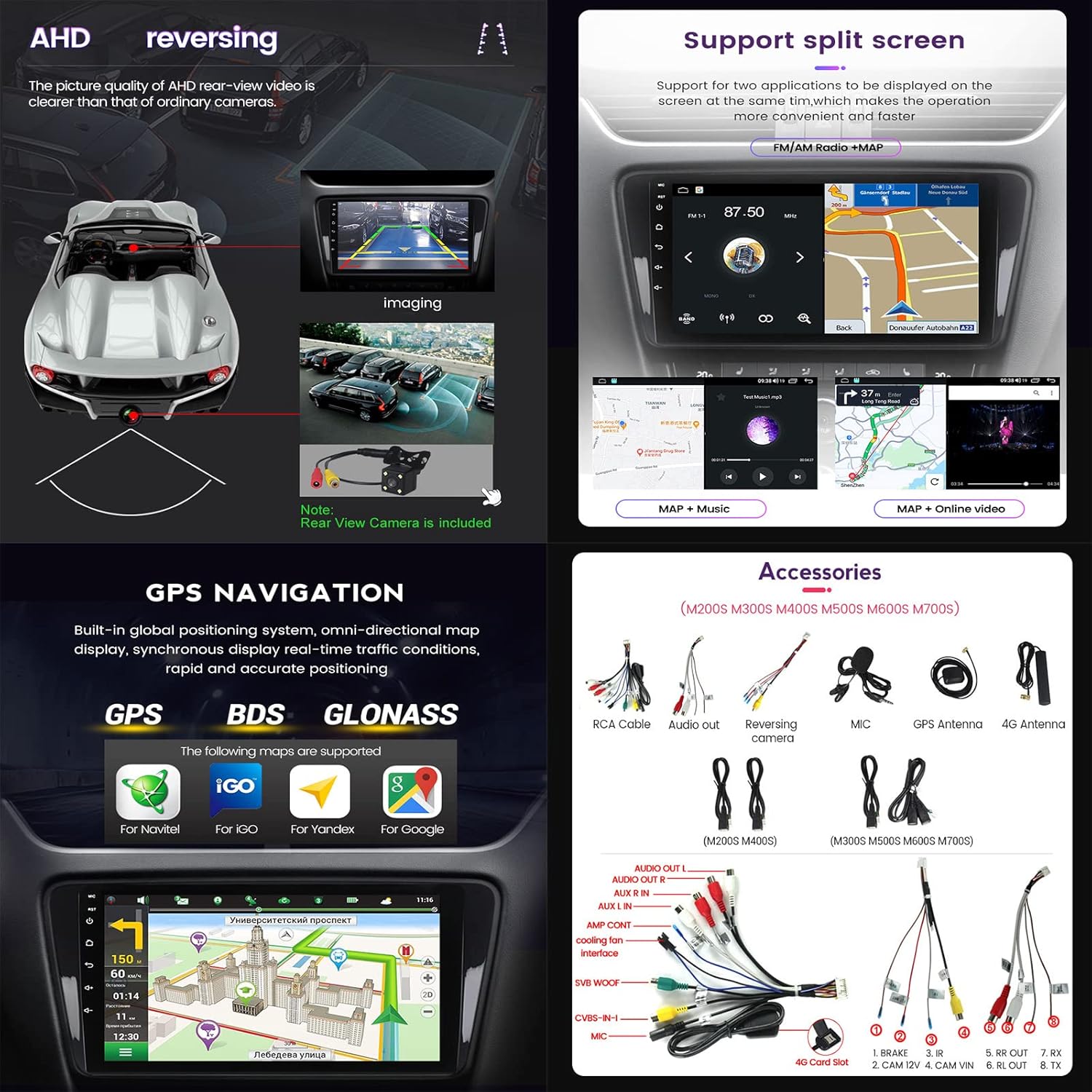
Image: Illustrates the Bluetooth interface, including options for phonebook search, incoming calls, dial pad, and music playback, emphasizing safe operation while driving.
Radio FM/RDS
Disfrute de sus estaciones de radio favoritas con una recepción nítida.
- Búsqueda automática: The system can automatically search and store available radio stations.
- Soporte RDS: Radio Data System (RDS) provides additional information like station name and song title.
- DAB+ (opcional): Digital Audio Broadcasting Plus is supported in EU countries with an optional external module.
Image: Shows the FM/AM radio interface with frequency display, station list, and options for automatic search and RDS. Also depicts the optional DAB+ module.
Función de pantalla dividida
Realice múltiples tareas mostrando dos aplicaciones simultáneamente en la pantalla.
- Por ejemploample, tu puedes view navigation maps on one side and control music playback on the other.
Imagen: Una pantalla dividida view showing a navigation map on one side and a music player interface on the other, illustrating simultaneous application usage.
Navegación GPS
La unidad cuenta con un sistema de posicionamiento global incorporado para una navegación precisa.
- Admite mapas en línea y fuera de línea.
- Compatible with various mapping applications (e.g., iGO, Navitel, Yandex, Google Maps).
- Provides real-time traffic conditions and dynamic route planning.
Image: The GPS navigation interface displaying a map with route information and supported mapping services like iGO, Navitel, Yandex, and Google.
Control del volante (SWC)
Control essential functions of the multimedia player directly from your vehicle's steering wheel buttons.
- This feature enhances safety by allowing you to manage audio, calls, and navigation without taking your hands off the wheel.
Image: A hand interacting with the steering wheel controls, demonstrating how to safely manage the car stereo's functions without distraction.
Day/Night UI Switching
The user interface automatically adjusts between day and night modes for optimal visibility and reduced glare.
Image: Side-by-side comparison of the car stereo's user interface in bright "Day interface" mode and darker "Night interface" mode for improved visibility in varying light conditions.
Soporte para cámara de marcha atrás
Enhance parking safety with automatic display of the rear view cuando el vehículo está en marcha atrás.
- The included reversing camera provides a clear, wide-angle view.
- AHD (Analog High Definition) support ensures high-quality video feed.
Image: A visual representation of the reversing camera system, showing the camera's placement, the wide field of view, and how the image is displayed on the car stereo screen for safe parking.
Funciones avanzadas
Conectividad 4G LTE
Stay connected on the go with built-in 4G LTE support.
- Insert a 4G SIM card into the dedicated slot to access online music, videos, navigation, and other internet services.
Image: A graphic illustrating the 4G LTE connectivity feature, showing the SIM card slot and various online activities enabled by the connection, such as music, video, and navigation.
Compatibilidad con WiFi de 5 GHz
Connect to high-speed wireless networks for faster data transfer and smoother online experiences.
- Supports 802.11 b/g/n standards for broad compatibility.
- Offers faster transmission speeds and wider coverage compared to 2.4GHz WiFi.
Image: A graphic highlighting the 5GHz WiFi support, detailing its benefits such as fast transmission, wide coverage, and stable connection.
Procesador de sonido digital (DSP)
The built-in DSP function allows for precise audio tuning and customization.
- Offers a 16-band EQ with preset and user-customizable options to tailor the sound to your preference and vehicle acoustics.
- Provides crystal clear sound quality for a wide variety of music styles.
Compatibilidad con dispositivos externos (opcional)
The unit is compatible with several external devices to expand its functionality:
- DVR (grabadora de vídeo de conducción): Connect an optional DVR for front collision warning, lane deviation warning, and recording driving footage.
- OBDII (On-Board Diagnostics): Use an OBDII scanner (not included) to diagnose your car's status, read real-time data, and check fault codes.
- TPMS (Sistema de monitoreo de presión de neumáticos): Integrate an optional TPMS to monitor tire pressure and temperature in real-time, enhancing driving safety.
Image: Visual explanations of the optional ADAS DVR for anti-collision warning, the OBDII system for vehicle diagnostics, and the TPMS for real-time tire pressure monitoring.
Mantenimiento
Proper maintenance ensures the longevity and optimal performance of your car multimedia player.
- Limpieza de pantalla: Use a soft, lint-free cloth specifically designed for electronic screens to gently wipe the display. Avoid abrasive cleaners or harsh chemicals.
- Actualizaciones de software: Periodically check for software updates provided by WDXSFR to ensure the system has the latest features and bug fixes. Updates can improve performance and compatibility.
- Condiciones ambientales: Evite exponer la unidad a temperaturas extremas, luz solar directa durante períodos prolongados o humedad excesiva.
- Ventilación: Asegúrese de que las aberturas de ventilación de la unidad no estén bloqueadas para evitar el sobrecalentamiento.
Solución de problemas
Esta sección aborda problemas comunes que podrías encontrar. Si tienes problemas que no se enumeran aquí, contacta con atención al cliente.
| Problema | Posible causa | Solución |
|---|---|---|
| Sin poder | Conexión de alimentación suelta; fusible quemado; problema con la batería del vehículo. | Revise todos los cables y conexiones de alimentación. Inspeccione los fusibles del vehículo y reemplácelos si es necesario. Asegúrese de que la batería del vehículo esté cargada. |
| Sin sonido | Volume too low or muted; Loose speaker wires; Incorrect audio settings. | Increase volume and check mute status. Verify speaker wire connections. Check audio output settings in the system menu. |
| La pantalla táctil no responde | Congelamiento del sistema; falla del software. | Perform a soft reset (refer to manual for specific reset button location, usually a small pinhole). If issue persists, try a factory reset (data will be lost). |
| Señal GPS perdida/inexacta | GPS antenna obstruction or faulty connection; Outdated map data. | Asegúrese de que la antena GPS tenga una vista clara. view of the sky and is securely connected. Update map data if available. |
| Problemas de conexión Bluetooth | Device not in pairing mode; Interference; Software issue. | Ensure Bluetooth is enabled on both devices and in pairing mode. Delete previous pairings and re-pair. Restart both devices. |
Apoyo
For any questions, technical assistance, or after-sales service regarding your WDXSFR Android 11 Car Radio Multimedia Player, please contact our dedicated support team.
We are committed to providing satisfactory assistance within 24 hours.
Please have your product model (7862 3G+32G) and any relevant purchase information ready when contacting support to expedite the process.