
wifi smart camera A8
Manual del usuario de la cámara de seguridad inteligente IP WiFi A8
Marca: wifi smart camera | Modelo: A8
1. Introducción
Thank you for choosing the Smart IP WiFi Security Camera A8. This manual provides detailed instructions on how to set up, operate, and maintain your camera to ensure optimal performance and security for your home or business. Please read this manual carefully before use and keep it for future reference.
Contenido del paquete:
- Smart IP WiFi Security Camera A8
- Adaptador de corriente
- Tornillos de montaje y tacos de pared
- Manual de usuario (este documento)
2. Características principales
- Resolución Full HD: Proporciona información de video clara y detallada.tage.
- Acceso remoto: View live feed and recordings from anywhere via your mobile phone (Android/iOS compatible).
- Panorámica/inclinación/zoom (PTZ): Controlar la cámara de forma remota viewángulo de ing.
- Audio bidireccional: Micrófono y altavoz incorporados para comunicación.
- Visión nocturna infrarroja: Clear black and white video in low light conditions up to 10 meters.
- Visión nocturna en color: Built-in LED lights enable full-color recording day and night.
- Detección de movimiento: Receive real-time alerts on your mobile phone upon detecting movement.
- Almacenamiento local: Supports Micro SD card up to 128GB for continuous recording.
- Almacenamiento en la nube: Option for cloud recording via the ICSee application.
- Multiusuario Viewen: Share access with multiple users.
- Soporte multiplataforma: Compatible con varios dispositivos.
- Fácil instalación: Diseñado para una configuración sencilla.
- Resistente al agua IP66: Durable design for outdoor use, resistant to weather, anti-lighting, thermostability, and antifreeze.
3. Guía de configuración
3.1 Instalación física
Before mounting, ensure you have a stable Wi-Fi signal at the desired installation location.
- Elegir la ubicación: Seleccione una ubicación adecuada para la cámara, asegurándose de que tenga un espacio libre view y está dentro del alcance de Wi-Fi.
- Montaje: Utilice los tornillos y tacos proporcionados para montar la cámara de forma segura en una pared o en el techo.
- Conexión de energía: Connect the power adapter to the camera and plug it into a power outlet. The camera will power on and perform a self-test.
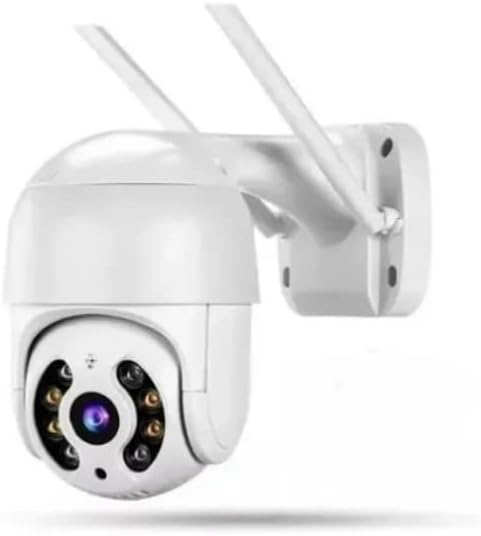
Figura 3.1: Sobreview of the Smart IP WiFi Security Camera A8. This image shows the camera's main body with two antennas, designed for outdoor mounting.

Figure 3.2: Detailed diagram of the camera showing dimensions and key components. Labels include Dual Antenna, Speaker, Microphone, Lens, White LEDs, IR Sensor, and TF Card Slot. Dimensions are provided as 139mm height and 89mm width for the camera body, and 78mm for the mounting bracket.

Figure 3.3: Image illustrating the camera's IP66 waterproof rating. It shows the camera mounted outdoors with a person running in the rain, highlighting its weatherproof, anti-lighting, thermostability, and antifreeze features.
3.2 App Installation and Configuration (ICSee App)
- Descargar aplicación: Buscar "ICSee" in your mobile app store (Google Play Store for Android or Apple App Store for iOS) and download the application.
- Registrar Cuenta: Open the ICSee app and follow the prompts to register a new account.
- Agregar dispositivo:
- Toque el ícono "+" para agregar un nuevo dispositivo.
- Select "Add Camera" or "Wi-Fi Camera".
- Follow the on-screen instructions to connect the camera to your Wi-Fi network. This usually involves scanning a QR code on the camera or using an audio pairing method.
- Configurar la clave: Cree una contraseña segura para su cámara por seguridad.
- Nombre de la cámara: Asigne un nombre a su cámara (por ejemplo, "Puerta de entrada", "Patio trasero").
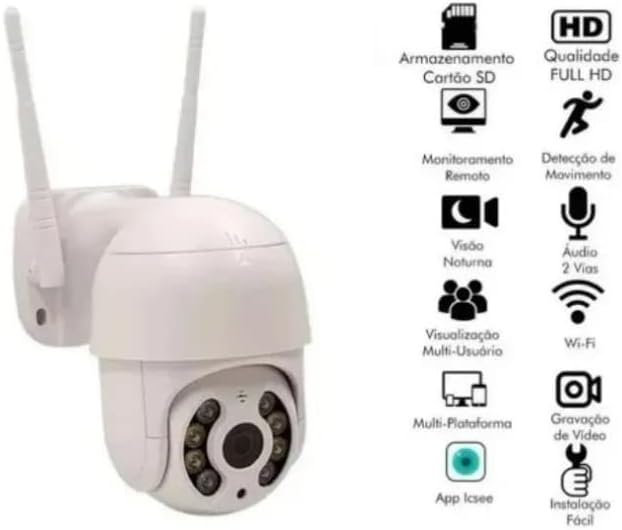
Figure 3.4: Visual representation of the camera's features and its compatibility with the ICSee app. Icons indicate SD card storage, Full HD quality, motion detection, night vision, two-way audio, multi-user viewing, multi-platform support, and easy installation, all managed via the ICSee app.
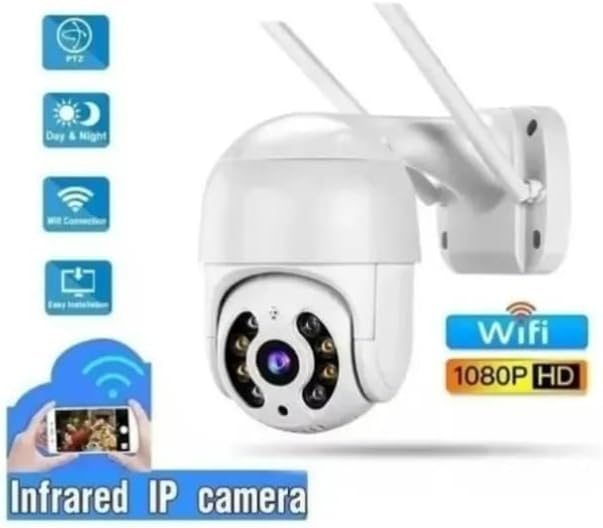
Figure 3.5: An image highlighting key functionalities of the camera, including PTZ (Pan/Tilt/Zoom), Day & Night vision, Wi-Fi connection, and easy installation. It also shows a smartphone displaying the camera's live feed, emphasizing remote access.
3.3 Instalación de la tarjeta Micro SD (opcional)
To enable local video recording, install a Micro SD card (up to 128GB, not included).
- Localizar ranura: Refer to Figure 3.2 to locate the TF Card Slot on the camera.
- Insertar tarjeta: Inserte suavemente la tarjeta Micro SD en la ranura hasta que encaje en su lugar.
- Formatear tarjeta: Within the ICSee app, navigate to the camera settings and format the SD card. This is crucial for proper recording.
4. Operación
4.1 en vivo View
Open the ICSee app and select your camera from the device list to view the live feed. You can pinch to zoom and use on-screen controls for PTZ.
4.2 Audio bidireccional
Toque el icono del micrófono en vivo view interface to speak through the camera's speaker. Tap the speaker icon to listen to audio from the camera's microphone.

Figure 4.1: This image demonstrates the two-way audio feature. It shows a person at a door speaking, and a smartphone displaying the live feed with speech bubbles indicating communication between the person and the camera user.
4.3 Grabación y reproducción
- Grabación manual: Tap the record button in the app to start/stop manual recording.
- Grabación programada: Configure recording schedules in the camera settings.
- Grabación activada por movimiento: Enable motion detection recording in settings.
- Reproducción: Acceder a foo grabadotagA través de la sección "Reproducción" o "Historial" de la aplicación. Seleccione la fecha y la hora a las que desea volver.view eventos.
4.4 Modos de visión nocturna
The camera supports both Infrared (IR) and Color Night Vision modes.
- Visión infrarroja: Automatically activates in low light, providing clear black and white images.
- Visión nocturna en color: Utilizes built-in LED lights to provide full-color video even in darkness. This can be configured in the app settings.

Figure 4.2: Comparison of Infrared Vision (left, monochrome) and Color Night Vision (right, full color) in low light conditions. The image emphasizes that the camera can record in full color day and night thanks to built-in LED lights.
4.5 Detección de movimiento y alertas
When motion detection is enabled, the camera will send real-time alerts to your mobile phone.
- Habilitar/Deshabilitar: Go to camera settings in the ICSee app to enable or disable motion detection.
- Sensibilidad: Adjust the motion detection sensitivity to reduce false alarms.
- Alertas: Ensure app notifications are enabled on your phone to receive alerts.

Figure 4.3: This image illustrates the motion detection feature. It shows a person running, with a blue box indicating detected motion, and a smartphone displaying a "Motion Detected" notification.
5. Mantenimiento
- Limpieza: Regularly wipe the camera lens and body with a soft, dry cloth. Do not use harsh chemicals or abrasive cleaners.
- Actualizaciones de firmware: Consulta periódicamente la aplicación ICSee para ver si hay actualizaciones de firmware. Mantener el firmware de tu cámara actualizado garantiza un rendimiento y una seguridad óptimos.
- Estabilidad de la red: Asegúrese de que su red Wi-Fi sea estable y fuerte para evitar problemas de conexión.
- Gestión de tarjetas SD: Si usa una tarjeta SD, verifique periódicamente su estado en la aplicación y considere formatearla cada pocos meses para mantener el rendimiento.
6. Solución de problemas
| Problema | Posible causa | Solución |
|---|---|---|
| Cámara fuera de línea | No power; Wi-Fi signal too weak; Router changed. | Check power connection; Move camera closer to router or use a Wi-Fi extender; Reconfigure Wi-Fi settings in the app. |
| No se puede conectar al wifi | Incorrect Wi-Fi password; Camera too far from router; Router firewall settings. | Double-check Wi-Fi password; Ensure camera is within range; Temporarily disable firewall or add camera to trusted devices. |
| No hay grabación en la tarjeta SD | SD card not inserted correctly; SD card not formatted; SD card full or faulty. | Reinsert SD card; Format SD card via app; Replace SD card if faulty. |
| Alertas de movimiento no recibidas | Motion detection disabled; App notifications off; Low sensitivity. | Enable motion detection in app; Enable notifications for ICSee app on your phone; Increase sensitivity. |
| Mala calidad de imagen | Lente sucia; Iluminación insuficiente; Problemas de ancho de banda de red. | Limpie la lente; Asegúrese de que haya una iluminación adecuada o verifique la configuración de visión nocturna; Verifique la velocidad de la red. |
7. Especificaciones
| Modelo | A8 |
| Marca | wifi smart camera |
| Tecnología de conectividad | Inalámbrico (Wi-Fi) |
| Fuente de poder | Eléctrico con cable |
| Consumo de energía | 5 vatios |
| Rango de visión nocturna | 10 metros |
| Material | Plástico |
| Factor de forma | Cúpula |
| Tipo de controlador | Android, iOS (via ICSee App) |
| Compatibilidad máxima con tarjetas SD | 128 GB |
| Dimensiones (Embalaje) | 18.5 x 17.3 x 10.9 cm; 580 g |
| ASIN | B09RR17PC7 |
| EAN | 7899752301885 |
8. Garantía y soporte
This product comes with a standard manufacturer's warranty. Please refer to your purchase documentation for specific warranty terms and conditions. For technical support, troubleshooting assistance, or warranty claims, please contact the retailer or manufacturer directly using the contact information provided with your purchase.
For the latest information, FAQs, and software updates, please visit the official website of "wifi smart camera" or the ICSee app support section.
Documentos relacionados - A8
 |
HAIZ HZ-A6: Cámara de seguridad domo de velocidad para exteriores con WiFi, PTZ, IP66, de 5 MP Descubra la HAIZ HZ-A6, una cámara de seguridad domo de velocidad WiFi PTZ IP66 de 5 MP para exteriores con visión nocturna avanzada, seguimiento automático y acceso remoto mediante la app ICSee. Ideal para una vigilancia robusta. |
 |
Manual de instrucciones de la mini cámara WiFi Manual de instrucciones completo de la minicámara WiFi, que abarca la descarga de la aplicación, la conexión, la estructura del producto, los indicadores y notas importantes de uso. Incluye información de cumplimiento de la FCC. |
 |
GG Winwa 12MP 50X Zoom PTZ IP Dome Camera - Support and Operation Guide Find support for your GG Winwa 12MP 50X zoom Triple Lens WIFI PTZ IP Dome Camera. Access video operations, user manuals, and contact support via email for assistance with AI Humanoid Detection and Home Security CCTV monitoring. |
 |
WIFI SMART CAMERA Quick Operation Guide - Setup and Usage Comprehensive quick operation guide for the WIFI SMART CAMERA by FRDMAX, detailing app installation (IPC360 Home), device setup, account registration, connection, video playback, sharing, and troubleshooting. |
 |
iCSee App Quick Operation Guide for Smart Cameras A concise guide to downloading the iCSee app, setting up smart cameras via Bluetooth or Wi-Fi, and utilizing cloud storage features. Includes troubleshooting tips and FAQs. |
 |
Guía de inicio rápido y configuración de la cámara WiFi ANTELA Aprenda a configurar su cámara WiFi ANTELA con este manual rápido. Abarca la descarga de la aplicación, la configuración de red, la integración con Alexa y la solución de problemas de su cámara PTZ para interiores. |
Ask a question about this manual
Ask about setup, troubleshooting, compatibility, parts, safety, or missing instructions. Manuals+ will review the question and use this page’s manual context to help answer it.