
1. Introducción
Thank you for choosing the iPega PG-P4008 Wireless Game Controller. This manual provides detailed instructions on how to set up, operate, and maintain your controller. The PG-P4008 offers broad compatibility with PS4, PS3, Android (10.0+), iOS (13.0+), and Windows PC, connecting wirelessly via Bluetooth for an enhanced gaming experience.
2. Producto terminadoview
The iPega PG-P4008 is designed for versatile gaming across multiple platforms. It features a comfortable ergonomic design, responsive controls, and several advanced functionalities to immerse you in your games.
Características principales:
- Wireless Bluetooth connectivity (BT2.1+EDR) with up to 8 meters range.
- No driver installation required for connection.
- Integrated colored LED light indicator for operational status.
- Dual motors for realistic vibration feedback during gameplay.
- Built-in three-dimensional acceleration sensor and gyroscope sensor with six-axis induction.
- Integrated speaker and 3.5mm earphone jack for game audio.
- Dual-point capacitive touchpad for enhanced control.
- Compatible with PS4, PS3, Android (10.0+), iOS (13.0+), and Windows PC.
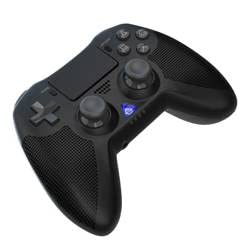
Imagen 1: Frente view of the iPega PG-P4008 Wireless Game Controller. This image displays the controller's ergonomic design, dual analog sticks, D-pad, action buttons, touchpad, and the central LED indicator.
3. Configuración y conexión
The PG-P4008 controller connects wirelessly via Bluetooth. Follow these steps to pair your controller with your device:
- Encendido: Ensure the controller is charged. Press and hold the Botón PS (or equivalent power button) to turn on the controller.
- Modo de emparejamiento:
- For PS4/PS3: Connect the controller to the console using a USB cable. Once recognized, you can disconnect the cable for wireless play. The connection method is similar to the official P4 controller.
- For Android/iOS: Activate Bluetooth on your mobile device. On the controller, press and hold the SHARE button + PS button simultaneously until the LED indicator flashes rapidly, indicating pairing mode. Select "PG-P4008" (or similar) from your device's Bluetooth list to connect.
- For Windows PC: Ensure your PC has Bluetooth capability. On the controller, press and hold the PS button + OPTIONS button simultaneously until the LED indicator flashes rapidly. On your PC, go to Bluetooth settings, add a new device, and select "PG-P4008" (or similar) to pair.
- Conexión exitosa: Once connected, the LED indicator on the controller will change to a solid color, indicating a successful pairing.
Nota: No additional driver software is required for operation. The controller supports a stable connection up to 8 meters.
4. Instrucciones de funcionamiento
Indicador LED:
The built-in colored LED light indicates the controller's operational status and player assignment, similar to the official PS4 controller. Different colors will signify different stages or player numbers.
Retroalimentación de vibración:
The controller features dual motors embedded in the handles, providing tactile vibration feedback to enhance your gaming immersion. This feedback will vary based on in-game events.
Panel táctil:
The dual-point capacitive touchpad allows for intuitive control in games that support touch input, offering an additional layer of interaction.
Funcionalidad de audio:
Connect your 3.5mm earphones to the integrated jack on the controller to experience game audio directly, providing a private and immersive sound experience.
5. Mantenimiento
- Keep the controller dry and away from moisture to prevent damage to internal components.
- Limpie el mando regularmente con un paño suave y seco. Evite el uso de productos químicos agresivos o materiales abrasivos.
- Guarde el controlador en un lugar fresco y seco cuando no esté en uso.
- Evite exponer el controlador a temperaturas extremas o a la luz solar directa.
- Do not attempt to disassemble or modify the controller, as this will void any potential warranty and may cause damage.
6. Solución de problemas
- El controlador no se conecta:
- Asegúrese de que el controlador esté completamente cargado.
- Verifique que Bluetooth esté habilitado en su dispositivo.
- Make sure the controller is in the correct pairing mode for your device (refer to Section 3).
- Intente reiniciar tanto el controlador como su dispositivo.
- Elimina los emparejamientos anteriores de la lista de Bluetooth de tu dispositivo e intenta emparejarlo nuevamente.
- Retraso de entrada o desconexión:
- Asegúrese de estar dentro del rango operativo de 8 metros.
- Minimiza la interferencia de otros dispositivos inalámbricos.
- Check for any physical obstructions between the controller and the device.
- La vibración no funciona:
- Asegúrate de que el juego que estás jugando admita la respuesta de vibración.
- Verifique la configuración del juego para asegurarse de que la vibración esté habilitada.
- Audio not working via 3.5mm jack:
- Ensure your earphones are properly plugged in.
- Check the volume settings on your device and in-game.
- Test with another pair of earphones to rule out earphone issues.
7. Especificaciones
| Número de modelo | PG-P4008 |
| Marca | iPega |
| Conectividad | Bluetooth (BT2.1+EDR) |
| alcance inalámbrico | Hasta 8 metros |
| Dispositivos compatibles | PS4, PS3, Android (10.0+), iOS (13.0+), Windows PC |
| Características especiales | Wireless, Touchpad, Vibration, 6-axis Gyroscope, Built-in Speaker, 3.5mm Audio Jack |
| Cantidad de botones | 17 |
| Fuente de poder | Funciona con pilas |
8. Garantía y soporte
Este manual no proporciona información sobre la garantía del producto ni la atención al cliente. Consulte el embalaje del producto o el manual del vendedor. websitio para obtener detalles sobre la cobertura de la garantía y cómo comunicarse con el servicio de atención al cliente para obtener ayuda.