1. Producto terminadoview
The NEJE JZ-5 is a compact and efficient 500mW USB engraving machine designed for various carving and cutting tasks. It features a unique frame and weak light automatic positioning system for precise and easy image alignment. Capable of 512x512 high-resolution prints, it can produce 3D and gradient effects on soft materials. This engraver offers fast performance, being up to 10 times faster than some alternatives, and can operate offline when connected to a 5V 1A power source via its two USB ports.
The machine is constructed from durable Acrylic, Aluminum, and Stainless Steel, ensuring stability and precision. It supports Windows 7, Windows 8, Windows 10, and Windows XP operating systems.
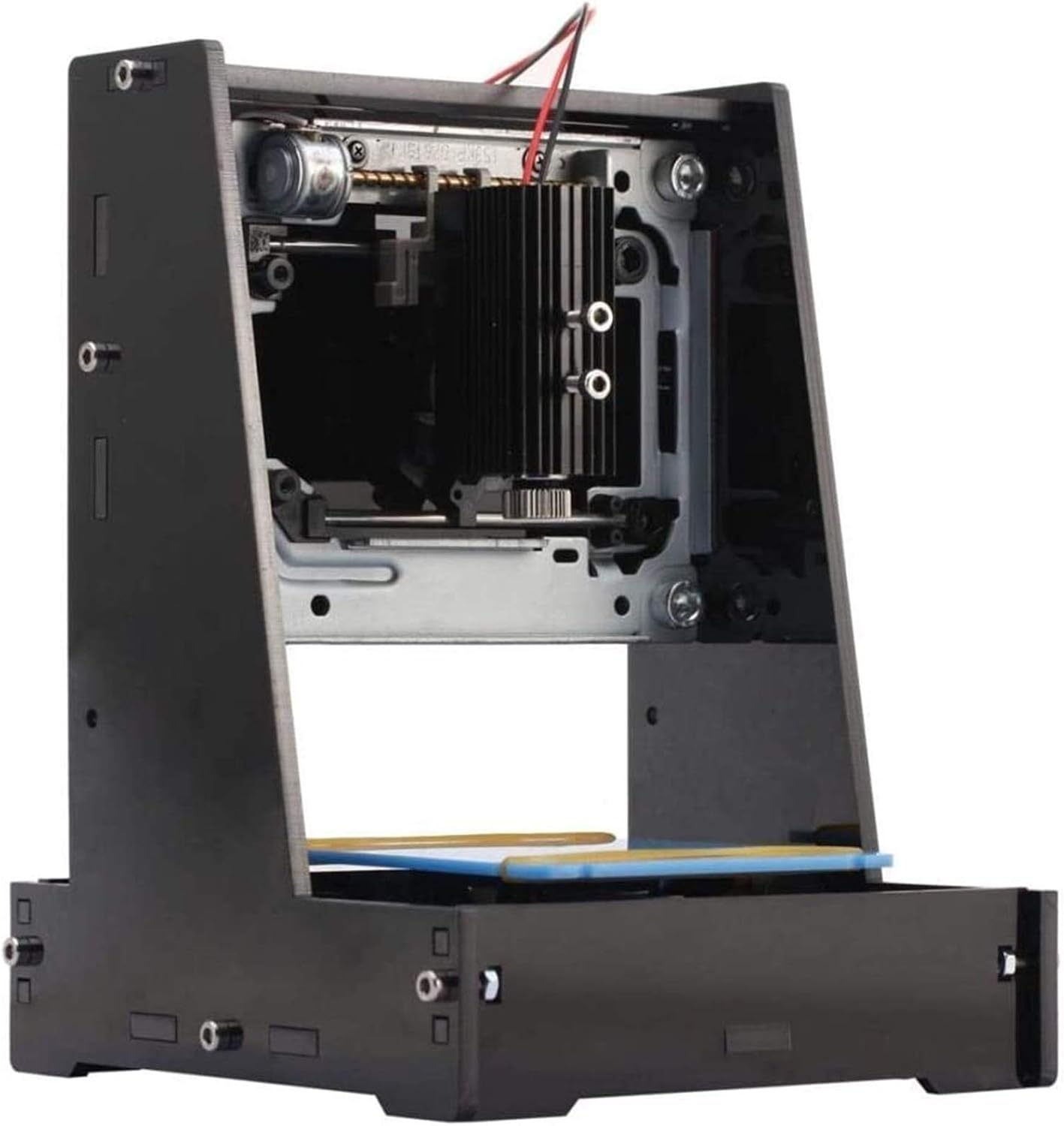
Figura 1: Frente view of the NEJE JZ-5 500mW USB Engraver.
2. Contenido del paquete
Verifique que todos los artículos enumerados a continuación estén incluidos en su paquete:
- 1 x NEJE JZ-5 Engraving Machine
- 1 x Gafas protectoras
- Llave Allen 1 x
- 2 x Cables USB
- 1 x 1Gb TF Card (includes User's Manual and installation software)

Figure 2: NEJE JZ-5 Engraver and its accompanying accessories.
3. Instrucciones de configuración
Follow these steps to set up your NEJE JZ-5 engraver:
- Prepare su computadora: Ensure you have a computer running Windows 7, Windows 8, Windows 10, or Windows XP.
- Connect the Engraver: Connect the engraver to your computer using the two provided USB cables. Alternatively, for offline use, connect the two USB ports to a 5V 1A charger or power bank.
- Instalar software: Insert the 1Gb TF card into your computer. Locate and install the engraving software from the card.
- Software de lanzamiento: Start the engraving software. It should automatically detect and connect to the engraver via the USB port. If not, manually select the connection within the software settings.

Figura 3: Lado view of the engraver, illustrating its compact design.
4. Instrucciones de funcionamiento
Once the engraver is set up and connected, you can begin your engraving projects:
- Select or Import Image: Within the engraving software, choose an existing image or import your desired image for engraving.
- Edit and Position: Edit the image as needed. Ensure the image is positioned correctly within the print area displayed in the software. The unique frame positioning feature helps in precise alignment.
- Ajustar la distancia focal: For optimal engraving quality, adjust the focal length of the laser. This is typically done by rotating a knob on the laser module until the laser dot is at its smallest point on the material surface. Always wear the protective glasses when adjusting the focal length or operating the engraver.
- Comenzar a grabar: Once the image is prepared and the focal length is set, initiate the engraving process from the software.

Figure 4: Adjusting the focal length for precise engraving. Protective glasses must be worn.

Figure 5: The engraving platform where materials are placed for processing.
5. Mantenimiento
To ensure the longevity and optimal performance of your NEJE JZ-5 engraver, regular maintenance is recommended:
- Limpieza: Periodically clean the engraving area and the laser lens to remove dust and debris that may accumulate during operation. Use a soft, dry cloth.
- Módulo láser: Avoid touching the laser lens directly. If cleaning is necessary, use a specialized lens cleaning solution and cloth.
- Almacenamiento: Cuando no esté en uso, guarde el grabador en un entorno limpio y seco, alejado de la luz solar directa y de temperaturas extremas.
6. Solución de problemas
If you encounter issues with your NEJE JZ-5 engraver, consider the following common solutions:
- Engraver Not Connecting:
- Ensure both USB cables are securely connected to your computer or power source.
- Verify that the software is running and attempting to connect. Try restarting the software or your computer.
- Check your computer's Device Manager to ensure the engraver is recognized and drivers are installed correctly.
- Mala calidad de grabado:
- Adjust the laser's focal length (refer to Section 4).
- Ensure the material is flat and securely placed on the engraving platform.
- Check the image resolution and settings within the software.
- Limpie la lente láser si parece sucia.
- Problemas de software:
- Ensure your operating system is compatible (Windows 7/8/10/XP).
- Try reinstalling the software from the provided TF card.
7. Especificaciones técnicas
| Característica | Especificación |
|---|---|
| Marca | No me importa |
| Modelo | JZ-5 |
| Potencia del láser | 500 mW |
| Material | Acrílico + Aluminio + Acero Inoxidable |
| Área de grabado | 38 x 38 mm |
| Resolución | 512x512 píxeles |
| Dimensiones (aprox.) | 18 x 13.5 x 13 cm (7 x 5 x 5 pulgadas) |
| Compatibilidad con sistemas operativos | Windows 7 / Windows 8 / Windows 10 / XP |
| Dispositivos compatibles | Laptop, Smartphone (for power bank use) |
| Peso del artículo | 1 Grams (product specification) / 0.035 ounces (shipping weight) |
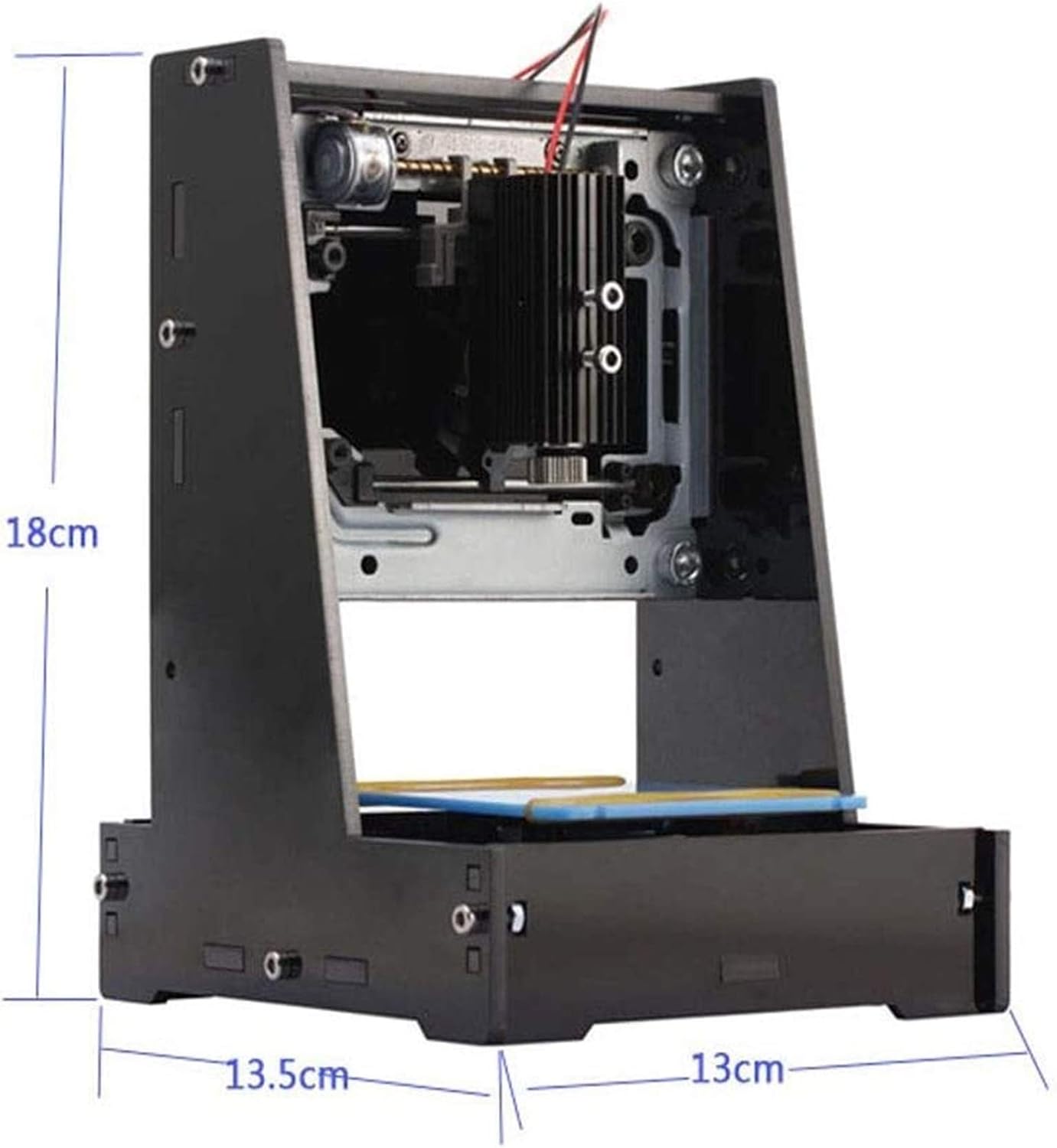
Figure 6: Approximate dimensions of the NEJE JZ-5 Engraver.
8. Información de seguridad
Operating a laser engraving machine requires adherence to safety precautions to prevent injury:
- Always wear the provided protective glasses when the engraver is in operation or when adjusting the laser. The laser light can cause eye damage.
- No mire directamente al rayo láser.
- Ensure the engraving area is well-ventilated, as some materials may produce fumes during engraving.
- Mantenga la máquina alejada de materiales inflamables.
- No deje el grabador desatendido durante su funcionamiento.
- Mantener fuera del alcance de los niños y las mascotas.

Figure 7: Protective glasses are essential for safe operation.