
Hisense 32H5G
Manual del usuario del televisor inteligente Hisense VIDAA HD de 32 pulgadas 32H5G
Model: 32H5G | Year: 2021
1. Introducción
Welcome to the user manual for your new Hisense 32-inch HD VIDAA Smart TV, model 32H5G. This manual provides essential information for setting up, operating, maintaining, and troubleshooting your television. Please read this manual thoroughly before using your TV to ensure proper and safe operation.
The Hisense 32H5G is designed to deliver a high-definition viewing experience with smart functionalities powered by the intuitive VIDAA OS. Enjoy crisp visuals, immersive audio with DTS Studio Sound, and seamless integration with smart home devices like Alexa.
2. Producto terminadoview
Familiarize yourself with the components and design of your Hisense 32H5G Smart TV.

Figura 2.1: Frente view of the Hisense 32H5G Smart TV, showcasing its sleek, bezel-less design and the display with vibrant colors.
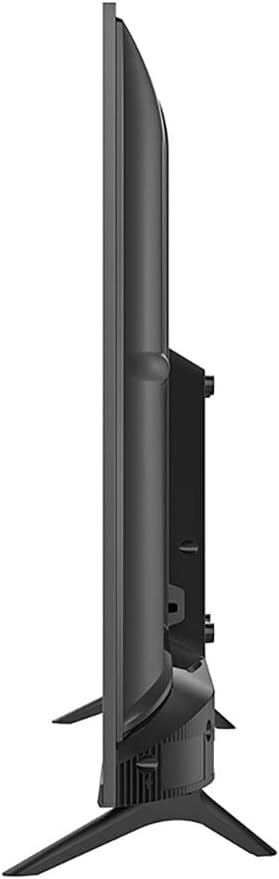
Figura 2.2: Lado profesionalfile of the Hisense 32H5G Smart TV, highlighting its slim form factor.

Figura 2.3: Trasero view of the Hisense 32H5G Smart TV, showing the mounting points and connection panel area.

Figura 2.4: Diagram illustrating the physical dimensions of the Hisense 32H5G Smart TV, including width and height measurements.
Características principales:
- VIDAA OS: An intuitive and fast smart operating system providing access to a wide range of streaming applications and content.
- Sonido de estudio DTS: Enhances audio quality by creating a virtual surround sound experience for clear and immersive sound.
- Diseño sin bisel: Maximizes screen space and provides a modern aesthetic.
- Funciona con Alexa: Allows for convenient voice control of the TV and quick access to entertainment through compatible Alexa devices.
- Resolución HD (720p): Proporciona imágenes claras y detalladas para una mejor viewExperiencia de aprendizaje.
3. Configuración
3.1 Desembalaje y montaje
Retire con cuidado el televisor del embalaje. Asegúrese de que todos los accesorios estén presentes:
- Soporte TV
- Cable de alimentación
- Mando a distancia
- Baterías (2)
Para montar el soporte del televisor:
- Coloque el televisor con la pantalla hacia abajo sobre una superficie suave y limpia para evitar rayones.
- Alinee el soporte con los orificios de montaje en la parte inferior del televisor.
- Asegure el soporte utilizando los tornillos provistos.
If wall-mounting, refer to your wall mount's instructions. The TV supports standard VESA mounting patterns.
3.2 Conexión del televisor
Conecte sus dispositivos al televisor utilizando los puertos adecuados:
- Puertos HDMI: For connecting Blu-ray players, game consoles, cable boxes, etc. (HDMI input)
- Puerto USB 2.0: Para conectar dispositivos de almacenamiento USB para reproducir medios.
- Puerto Ethernet: Para una conexión a Internet por cable.
- Entrada de antena/cable: Para conectar una antena o TV por cable.
- Entrada de energía: Conecte el cable de alimentación al televisor y luego a una toma de corriente.
3.3 Asistente de configuración inicial
Al encenderlo por primera vez, el televisor lo guiará a través del proceso de configuración inicial:
- Selección de idioma: Elija su idioma preferido.
- Conexión de red: Connect to your Wi-Fi network or use a wired Ethernet connection. Enter your Wi-Fi password if prompted.
- Escaneo de canales: Busque canales de TV disponibles si tiene una antena o un cable conectado.
- Zona horaria y fecha: Establezca la zona horaria y la fecha correctas.
- VIDAA Account (Optional): You may be prompted to create or log in to a VIDAA account for personalized features and app access.
4. Uso de su televisor
4.1 Funciones de control remoto
The included remote control allows you to navigate and control your TV. Insert the two provided batteries into the remote control, observing polarity.
- Botón de encendido: Enciende o apaga el televisor.
- Botón de entrada: Switches between different input sources (HDMI, USB, TV).
- Botones de navegación (arriba/abajo/izquierda/derecha): Navegar por los menús y seleccionar opciones.
- Botón OK: Confirma selecciones.
- Botón Atrás: Regresa a la pantalla anterior.
- Botón de inicio: Accede a la pantalla de inicio de VIDAA Smart TV.
- Subir/Bajar volumen: Ajusta el volumen.
- Canal arriba/abajo: Cambia los canales de televisión.
- Botones de acceso directo de la aplicación: Acceso directo a servicios de transmisión populares (por ejemplo, Netflix, YouTube).
- Botón de control de voz: Activates voice commands (if supported and configured with Alexa).
4.2 Using VIDAA Smart OS
The VIDAA operating system provides a user-friendly interface for accessing apps, live TV, and other features.

Figura 4.1: The intuitive home screen of the VIDAA Smart OS, showing easy access to various applications and inputs.
- Presione el Hogar Botón en su control remoto para acceder a la interfaz principal de VIDAA.
- Navigate through the app tiles and select your desired application (e.g., Netflix, YouTube).
- You can customize the order of apps on your home screen for quick access.
4.3 Audio and Visual Settings
Ajuste la configuración de imagen y sonido para optimizar su viewExperiencia de aprendizaje.
- Modos de imagen: Select from preset modes like Standard, Dynamic, Movie, or customize your own.
- Sonido de estudio DTS: This feature enhances audio clarity and creates a virtual surround sound effect. Access sound settings to enable or disable it, or adjust related parameters.
- Relación de aspecto: Adjust the screen's aspect ratio to fit the content (e.g., 16:9).

Figura 4.2: Visual representation of the DTS Studio Sound feature, indicating enhanced audio capabilities.
4.4 Control por voz con Alexa
Your Hisense TV can be controlled using voice commands via a compatible Alexa device.

Figura 4.3: Illustration of the TV's compatibility with Alexa, allowing for voice commands to control functions like turning on the TV or playing music.
- Asegúrese de que su televisor esté conectado a Internet.
- Link your Hisense TV to your Alexa account through the Alexa app on your smartphone or tablet.
- Once linked, you can use voice commands such as "Alexa, turn on the TV" or "Alexa, open Netflix on Hisense TV."
4.5 Vídeo del producto terminadoview
Watch this official product video for a visual guide on the Hisense TV's features and capabilities.
Vídeo 4.1: An official Hisense product video showcasing various features of their televisions, including smart functionalities and display quality. This video provides a dynamic overview of the product's benefits and user experience.
5. Mantenimiento
5.1 Limpieza de su televisor
- Desenchufe siempre el televisor antes de limpiarlo.
- Utilice un paño suave y sin pelusa para limpiar suavemente la pantalla. Para manchas difíciles, limpie ligeramenteampEnjuague el paño con agua o un limpiador de pantallas especializado (nunca rocíe directamente sobre la pantalla).
- Limpie el marco y el soporte del televisor con un paño suave y seco.
- Evite utilizar limpiadores abrasivos, ceras o disolventes, ya que pueden dañar el acabado.
5.2 Actualizaciones de software
Your TV may receive software updates to improve performance and add new features. Ensure your TV is connected to the internet to receive these updates.
- The TV may prompt you when an update is available. Follow the on-screen instructions to install it.
- You can also manually check for updates in the TV's settings menu (usually under System or About).
6. Solución de problemas
This section addresses common issues you might encounter with your TV. Before contacting support, try these solutions.
| Problema | Posible causa | Solución |
|---|---|---|
| Sin poder | Cable de alimentación desconectado; no hay corriente en el tomacorriente. | Asegúrese de que el cable de alimentación esté bien conectado. Compruebe si el tomacorriente funciona conectando otro dispositivo. |
| No hay imagen, pero hay sonido | Fuente de entrada incorrecta seleccionada; cable HDMI/AV suelto. | Presione el Aporte button on the remote to cycle through input sources. Check all cable connections. |
| No hay sonido, pero hay imagen | Volumen silenciado o demasiado bajo; configuración de salida de audio incorrecta. | Presione el Subir volumen button. Check audio settings in the TV menu to ensure correct output (e.g., TV speakers, external audio system). |
| No se puede conectar al Wi-Fi | Contraseña incorrecta; problemas con el enrutador; el televisor está demasiado lejos del enrutador. | Double-check Wi-Fi password. Restart your router. Move the TV closer to the router or use a wired Ethernet connection. |
| El control remoto no funciona | Pilas agotadas; obstrucción entre el control remoto y el televisor. | Replace batteries. Ensure no objects are blocking the remote's signal to the TV's IR receiver. |
| Las aplicaciones de Smart TV no se cargan | Internet connection issues; app cache full. | Check internet connection. Restart the TV. Clear the app's cache or reinstall the app if possible (via TV settings). |
Si el problema persiste después de intentar estos pasos, consulte la sección Garantía y soporte para obtener más ayuda.
7. Especificaciones
| Característica | Detalle |
|---|---|
| Marca | Hisense |
| Modelo | 32H5G |
| Año del modelo | 2021 |
| Tamaño de pantalla | 32 pulgadas (82 cm de diagonal visible) |
| Tecnología de visualización | CONDUJO |
| Resolución | 1280 x 720 píxeles (720p HD) |
| Frecuencia de actualización | 60 Hz |
| Relación de aspecto | 16:9 |
| Sistema operativo | SO VIDAA |
| Tecnología de audio | DTS Studio Sound (2.0 Channel) |
| Conectividad | Wi-Fi, USB, HDMI, Ethernet |
| Puertos HDMI | Disponible |
| Puertos USB | 1 (USB 2.0) |
| Características especiales | Smart TV, Wi-Fi, HD, Surround Sound, Works with Alexa |
| Tipo de montaje | Montaje de mesa (soporte incluido) |
| Dimensiones (An x Pr x Al) | 71.7 x 6.3 x 46.9 cm (con soporte) |
| Peso | 4.5 kilogramos |
| Componentes incluidos | Stand, Power Cable, Remote Control, 2 Batteries |
8. Garantía y soporte
8.1 Garantía del producto
Your Hisense 32H5G Smart TV comes with a limited manufacturer's warranty. Please refer to the warranty card included in your product packaging for specific terms, conditions, and duration of coverage. Keep your purchase receipt as proof of purchase for warranty claims.
8.2 Atención al cliente
For technical assistance, troubleshooting beyond this manual, or warranty inquiries, please contact Hisense Customer Support:
- Websitio: Visita el soporte oficial de Hisense websitio para preguntas frecuentes, descargas de software e información de contacto. (por ejemplo, www.hisense-usa.com/support)
- Teléfono: Consulte el embalaje de su producto o el de Hisense. webSitio para números de teléfono de servicio al cliente regional.
When contacting support, please have your TV model number (32H5G) and serial number ready. The serial number is typically located on a sticker on the back of the TV.