
Epson DS-530 II
Manual del usuario del escáner de documentos dúplex a color Epson DS-530 II
Model: DS-530 II | Brand: Epson
1. Introducción
The Epson DS-530 II Color Duplex Document Scanner is designed for efficient and reliable document management in various environments. This manual provides comprehensive instructions for setting up, operating, maintaining, and troubleshooting your scanner to ensure optimal performance.

Figure 1: Epson DS-530 II Document Scanner in operation.
2. Características principales
- Velocidades de escaneo rápidas: Up to 35 pages per minute (ppm) / 70 images per minute (ipm) with one-pass duplex scanning.
- Robust Automatic Document Feeder (ADF): Features a 50-page ADF for scanning stacks of documents efficiently.
- High Daily Duty Cycle: Designed for reliability with a peak daily duty cycle of up to 4,000 sheets.
- Advanced Paper-Feed Technologies: Includes blank page removal, auto-rotation, auto cropping, Dynamic Skew Correction, Dirt Detection, Double-feed Detection, and Paper Protection for enhanced productivity.
- Amplia compatibilidad: Comes with TWAIN and ISIS drivers for seamless integration with most document management systems.
- Manejo versátil del papel: Capable of scanning business and ID cards, single sheets, extra-long pages up to 240 inches, and folded pages up to 11" x 17".
- Searchable PDFs and Editable Documents: Generate searchable PDFs and editable Word, PowerPoint, and Excel files; OCR software is included.
- Escanear a la nube: Intuitively scan directly to online storage accounts such as SharePoint, Evernote, and Google Drive using Epson Document Capture software.

Figure 2: Highlighting the scanner's robust daily duty cycle.
3. Guía de configuración
3.1. Desempaquetado y colocación inicial
Carefully remove all components from the packaging. Ensure all protective materials are removed from the scanner. Place the scanner on a stable, flat surface with adequate space for document feeding and output.

Figura 3: Qué incluye la caja.
3.2. Conexión del escáner
- Connect the AC adapter to the scanner's power input and then plug it into a power outlet.
- Connect the SuperSpeed USB 3.0 cable to the scanner's USB port and then to an available USB port on your computer (PC or Mac).
3.3. Instalación del software
To utilize the full functionality of your Epson DS-530 II scanner, you must install the necessary drivers and software. This typically includes TWAIN and ISIS drivers for compatibility with various document management systems, as well as Epson's Document Capture Pro software for managing scan jobs.
- Insert the installation CD (if provided) or download the latest software package from the official Epson support websitio.
- Follow the on-screen instructions to complete the installation. It is recommended to restart your computer after installation.
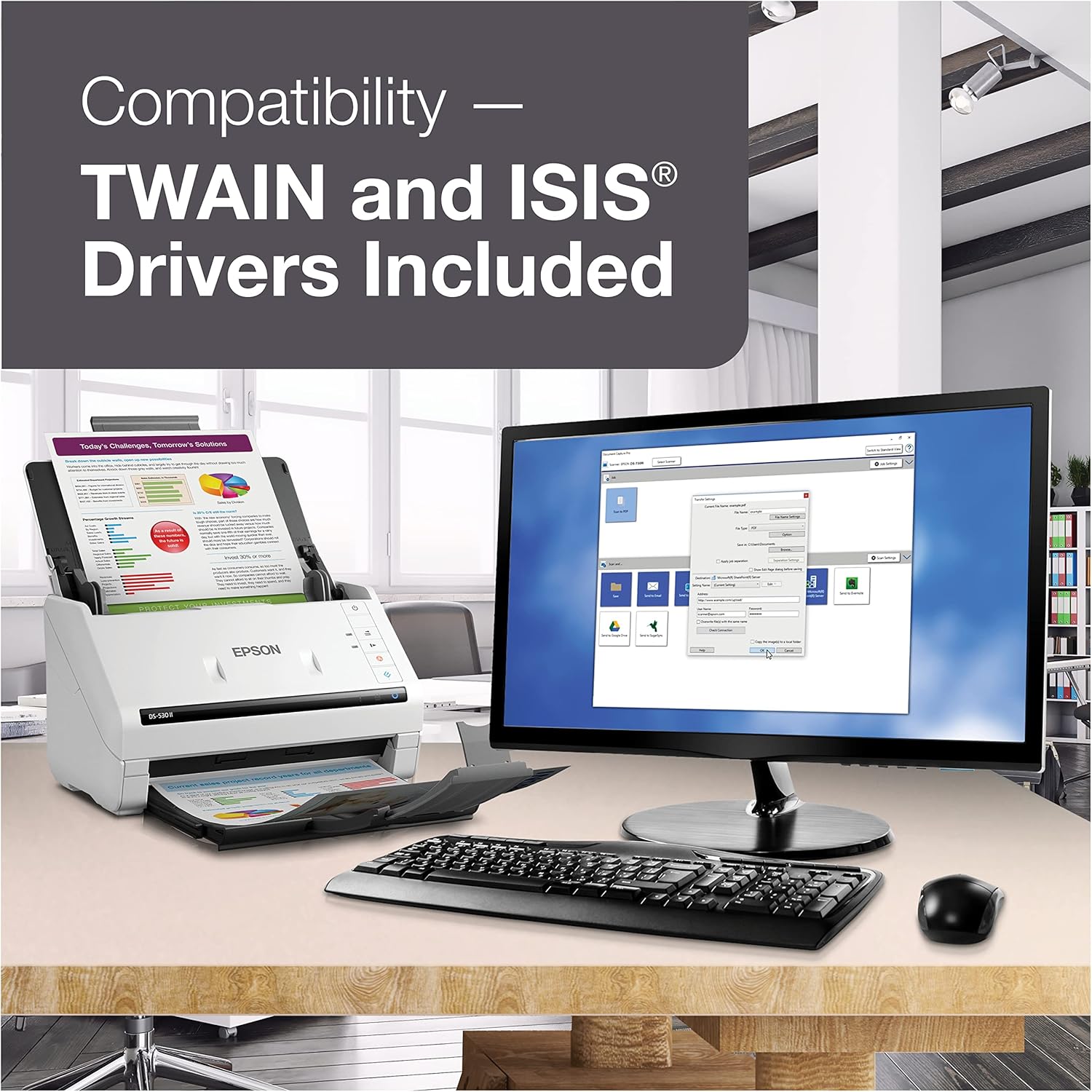
Figure 4: Scanner connected to a computer, demonstrating software compatibility.
4. Instrucciones de funcionamiento
4.1. Carga de documentos
- Open the document cover and extend the output tray.
- Ajuste las guías del papel para que coincidan con el ancho de sus documentos.
- Load documents face-down into the Automatic Document Feeder (ADF). Ensure the stack is neatly aligned to prevent misfeeds. The ADF can hold up to 50 sheets.
- For mixed batches of documents, the scanner's advanced paper-feed technologies will help ensure smooth scanning.

Figure 5: Loading documents into the 50-page ADF.
4.2. Initiating a Scan
- Press the power button to turn on the scanner. The blue indicator light will illuminate.
- On your computer, open the Epson Document Capture Pro software or your preferred document management application.
- Select your desired scan settings (e.g., color, grayscale, monochrome, single-sided or duplex). The DS-530 II supports one-pass duplex scanning.
- Click the "Scan" button in the software or press the dedicated scan button on the scanner to begin scanning.
- The scanner will automatically feed and process the documents.
4.3. Saving Scanned Documents
After scanning, the software will display the scanned images. You can then:
- Review and reorder pages.
- Perform OCR (Optical Character Recognition) to create searchable PDFs or editable Office documents.
- Save the documents to a local folder, network drive, or directly to cloud services like SharePoint, Evernote, or Google Drive.
5. Mantenimiento
5.1. Limpieza del escáner
Regular cleaning ensures consistent scan quality and extends the life of your scanner.
- Apague el escáner y desenchufe el cable de alimentación.
- Limpie el exterior del escáner con un paño suave y húmedo.amp Paño. No utilice limpiadores abrasivos ni disolventes.
- Open the scanner cover and gently wipe the glass scanning surface and rollers with a lint-free cloth dampened with a mild glass cleaner (non-ammonia based).
- Allow all surfaces to dry completely before closing the cover and reconnecting power.
5.2. Sustitución de consumibles
Over time, the rollers may wear out. Refer to the Epson support website for information on replacement kits and instructions.
6. Solución de problemas
Esta sección aborda problemas comunes que puede encontrar con su escáner Epson DS-530 II.
6.1. Atascos de papel
- Causa: Misaligned documents, too many sheets loaded, or foreign objects (like staples).
- Solución:
- Turn off the scanner and open the document cover.
- Retire con cuidado el papel atascado siguiendo la ruta del papel. Evite romperlo.
- Remove any staples or paper clips from documents before loading.
- Ensure documents are neatly stacked and within the paper guides.
6.2. Poor Scan Quality
- Causa: Dirty scanning surfaces, incorrect scan settings, or original document quality.
- Solución:
- Limpie la superficie de vidrio y los rodillos del escáner como se describe en la sección Mantenimiento.
- Adjust scan settings (resolution, color mode) in the software to match your document type.
- Ensure the original document is clean and free from smudges or tears.
6.3. Scanner Not Detected by Computer
- Causa: Loose cable connection, incorrect driver installation, or power issue.
- Solución:
- Verifique que el cable USB esté conectado de forma segura tanto al escáner como a la computadora.
- Ensure the scanner is powered on and the power indicator light is solid blue.
- Reinstall the scanner drivers and software from the Epson support websitio.
- Intente conectar el escáner a un puerto USB diferente en su computadora.
7. Especificaciones
| Característica | Detalle |
|---|---|
| Marca | Epson |
| Nombre del modelo | DS-530II |
| Tipo de escáner | Documento |
| Tecnología de conectividad | USB |
| Resolución óptica | 600 ppp |
| Max Scan Speed (Mono/Color) | 35 ppm / 70 ipm |
| Capacidad del ADF | 50 hojas |
| Escaneo dúplex | Sí |
| Profundidad de color | 30-bit (input), 24-bit (output) |
| Profundidad de escala de grises | 24-bit (input), 8-bit (output) |
| Tipo de medio | Business Card, ID Card, Plain Paper |
| Tamaño máximo del documento | 8.50" x 240" (extra-long pages) |
| Dimensiones del producto | 10.2 x 14.8 x 11.8 pulgadas (aprox.) |
| Peso del artículo | 1 libras (aprox.) |
| Sistema operativo compatible | Windows 10, 8.1, 8, 7; macOS 10.10.x - 10.15.x |
8. Garantía y soporte
The Epson DS-530 II scanner comes with a Garantía limitada de 3 años. This includes world-class service and support, along with Advance Exchange with free Next-Business-Day Replacement to minimize downtime.
Para obtener asistencia técnica, descargas de controladores y recursos adicionales, visite el soporte oficial de Epson. websitio o comuníquese con el servicio de atención al cliente de Epson.
Manufacturer: Epson Corporation