
1. Introducción
This manual provides detailed instructions for the setup, operation, maintenance, and troubleshooting of your MOFII Wireless Keyboard and Mouse Combo. Please read this manual thoroughly before using the product to ensure optimal performance and longevity.

Image 1.1: MOFII Wireless Keyboard and Mouse Combo (Black Colorful variant). The image displays the full-size keyboard with round, multi-colored keycaps and the accompanying black wireless mouse with a red accent.
2. Instrucciones de configuración
2.1 Contenido del paquete
- MOFII Wireless Keyboard
- MOFII Wireless Mouse
- USB 2-in-1 Receiver (stored in the mouse battery compartment)
- Manual de usuario (este documento)
2.2 Instalación de la batería
- Localice el compartimento de la batería en la parte inferior del teclado y del mouse.
- Abra las tapas del compartimento de la batería.
- Insert one AA battery into the keyboard and one AA battery into the mouse, ensuring correct polarity (+/-). Batteries are not included.
- Cierre firmemente las tapas del compartimiento de la batería.
2.3 Conexión del dispositivo
The MOFII Wireless Keyboard and Mouse Combo uses a single USB 2-in-1 receiver for both devices.
- Remove the USB receiver from its storage slot in the mouse battery compartment.
- Plug the USB receiver into an available USB port on your computer (Laptop, PC, Desktop).
- The keyboard and mouse should automatically connect to your computer. No additional drivers or software installation is required.

Image 2.1: Plug and Play Setup. This image illustrates the USB receiver being plugged into a laptop, demonstrating the simple connection process for both the keyboard and mouse.

Image 2.2: 2.4GHz Wireless Technology. This image shows the keyboard and mouse wirelessly connected to a laptop via the USB receiver, highlighting the stable 35ft connection range.
3. Instrucciones de funcionamiento
3.1 Uso del teclado
The keyboard features a 104-key full-size layout with round keycaps designed for comfortable typing. It includes a numeric keypad and convenient multimedia keys.
Teclas de acceso directo multimedia
The keyboard is equipped with 13 hotkey functions, typically accessed by pressing the 'Fn' key in combination with the F1-F12 keys or other designated keys. These functions allow for quick access to media controls, volume adjustments, and other system shortcuts.

Image 3.1: Keyboard with 13 Hotkey Functions. This image highlights the F-keys and their associated multimedia functions, indicating how they can be used for both work and entertainment.
3.2 Uso del ratón
The optical mouse provides precise control for navigation. Its ergonomic design is intended for comfortable use over extended periods.
3.3 Funciones de ahorro de energía
Both the keyboard and mouse are designed with intelligent power-saving functionality. After 5 minutes of inactivity, the devices will automatically enter sleep mode to conserve battery life. To wake them up, simply press any key on the keyboard or move/click the mouse.

Image 3.2: Intelligent Auto-Sleep Feature. This image shows the keyboard and mouse on a desk in a dimly lit room, with an icon indicating the auto-sleep function to save battery life.
3.4 Diseño ergonómico
The keyboard features an ergonomic design with foldable stands on the underside, allowing users to adjust the typing angle to reduce wrist pressure and enhance comfort during use.

Image 3.3: Ergonomic Design with Foldable Stands. This image highlights the underside of the keyboard, showing the foldable stands and silicone non-slip pads designed to improve typing posture and stability.
4. Mantenimiento
4.1 Limpieza del teclado
The keyboard features detachable keycaps, allowing for thorough cleaning. A brush is included to assist with deep cleaning.
- Gently remove the keycaps. Use a keycap puller if available, or carefully pry them off.
- Use the provided brush or a soft, dry cloth to remove dust and debris from the keyboard base.
- Clean the keycaps with a damp cloth and mild soap if necessary, then dry them completely before reattaching.
- Ensure all keycaps are securely reattached to their correct positions.

Image 4.1: Detachable Keycaps for Cleaning. This image shows several keycaps removed from the keyboard, alongside a small cleaning brush, demonstrating the ease of cleaning the keyboard.
4.2 Reemplazo de batería
When the devices stop responding or exhibit intermittent connectivity, it may be time to replace the batteries.
- Open the battery compartment on the underside of the keyboard and mouse.
- Retire las pilas AA viejas.
- Inserte pilas AA nuevas, respetando la polaridad correcta.
- Cierre las tapas del compartimento de la batería.
5. Solución de problemas
If you encounter issues with your MOFII Wireless Keyboard and Mouse Combo, please refer to the following common solutions:
- No hay respuesta del teclado/ratón:
- Asegúrese de que las baterías estén correctamente instaladas y no agotadas. Reemplácelas con baterías nuevas si es necesario.
- Verifique que el receptor USB esté conectado correctamente a un puerto USB que funcione en su computadora. Pruebe con otro puerto USB.
- Ensure the keyboard and mouse are within the 35ft operating range of the USB receiver.
- Turn off and on the devices (if they have a power switch) or remove and reinsert the batteries to reset the connection.
- Lagging or Intermittent Mouse Movement:
- Acerque el mouse al receptor USB.
- Ensure there are no large metal objects or other wireless devices (e.g., Wi-Fi routers, cordless phones) causing interference between the mouse and the receiver.
- Limpie el sensor óptico en la parte inferior del mouse.
- Reemplace la batería del mouse.
- Las teclas no se registran o no se quedan atascadas:
- Limpie debajo de las teclas como se describe en la sección Mantenimiento.
- Asegúrese de que las teclas estén colocadas correctamente.
- Reemplace las baterías del teclado.
- Problemas de compatibilidad:
- The combo is compatible with Windows 98/Me/2000/XP/Vista/7/8/10/11 or later operating systems. Ensure your system meets these requirements.
6. Especificaciones
| Característica | Detalle |
|---|---|
| Marca | Ministerio de Finanzas |
| Modelo | B08N6HCKMP |
| Color | Negro colorido |
| Tecnología de conectividad | 2.4 GHz inalámbrico (receptor USB) |
| Rango de operación | Hasta 35 pies (10 metros) |
| Disposición del teclado | Full-size, 104 keys with numeric keypad |
| Estilo de tecla | Redondo, desmontable |
| Tipo de ratón | Óptico |
| Característica especial | Ergonomic Design, Auto-Sleep Function |
| Dispositivos compatibles | Laptop, PC, Desktop, Computer (Windows XP/Vista/7/8/10/11) |
| Fuente de poder | 1 pila AA para teclado, 1 pila AA para ratón (no incluidas) |
| Dimensiones del producto (teclado) | 17.52 x 5.35 x 1.38 pulgadas (44.5 x 13.6 x 3.5 cm) |
| Peso del artículo | 1.98 libras (0.9 kg) |
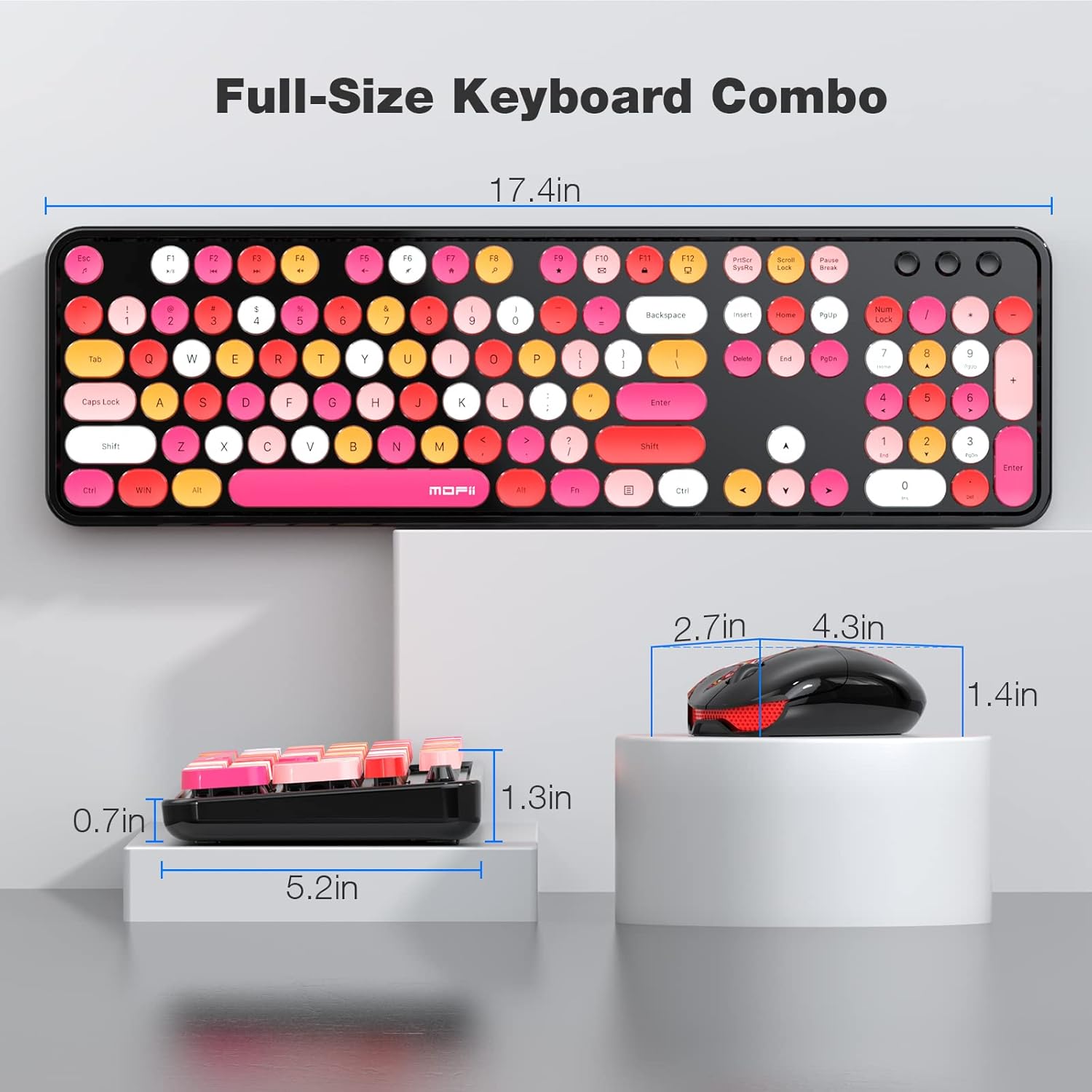
Image 6.1: Keyboard and Mouse Dimensions. This image provides a visual representation of the physical dimensions of both the full-size keyboard and the mouse.
7. Garantía y soporte
7.1 Información de garantía
For specific warranty details, please refer to the product packaging or contact MOFII customer support directly. Warranty terms may vary by region and retailer.
7.2 Atención al cliente
If you require further assistance or have questions not covered in this manual, please contact MOFII customer support. You can typically find contact information on the MOFII official websitio o a través de su minorista de productos.
Para obtener recursos adicionales, también puede consultar el manual de usuario oficial en PDF disponible en línea: MOFII Wireless Keyboard and Mouse Combo PDF Manual