
Introducción
This manual provides comprehensive instructions for the setup, operation, and maintenance of your waveshare 7-inch Capacitive Touch LCD Display Kit for Raspberry Pi 4 Model B. Please read this manual thoroughly before use to ensure proper functionality and to maximize your product experience.
Contenido del paquete
Verifique que todos los artículos enumerados a continuación estén incluidos en su paquete:
- 7-inch Capacitive Touch LCD Display
- Raspberry Pi 4 Model B (4GB RAM version)
- MicroSD Card (pre-loaded with system, typically 16GB)
- Adaptador de corriente USB
- Cable USB-A a USB-C (para alimentación)
- HDMI Cable (Micro HDMI to Standard HDMI)
- USB-A to Micro USB Cable (for touch functionality)
- Acrylic Case components (top, bottom, side panels, stand)
- Herrajes de montaje (tornillos, separadores)
- Lector de tarjetas MicroSD

Image: All components included in the waveshare 7-inch Display Kit, including the LCD, Raspberry Pi 4, cables, power adapter, acrylic case parts, and a microSD card with reader.
Instrucciones de instalación
Follow these steps to assemble and set up your display kit:
- Prepara la Raspberry Pi: Insert the provided MicroSD card into the Raspberry Pi 4 Model B.
- Montar la Raspberry Pi: Secure the Raspberry Pi 4 to the back of the 7-inch LCD display using the provided standoffs and screws. Ensure proper alignment with the display's connectors.
- Conectar los cables de pantalla:
- Connect one end of the Micro HDMI cable to the Raspberry Pi's Micro HDMI port and the other end to the display's HDMI input.
- Connect the USB-A to Micro USB cable from a USB 2.0 port on the Raspberry Pi to the Micro USB port on the display. This provides power for the display's backlight and enables touch functionality.
- Assemble the Acrylic Case: Carefully attach the acrylic case components around the assembled display and Raspberry Pi. Refer to the case assembly diagram for correct orientation.
- Conecte la electricidad: Plug the USB power adapter into a wall outlet and connect the USB-A to USB-C cable to the Raspberry Pi's USB-C power input.
- Arranque inicial: The system should power on automatically. The display will show the boot sequence.

Image: The fully assembled waveshare 7-inch Display Kit, showing the Raspberry Pi 4 mounted behind the screen, connected with cables, and powered by an adapter.
Operación
Once the display kit is powered on, the pre-installed operating system (typically Raspbian) will boot. You can interact with the system using the capacitive touch screen.
- Funcionalidad táctil: The 7-inch display supports up to five-point capacitive touch when running Raspbian. For other supported operating systems like Ubuntu, Kali, or WIN10 IoT, it typically supports single-point touch.
- Conexión de periféricos: Use the USB ports on the Raspberry Pi to connect a keyboard, mouse, or other USB devices as needed.
- Conectividad de red: The Raspberry Pi 4 supports Gigabit Ethernet and 2.4/5GHz Wi-Fi for internet access.
- Salida de audio: Audio can be output via the 3.5mm audio jack or HDMI.
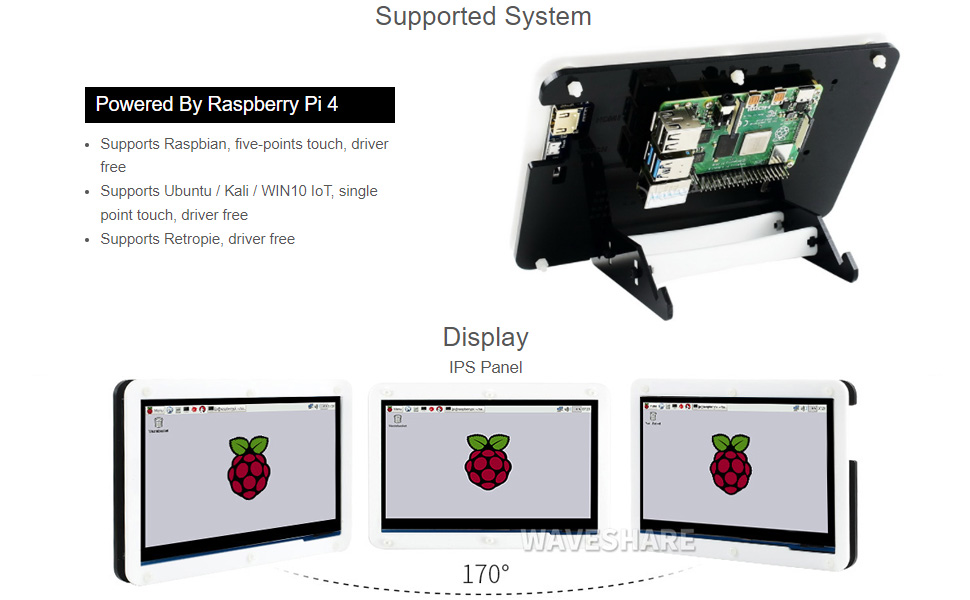
Image: A hand interacting with the capacitive touch screen, demonstrating its functionality with a graphical user interface.
Sistemas operativos compatibles
The waveshare 7-inch Display Kit is compatible with various operating systems for the Raspberry Pi 4 Model B:
- Raspbian: Admite toque de cinco puntos, sin controlador.
- Ubuntu / Kali / WIN10 IoT: Admite toque de un solo punto, sin controlador.
- Retropie: Driver-free support.

Image: Visual representation of the display showing different viewing angles and indicating support for various operating systems like Raspbian, Ubuntu, Kali, and Windows 10 IoT.
Características principales
- Pantalla IPS de 7 pulgadas: Ancho viewing angle with 1024x600 resolution.
- Táctil capacitivo: Supports 5-point touch (with Raspbian) for intuitive interaction.
- Integrated Raspberry Pi 4: Powered by Broadcom BCM2711B0 Quad-core 64-bit SoC.
- Memoria: 4 GB de RAM LPDDR4.
- Conectividad: Dual-band 2.4/5GHz Wi-Fi, Bluetooth 5.0, Gigabit Ethernet.
- Puertos: 2x USB 3.0, 2x USB 2.0, 2x Micro HDMI (up to 4Kp60), 4-pole stereo audio, 2-lane MIPI DSI display port, 2-lane MIPI CSI camera port, 40-pin GPIO header.
- Entrada de energía: USB-C 5V/3A.
- Almacenamiento: Ranura para tarjeta MicroSD.

Image: Detailed diagram of the Raspberry Pi 4 Model B board, highlighting its processor, RAM, various ports (USB, HDMI, Ethernet, GPIO), and wireless capabilities.
Mantenimiento
- Limpieza: Use a soft, dry cloth to clean the display and case. For stubborn smudges on the screen, a slightly dampSe puede usar un paño sin pelusa. Evite limpiadores abrasivos o disolventes.
- Actualizaciones de software: Regularly update the operating system and installed software on your Raspberry Pi to ensure optimal performance and security.
- Condiciones ambientales: Operate the device in a clean, dry environment. Avoid extreme temperatures, direct sunlight, and high humidity.
- Administración de energía: Always shut down the Raspberry Pi gracefully through the operating system before disconnecting power to prevent data corruption.
Solución de problemas
- Sin salida de pantalla:
- Ensure the Micro HDMI cable is securely connected to both the Raspberry Pi and the display.
- Verify the Raspberry Pi is receiving power (check the power LED on the Pi).
- Confirm the MicroSD card is properly inserted and contains a valid operating system image.
- La pantalla táctil no responde:
- Check that the USB-A to Micro USB cable is connected from the Raspberry Pi to the display.
- Ensure the operating system supports touch functionality and that necessary drivers (if any, though typically driver-free for supported OS) are loaded.
- Reinicie la Raspberry Pi.
- System not booting:
- Confirm the power supply is adequate (5V/3A recommended for Raspberry Pi 4).
- Re-flash the operating system image onto the MicroSD card.
- Verifique si hay conexiones sueltas o componentes dañados.
Especificaciones técnicas
| Tamaño de la pantalla | 7 pulgadas |
| Resolución | 1024 x 600 |
| Tipo de panel | IPS |
| Tipo táctil | Capacitive (5-point with Raspbian, 1-point with others) |
| Procesador | Broadcom BCM2711B0, Quad-core 64-bit SoC |
| RAM | 4 GB LPDDR4 |
| Almacenamiento | 16 GB MicroSD Card (included) |
| Conectividad inalámbrica | 2.4/5GHz Wi-Fi, Bluetooth 5.0 |
| Conectividad por cable | Gigabit Ethernet |
| Salida de vídeo | 2x Micro HDMI (up to 4Kp60) |
| Salida de audio | 4-pole stereo audio jack |
| Puertos USB | 2x USB 3.0, 2x USB 2.0 |
| Entrada de potencia | USB-C 5V/3A |
| Dimensiones (paquete) | 9.06 x 6.69 x 2.76 pulgadas |
| Peso del artículo | 1.43 libras |

Image: Technical drawing showing the dimensions of the 7-inch display in millimeters and illustrating the two available stand angles (45° and 60°) for the acrylic case.
Garantía y soporte
Para obtener información sobre la garantía y soporte técnico, consulte el sitio web oficial de waveshare. webSitio web o contacte directamente con el servicio de atención al cliente. Conserve su recibo de compra como comprobante para cualquier reclamación de garantía.
Recursos en línea: For additional documentation, tutorials, and community support, visit the waveshare official websitio.