
Introducción
This manual provides essential information for the setup, operation, and maintenance of your OREI Sony UBP-X800M2 Region Free 4K UHD Blu-ray Player. This player is designed for worldwide use, supporting all Blu-ray disc zones (A/B/C) and DVD regions (0-8), with a built-in NTSC↔PAL 4K HD converter. Enjoy stunning 4K UHD visuals, high-resolution audio including Dolby Atmos and DTS:X, and seamless access to streaming services via Wi-Fi or Ethernet.

Figura 1: Frente view of the OREI Sony UBP-X800M2 4K UHD Blu-ray Player.
Configuración
1. Desembalaje y colocación
- Retire con cuidado todos los componentes del embalaje.
- Place the player on a stable, level surface with adequate ventilation.
- Ensure no objects block the ventilation openings.
2. Conexión a su televisor
Connect the player to your TV using an HDMI cable for optimal 4K UHD video and audio.
- Conecte un extremo de un cable HDMI al SALIDA HDMI Puerto en la parte posterior del reproductor de Blu-ray.
- Conecte el otro extremo del cable HDMI a una entrada HDMI de su televisor.
- If using an audio receiver, connect the player's HDMI OUT to the receiver's HDMI IN, then the receiver's HDMI OUT to the TV's HDMI IN.

Figure 2: Rear panel connections, showing HDMI, LAN, and audio outputs.
3. Conexión de alimentación
- Connect the AC power cord to the player's power input and then to a suitable electrical outlet.
4. Conexión de red (opcional)
For streaming services and firmware updates, connect the player to your home network.
- Conexión por cable: Connect an Ethernet cable from the player's LAN (100) port to your router or modem.
- Conexión inalámbrica: Navigate to the network settings in the player's menu to connect to your Wi-Fi network.
5. Region Changing Instructions
This player supports all DVD regions (0-8) automatically. Blu-ray regions (A, B, C) are changed manually using the remote control.
- Turn the player ON y OPEN THE DISC TRAY.
- Once the tray is completely open, press the corresponding colored button on the remote to select the desired Blu-ray region:
- Zona A: Presione el BOTÓN AMARILLO en el control remoto.
- Zona B: Presione el BOTON AZUL en el control remoto.
- Zona C: Presione el Botón rojo en el control remoto.
- Ahora puedes colocar el disco en la bandeja y luego cerrarla.

Figure 3: Remote control with colored buttons for region selection.
Instrucciones de funcionamiento
1. Reproducción de disco
The player supports a wide range of disc formats, including 4K UHD Blu-ray, standard Blu-ray, Blu-ray 3D, DVD, CD, and Super Audio CD (SACD).
- Presione el ABRIR/CERRAR Botón en el reproductor o control remoto para abrir la bandeja del disco.
- Coloque el disco con cuidado sobre la bandeja con la etiqueta hacia arriba.
- Presione el ABRIR/CERRAR de nuevo para cerrar la bandeja.
- The player will automatically begin playback or display a disc menu.

Figura 4: Frente view del reproductor con la bandeja del disco abierta, lista para la inserción del disco.
2. Servicios de streaming
Access popular streaming services like Netflix and YouTube directly from the player's home menu.
- Ensure the player is connected to the internet (Wi-Fi or Ethernet).
- From the home screen, select the desired streaming application.
- Inicie sesión con las credenciales de su cuenta para comenzar a transmitir.
3. Reproducción de medios USB
Reproducir medios files (audio, video, photos) from a USB storage device.
- Insert your USB device into the front USB port.
- Select the USB option from the player's home menu to browse and play your media.
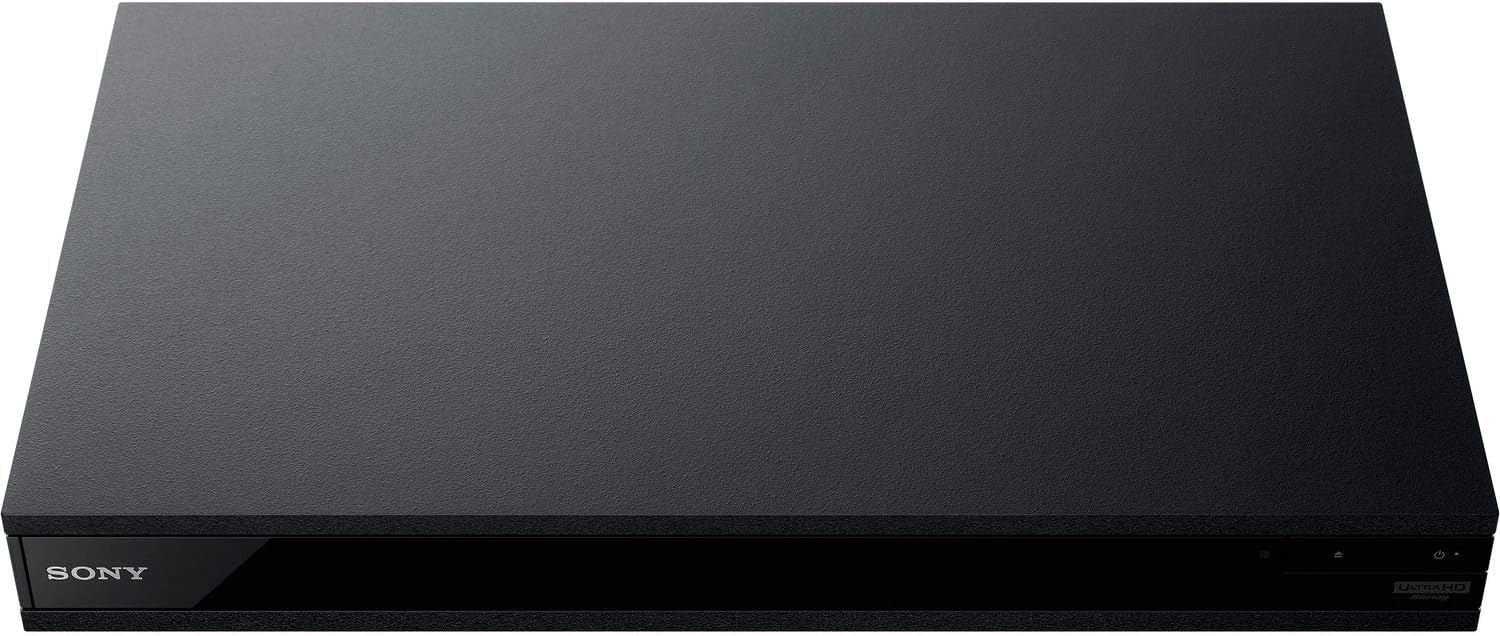
Figura 5: Frente view of the player with a USB drive inserted into the front port.
Mantenimiento
1. Limpieza del reproductor
- Limpie el exterior del reproductor con un paño suave y seco.
- No utilice limpiadores abrasivos, ceras o disolventes.
- Asegúrese de que las aberturas de ventilación permanezcan libres de polvo y residuos.
2 Cuidado del disco
- Manipule los discos por los bordes para evitar huellas dactilares y arañazos.
- Limpie los discos con un paño suave que no deje pelusa, frotando desde el centro hacia afuera.
- Guarde los discos en sus estuches, lejos de la luz solar directa y de temperaturas extremas.
3. Actualizaciones de firmware
Firmware updates can be done via the internet to ensure optimal performance and access to the latest features.
- Go to the home menu, then setup menu, and then to Software Update.
- Click on "Update Via Internet". If a new firmware is available, the player will automatically update.
- NO turn off the player while it is updating.
- NO perform firmware updates by USB unless instructed by OREI support.
Solución de problemas
Problemas comunes
- Sin imagen/sonido:
- Check all HDMI and audio cable connections.
- Asegúrese de que la entrada de TV esté configurada en el puerto HDMI correcto.
- Verify the player is powered on.
- El disco no se reproduce:
- Asegúrese de que el disco esté limpio y libre de rayones.
- Verifique que el disco esté insertado correctamente (con la etiqueta hacia arriba).
- For Blu-ray discs, confirm the player's region setting matches the disc's region (refer to "Region Changing Instructions" in the Setup section).
- Open the tray again and leave the disc in the tray. Once fully open, press the color button to select the region. Then close the tray.
- Region Code Error Message:
If you put in a disc before changing regions, you may get an error message indicating the wrong region. The player remembers this message. To remove that error, you need to reset the player.
- Presione el HOGAR button on the remote with no disc inside to go to the home screen.
- Utilice los botones de flecha del control remoto para ir a la esquina superior derecha donde dice Configuración y presione INGRESAR.
- Desplácese hacia abajo para Reinicio en la parte inferior del menú.
- Seleccionar Restablecer la configuración predeterminada de fábrica.
- Desplácese hacia abajo y seleccione TODOS LOS AJUSTES y presione INGRESAR -> Prensa Empezar Entrar -> Close INGRESAR.
- Apague el reproductor y vuelva a encenderlo después de 30 segundos.
- Select Language English and then select quick start mode OFF. You may need to activate network settings again.
- If you prefer not to connect the player to the internet, you may press the HOGAR button and go to the home screen. Now start from step 1 under "Region Changing Instructions" to change regions.
Presupuesto
| Marca | OREI |
| Nombre del modelo | Sony X800M2 (UBP-X800M2) |
| Dimensiones del producto | 19 x 14.1 x 3.8 pulgadas |
| Peso del artículo | 8.82 libras (4000 gramos) |
| Tipo de medio | Blu-Ray Disc, DVD, 4K UHD Blu-ray, Blu-ray 3D, CD, Super Audio CD |
| Resolución | 3840 x 2160 (4K UHD) |
| Tecnología de conectividad | Ethernet, HDMI, USB, Wi-Fi |
| Tipo de conector | HDMI |
| Modo de salida de audio | Surround (Dolby Atmos, DTS:X, High-Resolution Audio) |
| Color | Negro |
| Baterías | Se requieren 2 pilas AAA (para control remoto) |
| Característica especial | Region Free (Blu-ray Zones A/B/C, DVD Regions 0-8), Built-in NTSC↔PAL 4K HD Converter |
Garantía y soporte
Información de garantía
For specific warranty details, please refer to the warranty card included with your product or visit the official OREI webSitio. Conserve su recibo de compra como comprobante de compra.
Atención al cliente
If you encounter any issues or have questions regarding your OREI Sony UBP-X800M2 Blu-ray Player, please contact OREI customer support.
- Soporte en línea: Visita el Tienda OREI en Amazon Para preguntas frecuentes y recursos de soporte.
- Asistencia técnica: Contact OREI directly for technical support. (Specific contact details not provided in source data, please refer to product packaging or official websitio).