
1. Introducción
This manual provides detailed instructions for the installation, operation, and maintenance of your PIONEER AVH-Z5200DAB multimedia receiver. Designed for in-car entertainment, this 2-DIN unit features a 6.8-inch touchscreen, DVD playback, and seamless smartphone integration with Apple CarPlay and Android Auto.
Key features include DAB/DAB+ digital radio, Waze navigation compatibility, Bluetooth for music streaming and hands-free calls, Spotify integration, dual camera input, multi-color illumination, and advanced audio processing.

2. ¿Qué hay en la caja?
Upon unpacking your PIONEER AVH-Z5200DAB, please ensure all components are present:
- Multimedia Display Unit
- Installation Anchors
- Manual de instrucciones
- Mazo de cables
- Cable de extensión USB
- Micrófono
- Tornillos

3. Configuración e instalación
Proper installation is crucial for optimal performance. It is highly recommended to have this unit installed by a qualified professional.
3.1. Comprobaciones previas a la instalación
- Ensure your vehicle's electrical system is compatible.
- Desconecte la batería del vehículo antes de comenzar la instalación.
- Verifique que todos los componentes incluidos estén presentes.
3.2. Conexiones de cableado
Connect the main wiring harness to the corresponding ports on the back of the unit and to your vehicle's electrical system. Ensure secure connections for power, ground, speakers, and accessory wires. The unit features a universal ISO connector or vehicle-specific connector.
- Alimentación/Tierra: Connect the main power and ground wires securely.
- Salidas de altavoz: Conéctese a los altavoces de su vehículo.
- Entrada USB: Utilice el cable de extensión USB proporcionado para conectar teléfonos inteligentes o dispositivos de almacenamiento USB.
- Entrada de micrófono: Conecte el micrófono externo para llamadas manos libres y comandos de voz.
- Entrada de antena DAB: Connect an optional DAB antenna (CA-AN-DAB.001) for digital radio reception.
- Entrada de antena GPS: For navigation features.
- Entradas de cámara: Supports dual camera input (e.g., rear-view camera ND-BC8).
- Control del volante (SWC): Connect to your vehicle's steering wheel control interface for integrated control.
4. Instrucciones de funcionamiento
4.1. Funcionamiento básico
- Encendido/apagado: Mantenga presionado el botón de encendido.
- Control de volumen: Use the on-screen controls or steering wheel controls (if connected).
- Selección de fuente: Tap the 'Source' icon on the touchscreen to select between Radio, USB, Bluetooth, DVD, AUX, CarPlay, or Android Auto.
4.2. Interfaz de pantalla táctil
The 6.8-inch capacitive touchscreen allows for intuitive control. Swipe left/right to navigate menus, tap icons to select functions, and use pinch-to-zoom gestures where applicable.
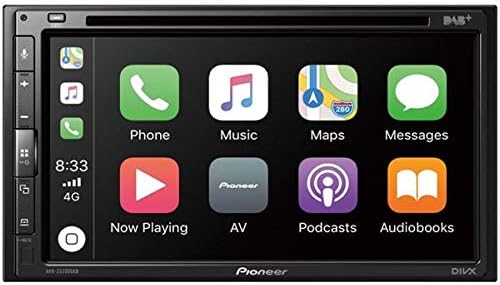
4.3. Apple CarPlay y Android Auto
Connect your iPhone or Android smartphone via USB to access Apple CarPlay or Android Auto. This allows you to use compatible apps, navigation, make calls, and send messages through the receiver's interface.
- Apple CarPlay: Connect your iPhone using a Lightning to USB cable (CA-IU.52C optional).
- Android Auto: Connect your Android smartphone using a USB cable.
4.4. Conectividad Bluetooth
Empareje su teléfono inteligente a través de Bluetooth para realizar llamadas manos libres y transmisión de audio inalámbrica.
- Go to the Bluetooth settings on your smartphone and enable Bluetooth.
- On the AVH-Z5200DAB, navigate to the Bluetooth menu.
- Select 'Pair New Device' and choose your smartphone from the list.
- Confirme el código de emparejamiento en ambos dispositivos.
4.5. Radio (DAB/DAB+)
Access digital radio stations with superior sound quality. An optional DAB antenna (CA-AN-DAB.001) is required.
4.6. Reproducción de DVD
Insert a DVD-Video disc into the slot to enjoy movies. The unit supports MP3, WMA, AAC, DivX, and MPEG-1 formats.
4.7. Configuración de audio
Customize your audio experience with advanced settings:
- Ecualizador: Adjust sound frequencies to your preference.
- Control de subwoofer: Manage subwoofer output levels.
- Procesamiento de audio avanzado: Fine-tune your sound.
5. Mantenimiento
5.1. Limpieza de la unidad
Use a soft, dry cloth to wipe the display and unit housing. For stubborn dirt, dampen the cloth with a small amount of neutral detergent. Avoid abrasive cleaners or solvents.
5.2. Cuidados generales
- Evite exponer la unidad a temperaturas extremas o a la luz solar directa durante períodos prolongados.
- No bloquee las aberturas de ventilación.
- Asegúrese de que todas las conexiones sean seguras para evitar problemas intermitentes.
6. Solución de problemas
Si encuentra problemas, consulte los siguientes problemas y soluciones comunes:
| Problema | Posible causa | Solución |
|---|---|---|
| Sin poder | Conexión de alimentación suelta, fusible quemado | Check wiring harness connections. Inspect and replace fuses if necessary. |
| Sin sonido | Cableado incorrecto de los altavoces, volumen demasiado bajo, silencio activado | Verifique las conexiones de los altavoces. Suba el volumen. Compruebe si el sonido está activado. |
| El Bluetooth no se conecta | Dispositivo no en modo de emparejamiento, interferencia | Ensure smartphone Bluetooth is on and in pairing mode. Try re-pairing the device. |
| CarPlay/Android Auto no se inicia | Faulty USB cable, incompatible phone, software issue | Use a certified USB cable. Ensure your phone's OS is up to date. Restart both devices. |
For further assistance, please contact Pioneer customer support.
7. Especificaciones
| Característica | Especificación |
|---|---|
| Dimensiones del producto | 28 x 24.5 x 17.5 cm (Profundidad x Ancho x Alto) |
| Peso | 2.25 kilogramos |
| Tamaño de pantalla | 6.8 pulgadas |
| Tecnología de conectividad | Auxiliar, Bluetooth, USB |
| Tipo de controlador | Android, iOS (Touch control) |
| Características especiales | Touchscreen, Apple CarPlay, Android Auto, DAB/DAB+ digital radio, Waze navigation, Bluetooth with music streaming and hands-free calls, Spotify integration, Dual camera input, Multi-color illumination, Advanced audio processing |
| Dispositivos compatibles | Android-Smartphone, iPhone |
| Puertos HDMI totales | 1 |
| Tipo de conector | Universal ISO connector or vehicle connector, Stereo sound, USB 2.0 |
| Codificación de audio | Estéreo |
| Modo de salida de audio | Stereo, Internal |
| Canales de sonido envolvente | 4.0 |
| Codificación de vídeo | H.264, H.265/HEVC, MPEG-4, etc. |
| Potencia de salida | 200 vatios (4 canales) |
| Internet Applications | Apple CarPlay, Android Auto |
| Tecnología inalámbrica | Bluetooth |
| Supported Formats (CD/DVD) | MP3, WMA, AAC, DVD-Video, DivX, MPEG-1 |
8. Garantía y soporte
8.1. Garantía del producto
Este producto viene con un Garantía del fabricante de 1 años a partir de la fecha de compra.
8.2. Información de contacto del fabricante
For any inquiries or support, please contact Pioneer Customer Service:
- Teléfono: +34 93 554 30 19
- Horario de atención: Monday to Thursday: 9:00 AM to 2:00 PM and 3:00 PM to 6:00 PM. Friday: 9:00 AM to 2:30 PM. (Excluding holidays)