
1. Introducción
The GameMax Mirage 120mm PC Cooling Fan is designed to provide efficient cooling for computer components while offering customizable RGB lighting. This fan features a dual-ring Rainbow LED design, a hydraulic bearing for quiet operation, and a 7-blade fan structure. It is compatible with 5V addressable 3-pin Aura Sync systems, allowing for synchronized lighting effects with compatible motherboards or controllers.

Imagen 1.1: Frente view of the GameMax Mirage fan with active Rainbow LED lighting.
2. Información de seguridad
- Asegúrese de que su sistema informático esté apagado y desenchufado del tomacorriente de pared antes de realizar la instalación o el mantenimiento.
- Manipule los componentes con cuidado para evitar daños por electricidad estática. Considere usar una pulsera antiestática.
- No fuerce los conectores. Asegúrese de que estén correctamente orientados antes de conectar los cables.
- Mantenga el ventilador alejado de líquidos y humedad excesiva.
- Do not attempt to disassemble the fan unit beyond what is described in this manual.
3. Contenido del paquete
Verifique que todos los artículos estén presentes en su paquete:
- 1 x GameMax Mirage 120mm PC Cooling Fan
- 4 x tornillos de montaje
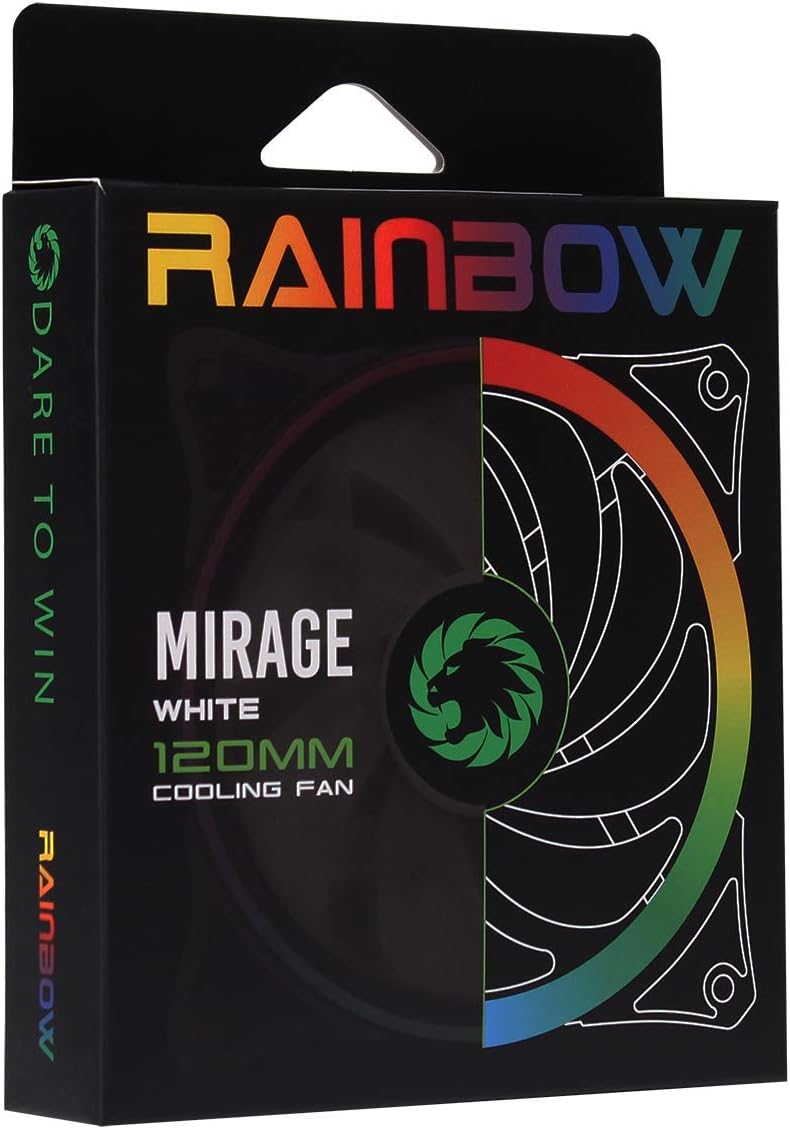
Image 3.1: Retail packaging for the GameMax Mirage fan.
4. Configuración e instalación
Follow these steps to install your GameMax Mirage 120mm PC Cooling Fan:
- Prepare su sistema: Power off your computer and unplug it from the power outlet. Open your computer case to access the fan mounting locations.
- Monte el ventilador: Position the fan in your desired location (e.g., case front, rear, top, or radiator). Ensure the airflow direction is correct for your cooling setup. Use the four included mounting screws to secure the fan to the chassis or radiator. The fan features rubber pads on the corners to help reduce vibration.
- Conectar la alimentación del ventilador: Locate the 3-pin power connector on the fan cable. Connect this cable to an available 3-pin fan header on your motherboard or a fan controller.
- Conectar la iluminación RGB: Locate the 5V addressable 3-pin Aura connector on the fan cable. Connect this to a compatible 5V ARGB header on your motherboard (often labeled 'VDG' or 'ARGB') or an external RGB controller/hub. Warning: Do not connect this to a 12V RGB header, as it will damage the LEDs.

Image 4.1: The 3-pin power connector (top) and 5V addressable 3-pin Aura connector (bottom).
The fan cables are braided for improved aesthetics and durability, helping to keep your build neat and tidy.
5. Instrucciones de funcionamiento
Once installed, the GameMax Mirage fan operates as follows:
- Control de velocidad del ventilador: The fan speed is controlled via the 3-pin power connector. If connected to a motherboard fan header, the speed can typically be adjusted through your motherboard's BIOS/UEFI settings or dedicated software.
- Control de iluminación RGB: The Rainbow LED lighting is controlled via the 5V addressable 3-pin Aura connector.
- If connected to a compatible motherboard (e.g., ASUS Aura Sync, MSI Mystic Light, Gigabyte RGB Fusion, ASRock Polychrome Sync), you can use the motherboard's software to customize lighting effects, colors, and synchronization with other ARGB components.
- If connected to an external RGB hub/controller, refer to the instructions provided with your specific hub/controller for lighting customization options.

Imagen 5.1: En ángulo view of the GameMax Mirage fan showcasing its dual-ring Rainbow LED lighting.
6. Mantenimiento
El mantenimiento regular ayuda a garantizar un rendimiento óptimo y la longevidad de su ventilador de refrigeración:
- Limpieza de polvo: Inspeccione periódicamente las aspas y el marco del ventilador para detectar acumulación de polvo. Utilice aire comprimido o un cepillo suave para eliminar el polvo con cuidado. Asegúrese de que el ventilador esté apagado y desenchufado antes de limpiarlo.
- Inspección de cables: Occasionally check the power and RGB cables for any signs of wear or damage.
7. Solución de problemas
- El ventilador no gira:
- Ensure the 3-pin power connector is securely plugged into a functional fan header on the motherboard or controller.
- Check motherboard BIOS/UEFI settings to ensure the fan header is enabled and configured correctly.
- LEDs Not Lighting Up or Incorrect Colors:
- Verify the 5V addressable 3-pin Aura connector is securely connected to a compatible 5V ARGB header (not 12V RGB).
- Ensure your motherboard's RGB software or external controller is properly installed and configured.
- If using a splitter or hub, ensure it is powered and functioning correctly.
- Ruido excesivo:
- Compruebe si hay cables u obstrucciones que interfieran con las aspas del ventilador.
- Ensure the fan is securely mounted and the rubber pads are properly seated to absorb vibrations.
- Dust accumulation can cause imbalance and noise; clean the fan as described in the Maintenance section.
8. Especificaciones
| Característica | Especificación |
|---|---|
| Modelo | MIRAGEWHITE FINS |
| Tamaño del ventilador | 120 mm x 120 mm x 25 mm (0.98 x 4.72 x 4.72 pulgadas) |
| Tipo de rodamiento | Cojinete hidráulico |
| Las cuchillas del ventilador | 7 cuchillas |
| Tipo de LED | Addressable Rainbow LED (Dual-Ring) |
| Conector de alimentación del ventilador | 3 pines |
| Conector RGB | 5V Addressable 3-Pin Aura Connector |
| Vol de funcionamientotage | 5 Volts (for RGB) / 12 Volts (for fan motor, typical for 3-pin) |
| Wat nominaltage | 3 vatios |
| Velocidad máxima de rotación | 1800 RPM |
| Nivel de ruido | Aproximadamente 25 dB(A) |
| Material | Rubber (for vibration dampening) |

Imagen 8.1: Espalda view of the GameMax Mirage fan, displaying the product label with model and electrical specifications.
9. Garantía y soporte
Para obtener información sobre la garantía y soporte técnico, consulte el sitio web oficial de GAMEMAX. webSitio web o contacte a su vendedor. Conserve su comprobante de compra para reclamaciones de garantía.