
1. Introducción
Welcome to the user manual for your Genius Manticore Gaming Keyboard. This guide provides essential information for setting up, operating, maintaining, and troubleshooting your new gaming keyboard. Please read these instructions carefully to ensure optimal performance and longevity of your device.
2. Producto terminadoview
The Genius Manticore Gaming Keyboard is designed for an enhanced gaming experience, featuring a durable build and responsive keys. It connects via USB and is compatible with a wide range of devices. The keyboard includes 104 keys with a standard QWERTY layout, complemented by additional gaming-specific features.
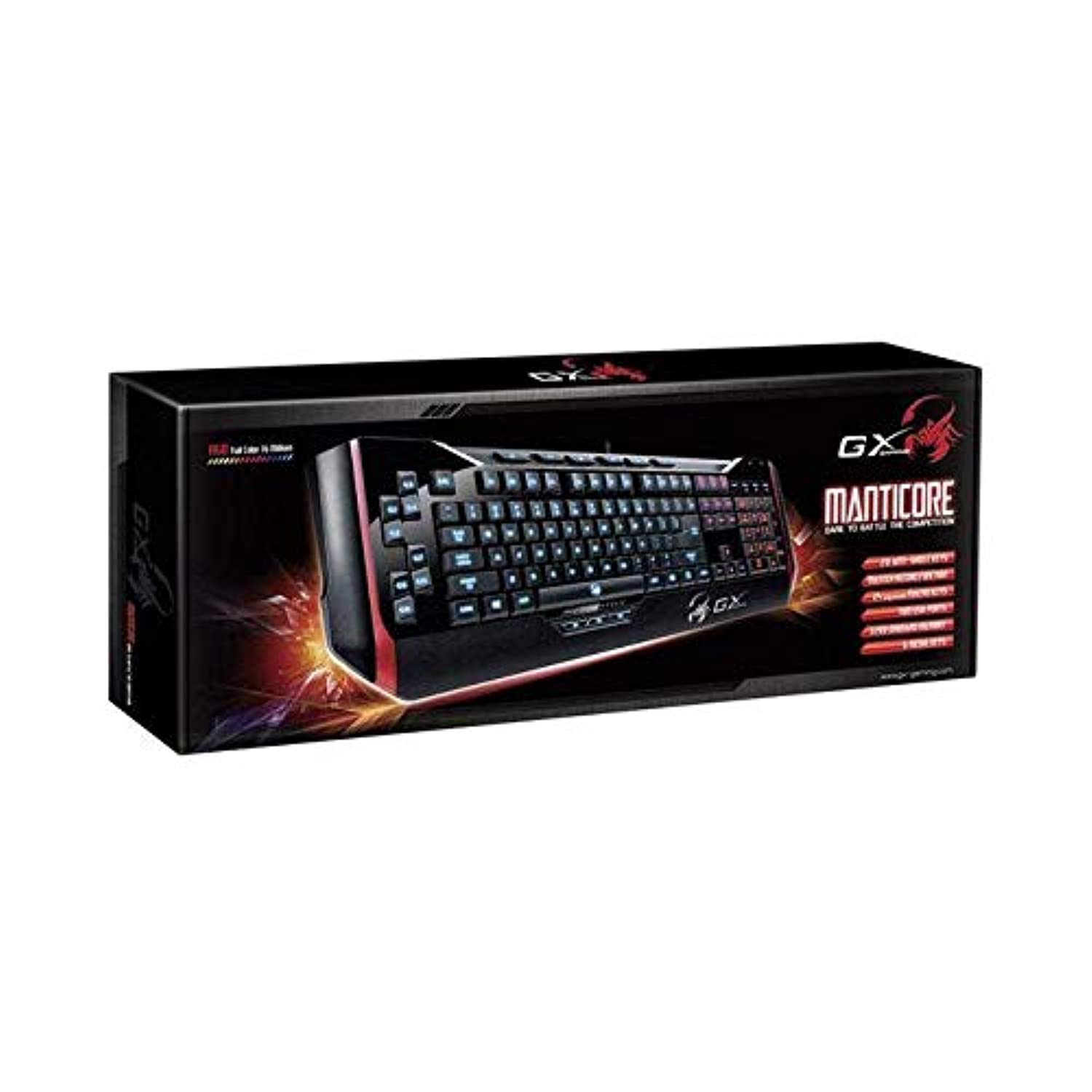
Figura 1: Genius Manticore Gaming Keyboard. This image displays the Genius Manticore Gaming Keyboard, featuring a black body with red accents on the sides. The keys are illuminated, indicating its gaming functionality. The keyboard has a standard QWERTY layout with additional keys on the left side, likely for macros, and a numeric keypad on the right.
3. Configuración
- Desembalaje del teclado: Carefully remove the Genius Manticore Gaming Keyboard from its packaging. Ensure all components are present.
- Conéctese a su dispositivo: Locate an available USB port on your computer or compatible device. Insert the USB connector of the keyboard firmly into the USB port.
- Instalación del controlador (si es necesario): For most modern operating systems, the keyboard will be recognized automatically, and standard drivers will be installed. If prompted, follow the on-screen instructions to complete any driver installation.
- Funcionalidad de prueba: Abra un editor de texto o un web navegador y pruebe las teclas para asegurarse de que responden correctamente.
4. Instrucciones de funcionamiento
The Genius Manticore Gaming Keyboard offers a standard QWERTY layout for general typing and dedicated features for gaming.
- Funciones de teclas estándar: All standard alphanumeric, symbol, and function keys operate as expected on a typical QWERTY keyboard.
- Características del juego: The keyboard is designed for gaming. Specific gaming features, such as customizable backlighting or programmable macro keys (if available on your model), can typically be configured through dedicated software provided by Genius or through specific key combinations. Refer to the Genius website for any available software downloads or advanced feature guides.
- Fuente de energía: The keyboard is powered directly via the USB connection to your device. No external power supply or batteries are required.
5. Mantenimiento
Un mantenimiento adecuado garantiza la longevidad y el rendimiento de su teclado.
- Limpieza: Utilice un paño suave y seco para limpiar la superficie del teclado. Para eliminar el polvo y la suciedad entre las teclas, utilice aire comprimido. Evite el uso de productos químicos agresivos o materiales abrasivos.
- Exposición a líquidos: Este teclado es no resistente al agua. Avoid spilling liquids on the keyboard, as this can cause permanent damage. If liquid exposure occurs, immediately disconnect the keyboard from your device and allow it to dry completely before attempting to use it again.
- Almacenamiento: Cuando no esté en uso, guarde el teclado en un entorno limpio y seco, alejado de temperaturas extremas y de la luz solar directa.
6. Solución de problemas
Si tiene problemas con su teclado, pruebe las siguientes soluciones:
- El teclado no responde:
- Asegúrese de que el cable USB esté conectado de forma segura tanto al teclado como a la computadora.
- Intente conectar el teclado a un puerto USB diferente en su computadora.
- Pruebe el teclado en otra computadora para determinar si el problema está en el teclado o en la computadora original.
- Reinicie su computadora.
- Teclas específicas que no funcionan:
- Check for any physical obstructions under the non-functional keys.
- Limpie el teclado como se describe en la sección Mantenimiento.
- Ensure no software conflicts are present (e.g., macro software interfering with standard key functions).
- Problemas de retroiluminación:
- If your model features adjustable backlighting, ensure it is not turned off or set to the lowest brightness level. Consult the Genius website for specific key combinations to control backlighting.
If these steps do not resolve the issue, please contact Genius customer support for further assistance.
7. Especificaciones
| Característica | Detalle |
|---|---|
| Nombre de marca | Genio |
| Número de modelo | GE31310058108 |
| Dispositivos compatibles | Todo |
| Tecnología de conectividad | USB |
| Descripción del teclado | Juego de azar |
| Características especiales | Juego de azar |
| Color | Multi-color (Black and Red) |
| Estilo | Moderno |
| Material | Materiales múltiples |
| Tema | Juegos |
| Fuente de poder | Alimentación USB |
| Número de llaves | 104 |
| Disposición del teclado | Teclado QWERTY |
| Orientación de la mano | Ambidextro |
| Cantidad de botones | 104 |
| Nivel de resistencia al agua | No resistente al agua |
| Fabricante | Genio |
| ASIN | B07MQMXJS9 |
8. Garantía y soporte
Your Genius Manticore Gaming Keyboard is covered by a standard manufacturer's warranty. For detailed information regarding warranty terms, registration, or to access technical support, please visit the official Genius webSitio web o contacte con el departamento de atención al cliente. Conserve su recibo de compra como comprobante.
Para obtener más ayuda, puede visitar el Genius Official Websitio.