
Introducción
This manual provides instructions for the setup, operation, and maintenance of your Zelotes T20 Ergonomic Vertical Mouse. Please read this manual thoroughly before using the product to ensure proper function and longevity.
Producto terminadoview
The Zelotes T20 is an ergonomic vertical mouse designed to promote a natural hand and wrist posture, reducing strain during extended use. It features adjustable DPI settings and multiple programmable buttons for enhanced control.

Figure 1: Zelotes T20 Ergonomic Vertical Mouse. This image displays the overall design of the mouse, highlighting its vertical orientation and LED lighting.
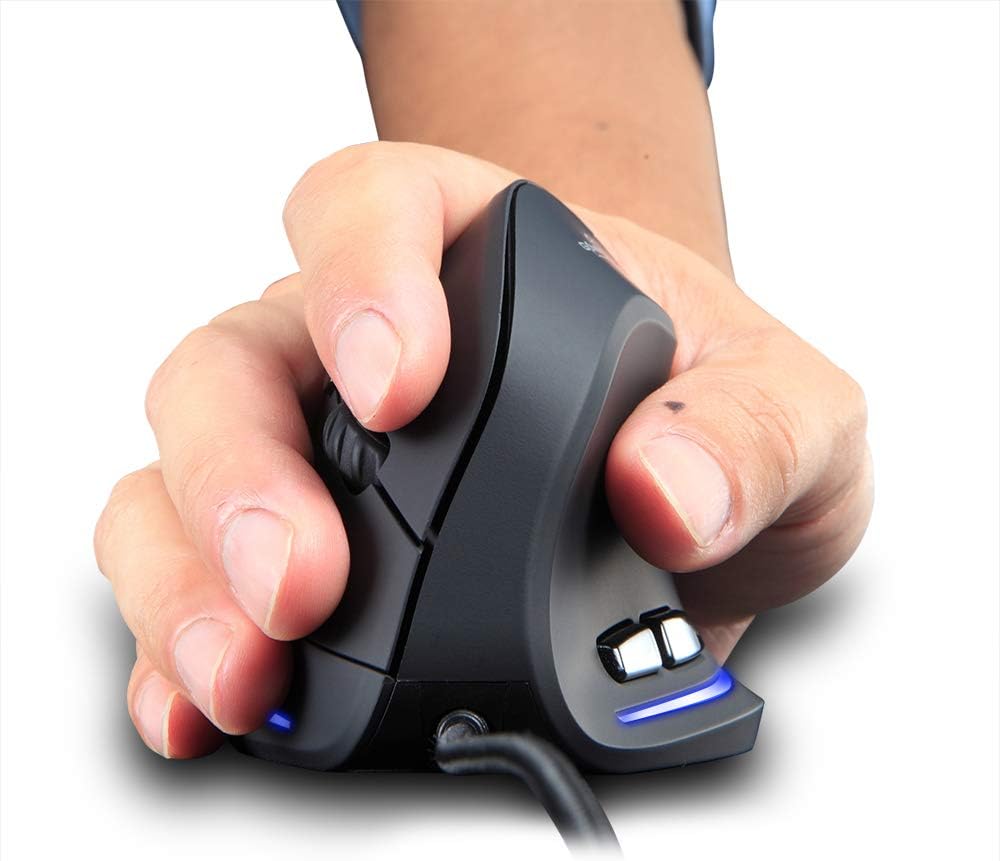
Figure 2: Proper hand placement on the Zelotes T20 mouse. This image illustrates how the vertical design allows for a natural handshake grip, intended to reduce wrist strain.

Figure 3: Ergonomic comparison. This diagram contrasts the natural wrist posture with a vertical mouse against the twisted posture often associated with traditional horizontal mice, emphasizing fatigue reduction.
Contenido del paquete
Verifique que todos los artículos estén presentes en el paquete:
- 1 x Zelotes Ergonomic Vertical Mouse
- 1 x Manual de instrucciones (este documento)
Configuración
- Conectar el ratón: Plug the USB cable of the Zelotes T20 mouse into an available USB port on your computer.
- Instalación del controlador: The mouse is plug-and-play. Your operating system should automatically detect and install the necessary drivers. No additional software installation is typically required.
- Retire la película protectora: Before use, locate and remove the protective film from the "Bigfoot pads" on the underside of the mouse for optimal gliding performance.

Figure 4: Underside of the mouse. This image shows the Teflon material pads and indicates the location of the protective film that should be removed before initial use.
Instrucciones de funcionamiento
Funciones de los botones
The Zelotes T20 mouse features 6 buttons for various functions:
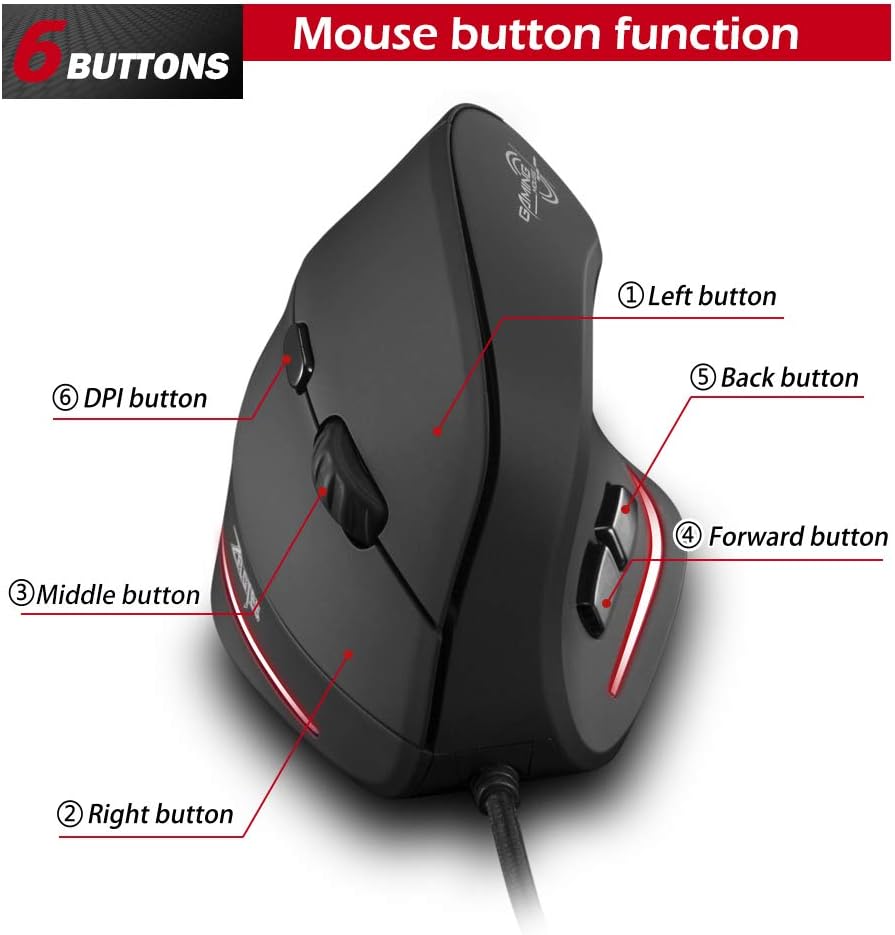
Figure 5: Mouse button layout. This diagram labels each of the six buttons: Left, Right, Middle (scroll wheel click), Forward, Back, and DPI adjustment button.
- Botón izquierdo: Función de clic izquierdo estándar.
- Botón derecho: Función estándar de clic derecho.
- Botón central (rueda de desplazamiento): Clickable scroll wheel for middle-click functions.
- Botón de avance: Navega hacia adelante en web navegadores o file exploradores.
- Botón Atrás: Navega hacia atrás en web navegadores o file exploradores.
- Botón PPP: Ajusta la sensibilidad del mouse (DPI).
Ajuste de DPI (sensibilidad)
The mouse offers four adjustable DPI settings to suit different tasks and preferences. Press the DPI button (Button 6 in Figure 5) to cycle through the settings. Each DPI level is indicated by a specific LED light color:
- 1200 ppp: Blue light hint
- 1600 ppp: Dark purple light hint
- 2400 ppp: Red light hint
- 3200 ppp: Light purple light hint
The light will stay on for approximately 3 seconds when switching DPI settings to indicate the current level.

Figure 6: DPI adjustment and LED indicators. This image illustrates the DPI button and the color coding for each of the four sensitivity settings.
Using Forward/Back Keys
The dedicated Forward and Back buttons (Buttons 4 and 5 in Figure 5) provide quick navigation. These buttons are designed to streamline browsing through web pages or folders, reducing the need for on-screen clicks.

Figure 7: Forward and Back navigation buttons. This image highlights the placement of the forward and back buttons, designed for convenient web y file navegación.
Mantenimiento
- Limpieza: Utilice un paño suave y seco para limpiar la superficie del ratón. Para la suciedad difícil, utilice un paño ligeramente seco.amp Se puede utilizar un paño, asegurándose de que no entre líquido en el ratón.
- Mantenimiento de sensores: Mantenga el sensor óptico en la parte inferior del mouse limpio y libre de polvo o residuos para garantizar un seguimiento preciso.
- Cuidado de cables: Evite dobleces bruscos o tirones excesivos del cable USB para prevenir daños.

Figure 8: Mouse surface texture. This image provides a close-up view of the mouse's surface, described as smooth for comfortable handling.
Solución de problemas
- El ratón no responde:
- Asegúrese de que el cable USB esté conectado de forma segura a un puerto USB que funcione en su computadora.
- Intente conectar el mouse a un puerto USB diferente.
- Reinicie su computadora.
- Seguimiento inexacto:
- Limpie el sensor óptico en la parte inferior del mouse.
- Asegúrese de usar el ratón sobre una superficie adecuada (por ejemplo, una alfombrilla). Las superficies muy reflectantes o transparentes pueden causar problemas.
- Ajuste la configuración de DPI utilizando el botón DPI.
- Los botones no funcionan correctamente:
- Verifique que el mouse esté conectado correctamente.
- Pruebe el mouse en otra computadora para determinar si el problema está en el mouse o en la configuración de la computadora.
Presupuesto
| Característica | Detalle |
|---|---|
| Modelo | T20 |
| Número de botón | 6 botones |
| Sistema de seguimiento | Óptico |
| Longitud del cable USB | 1.8 m |
| Vol de trabajotage / Actual | 5 V/100 mA |
| Vida del botón | 5 millones de veces |
| Vida útil del rodillo | 1.2 millones de vueltas |
| Dimensiones del producto (L x An x Al) | 110 x 72 x 75 mm (4.33 x 2.83 x 2.95 pulgadas) |
| Peso del producto | 160 ± 5 g (5.6 onzas) |
| Resolución (DPI) | 1200-1600-2400-3200 |
| Tasa de retorno (tasa de sondeo) | 125 Hz |
| Compatibilidad | Windows 2000/ME/XP (x64)/Vista/7/8/10, Mac OS X (over V10.4), Linux |

Figure 9: Product dimensions. This image provides detailed measurements of the mouse from various angles.
Garantía y soporte
Para obtener información sobre la garantía o asistencia técnica, consulte el sitio web oficial del fabricante. webSitio web o contacte con el departamento de atención al cliente. Conserve su recibo de compra como comprobante.