
Epson ET-2750
Manual del usuario de la impresora multifunción Epson EcoTank ET-2750
Modelo: ET-2750 | Marca: Epson
Introducción
The Epson EcoTank ET-2750 is a wireless all-in-one supertank printer designed for cartridge-free printing. It offers a cost-effective solution with high page yields and convenient features for home and office use.
Características principales
- Impresión sin cartuchos: Utilizes large, refillable ink tanks instead of traditional cartridges, significantly reducing ink costs.
- Alto rendimiento de páginas: Includes enough ink to print up to 6,500 black pages or 5,200 color pages, equivalent to approximately 30 ink cartridge sets.
- Low-Cost Replacement Ink: Save up to 80 percent on ink with affordable replacement bottles.
- Auto-Stop Ink Bottles: Uniquely keyed bottles for each color ensure easy and mess-free filling.
- Conectividad inalámbrica: Seamlessly print from tablets, smartphones, and computers via Wi-Fi and Wi-Fi Direct.
- Impresión automática a doble cara: Conserve paper with automatic double-sided printing.
- Multifuncionalidad: Print, scan, and copy capabilities in one device.
- Ranura para tarjeta de memoria: Directly print photos and documents from an SD card.
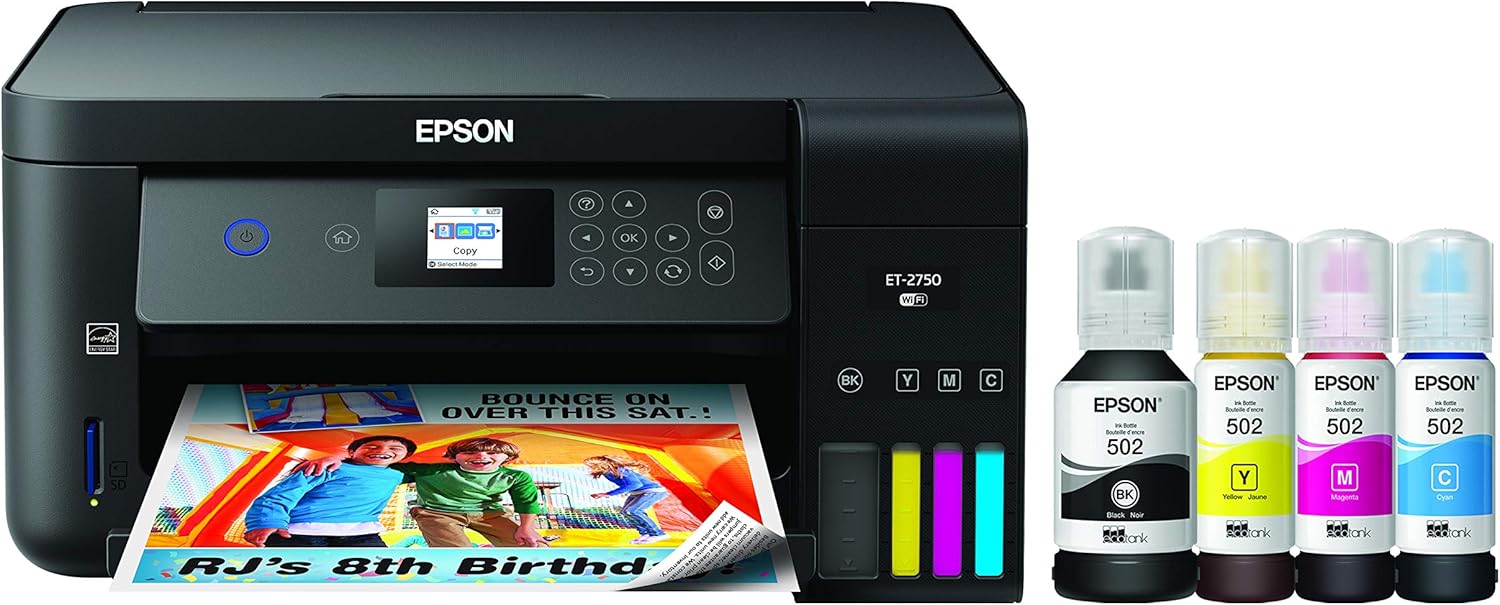
Figure 1: Epson EcoTank ET-2750 All-in-One Printer with included ink bottles.
¿Qué hay en la caja?
Verifique que todos los componentes estén presentes antes de continuar con la configuración:
- Epson Expression ET-2750 EcoTank All-in-One Printer
- Manual de usuario
- CD-ROM para la instalación del producto
- Cable de alimentación
- 1x 127 mL Bottle of 502 Black Ink
- 1x 70 mL Bottle of 502 Cyan Ink
- 1x 70 mL Bottle of 502 Magenta Ink
- 1x 70 mL Bottle of 502 Yellow Ink

Figure 2: All items included in the Epson EcoTank ET-2750 packaging.
Configuración
1. Desembalaje y colocación
Remove all packaging materials, tapes, and protective films from the printer. Place the printer on a stable, flat surface with adequate space for paper loading and output.
2. Conexión de alimentación
Conecte el cable de alimentación a la impresora y luego a una toma de corriente con conexión a tierra. Presione el botón de encendido para encender la impresora.
3. Llenado de tinta inicial
Carefully open the ink tank unit cover. Open the cap for each color ink tank. Unpack the corresponding ink bottles. The unique keying of each bottle ensures it only fits into the correct color tank. Invert the bottle and insert it into the filling port. The ink will automatically fill the tank. Once full, the flow will stop. Remove the bottle and securely close the tank cap and unit cover.

Figure 3: Demonstrating the mess-free ink filling process for the magenta tank.

Figure 4: Filling the black ink tank, showing the large capacity.
4. Instalación del software
Insert the provided CD-ROM into your computer's CD drive. Follow the on-screen instructions to install the printer drivers and software. If your computer does not have a CD drive, download the latest drivers from the official Epson support websitiowww.epson.com/support/et2750).
5. Conexión de red (Wi-Fi)
On the printer's control panel, navigate to the Wi-Fi setup menu. Select your wireless network (SSID) from the list and enter your network password. Once connected, the Wi-Fi indicator light will illuminate.
Operación de la impresora
1. Carga de papel
Open the paper support and pull out the extension. Fan the paper stack and load it into the rear paper feed slot, print side up. Adjust the edge guides to fit the paper width.
2. Impresión de documentos
From your computer or mobile device, open the document or image you wish to print. Select the Epson ET-2750 as your printer. Adjust print settings such as paper size, print quality, and color/monochrome. Click "Print".
Impresión inalámbrica
Ensure your mobile device or computer is connected to the same Wi-Fi network as the printer. Use the Epson iPrint app (available for iOS and Android) or your device's native print function (e.g., Apple AirPrint, Mopria Print Service) to send print jobs wirelessly.

Figure 5: Wireless printing in action, showing ease of use from a laptop.
3. Escaneo de documentos
Place the document face down on the scanner glass, aligning it with the corner mark. Close the scanner lid. On the printer's control panel, select "Scan" and choose your desired destination (e.g., computer, memory card). Alternatively, use the Epson Scan software on your computer for more advanced scanning options.
4. Copia de documentos
Place the document face down on the scanner glass. On the printer's control panel, select "Copy". Choose the number of copies and whether you want color or black & white. Press the "Start" button to begin copying.
Mantenimiento
Recarga de tinta
Monitor ink levels through the transparent ink tanks on the front of the printer. When an ink tank is low, purchase genuine Epson 502 replacement ink bottles. Follow the initial ink filling steps outlined in the Setup section.
Important: Epson strongly recommends the use of Genuine Epson inks for optimal print quality and to avoid damage not covered by the warranty.
Limpieza del cabezal de impresión
If print quality declines (e.g., missing lines, streaking), perform a print head cleaning. This can be done through the printer's control panel or the Epson printer utility software on your computer. Refer to the user manual for detailed steps.
Uso regular
To prevent ink from drying in the print head, it is recommended to print at least a few pages regularly, ideally once a week, even if it's just a test page.
Solución de problemas
La impresora no responde
- Verifique las conexiones de alimentación y asegúrese de que la impresora esté encendida.
- Verify Wi-Fi connection (printer and device).
- Reinicie la impresora y su computadora/dispositivo.
- Ensure paper is loaded correctly and there are no paper jams.
Mala calidad de impresión
- Verifique los niveles de tinta y rellénelo si es necesario.
- Realice una limpieza del cabezal de impresión.
- Ejecute una verificación de boquillas para identificar boquillas obstruidas.
- Asegúrese de utilizar tinta Epson original.
- Verifique el tipo de papel y la configuración de calidad en su controlador de impresión.
Atascos de papel
- Turn off the printer and carefully remove any jammed paper from the paper feed or output tray.
- Asegúrese de que el papel esté cargado correctamente y no sobrecargado.
Problemas de conexión inalámbrica
- Restart your wireless router.
- Re-run the Wi-Fi setup wizard on the printer.
- Ensure the printer is within range of your router.
Presupuesto
| Característica | Detalle |
|---|---|
| Nombre del modelo | Tanque ecológico ET-2750 |
| Dimensiones del producto | 14.8" de profundidad x 22.3" de ancho x 10.2" de alto |
| Peso del artículo | 12.1 libras |
| Tecnología de impresión | Chorro de tinta |
| Salida de impresora | Color, Monocromo |
| Máxima resolución de impresión | 5760 x 1440 ppp optimizados |
| Velocidad máxima de impresión (monocromo) | 10.5 ppm |
| Velocidad máxima de impresión (color) | 10.5 ppm |
| Tecnología de conectividad | Wi-Fi, Ethernet, USB |
| Impresión dúplex | Automático (2 caras) |
| Tipo de escáner | Plataforma plana |
| Tipo de pantalla | Pantalla LCD |
| Consumo de energía | 13 vatios (modo encendido) |
| Sistemas operativos compatibles | Windows 10, 8, 8.1 (32/64-bit), 7 (32/64-bit), Mac OS X 10.6 – Mac OS 10.12.x |
Garantía y soporte
Información de garantía
The Epson EcoTank ET-2750 comes with a 12-month standard limited warranty or 50,000 plain paper sheets (whichever happens first). For an additional 12 months (total of 24 months or 50,000 plain paper sheets, whichever happens first), register your product and use Epson genuine ink bottles. Refer to the included warranty documentation for full details.
Atención al cliente
Para obtener más ayuda, soporte técnico o acceder al manual de usuario completo, visite el sitio de soporte oficial de Epson. websitio o comuníquese con el servicio de atención al cliente de Epson.
Ask a question about this manual
Ask about setup, troubleshooting, compatibility, parts, safety, or missing instructions. Manuals+ will review the question and use this page’s manual context to help answer it.