
Hermano MFCL8690CDW
Brother MFC-L8690CDW Color Multifunction Printer User Manual
This manual provides detailed instructions for the setup, operation, maintenance, and troubleshooting of your Brother MFC-L8690CDW multifunction laser printer.
1. Introducción
Welcome to the user manual for your Brother MFC-L8690CDW. This device is a high-performance color laser multifunction printer designed for efficient printing, scanning, and copying. It features an automatic document feeder, A4 paper compatibility, and duplex printing capabilities, making it suitable for various office and home office environments.
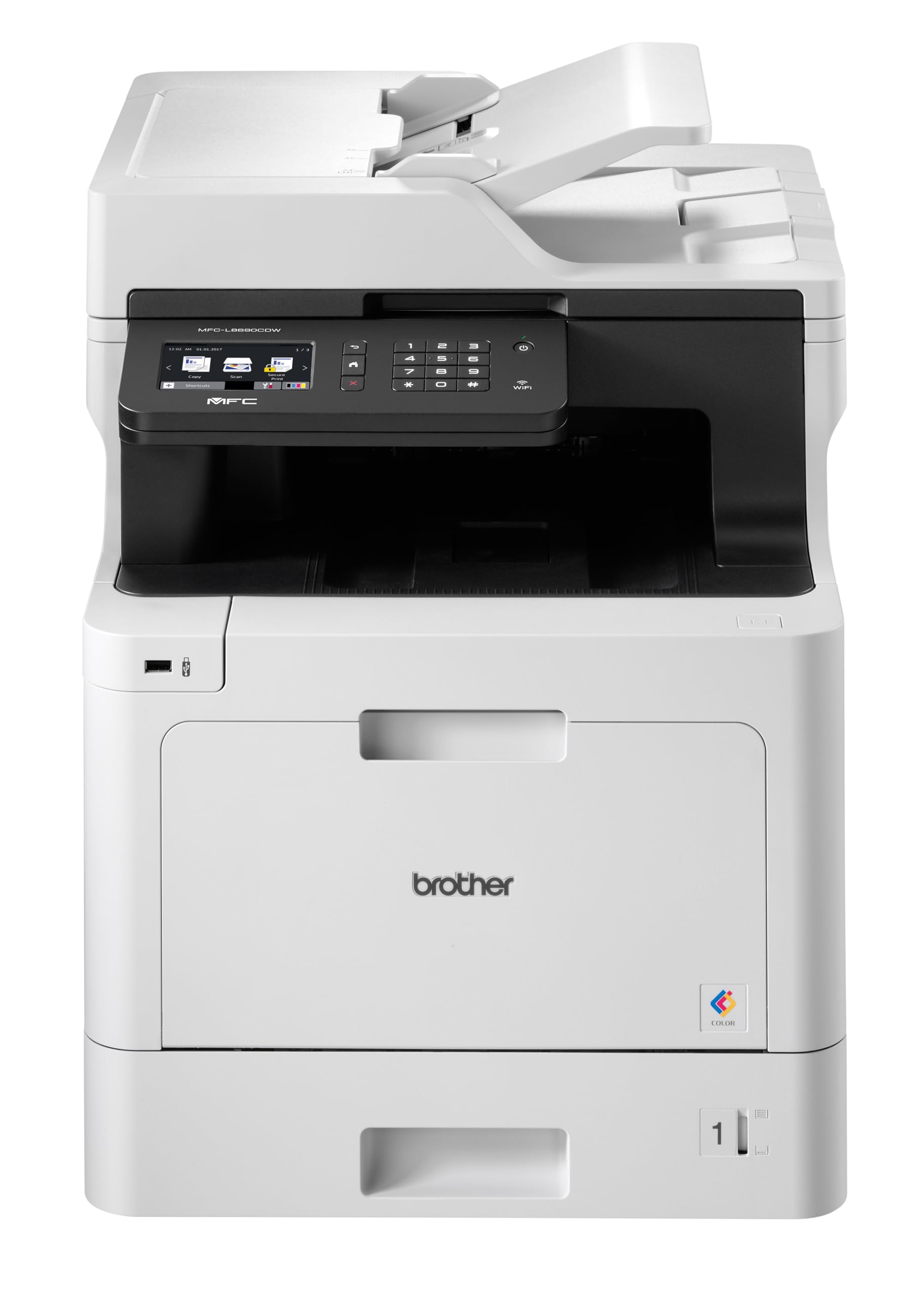
Frente view of the Brother MFC-L8690CDW color multifunction printer, showcasing su diseño compacto y panel de control.
2. Configuración
2.1 Desembalaje y colocación inicial
Carefully remove the printer from its packaging. Ensure all protective tapes and packing materials are removed from the exterior and interior of the device. Place the printer on a stable, level surface with adequate ventilation, away from direct sunlight or heat sources.
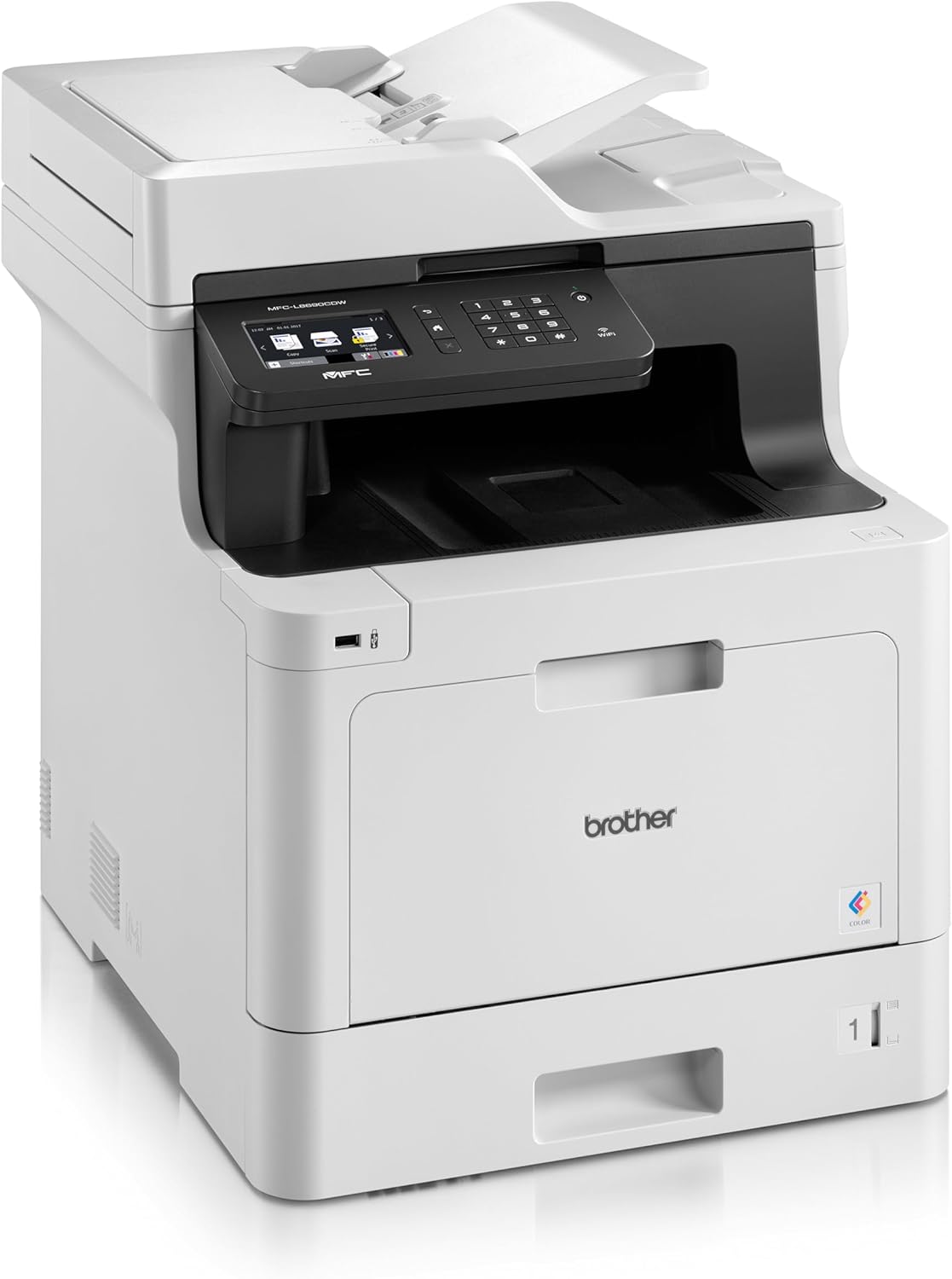
Frente view of the Brother MFC-L8690CDW, showing the control panel and paper output tray.
2.2 Conexión de alimentación
Connect the power cord to the printer's power input and then to a grounded electrical outlet. Do not connect the printer to a power strip or surge protector during initial setup to avoid potential power issues.
2.3 Instalación del cartucho de tóner
Open the front cover of the printer. Install the included toner cartridges into their respective color-coded slots. Ensure each cartridge clicks into place. Close the cover securely.
2.4 Carga de papel
Open the main paper tray. Load standard A4 paper (or other supported sizes) into the tray, ensuring the print side is facing down. Adjust the paper guides to fit the paper size snugly without bending the paper.

Lado view of the Brother MFC-L8690CDW printer, illustrating the paper input tray.
2.5 Instalación de software y controladores
Inserte el CD de instalación en la unidad de CD-ROM de su computadora o descargue los controladores y el software más recientes del soporte oficial de Brother. website. Follow the on-screen instructions to complete the installation for your operating system.
2.6 Conexión de red
The MFC-L8690CDW supports both wired (Ethernet) and wireless (Wi-Fi IEEE 802.11b/g/n) connections.
2.6.1 conexiones cableadas
Connect an Ethernet cable from your router or network hub to the Ethernet port on the back of the printer.
2.6.2 Conexión inalámbrica
En el panel de control de la impresora, navegue hasta Configuración de red, entonces Red inalámbrica (WLAN). Select your Wi-Fi network from the list and enter the password when prompted.

Trasero view of the Brother MFC-L8690CDW printer, highlighting the power input, Ethernet port, and USB port.
3. Instrucciones de funcionamiento
3.1 Impresión básica
From your computer, open the document you wish to print. Select Imprimir from the application's menu. Choose Hermano MFC-L8690CDW as your printer. Adjust settings such as color/monochrome, duplex printing, and paper size as needed in the print dialog box. Click Imprimir to start the job.
3.2 Copia de documentos
Place your document face down on the scanner glass or face up in the Automatic Document Feeder (ADF). On the printer's control panel, select Copiar. Adjust settings like number of copies, color/monochrome, and reduction/enlargement. Press Comenzar para comenzar a copiar.
3.3 Escaneo de documentos
Place your document on the scanner glass or in the ADF. On the printer's control panel, select Escanear. Choose your desired scan destination (e.g., computer, email, network folder). Adjust scan settings like resolution and file format. Press Comenzar to initiate the scan.
4. Mantenimiento
4.1 Limpieza de la impresora
Regularly clean the exterior of the printer with a soft, lint-free cloth. For the scanner glass, use a mild glass cleaner applied to a cloth, not directly to the glass, to avoid streaks or damage.
4.2 Reemplazo de cartuchos de tóner
When a toner cartridge is low or empty, the printer's display will indicate which cartridge needs replacement. Open the front cover, remove the old cartridge, and insert a new Brother genuine toner cartridge. Ensure it is securely seated before closing the cover.
4.3 Eliminación de atascos de papel
If a paper jam occurs, the printer display will show specific instructions and locations. Carefully open the indicated covers and gently pull out any jammed paper in the direction of the paper path. Avoid tearing the paper to prevent small pieces from remaining inside.
5. Solución de problemas
5.1 Problemas comunes y soluciones
La impresora no responde: Check the power connection, USB/network cable, and ensure the printer is online. Restart both the printer and your computer.
Mala calidad de impresión: Check toner levels. Perform a print quality test from the printer's menu. Clean the drum unit if necessary, following the instructions in the maintenance section.
Atascos de papel: Follow the on-screen instructions to locate and remove jammed paper. Ensure paper is loaded correctly, not creased, and within the specified weight limits.
Problemas de conectividad de red: Verify your Wi-Fi password or Ethernet cable connection. Restart your router and printer. Ensure printer firmware is up to date by checking the Brother support websitio.
6. Especificaciones técnicas
| Característica | Especificación |
|---|---|
| Dimensiones del producto | 10 profundidad x 48 ancho x 50 alto centímetros |
| Tipo de controlador | Automático |
| Tamaño máximo de medios | A4 |
| Consumo de energía | 680 vatios |
| Componentes incluidos | Brother Multifunction Laser MFC-L8690CDW Wifi Network |
| Tipo de medio impreso | Papel (normal) |
| Tipo de escáner | Alimentador automático de documentos |
| Capacidad máxima de hojas | 100 hojas |
| Velocidad máxima de copia (blanco y negro) | 32 páginas por minuto |
| Dispositivos compatibles | Computadoras de escritorio |
| Resolución máxima de impresión en color | 1200 x 1200 ppp |
| Tamaño de la hoja | 210 milímetros |
| Resolución máxima de impresión en blanco y negro | 1200 x 1200 ppp |
| Tipo de garantía | Garantía limitada |
| Profundidad de color | 24 pb |
| Impresión dúplex | Sí |
| Disponibilidad de repuestos en la UE | 2 años |
| Copias máximas por serie | 32 |
| Fuerza | 3600 (Unit not specified) |
| Tipo de producto | Todo en uno |
| Sistema operativo | Mac OS 10.15 Catalina (and compatible with other OS) |
| Conexiones | Bluetooth, Ethernet, Mini USB |
| Memoria | 4 (Unit not specified) |
| Puertos USB totales | 1 |
| Batería | Se requiere 1 batería de iones de litio |
| Actualizaciones de software garantizadas hasta | 13 de abril de 2030 |
| Marca | Hermano |
| Tecnología de conectividad | Bluetooth |
| Tecnología de impresión | Láser |
| Color | Multicolor |
| Nombre del modelo | MFC L 8690 CDW |
| Salida de impresora | Color |
| Velocidad máxima de impresión (color) | 10 páginas por minuto |
| Velocidad máxima de impresión (monocromo) | 10 páginas por minuto |
| Peso del artículo | 19 kilogramos |
| ASIN | B072C463YX |
| Fecha de primera disponibilidad | 8 de abril de 2022 |
| Fabricante | HERMANO |
7. Garantía y soporte
7.1 Garantía del producto
This Brother MFC-L8690CDW printer comes with a limited warranty. Spare parts availability in the EU is guaranteed for 2 years from the date of purchase.
7.2 Actualizaciones de software
Software updates for this model are guaranteed until April 13, 2030, ensuring continued compatibility and security enhancements.
7.3 Atención al cliente
Para obtener asistencia técnica, descargas de controladores y más soporte, visite el sitio web official Brother support websitio or contact your local Brother customer service center. Have your model number (MFCL8690CDW) and serial number ready when contacting support.
Ask a question about this manual
Ask about setup, troubleshooting, compatibility, parts, safety, or missing instructions. Manuals+ will review the question and use this page’s manual context to help answer it.