
Sricam SP015
Manual del usuario de la cámara de seguridad Sricam SP015 IP inalámbrica con visión panorámica e inclinación, WiFi, para exteriores, resistente al agua
Model: SP015 | Brand: Sricam
1. Introducción
This manual provides detailed instructions for the installation, operation, maintenance, and troubleshooting of your Sricam SP015 Wireless Pan/Tilt HD IP WiFi CCTV Outdoor Waterproof Security Camera. Please read this manual thoroughly before using the product to ensure proper functionality and safety.
The Sricam SP015 is designed for outdoor surveillance, featuring HD video resolution, pan/tilt capabilities for wide area coverage, infrared night vision, and motion detection. Its waterproof design ensures reliable performance in various weather conditions.
2. Contenido del paquete
Verifique que todos los artículos enumerados a continuación estén incluidos en su paquete:
- Cámara IP Sricam SP015
- Adaptador de corriente
- Cable de LAN
- Tornillos de montaje
- Manual de usuario (este documento)

Figure 2.1: Sricam SP015 camera with its power adapter, LAN cable, and mounting screws.
3. Producto terminadoview
The Sricam SP015 camera is designed for robust outdoor surveillance. Key components include the camera lens, infrared LEDs for night vision, a microphone, a speaker, a Wi-Fi antenna, and mounting bracket.

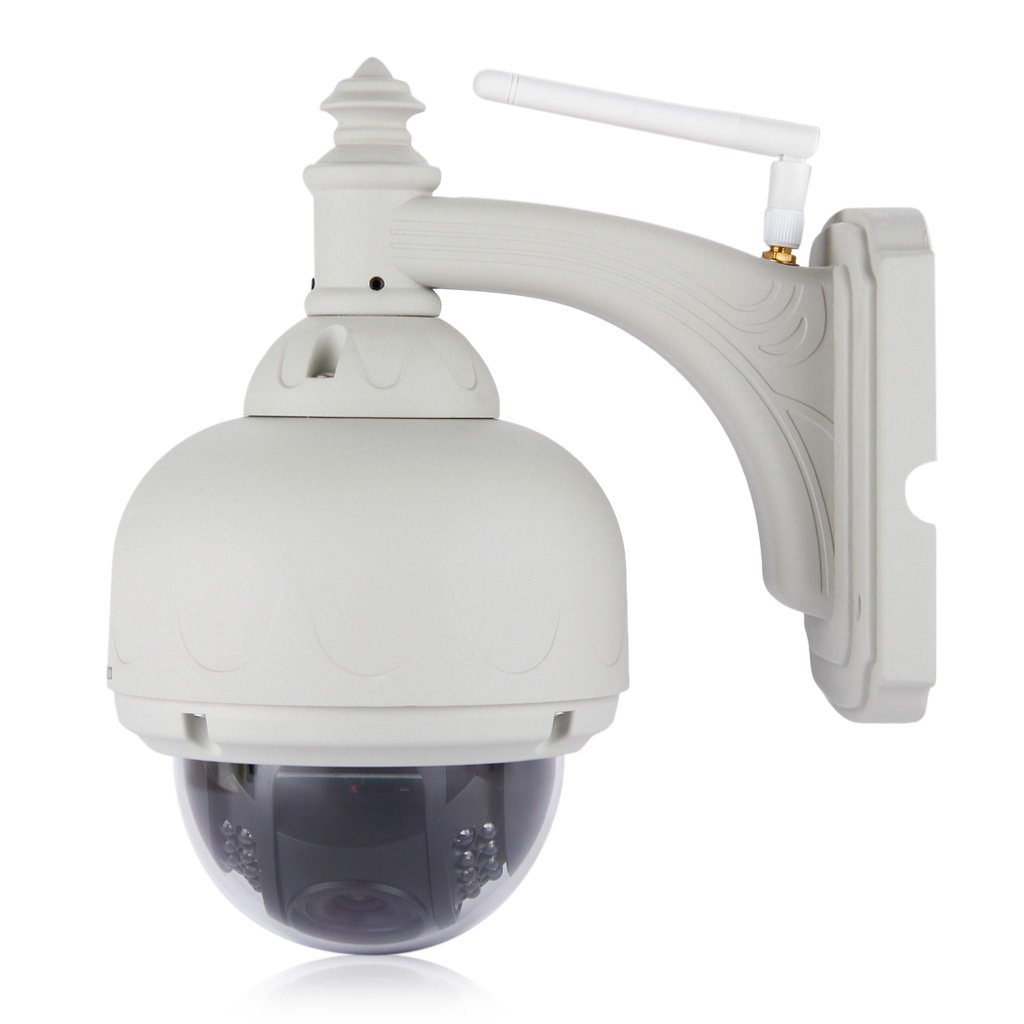
Figura 3.1: Frente y lateral views of the Sricam SP015 camera, showing the lens, IR LEDs, and Wi-Fi antenna.
The camera features a dome design with a clear protective cover over the lens and IR LEDs. The adjustable mounting arm allows for flexible positioning. The Wi-Fi antenna ensures stable wireless connectivity.

Figure 3.2: The Sricam SP015 camera is rated IP66 waterproof, indicating its resistance to dust and strong jets of water, making it suitable for outdoor use.
4. Configuración e instalación
4.1 Montaje de la cámara
The Sricam SP015 is designed for wall mounting. Choose a location that provides the desired viewángulo de visión y se encuentra dentro del alcance de su red Wi-Fi y una toma de corriente.
- Marque los puntos de perforación en la pared utilizando el soporte de montaje de la cámara como plantilla.
- Taladre agujeros en los puntos marcados.
- Inserte tacos de pared (si es necesario) en los orificios perforados.
- Fije el soporte de montaje a la pared utilizando los tornillos proporcionados.
- Conecte la cámara al soporte montado.

Figura 4.1: Example of the Sricam SP015 camera mounted on a wall, showing its typical installation position.
4.2 Encendido y conexión inicial
- Connect the power adapter to the camera's power input port and then plug it into a power outlet.
- Wait for the camera to power on and perform its self-test (indicated by LED lights or audible prompts).
- For initial setup, it is recommended to connect the camera to your router using the provided LAN cable.
4.3 Instalación de la aplicación y emparejamiento de la cámara
The Sricam SP015 is controlled via the 'SRICAM' mobile application.
- Download the 'SRICAM' app from your device's app store (available for Android and iOS).
- Abra la aplicación y registre una nueva cuenta usando su dirección de correo electrónico.
- Inicie sesión en su cuenta recién creada.
- Toque el ícono '+' para agregar una nueva cámara.
- Follow the on-screen instructions to connect the camera to your Wi-Fi network. This typically involves scanning a QR code on the camera or entering the camera's UID manually.
- Once connected, you can disconnect the LAN cable if you prefer a wireless connection.

Figure 4.2: The Sricam SP015 supports mobile app control for both Android and Apple devices, enabling remote access and management.
5. Operación de la cámara
5.1 en vivo View y control de panorámica/inclinación
After successfully adding the camera to the app, tap on the camera icon to access the live video feed.
- Panorámica/inclinación: Desliza el dedo por la pantalla en vivo view to rotate the camera horizontally (pan) and vertically (tilt). The camera supports 355° horizontal rotation and 90° vertical tilt.
- Resolución: Select 'HD' within the app to view the video in 720p high definition.

Figure 5.1: The Sricam SP015 offers 355° horizontal rotation and 90° vertical tilt, allowing comprehensive coverage of the surveillance area.

Figure 5.2: Comparison showing the clarity of 720P HD video (1280x720) from the Sricam SP015 compared to VGA (640x480).
5.2 Detección de movimiento y alertas
The camera can be configured to detect motion and send alerts to your mobile device.
- Navigate to the camera settings within the SRICAM app.
- Localice la opción “Detección de movimiento” o “Configuración de alarma”.
- Enable motion detection and configure sensitivity levels as needed.
- Ensure push notifications are enabled for the SRICAM app on your mobile device to receive alerts.
5.3 Visión nocturna
The Sricam SP015 is equipped with infrared (IR) LEDs for night vision, allowing it to capture clear video in low-light or complete darkness up to 35 feet.
- The camera automatically switches between day and night vision modes based on ambient light conditions.
- In night vision mode, the video feed will appear in black and white.
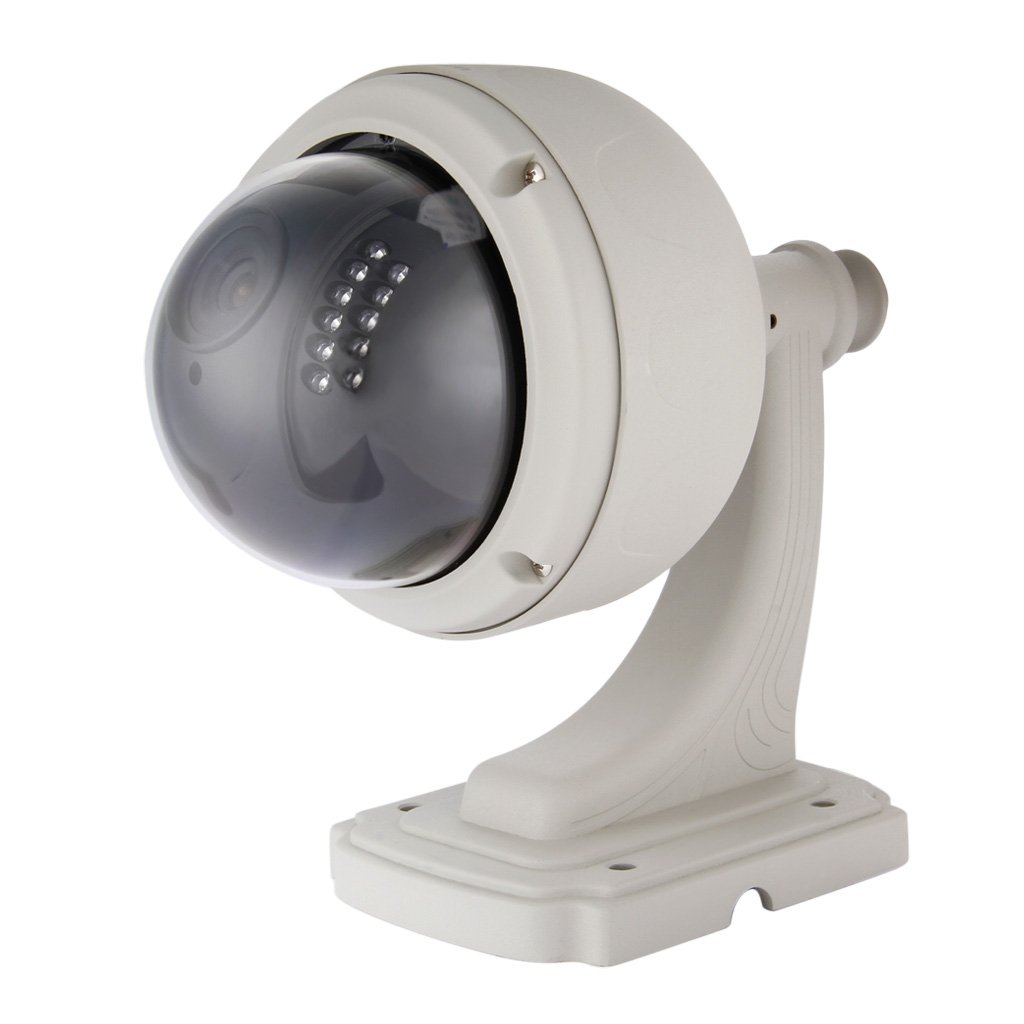
Figure 5.3: The camera's IR-CUT auto switch function provides clear day and night vision, adapting to lighting conditions for continuous surveillance.
5.4 Grabación y almacenamiento de vídeo
The camera supports local video recording to a Micro SD card (up to 128 GB, not included).
- Instalación de la tarjeta SD: To install the Micro SD card, you may need to carefully open the camera housing. Refer to the detailed instructions provided with the camera for precise steps, as improper handling can damage the device.
- Configuración de grabación: Within the app, you can configure recording settings such as continuous recording, scheduled recording, or event-triggered recording (e.g., motion detection).
- Reproducción: Recorded videos can be accessed and played back directly from the SRICAM app.
6. Mantenimiento
- Limpieza: Limpie periódicamente la lente y la carcasa de la cámara con un paño suave y húmedo.amp Paño para garantizar una imagen nítida. No utilice productos químicos agresivos ni materiales abrasivos.
- Actualizaciones de firmware: Check the SRICAM app periodically for available firmware updates. Keeping the firmware updated ensures optimal performance and security.
- Ciclo de energía: If the camera experiences connectivity issues or freezes, try power cycling it by unplugging the power adapter for a few seconds and then plugging it back in.
- Gestión de tarjetas SD: If using an SD card for recording, periodically check its status and consider formatting it through the app to maintain performance and free up space.
7. Solución de problemas
| Problema | Posible causa | Solución |
|---|---|---|
| La cámara no se conecta al Wi-Fi. | Contraseña de Wi-Fi incorrecta; la cámara está demasiado lejos del enrutador; interferencia de señal de Wi-Fi. | Verify Wi-Fi password. Move camera closer to router or use a Wi-Fi extender. Reduce interference from other devices. Try connecting via LAN cable first. |
| No hay transmisión de video en vivo. | Camera offline; network issue; app glitch. | Check camera's power and network connection. Restart the camera and your router. Close and reopen the SRICAM app. |
| Alertas de detección de movimiento no recibidas. | Motion detection disabled; app notifications blocked; incorrect sensitivity. | Enable motion detection in app settings. Check phone's notification settings for the SRICAM app. Adjust motion detection sensitivity. |
| Mala calidad de visión nocturna. | Obstruction in front of IR LEDs; IR LEDs malfunctioning; external light source interference. | Ensure no obstructions are blocking the IR LEDs. Clean the camera lens. If problem persists, contact support. |
| La tarjeta SD no graba. | SD card full or faulty; incorrect recording settings; SD card not properly installed. | Format or replace the SD card. Verify recording settings in the app. Ensure the SD card is correctly inserted. |
8. Especificaciones
| Característica | Detalle |
|---|---|
| Modelo | SP015 |
| Resolución de vídeo | 720p (1280x720) |
| Rango de movimiento horizontal y vertical | Horizontal: 355°, Vertical: 90° |
| Rango de visión nocturna | Hasta 35 pies (infrarrojos) |
| Resistencia al agua | IP66 resistente al agua |
| Almacenamiento | Micro SD Card (up to 128 GB) |
| Conectividad | Wi-Fi (Wireless), LAN Cable |
| Fuente de poder | 12 Volts (Corded Electric) |
| Compatibilidad con sistemas operativos | Android, iOS (via SRICAM app) |
| Dimensiones (L x An x Al) | 26 x 15 x 25 cm |
| Peso | 1.2 kilogramos |
9. Garantía y soporte
The Sricam SP015 camera typically comes with a 1 año de garantía A partir de la fecha de compra. Conserve el recibo de compra como comprobante de garantía.
For technical support, warranty claims, or further assistance, please contact Sricam customer service or the retailer from whom you purchased the product. Refer to the contact information provided on the product packaging or the official Sricam websitio.
También puedes visitar el Sricam Store on Amazon para obtener información adicional sobre el producto y recursos de soporte.