
1. Introducción y másview
The August VGB100 is a versatile USB 2.0 video capture card designed to convert and digitize analog video and audio sources. It allows you to transfer old VHS tapes, Hi8 camcorder footage, Mini DV cassettes, and other analog media to your computer in digital formats such as MPEG2, MP4, or WMV. This device is compatible with Windows operating systems (10, 8, 7, Vista) and supports PAL, SECAM, and NTSC video standards. Beyond archiving family memories, the VGB100 can also be used to record retro gaming sessions from consoles like Xbox 360, PS3, Wii, GameCube, and N64, enabling you to share your gameplay online.

Figure 1.1: The August VGB100 USB Video Capture Device with RCA and S-Video inputs.
2. ¿Qué hay en la caja?
Upon unboxing your August VGB100, please ensure all the following components are present:
- 1 x August USB 2.0 Capture Key (VGB100 device)
- 1 x Video Extension Cable
- 1 x SCART Adapter
- 1 x Guía de instalación rápida
- 1 x CD-ROM (containing software; software also available online)

Figure 2.1: All components included in the August VGB100 package.
3. Guía de configuración
Siga estos pasos para configurar su August VGB100 para la captura de video:
- Instalación del software: Insert the provided CD-ROM into your computer's optical drive and follow the on-screen instructions to install the video capture software. Alternatively, download the latest software version from the official August websitio.
- Connect VGB100 to PC: Plug the USB end of the August VGB100 capture key into an available USB 2.0 port on your desktop or laptop computer.
- Identificar puertos de entrada: The VGB100 features standard RCA (yellow for video, red for right audio, white for left audio) and S-Video inputs.
- Conectar fuente analógica:
- For devices with RCA outputs (e.g., VCR, DVD player, camcorder, retro game console), connect the yellow video cable to the VGB100's yellow input, the white audio cable to the white input (Audio In L), and the red audio cable to the red input (Audio In R).
- For devices with S-Video output, connect the S-Video cable to the VGB100's S-Video input. Note that S-Video only carries video, so you will still need to connect the white and red RCA cables for audio.
- If your source device has a SCART output, use the included SCART adapter to convert it to RCA or S-Video outputs, then connect to the VGB100.

Figure 3.1: Labeled input ports on the August VGB100 device.

Figure 3.2: Connection diagram illustrating how to connect various analog sources to the VGB100 and then to a computer.
4. Instrucciones de funcionamiento
Once the hardware is connected and software is installed, you can begin digitizing your media:
- Software de lanzamiento: Open the installed video capture software on your computer.
- Seleccionar fuente de entrada: Within the software, select the correct video input (RCA or S-Video) and audio input.
- Preview Video: Play your analog source (e.g., VHS tape in a VCR). You should see the video preview in the software window.
- Iniciar grabación: Click the "Record" button in the software to begin capturing the analog video and audio. You can choose to record in MPEG2, MP4, or WMV formats.
- Detener grabación: Click "Stop" when you have finished capturing the desired content.
- Editar y guardar: The software typically includes basic editing features, allowing you to trim unwanted sections, add music, or combine clips. After editing, save your digitized video to your computer, a USB stick, or an external hard drive. You may also have options to burn it to a DVD.
- Retro Gaming Capture: For recording retro gaming, connect your console's analog video/audio outputs to the VGB100 as described in Section 3. Launch the game and the capture software, then follow the recording steps above. Captured gameplay can then be shared on platforms like YouTube or Facebook.
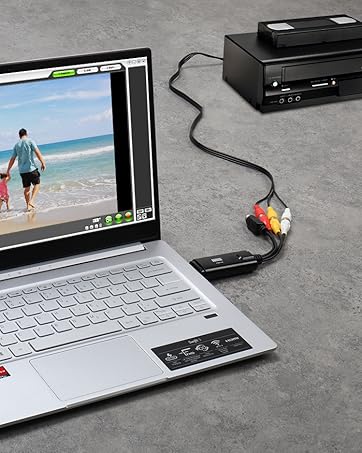
Figure 4.1: Software interface for video capture, showing preview and recording options.

Figure 4.2: Software interface for video editing, showing various tools and options.

Figura 4.3: Example setup for digitizing VHS tapes using the August VGB100.
5. Compatibilidad
- Sistemas operativos: Compatible with Windows 10, Windows 8, Windows 7, and Windows Vista.
- Estándares de vídeo: Supports PAL, SECAM, and NTSC video formats.
- Fuentes analógicas: Designed for use with devices featuring RCA or S-Video outputs, including:
- VHS, Hi8, Mini DV, VHS-C camcorders and VCRs
- Reproductores de DVD
- Vinyl players (for audio capture)
- Retro gaming consoles (e.g., Xbox 360, PlayStation 3, Wii, GameCube, N64)

Figure 5.1: The VGB100 offers high compatibility with various analog devices and Windows operating systems.
6. Solución de problemas
This section provides general guidance for common issues. For detailed troubleshooting steps, please refer to the comprehensive user manual provided with the software or visit the August support websitio.
- No hay señal de video/audio:
- Ensure all cables (RCA, S-Video, USB) are securely connected to both the VGB100 and the source device/computer.
- Verify that the source device (VCR, camcorder) is powered on and playing media correctly.
- Check the input selection within the capture software to ensure the correct video and audio inputs are chosen.
- Pruebe con un puerto USB diferente en su computadora.
- El software no reconoce el dispositivo:
- Reinstall the software and drivers from the provided CD-ROM or the August websitio.
- Ensure your operating system is compatible (Windows 10/8/7/Vista).
- Temporarily disable any antivirus or firewall software that might be blocking the device or software.
- Mala calidad de vídeo:
- Ensure the source media (e.g., VHS tape) is in good condition.
- Check cable connections for any damage or loose fits.
- If using S-Video, ensure both S-Video and RCA audio cables are connected.
- Adjust video settings within the capture software if available.
7. Especificaciones
| Característica | Detalle |
|---|---|
| Marca | Agosto |
| Número de modelo | FBA_VGB100 |
| Serie | VGB100 |
| Color | Negro |
| Compatibilidad del sistema operativo | Windows (10, 8, 7, Vista) |
| Resolución (máx.) | 3840x2160 (Note: This resolution is for display, capture resolution will be standard definition for analog sources) |
| Interfaz de hardware | USB 2.0 |
| Tipo de conector | USB, RCA, S-Video |
| Dimensiones del artículo (largo x ancho x alto) | 8.5 x 1.4 x 2.6 centímetros |
| Peso del producto | 41 gramos |
| Usos específicos del producto | VHS tapes, camcorders, video recorders, retro gaming consoles |
| Número de puertos | 2 (USB, Analog Input) |
| Tipo de acabado | Mate |
8. Garantía y soporte
The August VGB100 comes with a Limited Warranty. For specific terms and conditions, please refer to the warranty information included in your package or visit the official August websitio.
For technical support, software updates, or further assistance, please visit the August support portal or contact their customer service.