
1. Configuración
1.1 Desembalaje e inspección inicial
Carefully remove all components from the packaging. Verify that all items listed in the 'What's in the box' section are present and undamaged.
- ASUS 32GB Transformer Pad TF300T 10.1-Inch Tablet
- Fuente de alimentación
- Tarjeta de garantía de 1 año

Image: The ASUS Transformer Pad TF300T tablet alongside its retail packaging.
1.2 Carga del dispositivo
Before first use, connect the tablet to the power supply and charge it fully. The charging port is located on the bottom edge of the tablet. A full charge ensures optimal performance and battery calibration.
1.3 Encendido / Apagado
- Para encender: Press and hold the power button, located on the top edge of the tablet, until the ASUS logo appears on the screen.
- Para apagar: Press and hold the power button until a menu appears. Select 'Power off' and confirm.
- Para reiniciar: Desde el menú de energía, seleccione “Reiniciar”.
1.4 Asistente de configuración inicial
Al encenderla por primera vez, la tableta le guiará a través del proceso de configuración inicial. Esto incluye:
- Selección de idioma: Elija su idioma preferido.
- Conexión Wi-Fi: Connect to an available Wi-Fi network to enable internet access.
- Configuración de la cuenta de Google: Sign in with an existing Google account or create a new one. This is essential for accessing the Google Play Store and other Google services.
- Configuración de fecha y hora: Configure the correct date and time.
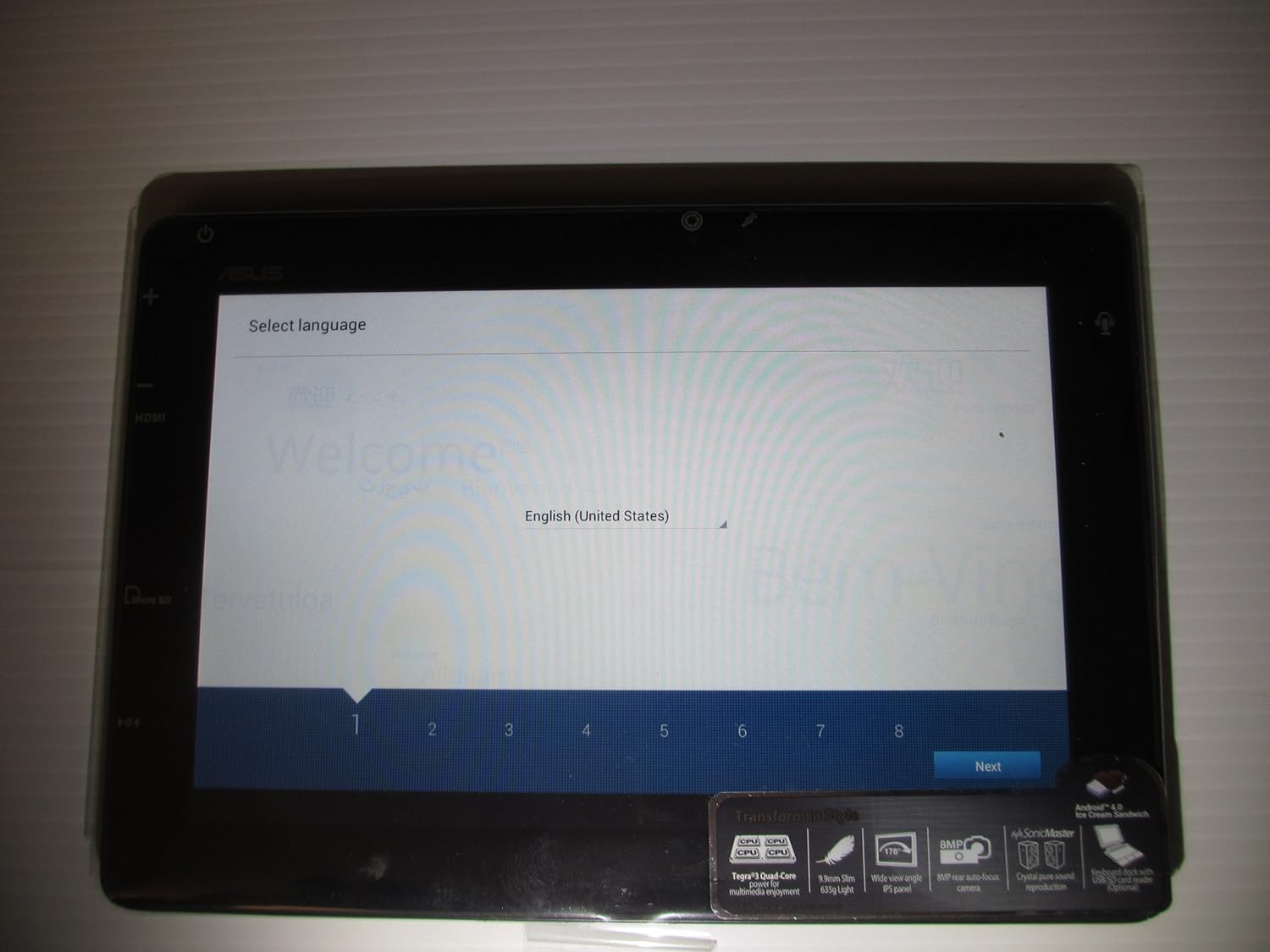
Image: The ASUS Transformer Pad TF300T screen showing the 'Select Language' prompt, with 'English (United States)' highlighted.
2. Instrucciones de funcionamiento
2.1 Basic Navigation and Touchscreen Gestures
The ASUS Transformer Pad TF300T utilizes a multi-touch display for interaction. Common gestures include:
- Grifo: Seleccione un elemento o abra una aplicación.
- Toque y mantenga: Acceder a los menús contextuales o mover iconos.
- Golpe fuerte: Navigate through home screens, lists, or web páginas.
- Pellizcar para hacer zoom: Enlarge or reduce content size (e.g., photos, web páginas).
2.2 Android 4.0 (Ice Cream Sandwich) Overview
The tablet runs on Android 4.0, providing a user-friendly interface. Key features include:
- Pantallas de inicio: Customizable screens for app shortcuts and widgets.
- Notifications Bar: Located at the top, displays alerts and quick settings.
- Cajón de aplicaciones: Access to all installed applications.
- Aplicaciones recientes: Button to quickly switch between recently used applications.
2.3 Conectividad
The TF300T supports various connectivity options:
- Wi-Fi (802.11bgn): Connect to wireless networks for internet access. Configure via Settings > Wi-Fi.
- Bluetooth 3.0: Pair with compatible devices such as headphones, speakers, or keyboards. Configure via Settings > Bluetooth.
- GPS: Integrated Global Positioning System for location services and navigation.
2.4 Puertos y ranuras
The tablet features several ports for expanded functionality:
- Micro HDMI: Conectarse a pantallas externas o televisores.
- Puerto de atraque: For connecting to the optional keyboard dock.
- Conector para auriculares/micrófono de 3.5 mm: Para entrada y salida de audio.
- Ranura para tarjeta micro SD: Expand storage capacity with a Micro SD card.
2.5 Uso de la cámara
The TF300T is equipped with two cameras:
- Cámara frontal (1.2 MP): Suitable for video calls and self-portraits.
- Rear Camera (8 MP): Para capturar fotografías y vídeos.
Access the camera application from the home screen or app drawer to take pictures or record videos.
2.6 Optional Keyboard Dock
The ASUS Transformer Pad TF300T is compatible with an optional keyboard dock (sold separately). This dock provides:
- Teclado físico: For enhanced typing experience.
- Additional Battery: Extends the tablet's battery life.
- Puerto USB: Para conectar dispositivos USB.
- Ranura para tarjeta SD: For additional storage expansion.

Imagen: Un primer plano view of the ASUS Transformer Pad TF300T, highlighting key features such as the NVIDIA Tegra 3 processor, IPS panel, 8MP camera, SonicMaster audio, and Android 4.0 Ice Cream Sandwich operating system.
3. Mantenimiento
3.1 Limpieza del dispositivo
- Pantalla: Utilice un paño suave y sin pelusa, ligeramente seco.ampLimpie la pantalla con agua o un limpiador de pantallas para limpiarla suavemente. Evite productos químicos agresivos.
- Cuerpo: Wipe the tablet's body with a soft, dry cloth. Keep liquids away from ports and openings.
3.2 Actualizaciones de software
Regularly check for and install software updates to ensure optimal performance, security, and access to new features. Updates can typically be found in Settings > About tablet > System updates.
3.3 Gestión del almacenamiento
The tablet comes with 32GB of internal storage. To manage storage effectively:
- Eliminar aplicaciones no utilizadas: Uninstall applications you no longer need.
- Borrar caché: Regularly clear the cache of applications.
- Use Micro SD Card: Store photos, videos, and documents on an external Micro SD card to free up internal space.
4. Solución de problemas
4.1 Problemas comunes y soluciones
| Asunto | Posible solución |
|---|---|
| Tablet is unresponsive or frozen | Mantenga presionado el botón de encendido durante 10 a 15 segundos para forzar el reinicio. |
| Problemas de conexión wifi | Ensure Wi-Fi is enabled in settings. Restart the tablet and your Wi-Fi router. Forget and reconnect to the network. |
| Slow performance or lag | Close unused applications. Clear app caches. Check for system updates. Consider a factory reset if issues persist. |
| La batería se agota rápidamente | Reduce screen brightness. Disable Wi-Fi/Bluetooth/GPS when not in use. Close background apps. Check battery usage in settings to identify power-hungry apps. |
| Las aplicaciones se bloquean o no se instalan | Ensure sufficient storage space. Clear Google Play Store cache. Restart the tablet. |
4.2 Restablecimiento de fábrica
If persistent issues occur, a factory reset can restore the tablet to its original state. Warning: This will erase all data on the tablet. Back up important data before proceeding.
- Vaya a Configuración > Copia de seguridad y restablecimiento.
- Seleccione 'Restablecer datos de fábrica'.
- Confirm the action. The tablet will restart and erase all data.
5. Especificaciones
Detailed technical specifications for the ASUS Transformer Pad TF300T-B1-BL:
| Característica | Especificación |
|---|---|
| Marca | Asus |
| Nombre del modelo | Transformer Pad |
| Número de modelo | TF300T-B1-BL |
| Sistema operativo | Android 4.0 (Ice Cream Sandwich) |
| Procesador | NVIDIA Tegra 3 Quad-Core (1.2 GHz) |
| Coprocesador gráfico | Nvidia Tegra 3 |
| Tamaño de pantalla | 10.1 pulgadas |
| Resolución de pantalla | 1280 x 800 Pixels (WXGA IPS Touch Panel) |
| Memoria RAM | 1 GB DDR3 |
| Capacidad de almacenamiento | Memoria Flash de 32 GB (SSD) |
| Almacenamiento expandible | Ranura para tarjeta Micro SD |
| Cámara frontal | 1.2 MP |
| Cámara trasera | 8 MP |
| Conectividad inalámbrica | 802.11bgn Wi-Fi, Bluetooth 3.0, GPS |
| Puertos | 1x Micro HDMI, 1x Docking, 1x 3.5mm Headphone/Microphone |
| Duración de la batería | Up to 10 Hours (22W/h Lithium Polymer) |
| Sensores | G-Sensor, E-Compass, Light Sensor, Gyroscope |
| Peso del artículo | 1.4 libras |
| Código Postal | 886227185054 |
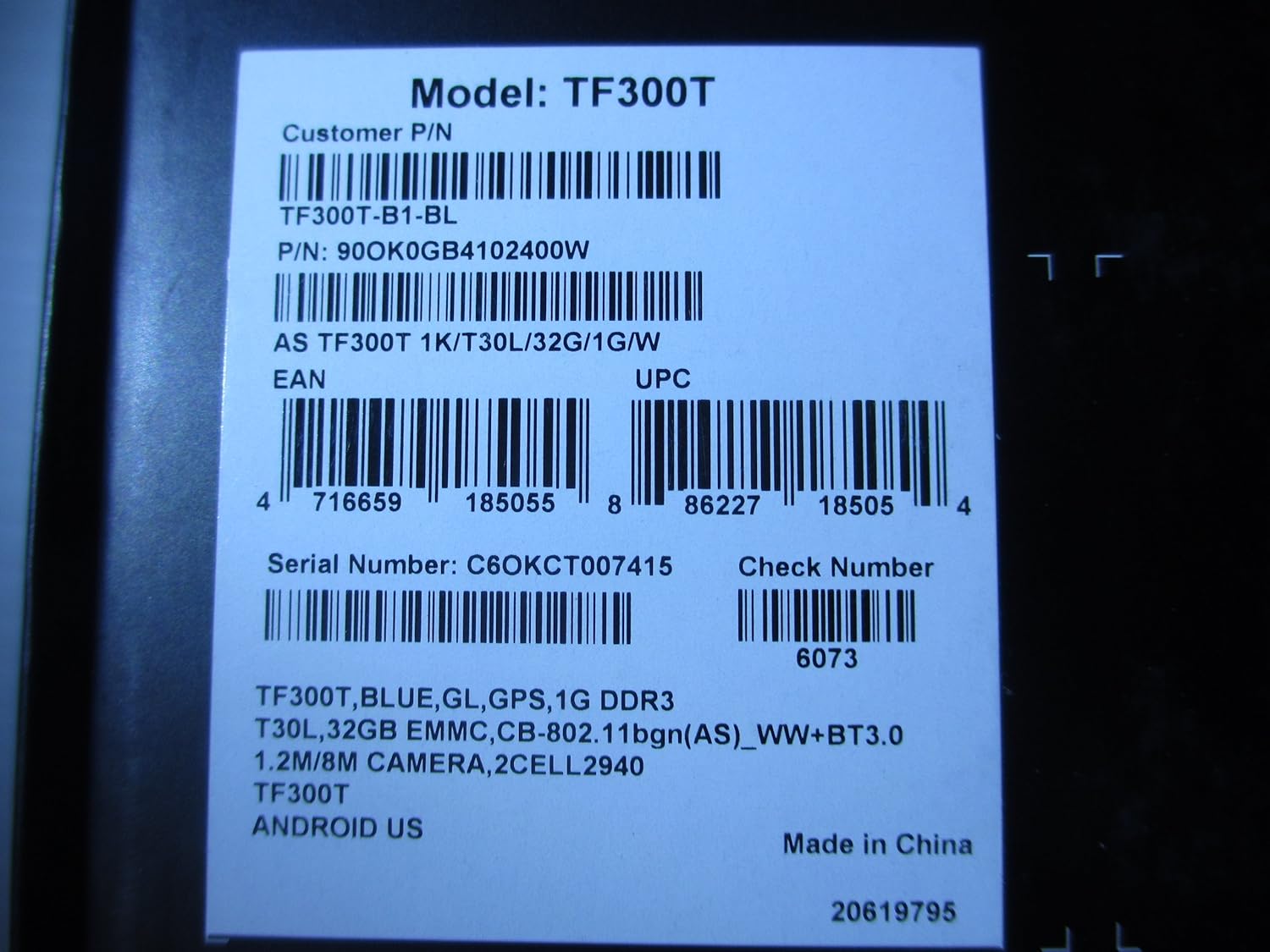
Image: A product label displaying the model number TF300T, part number TF300T-B1-BL, serial number C6OKCT007415, and UPC 886227185054.
6. Garantía y soporte
6.1 Información de garantía
The ASUS Transformer Pad TF300T comes with a 1-Year North American Warranty. This warranty covers manufacturing defects under normal use conditions. Please refer to the warranty card included in your product packaging for full terms and conditions.
6.2 Atención al cliente
For technical assistance, troubleshooting beyond this manual, or warranty claims, please contact ASUS customer support. You can find contact information and additional resources on the official ASUS websitio:
- Visita el Tienda ASUS en Amazon Para obtener información del producto.
- Refer to the official ASUS support website for service centers and contact details.