BlackBerry BB 9900 Bold Touch Smartphone User Manual
Modelo: BB 9900
1. Introducción
This manual provides essential instructions for setting up, operating, and maintaining your BlackBerry BB 9900 Bold Touch smartphone. Please read this guide thoroughly to ensure proper use and to maximize the device's capabilities. The BlackBerry BB 9900 Bold Touch combines a capacitive touchscreen with a full QWERTY keyboard, running on BlackBerry OS 7.
2. Contenido del paquete
Verifique que su paquete contenga los siguientes elementos:
BlackBerry BB 9900 Bold Touch Smartphone
Batería recargable
de Carga Rápida
Cable USB
Manual de usuario (este documento)
3. Dispositivo terminadoview
Familiarize yourself with the physical features of your BlackBerry BB 9900 Bold Touch.
Frente 3.1 View
Imagen: Frente view of the BlackBerry BB 9900 Bold Touch, highlighting the 2.8-inch touchscreen and the physical QWERTY keyboard below it. The device also features a trackpad and call/end buttons.
Pantalla táctil: 2.8-inch capacitive display for interactive navigation.
Teclado QWERTY: Full physical keyboard for efficient typing.
Optical Trackpad: For precise navigation and selection.
Botones de llamada/finalización: Standard telephony controls.
3.2 Trasero View
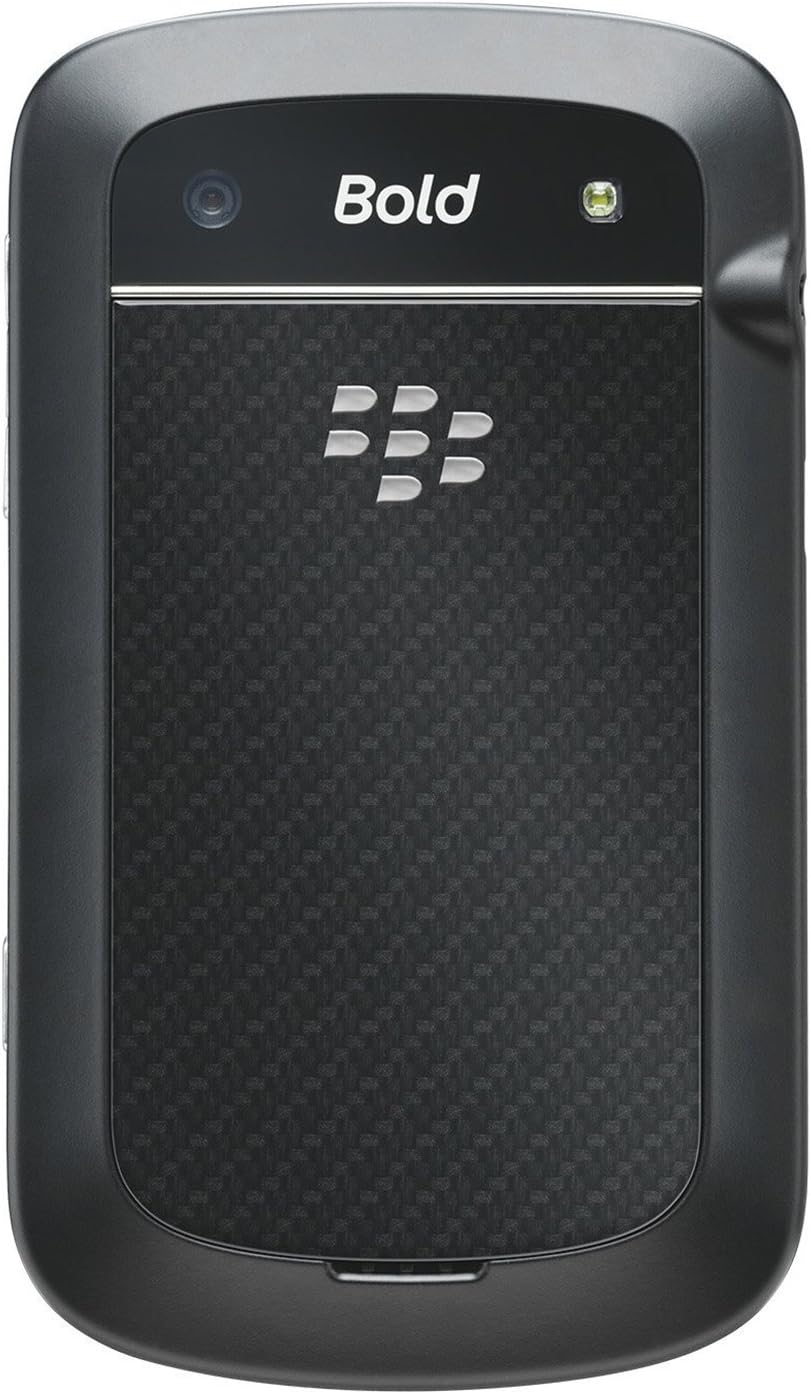
Imagen: Trasera view of the BlackBerry BB 9900 Bold Touch, featuring the 5-megapixel camera lens, LED flash, and the BlackBerry logo.
Cámara 5MP: Primary camera with autofocus and LED flash.
Tapa de la batería: Removable cover for battery and SIM card access.
3.3 lados View
Imagen: Lateral view of the BlackBerry BB 9900 Bold Touch, illustrating the placement of the volume control buttons and a customizable convenience key.
Botones de volumen: Ajustar los niveles de audio.
Convenience Key: Botón de acceso directo personalizable.
4. Configuración
4.1 Inserción de la tarjeta SIM
Retire la tapa de la batería de la parte posterior del dispositivo.
Localiza la ranura de la tarjeta SIM.
Inserte la tarjeta SIM con los contactos dorados hacia abajo y la esquina cortada alineada con la ranura.
Ensure the SIM card is securely in place.
4.2 Inserción de la batería
After inserting the SIM card, align the battery's gold contacts with the contacts in the battery compartment.
Presione suavemente la batería en su lugar hasta que encaje.
Vuelva a colocar la tapa de la batería.
4.3 Carga del dispositivo
Connect the USB cable to the charging port on your device.
Plug the other end of the USB cable into the wall charger, then into a power outlet.
Deje que el dispositivo se cargue completamente antes del primer uso. El indicador de batería en la pantalla mostrará el estado de carga.
4.4 Encendido / Apagado
Para encender: Press and hold the Power/Lock button (usually located on the top edge) until the BlackBerry logo appears.
Para apagar: Press and hold the Power/Lock button until the 'Power Off' option appears on the screen. Tap 'Power Off' to confirm.
5. Instrucciones de funcionamiento
5.1 Navegación con pantalla táctil
Grifo: Touch the screen briefly to open applications, select items, or activate buttons.
Golpe fuerte: Drag your finger across the screen to scroll through lists or switch between home screen panels.
Pellizcar para hacer zoom: Use two fingers to zoom in or out on photos, web páginas o mapas.
5.2 Uso del teclado QWERTY
The physical QWERTY keyboard allows for fast and accurate text entry. Each key corresponds to a letter, number, or symbol. Use the 'Alt' key for alternate characters and the 'Shift' key for capitalization.
5.3 Realizar llamadas
From the home screen, tap the Phone icon or press the green Call button.
Enter the phone number using the keyboard.
Presione el botón verde Llamar para iniciar la llamada.
Para finalizar una llamada, presione el botón rojo Finalizar llamada.
5.4 Envío de mensajes
Tap the Messages icon from the home screen.
Select 'Compose New' or similar option.
Introduzca el número del destinatario o selecciónelo entre los contactos.
Type your message using the QWERTY keyboard.
Tap 'Send'.
5.5 Uso de la cámara
Toque el icono de la cámara para abrir la aplicación de la cámara.
Encuadre su toma usando la pantalla como viewdescubridor.
Tap the screen or press the convenience key (if configured) to take a photo.
The 5MP camera features autofocus and an LED flash for improved image quality.
5.6 Conexión a wifi
Go to 'Options' > 'Networks and Connections' > 'Wi-Fi'.
Turn Wi-Fi on. The device will scan for available networks.
Seleccione la red deseada e ingrese la contraseña si se le solicita.
Once connected, the Wi-Fi indicator will appear in the status bar.
5.7 Using NFC (Near Field Communication)
The BlackBerry BB 9900 Bold Touch supports NFC for short-range wireless communication. This allows for quick pairing with compatible accessories or sharing data with other NFC-enabled devices by tapping them together.
Asegúrese de que NFC esté habilitado en la configuración de su dispositivo.
Hold your device close to another NFC-enabled device or tag.
Follow on-screen prompts to complete the desired action (e.g., pairing, data transfer).
6. Mantenimiento
6.1 Limpieza del dispositivo
Utilice un paño suave que no suelte pelusa para limpiar la pantalla y el cuerpo del dispositivo.
Evite utilizar productos químicos agresivos, limpiadores abrasivos o aerosoles.
No exponga el dispositivo a una humedad excesiva.
6.2 Cuidado de la batería
Evite temperaturas extremas, que pueden degradar el rendimiento de la batería.
Utilice únicamente el cargador original o aprobado.
No perfore ni dañe la batería.
6.3 Actualizaciones de software
Periodically check for software updates to ensure your device has the latest features and security enhancements. Updates can typically be found in the device's 'Options' or 'Settings' menu under 'Software Updates'.
7. Solución de problemas
7.1 El dispositivo no se enciende
Asegúrese de que la batería esté correctamente insertada y cargada.
Conecte el dispositivo al cargador y espere unos minutos antes de intentar encenderlo nuevamente.
Si el problema persiste, intente quitar y volver a insertar la batería.
7.2 Problemas de conectividad de red
Check if your SIM card is correctly inserted and activated with your carrier.
Verify that cellular data or Wi-Fi is enabled in your device settings.
Reinicie el dispositivo.
If using Wi-Fi, ensure your router is working and you have entered the correct password.
7.3 La pantalla táctil no responde
Reinicie el dispositivo.
Asegúrese de que la pantalla esté limpia y libre de residuos o humedad.
If the issue is intermittent, check for any recent software installations that might be causing conflicts.
8. Especificaciones
Característica
Detalle
Nombre del modelo
BB9900
Sistema operativo
Sistema operativo BlackBerry 7
Mostrar
2.8-inch Capacitive Touchscreen, 640 x 480 Resolution
Procesador
Not specified (typically 1.2 GHz for this model)
RAM
768 MB
Almacenamiento interno
8 GB
Cámara trasera
5 MP, Autofocus, LED Flash
Conectividad
Wi-Fi 802.11 b/g/n, NFC, Bluetooth, GPS
Soporte de red
Quad-band GSM/GPRS/EDGE, Tri-band HSPA+
Dimensiones
4.53 x 2.6 x 0.41 pulgadas (115 x 66 x 10.5 mm)
Peso
4.6 onzas (130 gramos)
Conector de audio
3.5 milímetros
9. Soporte y garantía
9.1 Atención al cliente
For technical assistance, troubleshooting beyond this manual, or service inquiries, please visit the official BlackBerry support website or contact your local service provider. Refer to the packaging or official webSitio para obtener detalles de contacto específicos.
9.2 Información de garantía
Your BlackBerry BB 9900 Bold Touch is covered by a limited warranty. Please refer to the warranty card included in your product packaging or visit the official BlackBerry webVisite el sitio para conocer los términos y condiciones detallados, incluyendo el período de garantía y la cobertura. Conserve su comprobante de compra para reclamaciones de garantía.
Ask a question about this manual
Ask about setup, troubleshooting, compatibility, parts, safety, or missing instructions. Manuals+ will review the question and use this page’s manual context to help answer it.