
1. Einleitung
Vielen Dank für Ihren Einkauf.asing the PHILIPS SPK7858 Wireless Ergonomic Mouse. This manual provides detailed instructions for setup, operation, and maintenance to ensure optimal performance and longevity of your device. Please read this manual thoroughly before use.

Image: The PHILIPS SPK7858 Wireless Ergonomic Mouse, showcasing sein elegantes Design.
2. Packungsinhalt
- PHILIPS SPK7858 Wireless Ergonomic Mouse
- USB-A-Empfänger
- USB-C-Empfänger
- USB-C-Ladekabel
- Bedienungsanleitung
3. Produktüberschreitungview
Familiarize yourself with the various buttons and components of your mouse:

Image: Diagram illustrating the 7 buttons and 3D scroll wheel on the PHILIPS SPK7858 mouse.
- Rechtsklick-Taste
- Linksklick-Taste
- Scroll Wheel (3D Wheel): For vertical scrolling and middle-click function.
- DPI-Taste: Adjusts sensitivity (800-4000 DPI).
- Seitliches Scrollrad: For horizontal scrolling.
- Zurück-Schaltfläche: Navigates back in web Browser bzw file Entdecker.
- Weiter-Taste: Navigates forward in web Browser bzw file Entdecker.
- Device Switch Button (Bottom): Switches between connected devices (up to 3).
4. Connectivity & Setup
The PHILIPS SPK7858 mouse supports three connection methods: 2.4GHz USB-A, 2.4GHz USB-C, and Bluetooth 5.0.

Image: Visual representation of the three connection options: USB-A, USB-C, and Bluetooth 5.0.
4.1. 2.4GHz Wireless Connection (USB-A or USB-C Receiver)
- Insert the desired USB receiver (USB-A or USB-C) into an available port on your computer.
- Schalten Sie die Maus mit dem Netzschalter an der Unterseite ein.
- Die Maus sollte sich automatisch mit Ihrem Computer verbinden.
4.2. Bluetooth 5.0-Verbindung
- Schalten Sie die Maus mit dem Netzschalter an der Unterseite ein.
- Press and hold the device switch button on the bottom of the mouse until the indicator light starts blinking, indicating pairing mode.
- On your computer or device, go to Bluetooth settings and search for "PHILIPS SPK7858".
- Select the mouse to pair. Once connected, the indicator light will stop blinking.
4.3. Wechseln zwischen Geräten
The mouse can be paired with up to 3 devices (2 via 2.4GHz receivers, 1 via Bluetooth). Use the device switch button on the bottom of the mouse to cycle through connected devices.
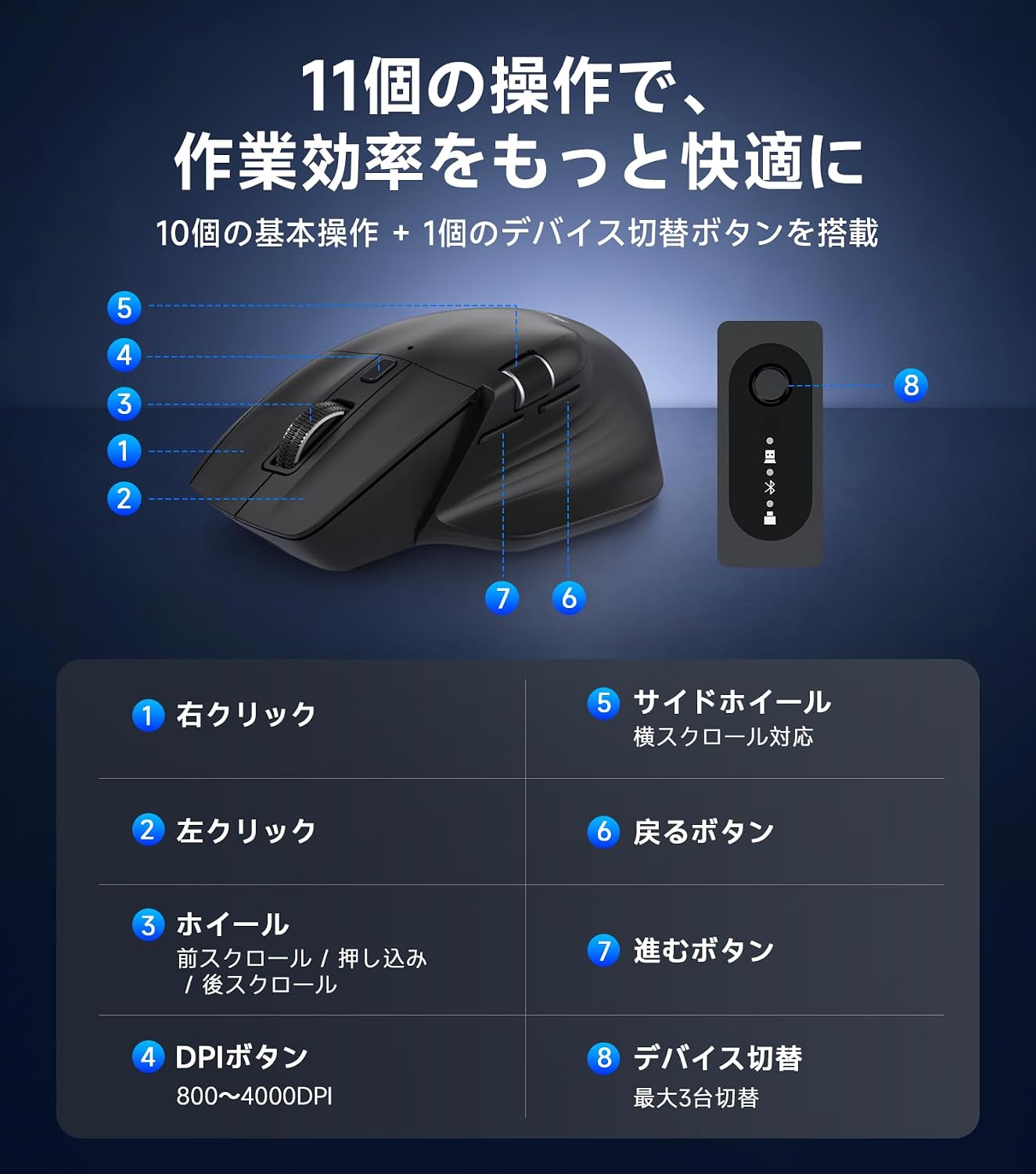
Image: The PHILIPS SPK7858 mouse connected to and controlling four different devices, demonstrating cross-screen functionality.
5. Bedienungsanleitung
5.1. DPI-Anpassung
The mouse features 5-stage DPI adjustment (800/1600/2400/3200/4000 DPI) to suit various tasks. Press the DPI button (4) to cycle through the sensitivity settings. A lower DPI is suitable for precise work like graphic design, while a higher DPI is ideal for faster cursor movement across large screens.

Image: Graphic showing the 5 DPI settings (800-4000) and the DPI switch button on the mouse.
5.2. Horizontales Scrollen
Utilize the side scroll wheel (5) for efficient horizontal navigation, especially useful for wide spreadsheets, timelines, or web Seiten.

Image: Illustration demonstrating the use of the side scroll wheel for horizontal navigation in applications like Excel.
5.3. Funktion für geräuschloses Klicken
The left and right click buttons are designed with silent switches, reducing click noise for a quiet working environment. This is beneficial in offices, libraries, cafes, or during late-night work.

Image: A hand operating the mouse with a visual indicator of reduced click sound, suitable for quiet environments.
6. Laden und Energieverwaltung
6.1. Aufladen der Maus
The mouse is equipped with a built-in 500mAh rechargeable battery. Connect the included USB-C charging cable to the mouse's USB-C port and to a power source (e.g., computer USB port, USB wall adapter). The indicator light will show charging status.

Image: The PHILIPS SPK7858 mouse connected via USB-C cable for charging, highlighting the 500mAh battery and 100-hour usage.
6.2. Automatische Schlaffunktion
To conserve power, the mouse will automatically enter sleep mode after a period of inactivity. Move the mouse or click any button to wake it up. After approximately 30 minutes of inactivity, it enters a deep sleep state for more efficient power saving.
7. Ergonomisches Design
The SPK7858 mouse features an ergonomic design specifically for right-handed users, providing a comfortable grip that supports the palm and reduces wrist strain during extended use. Its lightweight design (approx. 93g) ensures smooth and effortless operation.

Bild: Detailliert view of the ergonomic design, showing the natural tilt, thumb rest curve, and streamlined shape for comfortable hand fit.
8. Wartung
- Reinigung: Use a soft, dry cloth to clean the mouse. For stubborn dirt, slightly dampBefeuchten Sie das Tuch mit Wasser oder einer milden Reinigungslösung. Vermeiden Sie aggressive Chemikalien.
- Lagerung: Store the mouse in a cool, dry place away from direct sunlight and extreme temperatures.
- Batteriepflege: To prolong battery life, avoid fully discharging the mouse frequently. Charge it when the battery low indicator appears.
9. Fehlerbehebung
| Problem | Lösung |
|---|---|
| Maus reagiert nicht | Ensure the mouse is powered on. Check battery level and charge if necessary. For 2.4GHz connection, ensure the receiver is properly inserted and try a different USB port. For Bluetooth, ensure it's paired correctly and try re-pairing. |
| Die Cursorbewegung ist unregelmäßig | Clean the optical sensor on the bottom of the mouse. Ensure you are using the mouse on a suitable surface (avoid reflective or transparent surfaces). Adjust DPI settings. |
| Verbindung über Bluetooth nicht möglich | Ensure your device's Bluetooth is enabled. Put the mouse into pairing mode (blinking indicator). Remove previous pairings of the mouse from your device and try connecting again. |
| Side scroll wheel not working | Ensure the application you are using supports horizontal scrolling. Some applications may require specific settings or may not support this feature. |
10. Spezifikationen

Image: A table summarizing the key specifications of the PHILIPS SPK7858 mouse.
| Besonderheit | Detail |
|---|---|
| Modell | SPK7858 |
| Konnektivität | 2.4GHz USB-A, 2.4GHz USB-C, Bluetooth 5.0 |
| DPI-Einstellungen | 800 / 1600 / 2400 / 3200 / 4000 |
| Schaltflächen | 7 Buttons + 3D Scroll Wheel + Side Scroll Wheel |
| Batterie | 500mAh Rechargeable (3.7V) |
| Akkulaufzeit | Bis zu 100 Stunden (Dauerbetrieb) |
| Ladeanschluss | USB-C |
| Sensor | Optischer Sensor PixArt 3215 |
| Kompatibles Betriebssystem | Windows 7/8/10/11, Mac OS X 10.5 and later |
| Gewicht | Ca. 93g |
| Maße | Ca. 123.0 x 82.7 x 44.8 mm |

Image: Diagram showing the dimensions of the PHILIPS SPK7858 mouse and its included accessories (USB-A and USB-C receivers).
11. Garantie und Support
Dieses Produkt wird mit einem 1 Jahr Herstellergarantie from the date of purchase. In the unlikely event of a product defect, repair or replacement will be provided free of charge.
For customer support, please contact us through your Amazon account:
- Gehen Sie zu „Ihre Bestellungen“.
- Find the relevant order for this product.
- Klicken Sie auf „Verkäufer kontaktieren“.
Our Japanese customer support team is available to assist you promptly and courteously.
Supportzeiten: 10:00 - 19:00 (Excluding weekends and manufacturer holidays)
*Please note that damage caused by human error, disasters, or other force majeure events is not covered under warranty.