
1. Einleitung
This manual provides essential information for setting up, operating, and maintaining your HP OmniDesk Slim Desktop PC, Model S03-0006. This desktop PC is designed for daily tasks, offering an Intel Core i3-14100 processor, ample memory, and various connectivity options for productivity and entertainment.
2. Packungsinhalt
Überprüfen Sie, ob alle Artikel im Paket vorhanden sind:
- HP S03-000 OmniDesk Slim Desktop PC
- Stromversorgung
- USB Black Wired Keyboard (if included with specific bundle)
- USB Wired Mouse (if included with specific bundle)
Hinweis: Zusätzliches Zubehör ist gegebenenfalls separat erhältlich.
3. Produktüberschreitungview
The HP OmniDesk Slim Desktop PC features a compact design with essential components for efficient computing.

Abbildung 3.1: HP OmniDesk Slim Desktop PC showcasing its slim profile, Intel Core i3-14100 processor, 8GB DDR5 RAM, 256GB SSD, Intel UHD Graphics 710, Wi-Fi 6, Bluetooth 5.4, Windows 11, and dual display support.
3.1. Anschlüsse und Stecker
Familiarize yourself with the various ports on your desktop PC for connecting peripherals and displays.
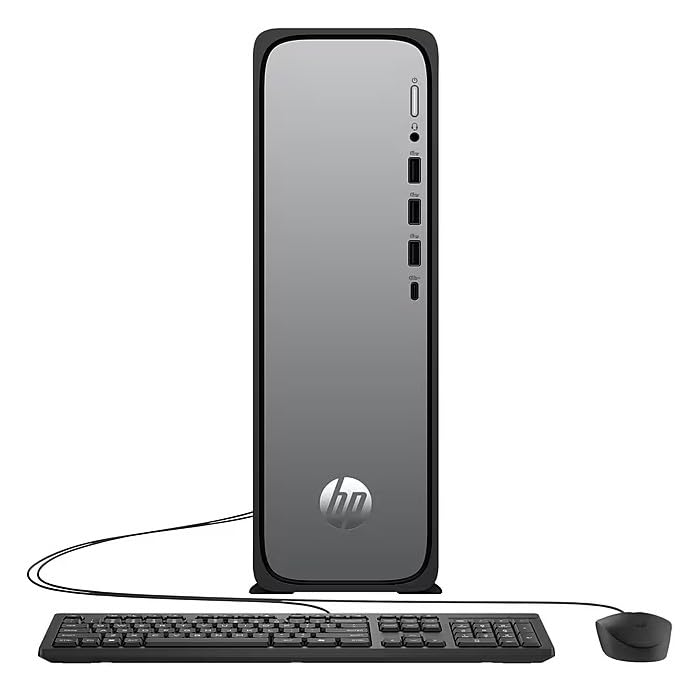
Abbildung 3.2: Front and rear port layout of the HP OmniDesk Slim Desktop PC. Front ports include a headphone/microphone combo jack, USB Type-A 5Gbps ports, and a USB Type-C 10Gbps port. Additional ports (typically rear) include 4 USB 2.0 Type-A, 1 RJ-45 (Ethernet), 1 HDMI Out, and 1 DisplayPort 1.4.
- Vordere Anschlüsse:
- Kopfhörer/Mikrofon-Kombi
- USB Type-A 5Gbps signaling rate (3 ports)
- USB Type-C 10Gbps signaling rate (1 port)
- Anschlüsse auf der Rückseite:
- USB 2.0 Type-A (4 ports)
- RJ-45 (Ethernet)
- HDMI 1.4b (1 port)
- DisplayPort 1.4a (1 port)
4. Installationsanleitung
Follow these steps to set up your HP OmniDesk Slim Desktop PC:
- Monitor anschließen: Connect your monitor to the PC using an HDMI or DisplayPort cable. Ensure the cable is securely plugged into both the PC and the monitor.
- Peripheriegeräte anschließen: Plug in your USB keyboard and mouse into the available USB ports on the PC.
- Strom anschließen: Connect the power supply cable to the PC's power input, then plug the other end into a wall outlet or surge protector.
- Einschalten: Press the power button on the front of the PC. The system will boot up, and you will see the Windows 11 setup screen.
- Windows-Ersteinrichtung: Folgen Sie den Anweisungen auf dem Bildschirm, um die Einrichtung von Windows 11 abzuschließen, einschließlich Sprache, Region, Netzwerkverbindung und Erstellung des Benutzerkontos.
5. Bedienungsanleitung
5.1. Grundlegende Bedienung
- Ein-/Ausschalten: Press the power button to turn on the PC. To shut down, click the Start button, then Power > Shut down.
- Neustart: Klicken Sie auf die Schaltfläche „Start“, dann auf „Ein/Aus“ > „Neustart“.
- Schlafmodus: Klicken Sie auf die Start-Taste, dann auf Ein/Aus > Ruhemodus.
5.2. Verbinden mit einem Netzwerk
Your PC supports both wired (Ethernet) and wireless (Wi-Fi) network connections.
- Kabelverbindung: Connect an Ethernet cable from your router or modem to the RJ-45 port on the back of the PC.
- Drahtlose Verbindung (Wi-Fi 6):
- Klicken Sie auf das WLAN-Symbol in der Taskleiste.
- Wählen Sie das gewünschte WLAN-Netzwerk aus der Liste aus.
- Geben Sie bei Aufforderung den Netzwerksicherheitsschlüssel (das Passwort) ein und klicken Sie dann auf Verbinden.
5.3. Unterstützung für zwei Bildschirme
To extend your desktop to a second monitor:
- Connect the second monitor to an available video output port (HDMI or DisplayPort) on your PC.
- Klicken Sie mit der rechten Maustaste auf den Desktop und wählen Sie aus Anzeigeeinstellungen.
- Under "Multiple displays," select how you want the displays to behave (e.g., Extend these displays, Duplicate these displays).
6. Wartung
- Software-Updates: Prüfen Sie regelmäßig, ob Windows-Updates verfügbar sind, und installieren Sie diese, um die Stabilität und Sicherheit Ihres Systems zu gewährleisten. Gehen Sie zu Einstellungen > Windows Update.
- Treiber-Updates: Keep your device drivers updated. HP Support Assistant (MyHP) can help manage these updates.
- Reinigung: Use a soft, dry cloth to clean the exterior of the PC. Avoid liquid cleaners directly on components. Ensure ventilation openings are clear of dust.
- Sicherungsdaten: Sichern Sie regelmäßig wichtige Daten fileUm Datenverlust zu vermeiden, speichern Sie die Daten auf einem externen Laufwerk oder in der Cloud.
7. Fehlerbehebung
| Problem | Mögliche Lösung |
|---|---|
| Der PC lässt sich nicht einschalten. |
|
| Kein Bild auf dem Monitor. |
|
| Keine Internetverbindung. |
|
| Peripherals (keyboard/mouse) not working. |
|
8. Spezifikationen
| Modellname | HP OmniDesk Desktop HP S03-000 PC |
| Modellnummer | OmniDesk Slim S03-0006 |
| Prozessor | Intel Core i3-14100 (3.5 GHz, 6 MB Cache) |
| Grafik | Intel UHD Graphics 710 (integriert) |
| RAM | 8 GB DDR5 (4800 MT/s), Max 64 GB |
| Lagerung | 256 GB SSD (Solid-State-Laufwerk) |
| Betriebssystem | Windows 11 Home |
| Konnektivität | Realtek Wi-Fi 6 (2x2), Bluetooth 5.4, Gigabit Ethernet (RJ-45) |
| Häfen |
|
| Abmessungen (H x B x T) | 11.61 x 3.94 x 11.97 Zoll |
| Gewicht | 8.38 Pfund |
| Zertifizierungen | ENERGY STAR certified, EPEAT Gold with Climate+ |
9. Garantie und Support
9.1. Garantieinformationen
This HP OmniDesk Slim Desktop PC comes with a 90 Tage eingeschränkte GarantieDie genauen Garantiebedingungen entnehmen Sie bitte der Ihrem Produkt beiliegenden Garantiedokumentation.
9.2. Technischer Support
For technical assistance, driver downloads, or further information, please visit the official HP support website. You can also utilize the pre-installed MyHP application for device customization, optimization, and access to helpful messages and settings.
Always provide your product model number (S03-0006) and serial number when contacting support.