
1. Einführung und Endeview
This manual provides detailed instructions for setting up and using your Rapoo Blade-Series E9310M Wireless Keyboard and M300G Silent Mouse Combo. This combo offers multi-device connectivity and a compact design for enhanced productivity across various operating systems.
Hauptmerkmale:
- Compact Wireless Combo: Features a 99-key layout with number pad and arrow keys, paired with a silent mouse with side buttons. This design optimizes typing and browsing efficiency while occupying 20% less space.
- Multi-Device and Multi-OS Support: Connects to up to 4 devices across Windows, Mac OS, and Linux via Bluetooth 5.0/4.0 and a plug-and-play USB receiver.
- Flüssiges Tipperlebnis: Laptop-like profile with incurve rounded keys ensures a fast, fluid, precise, and quiet typing experience.
- 5-DPI Adjustable Silent Mouse: The M300G mouse offers good portability and ergonomics, with 5 preset DPI levels (800/1000/1200/1600/2400) for smooth tracking.
- Multimedia-Tasten: Supports Windows and Mac OS dual system shortcuts for 12 common functions like play/pause and volume control.
- Aesthetic and Durable Design: Constructed with an aluminum alloy frame and a matte antioxidant finish for a delicate texture and enhanced durability.
- Refined Details: Includes device and capitalization indicator lights for improved user awareness and an upgraded Bluetooth 5.0/4.0 for extended battery life.
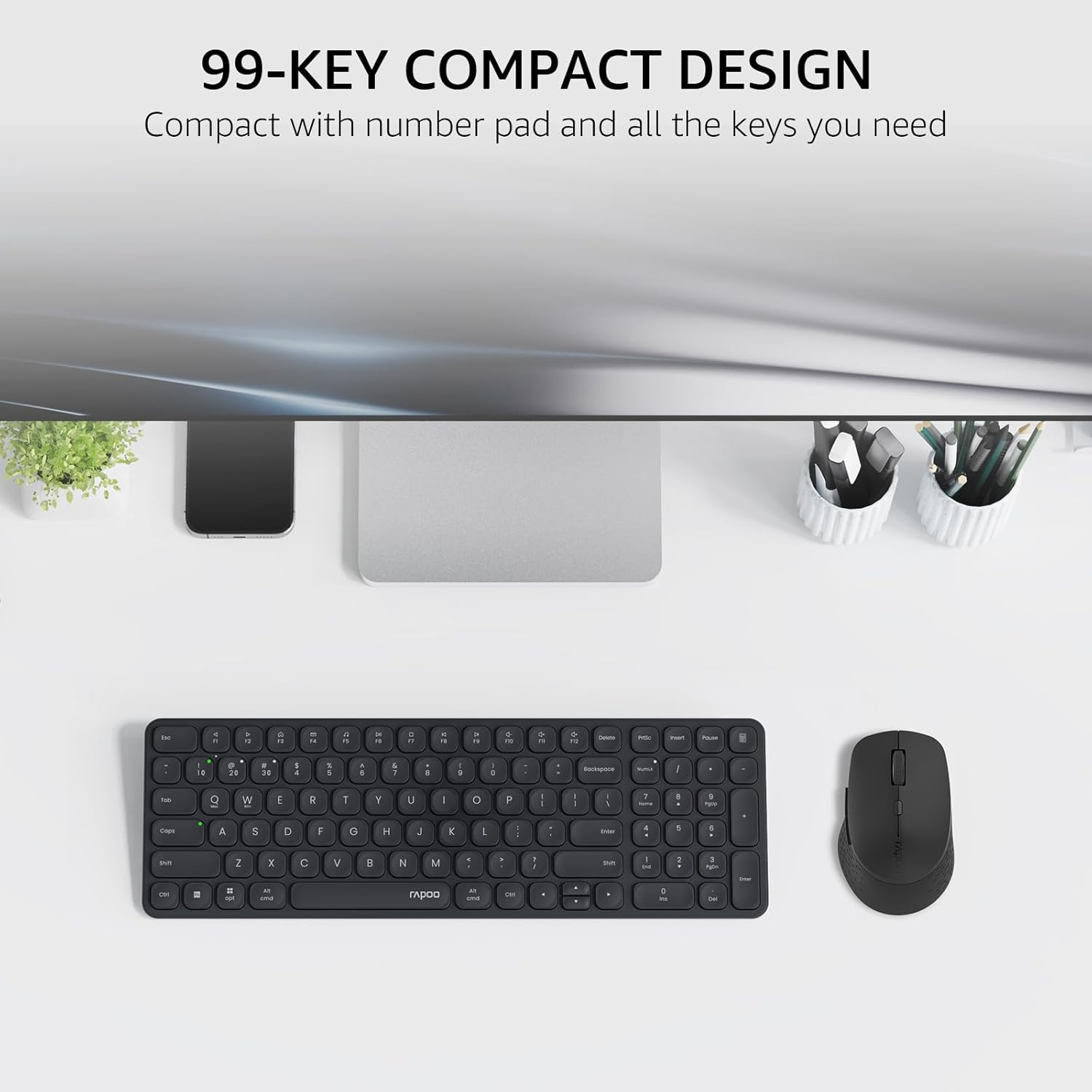
Image: The Rapoo E9310M keyboard and M300G mouse combo, showcasing its compact design on a desk.
2. Einrichtungsanweisungen
2.1 Einlegen der Batterie
The keyboard and mouse require AAA batteries. Two AAA batteries are included with the product.
- Suchen Sie das Batteriefach an der Unterseite von Tastatur und Maus.
- Öffnen Sie die Abdeckung des Batteriefachs.
- Legen Sie die AAA-Batterien ein und achten Sie dabei auf die richtige Polarität (+/-).
- Schließen Sie den Batteriefachdeckel fest.
2.2 Mit Geräten verbinden
Your Rapoo combo supports connection via 2.4GHz USB receiver or Bluetooth 5.0/4.0, allowing connection to up to 4 devices (3 via Bluetooth, 1 via 2.4GHz).
2.2.1 2.4-GHz-USB-Empfängeranschluss
- Suchen Sie den USB-Empfänger, der sich normalerweise im Batteriefach der Maus befindet.
- Stecken Sie den USB-Empfänger in einen freien USB-Port Ihres Computers.
- Schalten Sie Tastatur und Maus mit den jeweiligen Netzschaltern ein.
- The devices should automatically connect to your computer. If not, press the 2.4G pairing button on the keyboard/mouse (refer to device for exact button location).
2.2.2 Bluetooth-Verbindung (für bis zu 3 Geräte)
- Schalten Sie Tastatur und Maus ein.
- On the keyboard, press and hold one of the Bluetooth pairing keys (e.g., Fn + 1, Fn + 2, or Fn + 3) until the indicator light flashes, indicating pairing mode.
- Gehen Sie auf Ihrem Gerät (PC, Tablet, Smartphone) zu den Bluetooth-Einstellungen und suchen Sie nach neuen Geräten.
- Select the Rapoo keyboard from the list and follow any on-screen prompts to complete pairing.
- Repeat steps 2-4 for the mouse, pressing its Bluetooth pairing button (usually on the underside) until its indicator flashes.
- To switch between paired Bluetooth devices, simply press the corresponding Bluetooth key (Fn + 1/2/3) on the keyboard or the Bluetooth switch on the mouse.
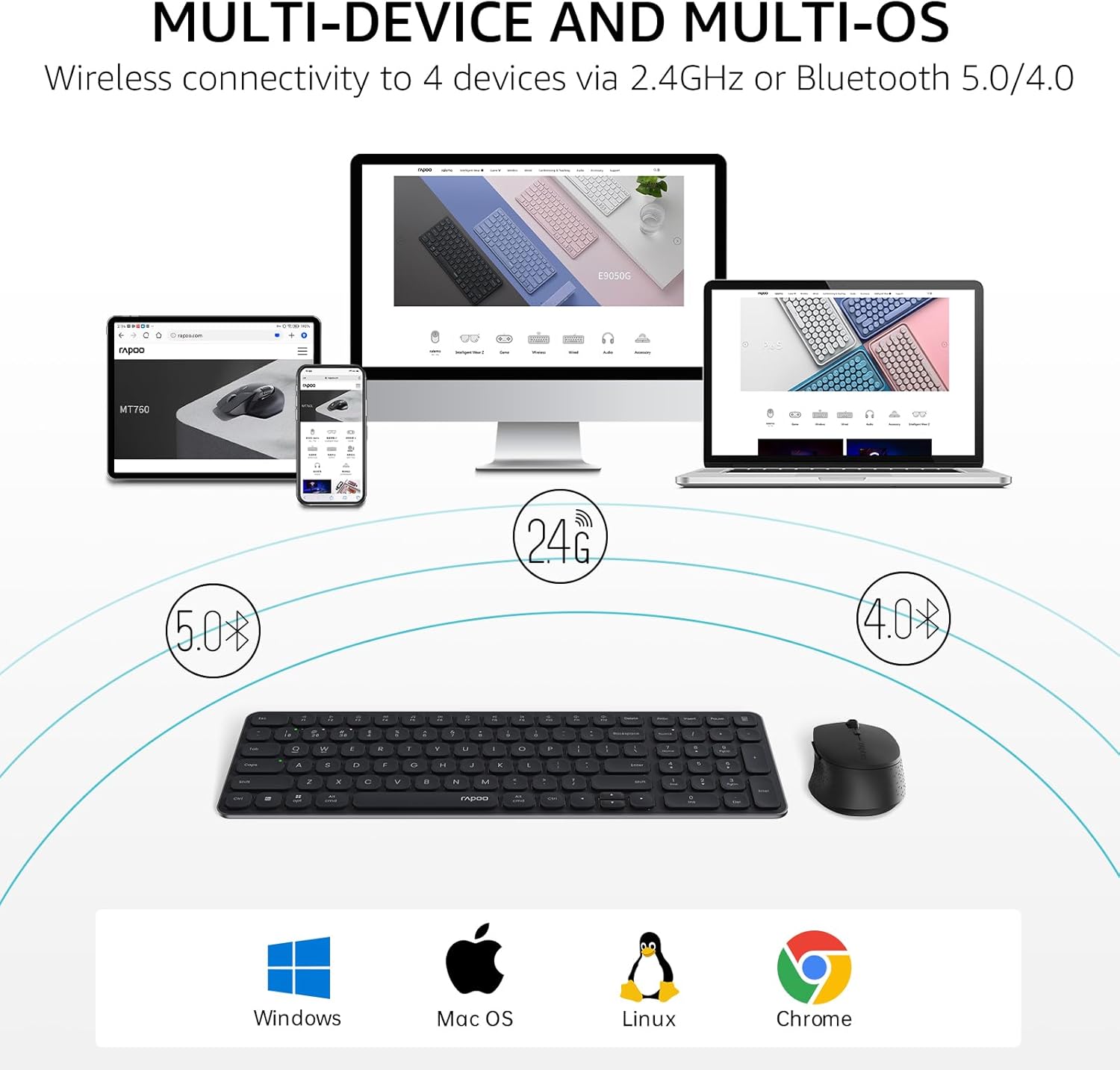
Image: The Rapoo keyboard and mouse combo connected to a desktop, laptop, tablet, and smartphone, illustrating its multi-device capability.
3. Bedienungsanleitung
3.1 Tastaturfunktionen
The E9310M keyboard features a 99-key layout, including a number pad and dedicated arrow keys, designed for efficient input.
3.1.1 Multimedia-Tasten
Access 12 widely used function keys by pressing the Fn key in combination with the corresponding F-keys (F1-F12). These shortcuts are compatible with both Windows and Mac OS.
- Fn+F1: Abspielen/Pause
- Fn+F2: Stoppen
- Fn+F3: Vorheriger Titel
- Fn+F4: Nächster Titel
- Fn+F5: Stumm
- Fn+F6: Lautstärke verringern
- Fn+F7: Lautstärke erhöhen
- Fn+F8: Suche
- Fn+F9: Heim
- Fn+F10: Mail
- Fn+F11: Mein Computer
- Fn+F12: Favoriten
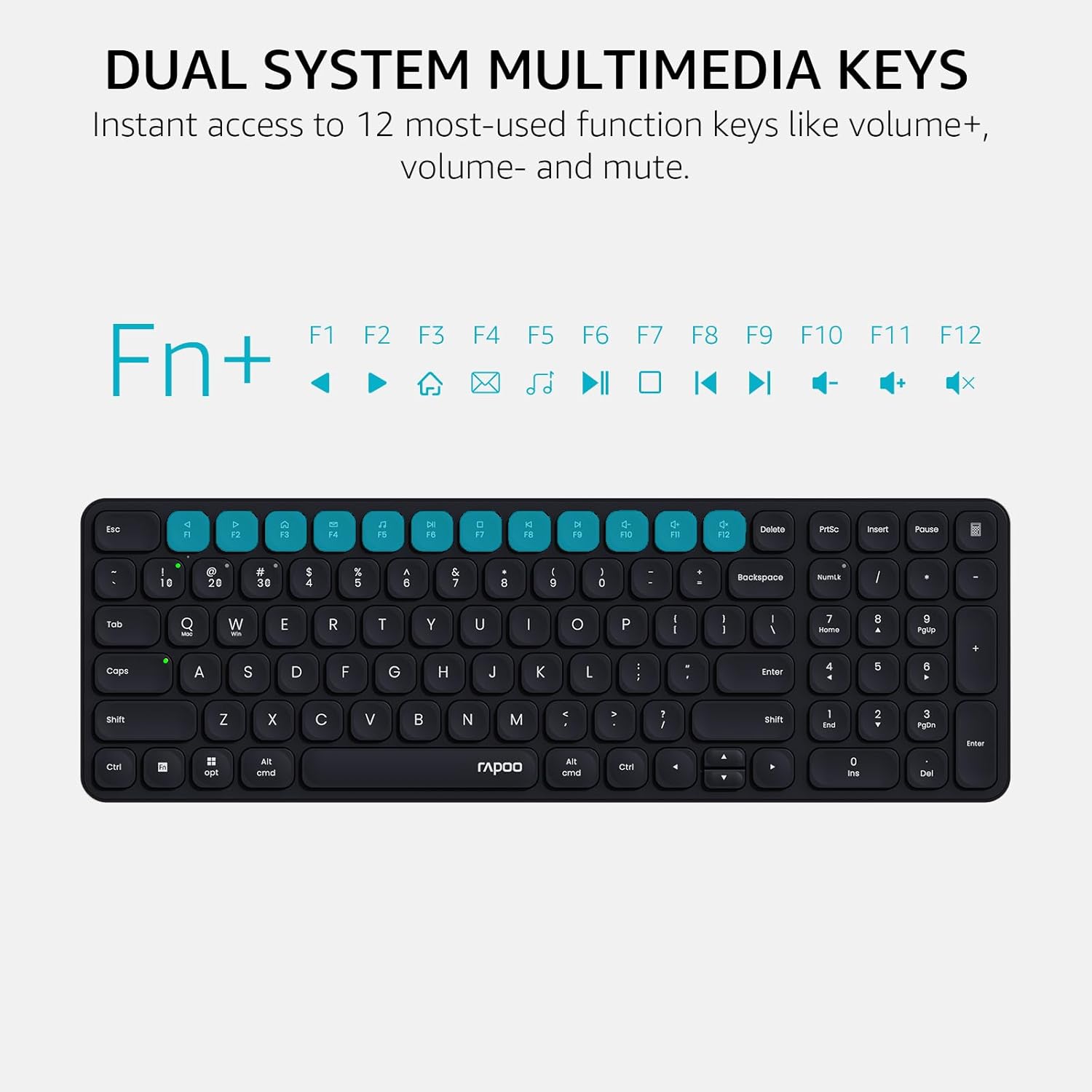
Image: Close-up of the Rapoo E9310M keyboard highlighting the multimedia function keys (F1-F12) and their corresponding icons.
3.1.2 Geräte- und Großschreibungsanzeigeleuchten
The keyboard includes indicator lights to show which device is currently active and the status of the Caps Lock key.
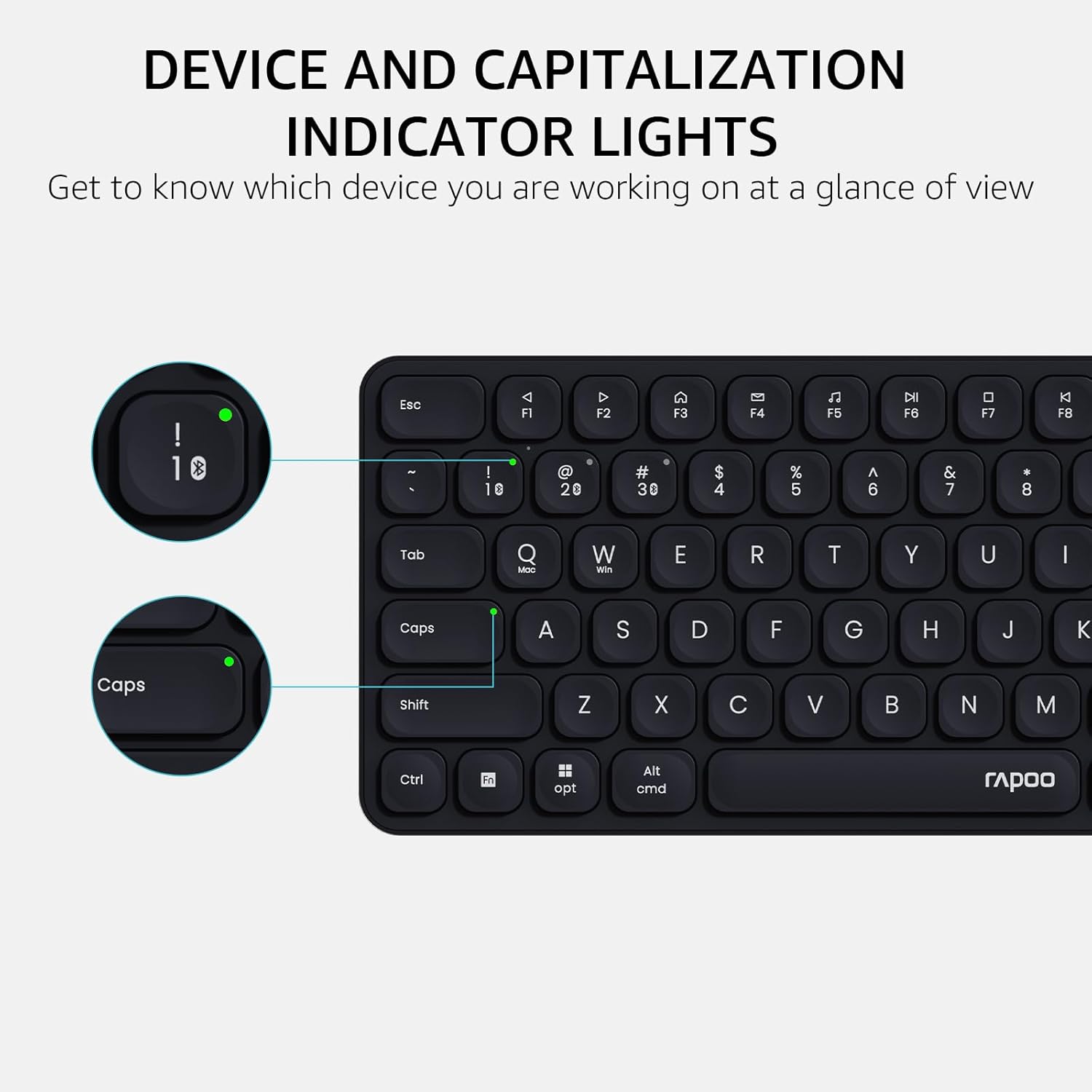
Bild: Eine detaillierte view of the Rapoo E9310M keyboard, pointing out the indicator lights for device connection and Caps Lock status.
3.2 Mausfunktionen
The M300G Silent Mouse provides precise control with adjustable DPI settings and a quiet click design.
3.2.1 DPI-Anpassung
The mouse features 5 adjustable DPI levels (800/1000/1200/1600/2400) to suit different screen resolutions and user preferences. Press the DPI button (usually located near the scroll wheel) to cycle through the settings.
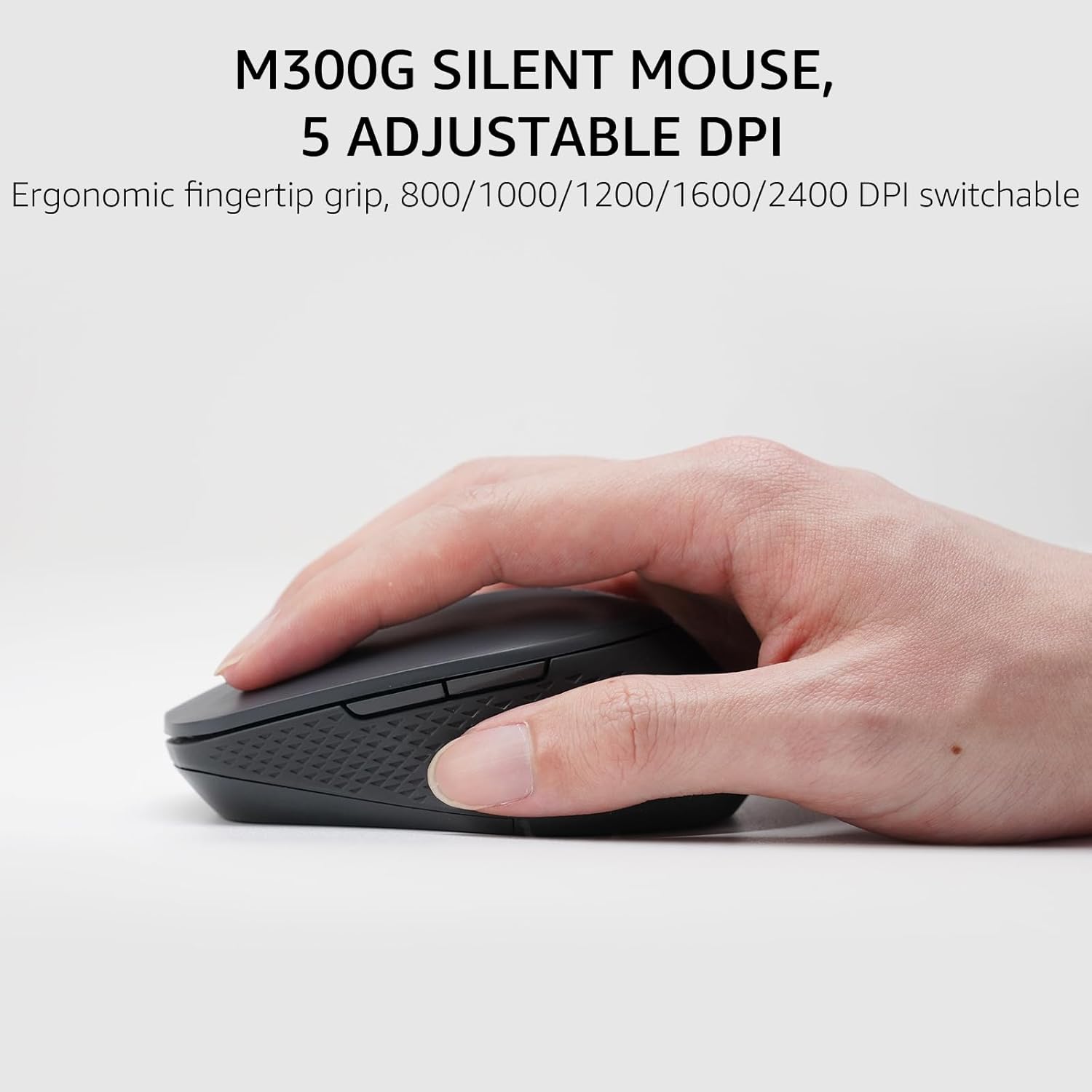
Image: The Rapoo M300G Silent Mouse, highlighting its ergonomic design and the DPI adjustment button.
4. Wartung
4.1 Reinigung
- Verwenden Sie ein weiches, trockenes Tuch, um die Oberflächen von Tastatur und Maus zu reinigen.
- Bei hartnäckigen Verschmutzungen leicht dampBefeuchten Sie das Tuch mit Wasser oder einer milden Reinigungslösung. Vermeiden Sie übermäßige Feuchtigkeit.
- Verwenden Sie keine Scheuermittel, Lösungsmittel oder Aerosolsprays.
4.2 Batteriewechsel
When the battery indicator light flashes or performance degrades, replace the batteries. The upgraded Bluetooth 5.0/4.0 technology extends battery life up to 12 months.
- Schalten Sie das Gerät aus.
- Öffnen Sie das Batteriefach.
- Entfernen Sie alte Batterien und entsorgen Sie diese gemäß den örtlichen Vorschriften.
- Legen Sie neue AAA-Batterien ein und achten Sie dabei auf die richtige Polarität.
- Schließen Sie das Fach.
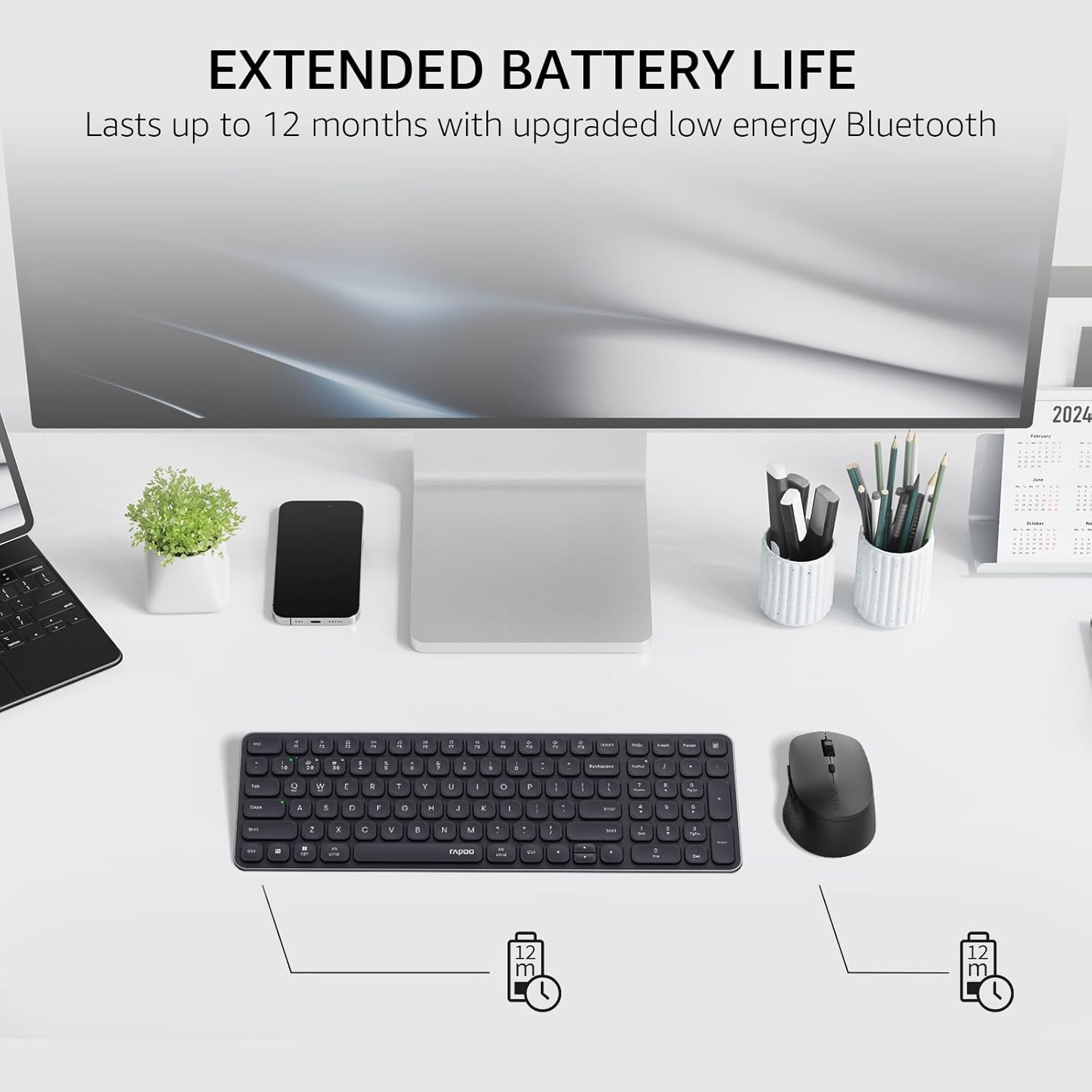
Image: The Rapoo keyboard and mouse on a desk, with an overlay indicating an extended battery life of up to 12 months.
5. Fehlerbehebung
5.1 Verbindungsprobleme
- Gerät verbindet sich nicht: Ensure the keyboard/mouse is turned on and in pairing mode (indicator light flashing). Check your device's Bluetooth settings to ensure Bluetooth is enabled and the correct Rapoo device is selected.
- 2.4-GHz-Verbindung instabil: Ensure the USB receiver is securely plugged into a working USB port. Try a different USB port. Ensure no other wireless devices are causing interference.
- Bluetooth connection dropping: Ensure the devices are within the effective range (typically 10 meters/33 feet). Check battery levels. Remove and re-pair the device if issues persist.
5.2 Tastatur/Maus reagiert nicht
- Keine Eingabe: Check battery levels and replace if necessary. Ensure the correct connection mode (2.4GHz or Bluetooth channel) is selected on the keyboard/mouse.
- Tasten funktionieren nicht: Reinigen Sie den Bereich um die betroffenen Tasten, um eventuelle Verunreinigungen zu entfernen.
- Mauszeiger unregelmäßig: Clean the mouse sensor. Ensure the mouse is used on a suitable surface. Adjust DPI settings if sensitivity is an issue.
6. Spezifikationen
| Besonderheit | Detail |
|---|---|
| Marke | Rapoo |
| Modell (Tastatur) | E9310M |
| Modell (Maus) | M300G |
| Farbe | Schwarz |
| Konnektivitätstechnologie | Bluetooth (5.0/4.0), Radio Frequency (2.4GHz) |
| Kompatible Geräte | Laptop, Personal Computer (Windows, macOS, Linux, Chrome OS) |
| Tastaturlayout | QWERTY, 99-Key with Number Pad |
| Maus-DPI | 800/1000/1200/1600/2400 (Adjustable) |
| Stromquelle | Batteriebetrieben (2 AAA-Batterien im Lieferumfang enthalten) |
| Artikelgewicht | 393.2 Gramm |
| Hersteller | Shenzhen Rapoo Technology Co., Ltd. |
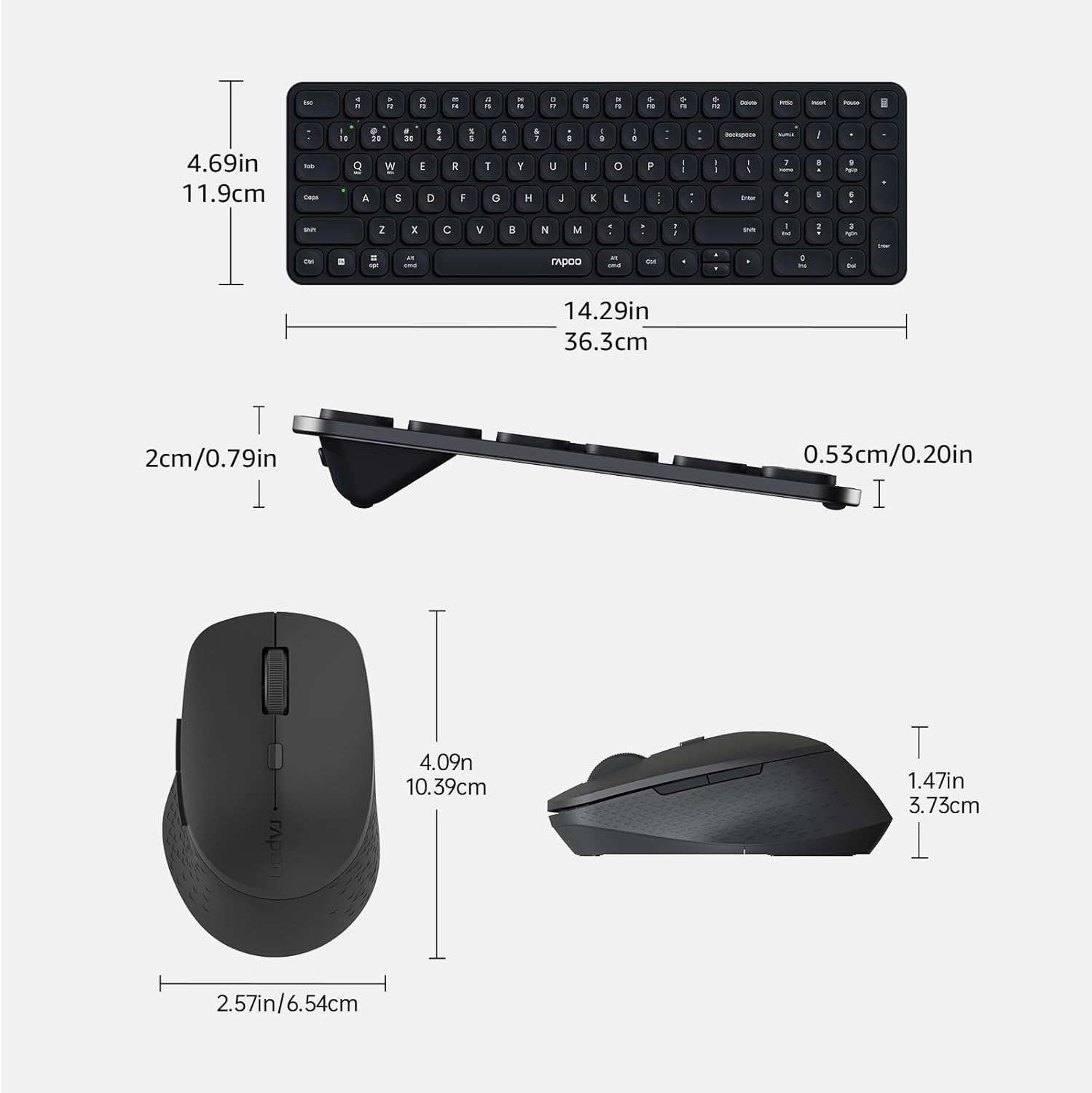
Image: Technical drawing showing the dimensions of the Rapoo E9310M keyboard and M300G mouse in inches and centimeters.
7. Garantie und Support
7.1 Garantieinformationen
Dieses Produkt wird mit einem 1 Jahr Garantie Ab Kaufdatum. Bitte bewahren Sie Ihren Kaufbeleg für Garantieansprüche auf. Die Garantie deckt Herstellungsfehler und Funktionsstörungen bei normalem Gebrauch ab.
7.2 Kundendienst
For technical assistance, troubleshooting, or warranty inquiries, please contact Rapoo customer support. Refer to the official Rapoo webDie aktuellsten Kontaktinformationen finden Sie auf der Website oder der Produktverpackung.