1. Einleitung
This manual provides detailed instructions for the installation, operation, and maintenance of your CAMECHO 4+128G Android 15 Car Radio. This advanced car multimedia system is designed to enhance your driving experience with features such as wireless CarPlay, Android Auto, GPS navigation, Bluetooth connectivity, and a high-resolution INCELL touchscreen. Please read this manual thoroughly before installation and use to ensure proper functionality and safety.
2. Kompatible Fahrzeuge
This CAMECHO car radio is compatible with the following Mercedes Benz models and years:
- Mercedes Benz W169 (2004-2012)
- Mercedes Benz B200 (2004-2012)
- Mercedes Benz W245 (2004-2012)
- Mercedes Benz W639 Viano (2006-2014)
- Mercedes Benz Vito (2006-2014)
- Mercedes Benz Sprinter W906 (2006-2012)

This image displays various Mercedes Benz dashboards, illustrating the fitment of the CAMECHO car radio in compatible models such as the Vito, Viano, V-Class W639, Sprinter, and B-Class.
Wichtiger Hinweis: Vor dem Kaufasing and installation, please verify your vehicle's radio line interface. If your radio line interface matches the one shown in the diagram requiring an optical fiber box, you will need to acquire a separate car optical fiber box. Contact CAMECHO support for guidance if needed.
3. Packungsinhalt
The following items are included in your CAMECHO car radio package:
- CAMECHO Android Car Radio Unit (9-inch INCELL screen)
- Stromkabel
- RCA-Kabel
- USB-Kabel (6-polig und 4-polig)
- GPS-Antenne
- Radioantennenadapter
- AHD Rear Camera (Gift)
- Externes Mikrofon
- CAN-Bus- und Antennenadapter
- Installationstools
- Bedienungsanleitung
This image illustrates the car radio unit's dimensions and lists the various cables and accessories included in the package, such as the AHD Rear Camera, Power Cable, USB cables, GPS antenna, and installation tools.
4. Installationsanleitung
4.1 Prüfungen vor der Installation
- Ensure your vehicle is compatible with the car radio model.
- Turn off the vehicle's ignition and disconnect the negative terminal of the car battery to prevent electrical shorts.
- Inspect your vehicle's existing radio wiring harness and dashboard opening.
- If unsure about compatibility or wiring, consult a professional installer.
4.2 Kabelverbindungen
Refer to the wiring diagram provided with your unit and the image below for correct connections. Ensure all cables are securely connected to their respective ports.
This diagram illustrates the rear panel of the car radio and its connection points, including Power Cable, Camera Input, RCA Cable, USB Cables, Radio Antenna, and GPS Antenna.
- Stromkabel: An den Stromkabelbaum des Fahrzeugs anschließen.
- Kameraeingang: Connect the included AHD rear camera.
- RCA-Kabel: Für Audio-/Videoausgabe an externe Geräte ampVerstärker oder Monitore.
- USB-Kabel: Connect for data transfer, media playback, and charging.
- Funkantenne: Schließen Sie die Radioantenne des Fahrzeugs an.
- GPS-Antenne: Montieren Sie das Gerät an einem Ort mit freiem Blick view des Himmels für optimalen Signalempfang.
- Externes Mikrofon: Connect for improved hands-free call quality.
- Canbus: Connect the Canbus adapter if your vehicle requires it for steering wheel controls or other vehicle data integration.
4.3 Montage der Einheit
- Carefully insert the car radio into the dashboard opening.
- Befestigen Sie das Gerät mit den mitgelieferten Montagehalterungen und Schrauben.
- Ensure all cables are neatly tucked away and not pinched.
- Schließen Sie den Minuspol der Autobatterie wieder an.
5. Grundlegende Bedienung
5.1 Ein-/Ausschalten
- Einschalten: Schalten Sie die Zündung Ihres Fahrzeugs ein. Das Gerät sollte sich automatisch einschalten. Falls nicht, drücken Sie den Ein-/Ausschalter am Gerät.
- Ausschalten: Turn off your vehicle's ignition. The unit will power off automatically.
5.2 Touchscreen-Bedienung
The 9-inch INCELL HD touchscreen supports multi-touch gestures. Tap to select, swipe to navigate, and pinch to zoom (where applicable).
6. Hauptmerkmale und Funktionen
6.1 Android 15 System & Leistung
Equipped with the latest Android 15 operating system, 4GB RAM, and 128GB ROM, this unit provides fast and stable performance for multitasking, app loading, and media storage. The 4-Core CPU ensures efficient operation.

This image highlights the internal specifications of the car radio, including the 4-Core CPU, 4GB RAM, and 128GB ROM, emphasizing its excellent performance capabilities.
6.2 9-inch INCELL HD Screen
Experience superior visuals with the 9-inch INCELL touchscreen, featuring a resolution of 1280*720. INCELL technology delivers vibrant colors, wide viewing angles, and highly responsive touch interaction, ensuring clarity even in direct sunlight.
6.3 Kabelloses CarPlay & Android Auto
Connect your smartphone wirelessly for seamless integration. Access navigation, music, messages, and apps directly from the car radio display. Use voice commands via Siri or Google Assistant for safe and intuitive control.

This image displays the user interfaces for both Apple CarPlay and Android Auto running on the car radio, showing navigation, music, and app icons.
6.4 4G, WiFi & Integrated GPS
Stay connected with built-in Wi-Fi and precise GPS navigation. Access real-time traffic information (with downloaded maps), stream music from services like Spotify and YouTube, and browse the web. The unit supports split-screen functionality for simultaneous use of navigation and other apps.
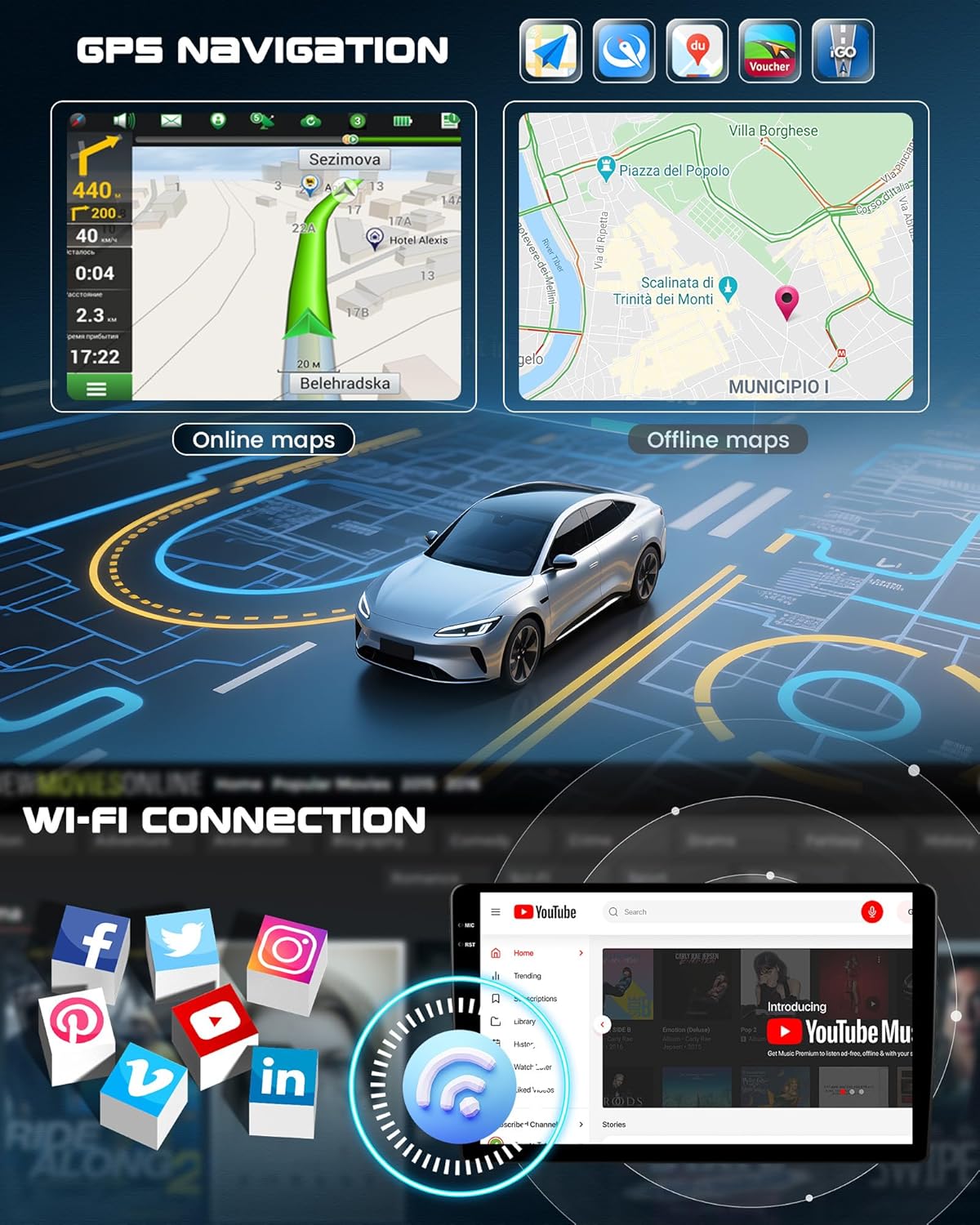
This image shows the GPS navigation interface with online and offline map capabilities, alongside a representation of Wi-Fi connectivity and various social media app icons.
6.5 Rückfahrkamerafunktion
An HD rear camera is included to provide clear and accurate views behind your vehicle, aiding in safe parking. The display automatically switches to the camera view when reversing, with intelligent guidelines.

This image demonstrates the reversing assistance feature, showing a car backing up with a clear view from the HD rear camera, highlighting night vision, waterproof, and wide-angle capabilities.
6.6 Lenkradsteuerung
Learn and customize your steering wheel controls directly from the screen. Manage volume, navigation, calls, and music playback without taking your hands off the wheel. Full compatibility with original Mercedes Benz steering wheel buttons is supported.
This image includes a section demonstrating the steering wheel control learning function, allowing users to customize button assignments for various functions.
6.7 Externes Mikrofon
An external microphone is included to provide exceptional hands-free call quality. Install it on your dashboard for optimal voice capture, ensuring clear conversations even at high speeds.
6.8 Bluetooth 5.0, FM/RDS Radio & Equalizer
Utilize Bluetooth 5.0 for music streaming and hands-free calls. The FM/RDS radio offers crystal-clear reception. Personalize your audio experience with the 32-band digital equalizer.

This image showcases the Bluetooth call and music playback features, the FM/RDS radio interface, and the detailed 32-band digital equalizer for sound customization.
6.9 Split-Screen-Funktion
The split-screen feature allows you to run two applications simultaneously, such as navigation on one side and music playback on the other, enhancing multitasking capabilities.
This image also illustrates the split-screen function, showing two applications, such as navigation and YouTube, running side-by-side on the display.
6.10 Sprachunterstützung
The unit supports voice assistance for hands-free control. This feature requires activation and allows you to control various functions using voice commands.
This image includes a visual representation of the voice assistance feature, indicating that activation is required for use.
6.11 DAB Function
Digital Audio Broadcasting (DAB) functionality is supported. Please note that a separate DAB module must be purchased and connected to activate this feature.
This image displays the DAB function interface and indicates that an external DAB module is required for activation.
6.12 OBD2 Function
The unit supports On-Board Diagnostics II (OBD2) functionality, allowing you to monitor vehicle data. This feature requires activation and a compatible OBD2 adapter (sold separately).
This image illustrates the OBD2 function interface, showing vehicle data and indicating that activation is required.
7. Wartung
- Reinigung: Reinigen Sie Bildschirm und Gerät mit einem weichen, trockenen Tuch. Vermeiden Sie Scheuermittel und Lösungsmittel.
- Software-Updates: Periodically check for software updates from CAMECHO to ensure optimal performance and access to new features.
- Umgebungsbedingungen: Vermeiden Sie es, das Gerät extremen Temperaturen, direkter Sonneneinstrahlung über längere Zeiträume oder übermäßiger Feuchtigkeit auszusetzen.
8. Fehlerbehebung
If you encounter issues with your CAMECHO car radio, refer to the following common troubleshooting steps:
- Kein Strom: Überprüfen Sie alle Stromanschlüsse und den Sicherungskasten des Fahrzeugs. Stellen Sie sicher, dass die Zündung eingeschaltet ist.
- Kein Ton: Überprüfen Sie die Lautsprecheranschlüsse, die Lautstärkeeinstellungen und die Audioquellenauswahl. Prüfen Sie, ob die Stummschaltung aktiviert ist.
- GPS funktioniert nicht: Stellen Sie sicher, dass die GPS-Antenne ordnungsgemäß angeschlossen und an einem Ort mit freiem Blick montiert ist. view des Himmels. Überprüfen Sie die GPS-Einstellungen im System.
- Probleme mit der Bluetooth-Konnektivität: Stellen Sie sicher, dass Bluetooth sowohl am Autoradio als auch an Ihrem Gerät aktiviert ist. Versuchen Sie, die Geräte zu entkoppeln und erneut zu koppeln.
- Touchscreen reagiert nicht: Versuchen Sie, das Gerät neu zu starten. Sollte das Problem weiterhin bestehen, ist möglicherweise ein Zurücksetzen auf die Werkseinstellungen erforderlich (Hinweis: Dadurch werden alle Benutzerdaten gelöscht).
- CarPlay/Android Auto verbindet sich nicht: Stellen Sie sicher, dass WLAN und Bluetooth auf Ihrem Telefon aktiviert sind. Prüfen Sie, ob Software-Updates für Ihr Telefon oder das Autoradio verfügbar sind.
For persistent issues or advanced troubleshooting, please contact CAMECHO customer support.
9. Spezifikationen
| Besonderheit | Spezifikation |
|---|---|
| Marke | KAMECHO |
| Betriebssystem | Android 15 |
| RAM | 4 GB |
| ROM | 128 GB |
| Prozessor | 4-Kern |
| Bildschirmgröße | 9 Zoll |
| Bildschirmtyp | INCELL HD Touchscreen |
| Bildschirmauflösung | 1280*720 |
| Konnektivitätstechnologie | Ethernet, USB, Bluetooth 5.0, Wi-Fi, 4G (via external modem) |
| Controllertyp | Android |
| Besondere Merkmale | Wireless CarPlay & Android Auto, Mirror Link, GPS Navigation, FM/RDS Radio, 32-band EQ, Rear Camera Input, Steering Wheel Control, Voice Assistant, DAB (external module required), OBD2 (external adapter required) |
| Kompatible Geräte | Smartphone, Tablet, PC, Lautsprecher Amplifier, TV, Rear Camera, Driving Recorder, OBD2 |
| Audioausgabemodus | Stereo |
| Surround Sound-Kanalkonfiguration | 5.1 |
| Videokodierung | H.264, H.265/HEVC |
| Ausgangsleistung | 45 Watt x 4 Kanäle |
10. Garantie und Support
Your CAMECHO car radio comes with a standard manufacturer's warranty. For specific warranty terms and conditions, please refer to the documentation included with your purchase or visit the official CAMECHO webWebsite.
For technical support, troubleshooting assistance, or any inquiries regarding your product, please contact CAMECHO customer service through the retailer where you purchased the product or via the contact information provided on the official CAMECHO webWebsite.