
Upvivi X88 PRO 14
Upvivi Android 14 TV Box User Manual
Model: X88 PRO 14
Einführung
Thank you for choosing the Upvivi Android 14 TV Box. This device transforms your television into a smart entertainment hub, offering access to a wide range of applications, streaming services, and media content. Featuring the latest Android 14 operating system, a powerful RK3518 Quad-Core CPU, 4K Ultra HD support, Wi-Fi 6, and Bluetooth 5.0, this TV box delivers a smooth and immersive viewing experience. This manual provides detailed instructions for setting up, operating, maintaining, and troubleshooting your device to ensure optimal performance.
Packungsinhalt
Bitte kreuzen Sie das Kästchen für die folgenden Elemente an:
- 1 x Android 14.0 TV Box (2GB+16GB)
- 1 x IR-Fernbedienung (Batterien nicht im Lieferumfang enthalten)
- 1 x Netzteil (DC 5V/2A)
- 1 x HDMI-Kabel
- 1 x Benutzerhandbuch (dieses Dokument)

Image: The Upvivi Android 14 TV Box and its accompanying remote control, as typically found in the package.
Produkt überview
The Upvivi Android 14 TV Box is designed for ease of use and high performance. Below is an overview of its key features and interface ports.

Bild: Vorderseite view of the TV box, highlighting its Android 14 OS, 4K video capability, Wi-Fi 6, 10/100M Ethernet, and Bluetooth 5.0 features.
Interface-Ports
The device is equipped with various ports for connectivity:
- Gleichstromanschluss: Zum Anschluss des Netzteils.
- SPDIF: Digitaler Audioausgang.
- HDMI: Anschlussmöglichkeit an Ihren Fernseher oder Bildschirm für Video- und Audioausgabe.
- LAN: Ethernet-Anschluss für kabelgebundene Netzwerkverbindung.
- USB 2.0-Anschluss: For connecting USB devices like flash drives, keyboards, or mice.
- USB 3.0-Anschluss: High-speed USB port for faster data transfer with compatible devices.
- TF-Karten-Slot: For inserting Micro SD cards to expand storage.
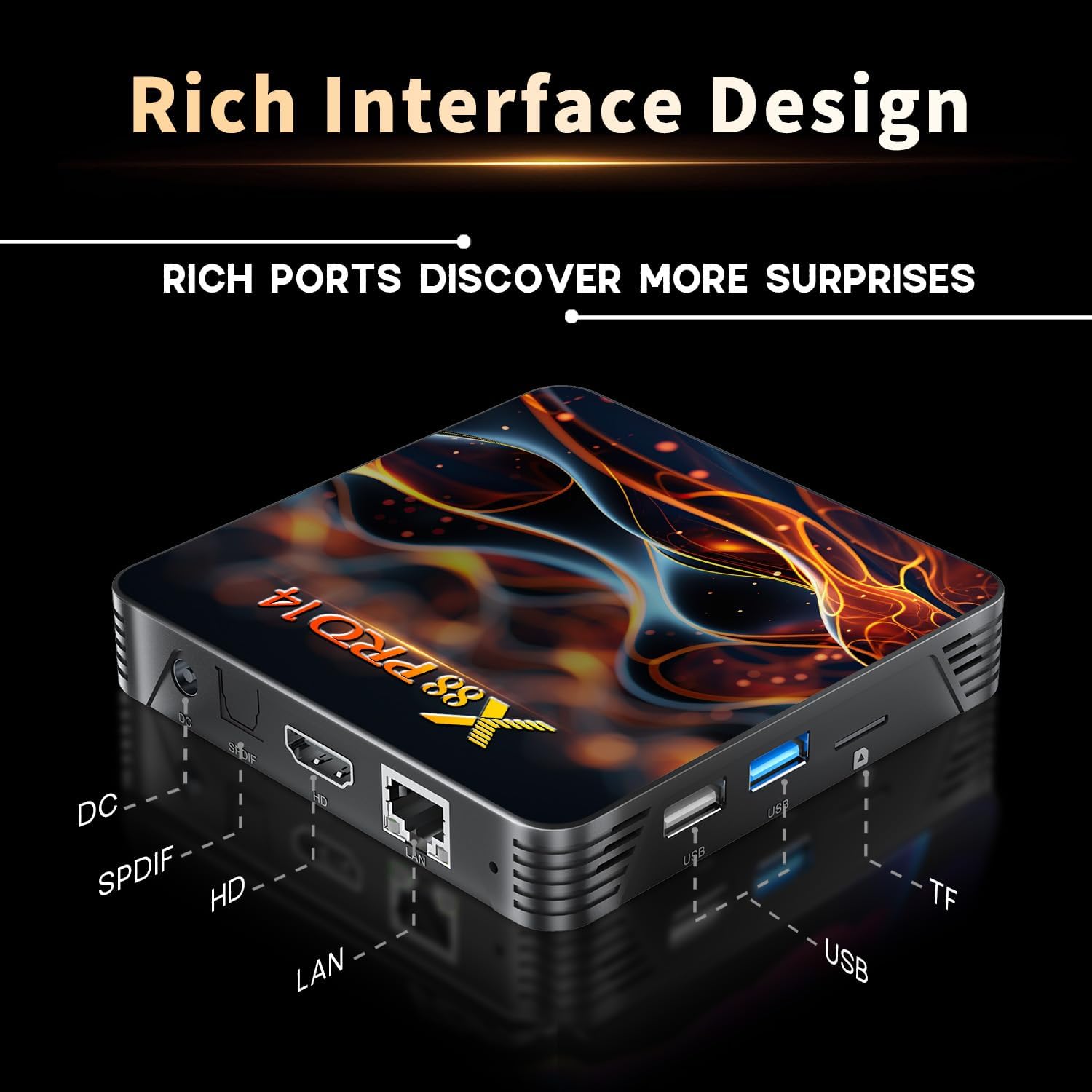
Image: A detailed diagram illustrating the various input and output ports available on the TV box, including DC, SPDIF, HDMI, LAN, USB, and TF card slot.
Installationshandbuch
Follow these steps to set up your Upvivi Android 14 TV Box:
- An die Stromversorgung anschließen: Insert the DC 5V/2A power adapter into the DC port on the TV box, then plug the adapter into a wall outlet. The power indicator LED on the box will illuminate.
- Anschluss an den Fernseher: Use the provided HDMI cable to connect the HDMI port on the TV box to an available HDMI input on your television.
- Eingabe auswählen: Turn on your TV and use its remote control to select the correct HDMI input source that your TV box is connected to.
- Netzwerkverbindung:
- W-lan: Once the box boots up, navigate to the Settings menu, select Network, and choose Wi-Fi. Select your network from the list, enter the password, and connect.
- Ethernet: For a wired connection, connect an Ethernet cable from your router to the LAN port on the TV box. The device will automatically detect and connect to the wired network.
- Ersteinrichtung: Follow the on-screen prompts to complete the initial setup, including language selection, time zone, and Google account login (optional, but recommended for app access).
Bedienungsanleitung
Fernbedienung
The included IR remote control allows you to navigate the TV box interface. Ensure batteries are inserted correctly (not included). Point the remote directly at the TV box for optimal response.
Image: The TV box and its remote control. The remote features navigation buttons, volume controls, and dedicated function keys.
Navigation und Benutzeroberfläche
The Android 14 interface is user-friendly. Use the directional buttons on the remote to move between icons and options. The 'OK' button confirms selections, and the 'Back' button returns to the previous screen. The 'Home' button takes you to the main launcher screen.

Image: The Android 14 TV Box interface displayed on a television screen, showing various application icons like Netflix, YouTube, and Google Play Store.
Anschließen von Peripheriegeräten
The TV box supports various peripherals:
- USB-Geräte: Connect USB flash drives, external hard drives (up to 1TB), wired keyboards, or mice to the USB 2.0 or USB 3.0 ports.
- Bluetooth-Geräte: Pair Bluetooth-enabled devices such as wireless mini-keyboards, game controllers, or speakers via the Bluetooth 5.0 connectivity. Go to Settings > Connected devices > Pair new device.
- Micro SD Karte: Insert a Micro SD card (up to 64GB) into the TF card slot for additional storage.
Multi-Domain Applications
The TV box supports a variety of entertainment and utility applications, allowing you to watch TV, play games, listen to music, and stream live events.

Image: Visual representation of the TV box's versatility, showing its use for watching TV, playing games, listening to music, and watching sports.
Technische Spezifikationen
Detailed specifications of the Upvivi Android 14 TV Box:
| Betriebssystem | Android 14.0 |
| Chipsatz | RK3518 Quad-Core 64bit Cortex-A53 |
| Grafikkarte | Mali 450 MP2 |
| FLASH-Speicher | EMMC 16GB |
| SDRAM | 2 GB |
| USB-Anschlüsse | 1 x Type-A USB 2.0, 1 x Type-A USB 3.0 |
| LAN | Ethernet: 10/100M Standard RJ-45 |
| Kabellose Konnektivität | 2.4G / 5G dual-band Wi-Fi 802.11 a/b/g/n/ac/ax (Wi-Fi 6) |
| Bluetooth | V5.0 |
| Kartenleser | Micro SD cards, Maximum support 64GB |
| DisplayPort | HDMI |
| HDMI-Version | HDMI 2.0b for 4K@60Hz |
| Videoausgang | 4K (3840x2160 pixel) High Definition |
| Stromversorgung | INPUT: 100-240V 50/60HZ, OUTPUT: DC 5V/2A |
| Betriebstemperatur | -10℃ bis 45℃ |
| Unterstützte Sprachen | English, French, German, Spanish, Italian, etc. |
Leistungshöhepunkte

Image: Diagram illustrating the RK3518 Quad-Core Cortex-A53 processor, emphasizing its enhanced computing power and lower power consumption for better performance.
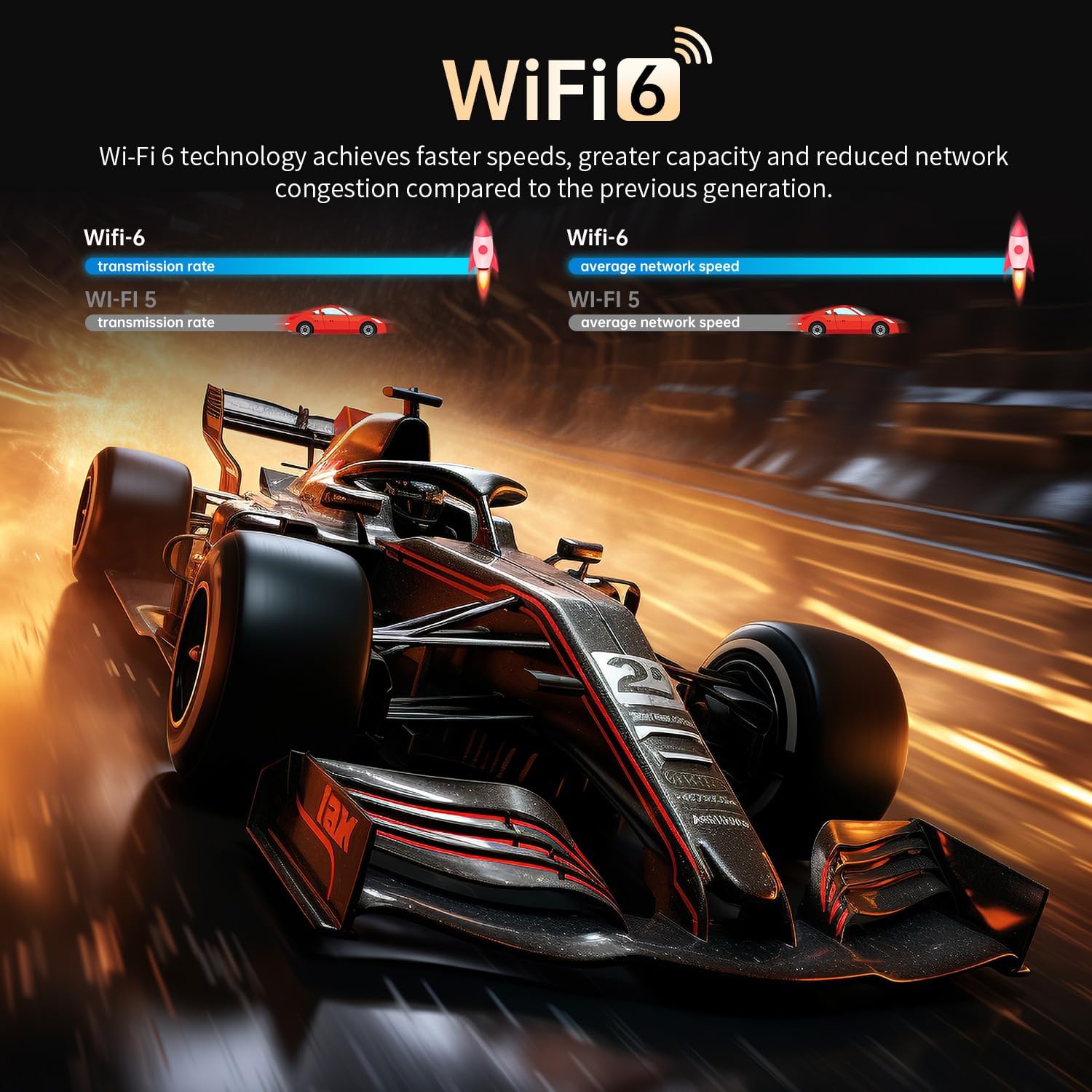
Image: A visual comparison highlighting the benefits of Wi-Fi 6 technology, showing faster speeds, greater capacity, and reduced network congestion compared to Wi-Fi 5.

Image: A visual demonstration of 4K HDR10 quality, showcasing super bright colors, sharper contrast, and richer details compared to standard 1080p.
Wartung und Pflege
To ensure the longevity and optimal performance of your TV box, follow these maintenance guidelines:
- Reinigung: Reinigen Sie die Außenseite des Geräts mit einem weichen, trockenen Tuch. Verwenden Sie keine flüssigen Reiniger oder Sprays.
- Belüftung: Ensure the TV box is placed in a well-ventilated area. Do not block the ventilation holes. Proper airflow is crucial for heat dissipation.
- Temperatur: Operate the device within the specified temperature range (-10℃ to 45℃). Avoid exposing it to extreme heat or cold.
- Ausschalten: Bei längerer Nichtbenutzung wird empfohlen, das Gerät auszuschalten und den Netzadapter vom Stromnetz zu trennen.
Wärmeableitung
The TV box is designed with efficient heat dissipation to maintain stable operation.
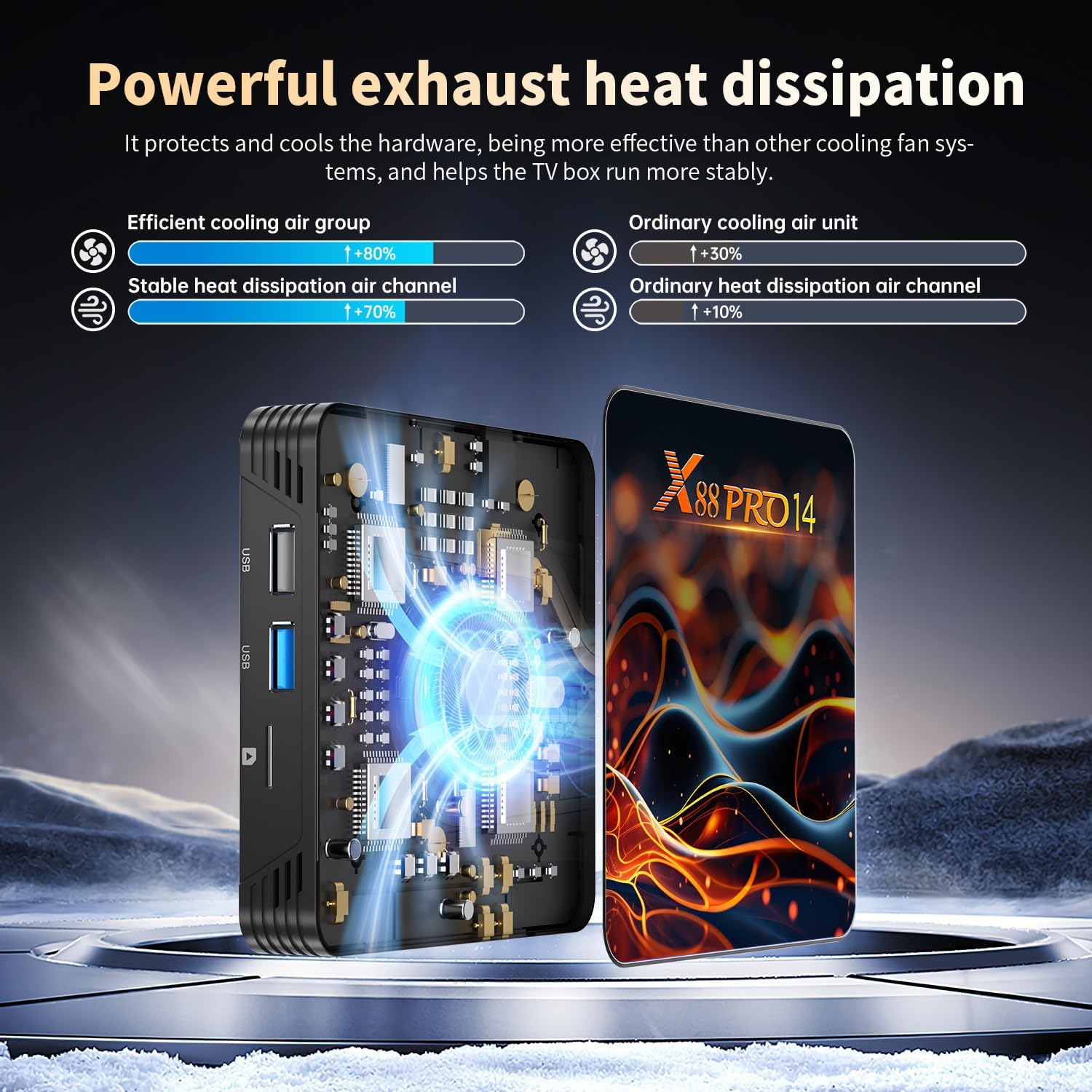
Abbildung: Ein interner view highlighting the powerful exhaust heat dissipation system, showing how it protects hardware and ensures stable operation by being more effective than ordinary cooling solutions.
Fehlerbehebung
If you encounter issues with your Upvivi Android 14 TV Box, please refer to the following common problems and solutions:
- Kein Strom:
- Ensure the power adapter is securely connected to the TV box and a working power outlet.
- Prüfen Sie, ob die Steckdose funktioniert.
- Kein Bild im Fernsehen:
- Check if the HDMI cable is securely connected to both the TV box and the TV.
- Stellen Sie sicher, dass Ihr Fernseher auf die richtige HDMI-Eingangsquelle eingestellt ist.
- Versuchen Sie es mit einem anderen HDMI-Kabel oder einem anderen HDMI-Anschluss an Ihrem Fernseher.
- Kein Ton:
- Check the volume levels on both the TV box and your TV.
- Ensure the HDMI cable is functioning correctly.
- Verify audio output settings on the TV box (Settings > Sound).
- Probleme mit der Wi-Fi-Verbindung:
- Stellen Sie sicher, dass Ihr WLAN-Router eingeschaltet und funktionsfähig ist.
- Geben Sie das WLAN-Passwort sorgfältig erneut ein.
- Move the TV box closer to the router or try connecting via Ethernet.
- Restart both the TV box and your router.
- Fernbedienung reagiert nicht:
- Überprüfen und ersetzen Sie die Batterien in der Fernbedienung.
- Ensure there are no obstructions between the remote and the TV box's IR receiver.
- Systemverzögerung/Einfrieren:
- Schließen Sie nicht benötigte Hintergrundanwendungen.
- Clear cache for frequently used apps (Settings > Apps > [App Name] > Clear cache).
- Restart the TV box.
- Stellen Sie sicher, dass ausreichend Stauraum vorhanden ist.
Garantie und Support
Upvivi provides a 2 Jahr Garantie für dieses Produkt, zusammen mit lebenslangem technischem Support.
If you have any questions, concerns, or require technical assistance, please do not hesitate to contact our customer support team. We are committed to providing a solution within 24 hours.
For support, please refer to the contact information provided on the product packaging or the official Upvivi webWebsite.
Ask a question about this manual
Ask about setup, troubleshooting, compatibility, parts, safety, or missing instructions. Manuals+ will review the question and use this page’s manual context to help answer it.