
1. Produktüberschreitungview
The UGREEN HDMI KVM Switch allows you to control up to four computers using a single monitor, keyboard, and mouse. It supports high resolutions up to 8K@60Hz and 4K@240Hz, leveraging HDMI 2.1 technology for superior video quality. Additionally, it features four USB 3.0 ports for sharing peripherals like hard drives, printers, and USB flash drives among the connected computers, enhancing productivity and reducing desktop clutter.

This image illustrates the benefit of using the KVM switch, showing a cluttered desktop with multiple computers and monitors before, and a streamlined setup with a single monitor and shared peripherals after.
Hauptmerkmale:
- 4-Port-KVM-Funktionalität: Control four computers with one monitor and a single set of USB 3.0 peripherals.
- Unterstützung hoher Auflösung: Experience stunning visuals with support for 8K@60Hz and 4K@240Hz resolutions.
- HDMI 2.1-zertifiziert: Ensures advanced features like 48Gbps bandwidth, Variable Refresh Rate (VRR), Quick Media Switching (QMS), Quick Frame Transport (QFT), and Auto Low Latency Mode (ALLM).
- USB 3.0 Ports: Four USB 3.0 ports (3 USB-A + 1 USB-C) provide data transfer speeds up to 5Gbps for connected devices.
- Verbesserte Haltbarkeit: Constructed with a robust aluminum alloy case and nickel-plated connectors for long-lasting performance.
2. Packungsinhalt
Bitte überprüfen Sie, ob alle Artikel in Ihrem Paket vorhanden sind:
- UGREEN HDMI KVM Switch Unit
- HDMI 2.1 Cable (6.6FT)
- USB A to C Data Cables (4x)
- Netzteil
- Benutzerhandbuch (dieses Dokument)
3. Produktdiagramm und Anschlüsse
Familiarize yourself with the KVM switch's layout and port functions:

This diagram shows the front panel with a 'CONTROL' button and four USB 3.0 ports (3 USB-A, 1 USB-C). The rear panel includes a power input, HDMI output, and four sets of HDMI input and USB-C data input ports for connecting up to four computers.
Portbeschreibungen:
- HDMI-Ausgang: Wird an Ihren Monitor angeschlossen.
- HDMI Input (PC1-PC4): Wird an den HDMI-Ausgang jedes Computers angeschlossen.
- USB-C Data Input (PC1-PC4): Connects to a USB-A or USB-C port on each computer using the provided USB A to C data cables. This is essential for USB peripheral sharing.
- USB 3.0 Ports (Front Panel): Connect your keyboard, mouse, USB flash drives, printers, or other USB 3.0 devices.
- CONTROL Button: Used to switch between connected computers.
- Leistungsaufnahme: Connect the included power adapter to ensure stable operation, especially when using high-power USB devices.
4. Einrichtungsanweisungen
Follow these steps to set up your UGREEN HDMI KVM Switch:
- Monitor anschließen: Connect your monitor to the HDMI Output port on the KVM switch using an HDMI 2.1 cable.
- Computer verbinden (Video): For each computer (PC1-PC4), connect its HDMI output to the corresponding HDMI Input port on the KVM switch. Ensure your computer's graphics card and monitor support the desired resolution (e.g., 8K@60Hz or 4K@240Hz).
- Connect Computers (USB Data): For each computer, connect one end of the provided USB A to C data cable to a USB-A or USB-C port on your computer, and the other end (USB-C) to the corresponding USB-C Data Input port on the KVM switch. Note: This connection is mandatory for USB device sharing.
- USB-Peripheriegeräte anschließen: Connect your keyboard, mouse, and other USB 3.0 devices to the USB 3.0 ports on the front panel of the KVM switch.
- Strom anschließen: Plug the included power adapter into the KVM switch's power input port and then into a wall outlet. This ensures stable operation, especially when connecting high-power USB devices.

This image highlights critical setup considerations: ensuring your computer has both HDMI and USB-A ports, the necessity of connecting the power supply for stability, graphics card/monitor/cable support for 8K@60Hz, and that hot-key switching is not supported. It also clarifies that this is an HDMI KVM switch, not DisplayPort or USB-C KVM, and supports only one monitor.
Cable Length and Resolution Guidelines:
To ensure optimal performance, especially at higher resolutions, adhere to the recommended cable lengths:

This table provides guidelines for maximum HDMI cable lengths (input and output) for different resolutions and refresh rates, along with the recommended AWG (American Wire Gauge) for the cables.
5. Bedienung des KVM-Switches
Once all connections are made, operating the KVM switch is straightforward:
- Computer wechseln: Press the 'CONTROL' button on the front panel of the KVM switch to cycle through the connected computers (PC1, PC2, PC3, PC4). The active computer's indicator light will illuminate.
- No Hot-Key Switching: This KVM switch does not support switching via keyboard hot-keys. All switching must be done using the physical button on the device.

This image shows the KVM switch in use, demonstrating how a single user can manage multiple computers efficiently from one workstation.
6. Advanced Video and Data Features
Hohe Auflösung und Bildwiederholfrequenz:
The KVM switch supports high-definition video output, providing crisp and clear images:
- Up to 8K (7680 x 4320) at 60Hz
- Up to 4K (3840 x 2160) at 240Hz
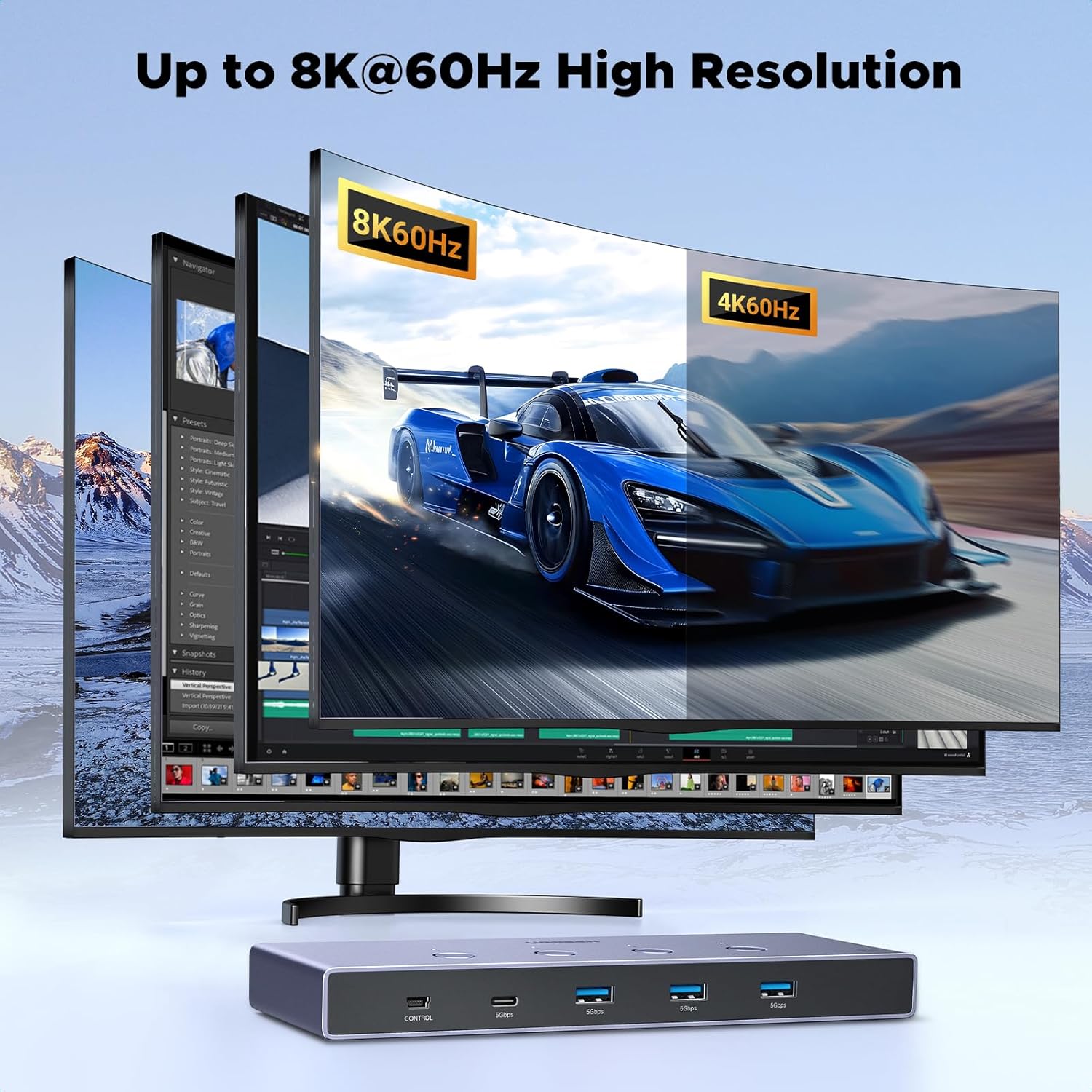
This image visually represents the high-resolution capability of the KVM switch, showcasing an 8K@60Hz display.

This graphic compares the bandwidth of HDMI 2.1 (48Gbps) to HDMI 2.0 (18Gbps), emphasizing the significantly faster data transmission of the newer standard.
USB 3.0 Ultra-fast Data Transfer:
The integrated USB 3.0 ports offer rapid data transfer for your peripherals:
- Data transfer speeds up to 5Gbps, which is 10 times faster than USB 2.0 (480Mbps).
- Ideal für den schnellen Transfer großer Mengen files from USB flash drives or external hard drives.

This image highlights the speed advantage of USB 3.0, showing 5Gbps transfer rates compared to 480Mbps for USB 2.0.
HDMI 2.1 Gaming Features:
For an optimized gaming experience, the KVM switch supports key HDMI 2.1 features:
- Variable Bildwiederholfrequenz (VRR): Reduziert Bildrisse und Ruckler für ein flüssigeres Spielerlebnis.
- Schnelle Medienumschaltung (QMS): Eliminates blank screens when switching between different content.
- Quick Frame Transport (QFT): Reduces display latency for more responsive gaming.
- Auto-Low-Latency-Modus (ALLM): Stellt automatisch die ideale Latenzeinstellung für einen reibungslosen, verzögerungsfreien Betrieb ein. viewInteraktion und Interaktivität.
- Dynamisches HDR: Provides more vivid and detailed images with enhanced contrast and color accuracy.

This image illustrates the benefits of HDMI 2.1 features for gamers, including Variable Refresh Rate, Quick Media Switching, Quick Frame Transport, and Auto Low Latency Mode.

This split image demonstrates the visual improvement with Dynamic HDR, showing a more vivid and detailed picture compared to a non-HDR image.
7. Wartung
To ensure the longevity and optimal performance of your UGREEN HDMI KVM Switch, follow these maintenance guidelines:
- Reinigung: Reinigen Sie die Außenseite des Geräts mit einem weichen, trockenen Tuch. Vermeiden Sie die Verwendung von flüssigen Reinigern oder Sprays, da diese das Gerät beschädigen können.
- Belüftung: Stellen Sie sicher, dass der KVM-Switch in einem gut belüfteten Bereich aufgestellt wird, um eine Überhitzung zu vermeiden. Blockieren Sie keine Lüftungsöffnungen.
- Lagerung: Bei längerer Nichtbenutzung sollte das Gerät an einem kühlen, trockenen Ort, vor direkter Sonneneinstrahlung und extremen Temperaturen geschützt aufbewahrt werden.
- Kabelmanagement: Halten Sie die Kabel ordentlich und achten Sie darauf, dass sie nicht geknickt oder übermäßig gebogen werden, um Beschädigungen an den Kabeln und Anschlüssen zu vermeiden.
8. Fehlerbehebung
Sollten Sie Probleme mit Ihrem KVM-Switch haben, beachten Sie bitte die folgenden häufig auftretenden Probleme und Lösungen:
| Problem | Mögliche Ursache | Lösung |
|---|---|---|
| Kein Bild auf dem Monitor | Incorrect HDMI cable connection; KVM switch not powered; Monitor input not selected correctly; Graphics card/monitor/cable not supporting resolution. | Ensure all HDMI cables are securely connected. Verify the KVM switch is powered. Check your monitor's input source. Confirm all components (graphics card, monitor, HDMI cables) support the desired resolution and refresh rate. |
| USB devices (keyboard/mouse) not working | USB A to C data cables not connected; KVM switch not powered; Loose USB connections. | Ensure the USB A to C data cable is connected from each computer to the KVM switch. Verify the KVM switch is powered. Reconnect USB peripherals to the KVM switch. |
| Cannot switch between computers | KVM switch not powered; Faulty button. | Ensure the KVM switch is powered. Press the 'CONTROL' button firmly. Note that hot-key switching is not supported. |
| Intermittent display or flickering | Poor quality HDMI cables; Exceeding recommended cable length; Power instability. | Use high-quality, certified HDMI 2.1 cables. Ensure cable lengths are within recommended limits (refer to Section 4). Verify the power adapter is securely connected and providing stable power. |
| USB 3.0 devices not reaching full speed | USB 2.0 cable used; Computer's USB port is USB 2.0; High-power device without sufficient power. | Ensure you are using USB 3.0 compatible cables and connecting to a USB 3.0 port on your computer. Confirm the KVM switch is powered by the adapter, especially for high-power USB devices. |
9. Spezifikationen
Detailed technical specifications for the UGREEN HDMI KVM Switch:
- Marke: UGREEN
- Modell: B0FB3WHZRY
- Farbe: Schwarz
- Hardware-Schnittstelle: HDMI, USB
- Besonderheit: High Speed 8K HDMI, 48Gbps Bandwidth
- Kompatible Geräte: Gaming Consoles, Laptops, MacBook, MacBook Air, MacBook Pro, Personal Computer, iMac, iPad, iPhone
- USB-Anschlüsse insgesamt: 4 (3 USB-A, 1 USB-C)
- Datenübertragungsrate: 5 Gigabit pro Sekunde (USB 3.0)
- Number of Ports (KVM): 4 (für Computer)
- Betriebssystemkompatibilität: Linux, MacOS, Windows
- Gehäusematerial: Aluminium
10. Garantie und Support
UGREEN-Produkte sind auf Zuverlässigkeit und Leistung ausgelegt. Informationen zur Garantie und zum technischen Support finden Sie auf der offiziellen UGREEN-Website. webWebsite oder wenden Sie sich direkt an den Kundendienst.
- Online-Hilfe: Besuchen www.ugreen.com für FAQs, Treiber und Support-Ressourcen.
- Kundendienst: Contact information can be found on the official webWebsite oder Ihre Produktverpackung.