
1. Einleitung
The MYSTILUCK Kids Camera X8D is a versatile digital camera designed for children, offering instant black and white photo printing, 1080P HD video recording, and a variety of creative features. This manual provides detailed instructions to help you and your child get the most out of this device.
2. Lieferumfang
- 1x MYSTILUCK Kids Camera X8D
- 3x Thermal Printer Paper Rolls
- 1x Tragegurt
- 1x 32GB SD-Karte
- 1x USB Typ-C Ladekabel
- 1x Benutzerhandbuch
3. Produktüberschreitungview
Machen Sie sich mit den Komponenten und Bedienelementen der Kamera vertraut.
3.1-Vorderseite View

Abbildung 1: Vorderseite view of the MYSTILUCK Kids Camera X8D, highlighting the main lens, flash, and shutter button.
3.2 Rückseite View

Abbildung 2: Rückseite view of the camera, displaying the LCD screen, navigation buttons, and print output slot.
3.3 Seite View (Ports and Slots)
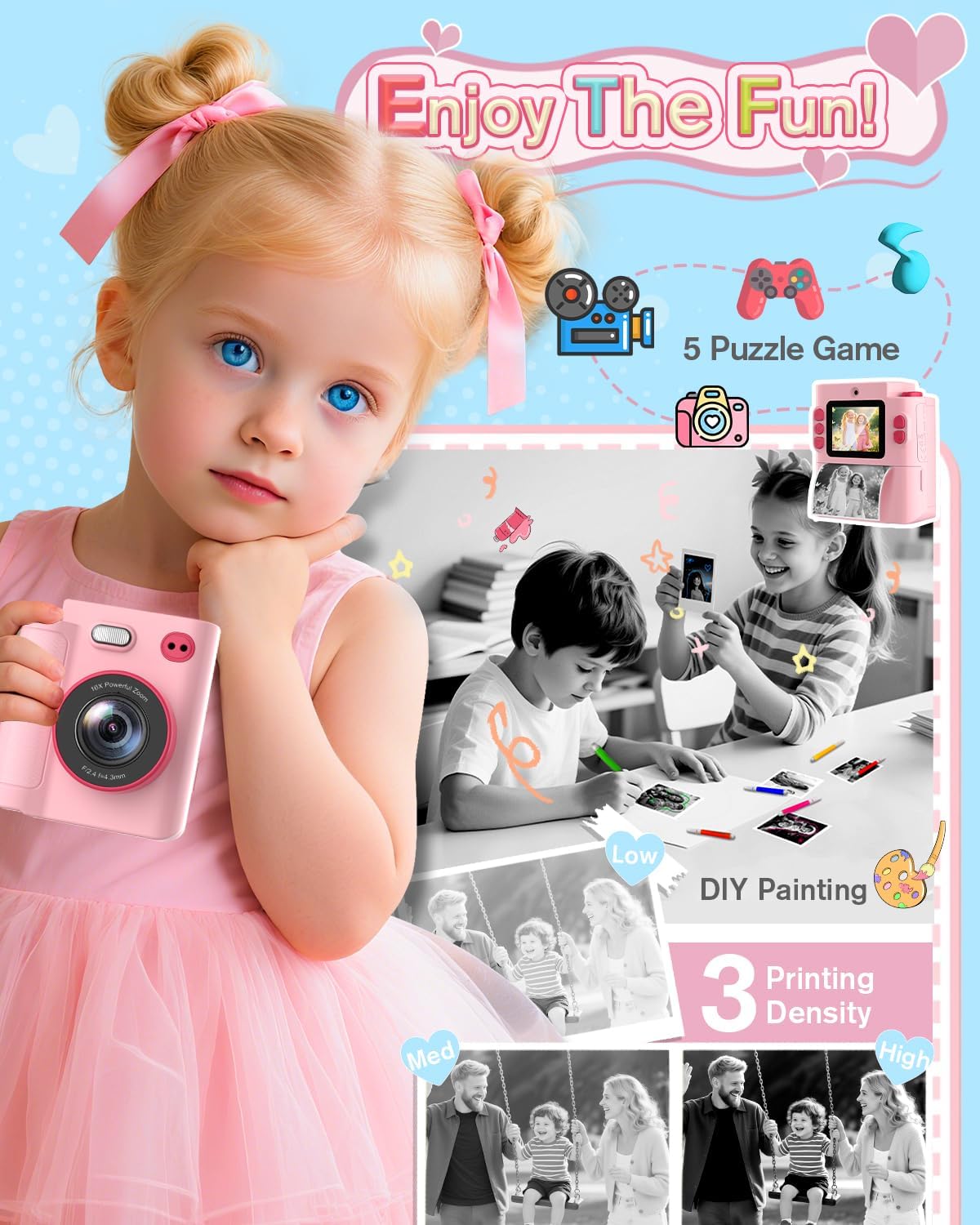
Abbildung 3: Seite view of the camera, indicating the USB Type-C charging port and the Micro SD card slot.
4. Einrichtung
4.1 Aufladen der Kamera
Before first use, fully charge the camera. Connect the provided USB Type-C cable to the camera's charging port and a compatible USB power adapter (not included). The charging indicator light will show the charging status. A full charge typically takes 2-3 hours and provides 4-5 hours of continuous use.
4.2 Einlegen der SD-Karte
The camera comes with a 32GB Micro SD card for storing digital photos and videos. Locate the SD card slot on the side of the camera and gently insert the card until it clicks into place. Ensure the card is inserted correctly to avoid damage.
4.3 Einlegen von Thermopapier
The camera uses ink-free thermal printing paper. To load a new roll:
- Open the paper compartment cover on the bottom of the camera.
- Insert a thermal paper roll, ensuring the paper feeds from the bottom and the end of the roll extends slightly out of the slot. Refer to the diagram inside the compartment for correct orientation.
- Schließen Sie die Abdeckung sicher.

Figure 4: Step-by-step guide for loading thermal paper into the camera.
5. Bedienungsanleitung
5.1 Ein-/Ausschalten
Drücken und halten Sie den Ein-/Ausschalter (normalerweise oben oder an der Seite) einige Sekunden lang, um die Kamera ein- oder auszuschalten.
5.2 Navigation
Use the directional buttons (up/down/left/right) to navigate through the menu options on the LCD screen. Press the 'OK' button to confirm a selection.
5.3 Fotos aufnehmen
Select the 'Photo' mode from the main menu. Frame your shot using the LCD screen. Press the shutter button (usually a dedicated button on top) to capture the image. Photos can be printed instantly or saved to the SD card.
5.3.1 Selfie-Modus
The camera features a rotatable lens. Rotate the lens 180 degrees to face forward for taking selfies. Select 'Selfie Mode' from the menu if available, or simply use the standard photo mode with the rotated lens.
5.3.2 Filter und Aufkleber
In photo mode, use the directional buttons to cycle through 15 creative scene filters and 16 fun stickers/frames to add artistic effects to your pictures before capturing them.

Abbildung 5: Bspamples of creative filters and frames for photos.
5.3.3 Digitalzoom
The camera supports up to 16X digital zoom. Use the designated zoom buttons (often up/down arrows) to adjust the zoom level before taking a photo.
5.3.4 Burst Mode and Time-Lapse
Access 'Burst Mode' for capturing multiple photos in quick succession, or 'Time-Lapse' mode to record a series of images over time, creating a sped-up video effect.
5.4 Videos aufnehmen
Select 'Video' mode from the main menu. Press the shutter button to start recording and again to stop. Videos are recorded in 1080P HD quality and saved to the SD card.
5.5 Sofortdruck
After taking a photo, the camera can instantly print a black and white version. Ensure thermal paper is loaded. You can usually toggle instant printing on/off in the settings or via a dedicated print button.
Video 1: Demonstration of instant photo printing from the MYSTILUCK Kids Camera X8D.
5.6 Spiele
The camera includes several built-in entertainment games. Select 'Games' from the main menu to access and play them.
5.7 MP3-Wiedergabe
If MP3 audio files are loaded onto the SD card, select 'Music' or 'MP3' from the main menu to play them through the camera's built-in speaker.
6. Wartung
6.1 Reinigung
Wipe the camera's exterior with a soft, dry cloth. Do not use liquid cleaners or solvents. Keep the lens clean for optimal image quality.
6.2 Speicherung
Store the camera in a cool, dry place away from direct sunlight and extreme temperatures. Remove the SD card if storing for extended periods.
6.3 Thermopapieraufbewahrung
Store thermal paper rolls in a cool, dark place to preserve their quality and prevent premature fading.
7. Fehlerbehebung
- Kamera lässt sich nicht einschalten: Stellen Sie sicher, dass der Akku geladen ist. Verbinden Sie das Gerät mit einer Stromquelle über das USB-C-Kabel.
- Kann keine Fotos/Videos aufnehmen: Prüfen Sie, ob die SD-Karte richtig eingesetzt ist und über ausreichend Speicherplatz verfügt.
- Druckprobleme (leere Ausdrucke, verblasste Ausdrucke): Verify that the thermal paper is loaded correctly (refer to Figure 4) and that the roll is not empty. Adjust printing density in settings if prints are too light.
- Schlechte Bildqualität: Stellen Sie sicher, dass die Kameralinse sauber und frei von Fingerabdrücken ist. Überprüfen Sie die Lichtverhältnisse.
- Sound issues (MP3 playback): MP3-Dateien sicherstellen files are correctly loaded onto the SD card. Check volume settings.
8. Spezifikationen
| Besonderheit | Detail |
|---|---|
| Marke | MYSTILUCK |
| Modellname | X8D |
| Videoauflösung | 1080p |
| Digital Zoom | 16x |
| Auflösung des Fotosensors | 30 Megapixel |
| Speicherkapazität | 32 GB (SD-Karte enthalten) |
| Konnektivitätstechnologie | USB Typ C |
| Akkulaufzeit | 2-3 hours continuous use (Type-C charging) |
| Besondere Merkmale | Instant Print, Selfie Mode, Games, MP3 Playback, Filters, Burst Mode, Time-Lapse, Shockproof |
9. Garantie und Support
9.1 Garantieinformationen
The MYSTILUCK Kids Camera X8D comes with a 1-year manufacturer's warranty. Please retain your proof of purchase for warranty claims.
9.2 Kundendienst
For any questions, technical assistance, or warranty inquiries, please refer to the contact information provided in your product packaging or visit the official MYSTILUCK webWebsite.