

1. Einleitung
The Uineer A06P Ergonomic Wireless Mouse is designed to provide a comfortable and efficient computing experience. Its vertical design promotes a natural hand and wrist posture, aiming to reduce strain during extended use. This manual provides essential information for setting up, operating, and maintaining your mouse.

The Uineer A06P Ergonomic Wireless Mouse features a 59-degree comfortable grip, designed to reduce wrist and muscle fatigue during prolonged use.
2. Lieferumfang
Bitte überprüfen Sie den Packungsinhalt, um sicherzustellen, dass alle Artikel vorhanden sind:
- 1 x Uineer A06P Wireless Vertical Mouse
- 1 x USB-A Receiver (stored at the bottom of the mouse)
- 1 x 50 cm Typ-C-Ladekabel
- 1 x Benutzerhandbuch
3. Produktkomponenten
Familiarize yourself with the various parts of your Uineer A06P Ergonomic Wireless Mouse:

The underside of the mouse reveals the USB receiver, power switch, and dedicated storage for the receiver.
- Linksklick-Taste: Standardmäßige Linksklick-Funktion.
- Rechtsklick-Schaltfläche: Standardmäßige Rechtsklick-Funktion.
- Scrollrad: Für vertikales Scrollen.
- DPI-Einstelltaste: Schaltet die DPI-Einstellungen durch (800/1200/1600/2400).
- Vorwärts-Taste: Navigiert vorwärts in web Browser bzw file Entdecker.
- Rückwärts-Taste: Navigiert rückwärts in web Browser bzw file Entdecker.
- Batterieanzeigeleuchten: Zeigt den aktuellen Batteriestand an.
- USB-A-Empfänger: For 2.4G wireless connection.
- USB-Empfängerspeicher: Compartment for storing the USB receiver when not in use.
- Stromschalter: Turns the mouse ON or OFF.
- Typ-C-Ladeanschluss: Zum Aufladen des internen Akkus.
4. Einrichtungsanweisungen
Follow these steps to set up your Uineer A06P Ergonomic Wireless Mouse:
4.1. Erstes Aufladen
Before first use, it is recommended to fully charge the mouse. Connect the provided Type-C charging cable to the mouse's charging port and the other end to a USB power source (e.g., computer USB port, USB wall adapter). The battery indicator lights will show charging status.

The mouse is rechargeable via its Type-C port, ensuring convenience and reducing the need for disposable batteries.
4.2. Anschließen des USB-Empfängers
- Locate the USB-A receiver stored in the compartment at the bottom of the mouse.
- Remove the USB-A receiver.
- Insert the USB-A receiver into an available USB-A port on your computer or device.
- Schalten Sie die Maus mit dem Netzschalter an der Unterseite ein.
The mouse should automatically connect to your device. No additional drivers are typically required for most operating systems.

The 2.4GHz wireless connection offers plug-and-play convenience with a stable 10-meter transmission range.
5. Bedienungsanleitung
5.1. DPI-Anpassung
The mouse features 4 adjustable DPI levels to suit various tasks and preferences. Press the DPI adjustment button (usually located behind the scroll wheel) to cycle through the settings:
- 800 DPI (Slowest cursor speed)
- 1200 DPI
- 1600 DPI
- 2400 DPI (Fastest cursor speed)
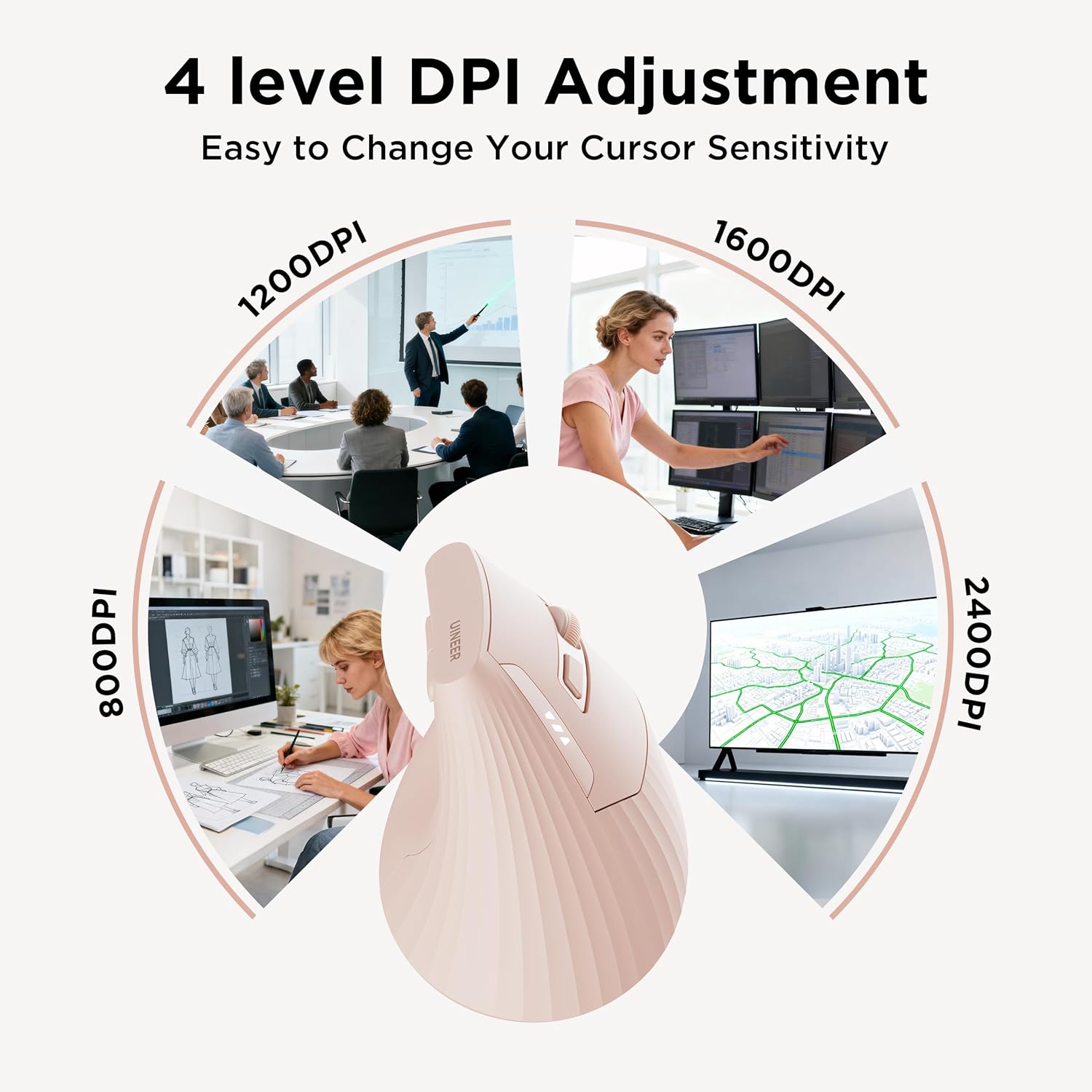
Adjust the DPI setting to match your task, from precise design work to fast-paced gaming.
5.2. Vorwärts- und Rückwärtstasten
Use the dedicated forward and backward buttons (located on the side of the mouse) for quick navigation in web Browser, file explorers, and other applications that support these functions.
5.3. Batterieanzeige
The mouse is equipped with LED battery indicator lights to show the remaining power level. This feature helps prevent unexpected power loss during use.

The visible battery indicator eliminates battery anxiety by showing the current charge level.
5.4. Energiesparmodus
To conserve battery life, the mouse will automatically enter a sleep mode after 10-30 minutes of inactivity. To wake the mouse, simply click any button.
5.5. Kompatibilität
The Uineer A06P Ergonomic Wireless Mouse is widely compatible with various operating systems:
- Windows
- Mac OS X
- Linux
- Android
- iOS (13+)
Note: A USB-A port is required for connection. Side buttons may not be functional on macOS.
6. Wartung
6.1. Reinigung
Um Ihre Maus zu reinigen, wischen Sie ihre Oberfläche vorsichtig mit einem weichen, feuchten Tuch ab.amp Reinigen Sie die Maus mit einem Tuch. Vermeiden Sie aggressive Chemikalien oder Scheuermittel, da diese die Oberfläche beschädigen können. Achten Sie darauf, dass keine Flüssigkeit in die internen Komponenten der Maus eindringt.
6.2. Batteriepflege
The mouse contains a rechargeable battery. To maximize battery lifespan:
- Vermeiden Sie häufiges vollständiges Entladen des Akkus.
- Charge the mouse regularly, especially when the low-battery indicator appears.
- Store the mouse in a cool, dry place if not used for an extended period.
7. Fehlerbehebung
If you encounter issues with your Uineer A06P Ergonomic Wireless Mouse, please refer to the following common solutions:
- Maus reagiert nicht:
- Stellen Sie sicher, dass die Maus mit dem Schalter an der Unterseite eingeschaltet ist.
- Check if the USB receiver is securely plugged into a working USB-A port on your device.
- Laden Sie die Maus auf, wenn der Akku schwach ist.
- Versuchen Sie, den USB-Empfänger an einen anderen USB-Anschluss anzuschließen.
- Starten Sie Ihren Computer oder Ihr Gerät neu.
- Erratic or jumpy cursor:
- Stellen Sie sicher, dass die Maus auf einer sauberen, nicht reflektierenden Oberfläche verwendet wird.
- Reinigen Sie den optischen Sensor an der Unterseite der Maus.
- Reduzieren Sie die DPI-Einstellung, falls der Cursor zu empfindlich ist.
- Verbindungsprobleme:
- Stellen Sie sicher, dass sich die Maus innerhalb der 10-Meter-Reichweite des USB-Empfängers befindet.
- Vermeiden Sie die Verwendung der Maus in der Nähe starker elektromagnetischer Störquellen.
- Akku wird nicht aufgeladen:
- Verify that the Type-C charging cable is properly connected to both the mouse and the power source.
- Try a different USB charging port or cable.
- Stellen Sie sicher, dass die Stromquelle aktiv ist.
8. Spezifikationen
Detailed technical specifications for the Uineer A06P Ergonomic Wireless Mouse:

The product label provides essential information including model number and manufacturer details.
| Besonderheit | Detail |
|---|---|
| Modellnummer | A06P |
| Konnektivitätstechnologie | 2.4-GHz-Funk (USB-A-Empfänger) |
| Bewegungserkennungstechnologie | Optisch |
| Einstellbare DPI-Stufen | 800 / 1200 / 1600 / 2400 |
| Akku-Typ | Rechargeable (500mAh, 3.7V) |
| Ladeanschluss | Typ C |
| Technische Daten | 11.6 x 7.2 x 7.5 cm (4.57 x 2.83 x 2.95 Zoll) |
| Artikelgewicht | 3.7 Unzen |
| Betriebsbereich | Bis zu 10 Meter (32.81 Fuß) |
| Besondere Merkmale | Battery Indicator, Ergonomic Design, Rechargeable, Reduced Wrist Strain, Wireless |
9. Garantie und Support
Uineer provides the following support for your A06P Ergonomic Wireless Mouse:
- 45-Tage-Rückerstattungsrichtlinie: Profitieren Sie von einer 45-tägigen Rückgabefrist ohne Angabe von Gründen ab Kaufdatum.
- 12-monatige Ersatzgarantie: Für das Produkt gilt eine 12-monatige Ersatzgarantie bei Herstellungsfehlern.
- Professioneller Kundendienst: For any inquiries, technical assistance, or warranty claims, please contact Uineer customer support.
Kontaktinformationen:
Hersteller: Uineer
E-Mail des Herstellers: support@uineer.com