
Produkt überview
The Uineer Vertical Wireless Mouse (Model A06P) is designed for comfort and reduced wrist strain, promoting a more natural hand posture. It features 2.4G wireless technology, adjustable DPI settings, and a convenient battery indicator for seamless use in various environments.

Figure 1: Uineer Vertical Wireless Mouse (White) with its USB receiver.
Lieferumfang
- 1 x Wireless Vertical mouse
- 1 x USB-A receiver (stored at the bottom of the mouse)
- 1 x 50CM Type-C charging cable
- 1 x Benutzerhandbuch
Installationshandbuch
Follow these steps to set up your Uineer Vertical Wireless Mouse:
- Locate the USB-A Receiver: The USB-A receiver is conveniently stored in a compartment at the bottom of the mouse. Gently slide open the cover to retrieve it.
- Schließen Sie den Empfänger an: Insert the USB-A receiver into an available USB-A port on your computer or device.
- Maus einschalten: Suchen Sie den Ein-/Ausschalter an der Unterseite der Maus und schieben Sie ihn in die Position „EIN“.
- Automatische Verbindung: The mouse will automatically connect to your device. No additional drivers are required for instant use.

Figure 2: Bottom of the mouse, highlighting the USB receiver compartment and power switch.
Video 1: Demonstrates the setup process, including inserting the USB receiver and turning on the mouse.
Bedienungsanleitung
Ergonomisches Design
The Uineer Vertical Mouse is designed to provide an ergonomic solution with a comfortable grip, reducing wrist strain and promoting better posture during long periods of use. Its dimensions are L x W x H 11.6 x 7.2 x 7.5 cm (4.57 x 3.03 x 2.95 inches).
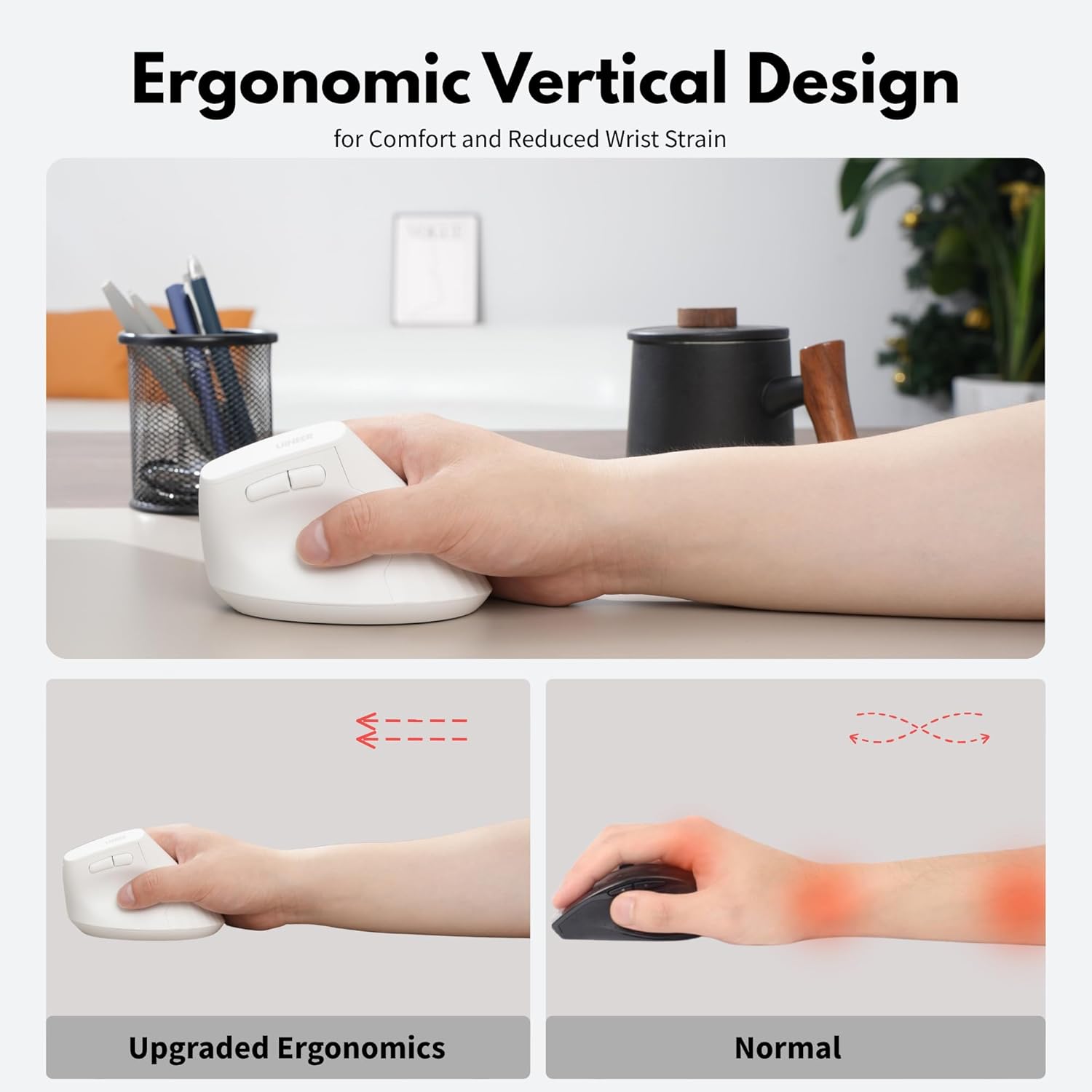
Figure 3: Illustration of the ergonomic vertical design, showing how it reduces wrist strain compared to a traditional mouse.
DPI-Anpassung
The mouse supports four adjustable DPI settings: 800, 1200, 1600, and 2400. You can easily switch between these settings by pressing the DPI button located on the top of the mouse, allowing you to customize sensitivity for various tasks from document editing to graphic design or gaming.

Figure 4: The DPI button and its four adjustable levels (800, 1200, 1600, 2400).
Tastenfunktionen
The mouse features several buttons for enhanced functionality:
- Links Klick: Standardmäßige linke Maustaste.
- Rechtsklick: Standardmäßige rechte Maustaste.
- Scrollrad: Für vertikales Scrollen.
- DPI-Taste: Adjusts mouse sensitivity (800/1200/1600/2400 DPI).
- Vorwärts-Taste: Navigiert vorwärts in web Browser bzw file Entdecker. (Note: Forward/Backward buttons are not compatible with Mac OS.)
- Rückwärts-Taste: Navigiert rückwärts in web Browser bzw file Entdecker. (Note: Forward/Backward buttons are not compatible with Mac OS.)
Figure 5: Detailed diagram of the mouse buttons and their functions.
Batterieanzeige
The mouse includes a clear battery indicator light, allowing you to monitor the power level and avoid unexpected power loss during use.

Figure 6: Visual representation of the battery indicator on the mouse.
Wartung
Aufladen der Maus
The Uineer Vertical Wireless Mouse is rechargeable. When the battery is low, connect the included 50CM Type-C charging cable to the Type-C charging port on the mouse and a USB power source (e.g., computer USB port, USB wall adapter). A full charge typically takes 2-3 hours.
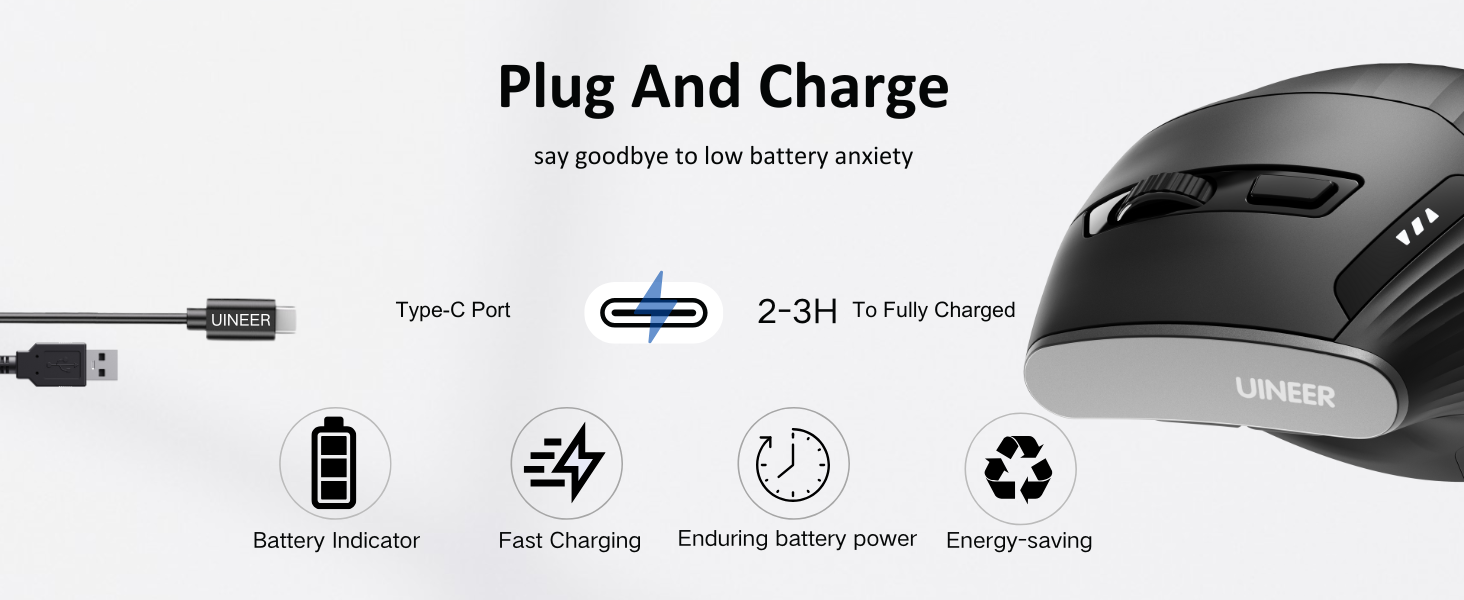
Figure 7: Charging port location and charging process illustration.
Reinigung
Reinigen Sie Ihre Maus mit einem weichen, trockenen Tuch. Bei hartnäckigem Schmutz kann ein leicht feuchtes Tuch hilfreich sein.amp Ein Tuch kann verwendet werden, achten Sie jedoch darauf, dass keine Feuchtigkeit in die internen Bauteile eindringt. Vermeiden Sie die Verwendung aggressiver Chemikalien oder scheuernder Materialien.
Fehlerbehebung
- Maus reagiert nicht:
- Stellen Sie sicher, dass der USB-A-Empfänger fest an einen funktionierenden USB-Anschluss angeschlossen ist.
- Check if the mouse is powered on (ON/OFF switch on the bottom).
- Recharge the mouse if the battery indicator shows low power.
- Versuchen Sie, den Empfänger an einen anderen USB-Anschluss anzuschließen.
- Verzögerung oder zeitweise Verbindungsunterbrechung:
- Ensure the mouse is within the 10-meter transmission range of the receiver.
- Minimieren Sie Störungen durch andere drahtlose Geräte.
- Vorwärts-/Rückwärts-Tasten funktionieren unter Mac OS nicht:
- Please note that the Forward/Backward buttons are not compatible with Mac OS. This is a system limitation.
- DPI-Anpassung ändert die Empfindlichkeit nicht:
- Stellen Sie sicher, dass Sie die richtige DPI-Taste drücken.
- Versuchen Sie, die Maus neu zu starten, indem Sie sie aus- und wieder einschalten.
Technische Daten
| Besonderheit | Detail |
|---|---|
| Modellnummer | A06P |
| Konnektivitätstechnologie | 2.4G Wireless (USB-A) |
| DPI-Stufen | 800, 1200, 1600, 2400 |
| Bewegungserkennungstechnologie | Optisch |
| Technische Daten | 11.6 x 7.2 x 7.5 cm (4.57 x 3.03 x 2.95 Zoll) |
| Artikelgewicht | 3.7 Unzen |
| Batterie | Rechargeable (internal battery) |
| Kompatibilität | Windows 11/10/8/7/XP/Vista, Mac OS X/Linux/Android/iOS(13+) (devices with USB-A ports) |
Garantie und Support
Uineer offers a 45-day no-reason refund policy und ein 12 Monate Austauschservice for quality issues. This ensures a worry-free shopping experience.
For further assistance or support, please contact Uineer customer service through the platform where you purchased the product or refer to the contact information provided in your product packaging.