
Einführung
Thank you for choosing the HP 14-inch Laptop. This manual provides essential information for setting up, operating, maintaining, and troubleshooting your new device. Please read this guide thoroughly to ensure optimal performance and longevity of your laptop.
The HP 14-inch Laptop is designed for everyday computing tasks, offering a balance of portability and functionality. It features an Intel Celeron N4120 processor, 8GB of RAM, and 256GB of storage, running on Windows 11 Home in S Mode.
Lieferumfang
Überprüfen Sie, ob alle Artikel im Paket vorhanden sind:
- HP 14-inch Laptop
- Netzteil
- 128-GB-Speicherkarte
- Mauspad
- HDMI-Kabel
- USB-Kabel
- Kabellose Kopfhörer
- Drahtlose Maus

Image: The HP 14-inch Laptop shown with its 5-in-1 value pack bundle, including wireless earbuds, mouse pad, HDMI cable, USB cable, and wireless mouse.
Aufstellen
1. Erste Inbetriebnahme
- Laptop auspacken: Nehmen Sie den Laptop und sämtliches Zubehör vorsichtig aus der Verpackung.
- Strom anschließen: Plug the AC power adapter into the laptop's AC smart pin port and then into a wall outlet. It is recommended to fully charge the battery before first use.
- Einschalten: Open the laptop lid and press the power button, usually located on the keyboard deck.
2. Windows 11 S Mode Setup
Follow the on-screen prompts to complete the initial Windows 11 Home S Mode setup. This includes selecting your region, keyboard layout, connecting to a Wi-Fi network, and setting up your Microsoft account.
3. Anschlusszubehör
- Kabellose Maus: Insert the USB receiver for the wireless mouse into an available USB Type-A port on the laptop. The mouse should connect automatically.
- Drahtlose Kopfhörer: Refer to the earphones' specific instructions for pairing via Bluetooth. On your laptop, go to Einstellungen > Bluetooth & Geräte zum Koppeln.
- 128GB Storage Card: Insert the storage card into the multi-format media card reader slot.
- HDMI Kabel: Connect one end of the HDMI cable to the laptop's HDMI port and the other end to an external display (monitor or TV).
4. Activating Microsoft Office 365
Your laptop includes a 1-year subscription to Microsoft Office 365. To activate:
- Open any Office application (e.g., Word, Excel) from the Start Menu.
- Follow the on-screen prompts to sign in with your Microsoft account and activate your subscription.
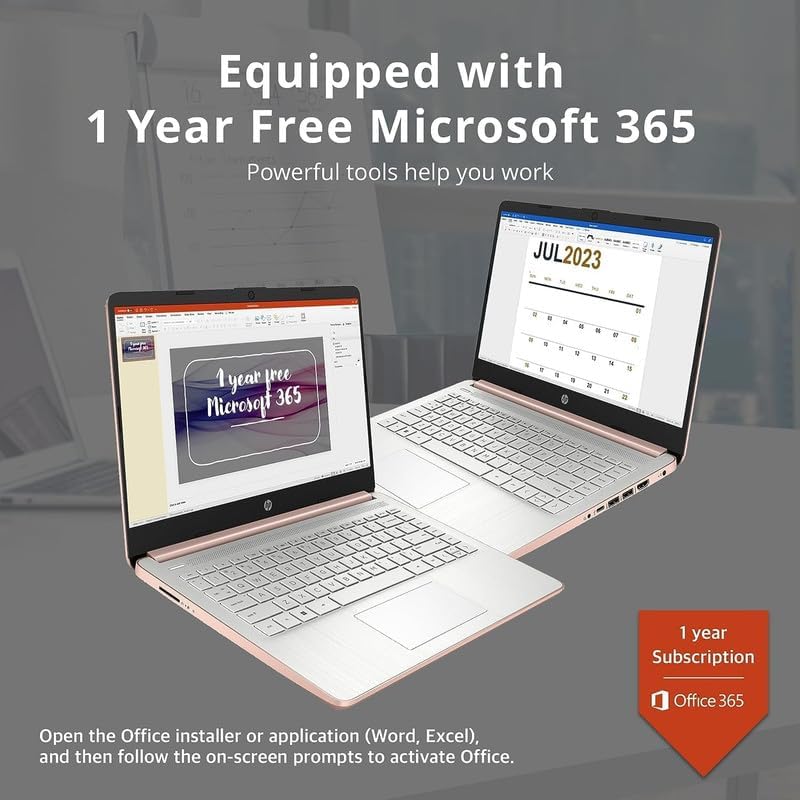
Image: Two HP laptops illustrating the activation process for the included 1-year Microsoft 365 subscription.
Bedienung Ihres Laptops
1. Windows 11 Home im S-Modus
Windows 11 Home in S Mode is a streamlined version of Windows configured for security and performance. It exclusively uses apps from the Microsoft Store and requires Microsoft Edge for safe browsing. You can switch out of S Mode if you need to install apps from outside the Microsoft Store, but this action is irreversible.
2. Verwendung von Ports und Konnektivität
Your HP 14-inch Laptop is equipped with various ports for connectivity:
- USB Typ-C (1): For data transfer and connecting compatible devices.
- USB Type-A (2): For connecting standard USB devices like external drives, keyboards, or mice.
- HDMI 1.4b (1): Zum Anschluss externer Displays.
- Headphone/Microphone Combo Jack (1): Für Audioausgabe über Kopfhörer oder Audioeingabe über ein Mikrofon.
- Multi-format Media Card Reader (1): For reading SD cards and other compatible memory cards.
- AC Smart Pin (1): Zum Anschluss des Netzteils.

Image: A detailed diagram highlighting the multi-port configuration on the HP 14-inch laptop, including SD Card Reader, Headphone Jack, USB Type-A, USB Type-C, HDMI, and AC Smart Pin.
3. WLAN und Bluetooth
So verbinden Sie WLAN- oder Bluetooth-Geräte:
- Klicken Sie auf das Netzwerk icon on the taskbar (bottom right).
- Select the desired Wi-Fi network and enter the password, or turn on Bluetooth and pair with your device.
4. Mit dem WebNocken
The HP True Vision 720p HD camera is integrated for video calls and conferencing. Access it through applications like Camera, Microsoft Teams, or Zoom.

Image: The HP 14-inch laptop demonstrating its remote work capabilities, featuring HP Fast Charge, HP True Vision 720p HD camera, and HD audio with stereo speakers.
5. Batteriemanagement
The laptop offers up to 11.5 hours of battery life. To optimize battery performance:
- Bildschirmhelligkeit anpassen.
- Nicht verwendete Anwendungen schließen.
- Nutzen Sie die Energiesparmodi von Windows.
- The laptop supports HP Fast Charge, allowing it to charge from 0% to 50% in approximately 45 minutes.
Wartung
1. Reinigung Ihres Laptops
- Bildschirm: Benutzen Sie ein weiches, fusselfreies Tuch, dampMit Wasser oder einem Bildschirmreiniger abspülen. Flüssigkeit nicht direkt auf den Bildschirm sprühen.
- Tastatur und Gehäuse: Verwenden Sie ein weiches, trockenes Tuch. Bei hartnäckigem Schmutz ein leicht dämpfendes Tuch verwenden.amp Ein Tuch kann verwendet werden, wobei darauf zu achten ist, dass keine Flüssigkeit in die Öffnungen eindringt.
- Häfen: Verwenden Sie Druckluft, um Staub vorsichtig aus den Anschlüssen zu entfernen.
2. Software-Updates
Prüfen Sie regelmäßig, ob Windows-Updates verfügbar sind, und installieren Sie diese, um sicherzustellen, dass Ihr System über die neuesten Sicherheitspatches und Leistungsverbesserungen verfügt. Gehen Sie zu Einstellungen > Windows Update.
3. Speicherverwaltung
In regelmäßigen Abständenview und löschen Sie unnötige files to free up storage space on your 256GB drive (128GB eMMC + 128GB Storage Card). Utilize the included 128GB storage card for additional file Lagerung.
4. Batteriepflege
- Vermeiden Sie extreme Temperaturen.
- Do not leave the laptop plugged in constantly after it is fully charged for extended periods.
- Für die Langzeitlagerung sollte der Akku auf etwa 50 % geladen und der Laptop an einem kühlen, trockenen Ort aufbewahrt werden.
Fehlerbehebung
This section addresses common issues you might encounter with your HP 14-inch Laptop.
| Problem | Mögliche Lösung |
|---|---|
| Laptop lässt sich nicht einschalten | Ensure the AC adapter is securely connected to both the laptop and a working power outlet. Try a different outlet. If the battery is completely drained, it may take a few minutes to respond after plugging in. |
| Der Bildschirm ist leer oder schwarz. | Check if the laptop is powered on. Adjust screen brightness. If an external monitor is connected, ensure it is properly configured (press Windows-Taste + P to cycle display modes). |
| Probleme mit der Wi-Fi-Verbindung | Ensure Wi-Fi is enabled in Windows settings. Restart your router and modem. Forget the network and reconnect. Update Wi-Fi drivers if necessary. |
| Bluetooth-Gerät lässt sich nicht koppeln | Stellen Sie sicher, dass Bluetooth sowohl auf dem Laptop als auch auf dem Gerät aktiviert ist. Platzieren Sie die Geräte nahe beieinander. Entfernen Sie das Gerät aus den Bluetooth-Einstellungen und fügen Sie es anschließend wieder hinzu. |
| Laptop performance is slow/lagging | Close unnecessary applications. Check for background processes in Task Manager. Ensure Windows is up to date. Consider running a disk cleanup. If running in S Mode, ensure all apps are from the Microsoft Store. |
| Audio funktioniert nicht | Check volume levels. Ensure correct playback device is selected. Update audio drivers. Test with headphones. |
Technische Daten
Detailed technical specifications for the HP 14-inch Laptop:
| Besonderheit | Detail |
|---|---|
| Marke | HP |
| Modellname | Newest HP 14 Inch Laptop |
| Prozessor | Intel Celeron N4120 (Quad-Core, 1.1 GHz base, up to 2.6 GHz burst) |
| Grafik | Intel UHD Graphics 600 (integriert) |
| Betriebssystem | Windows 11 Home im S-Modus |
| Arbeitsspeicher (RAM) | 8 GB DDR4 SDRAM |
| Lagerung | 256 GB (128GB eMMC + 128GB Storage Card) |
| Anzeige | 14.0-inch diagonal, HD (1366 x 768), micro-edge, BrightView, 220 Nits, 45 % NTSC |
| Konnektivität | Realtek 802.11b/g/n/ac (2x2) Wi-Fi, Bluetooth |
| Häfen | 1x SuperSpeed USB Type-C (5Gbps), 2x SuperSpeed USB Type-A (5Gbps), 1x HDMI 1.4b, 1x Headphone/microphone combo, 1x AC smart pin, Multi-format media card reader |
| WebNocken | HP True Vision 720p HD-Kamera mit integrierten Dual-Array-Digitalmikrofonen |
| Audio | Zwei Lautsprecher |
| Tastatur | US English, Non-Backlit |
| Batterie | 3-cell, 41 Wh Lithium-Ion Prismatic Battery |
| Akkulaufzeit | Bis zu 11.5 Stunden (Videowiedergabe) |
| Abmessungen (L x B x H) | 12.76 x 8.86 x 0.71 Zoll |
| Gewicht | 3.24 Pfund |
| Farbe | Roségold |

Image: The sleek design of the HP 14-inch laptop, highlighting its thin profile und Gesamtabmessungen.

Image: A visual representation of the Intel Celeron N4120 processor, detailing its 4 cores, 4 threads, 2.6GHz Max Turbo Frequency, Intel UHD Graphics 600, and 4MB Smart Cache.

Image: The HP 14-inch laptop displayed in a scenic outdoor setting, emphasizing its core components: Intel Celeron N4020 processor, Intel UHD Graphics 600, and Windows 11 Home in S mode.
Garantieinformationen
Your HP 14-inch Laptop comes with a limited manufacturer's warranty. For specific terms and conditions, please refer to the warranty documentation included with your product or visit the official HP support webBewahren Sie Ihren Kaufbeleg für Garantieansprüche auf.
Unterstützung
For further assistance, technical support, or to download updated drivers and manuals, please visit the official HP support webWebsite:
You can also find contact information for HP customer service on their webWebsite.