
1. Produktüberschreitungview
The Machenike Machcreator Mini Desktop, Model 4762H, is a compact and powerful computing solution designed for various applications, from business to everyday use. It features a 13th Gen Intel Core i7-13620H processor, 16GB DDR5 RAM, and a 512GB PCIe M.2 SSD, providing high-speed performance and efficient multitasking capabilities. This mini PC supports 4K dual monitor output and comes pre-installed with Windows 11 Pro.
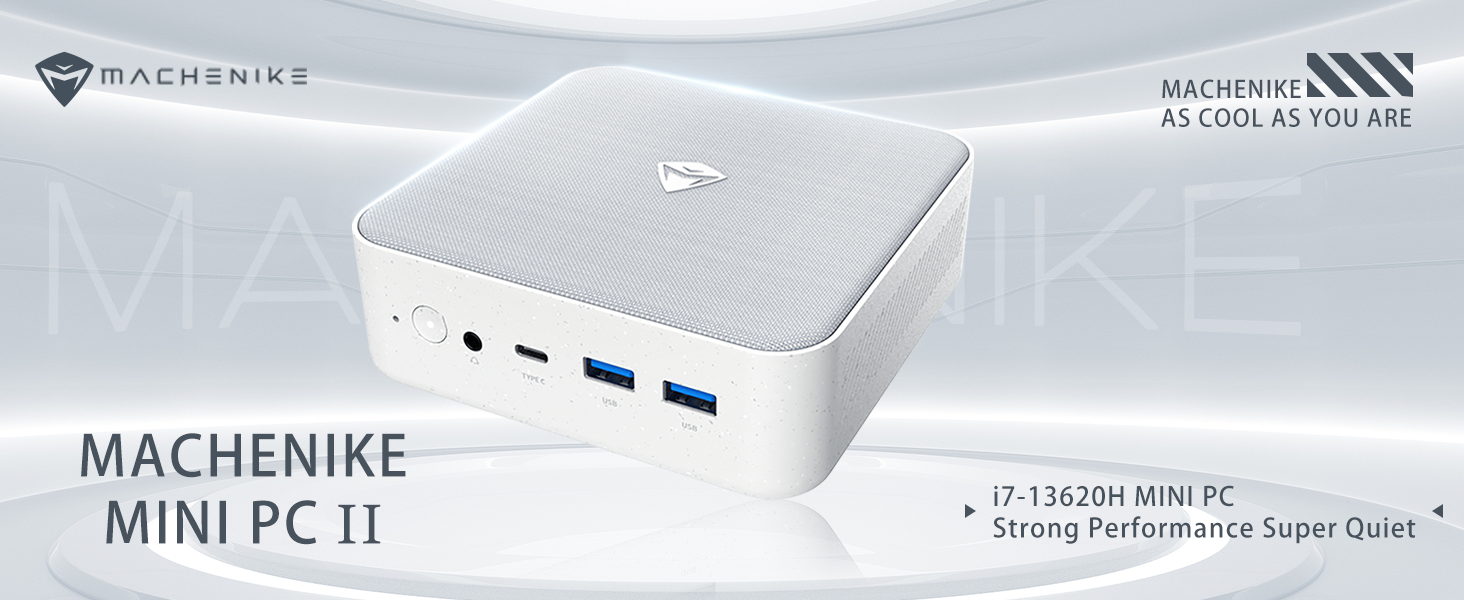
Bild: Überview of the Intel Core i7 processor, highlighting 10 Cores, 16 Threads, 4.90 GHz Max Turbo Frequency, and 24 MB L3 Cache.
Hauptmerkmale:
- Prozessor: Intel Core i7-13620H (10 Kerne, 16 Threads, bis zu 4.9 GHz)
- Erinnerung: 16GB DDR5 SODIMM RAM (expandable up to 64GB)
- Lagerung: 512GB PCIe M.2 Solid State Drive (supports dual M.2 expansion)
- Betriebssystem: Windows 11 Pro
- Grafik: Integrated Intel UHD Graphics, supporting 4K dual monitor output via HDMI 2.0 and DisplayPort 1.4
- Konnektivität: Wi-Fi 6, Bluetooth, 2 x RJ45 Ethernet, USB 3.2 Gen2 Type-A, USB Type-C
- Kühlsystem: Twin turbine cooling fan with deluxe all-copper radiator
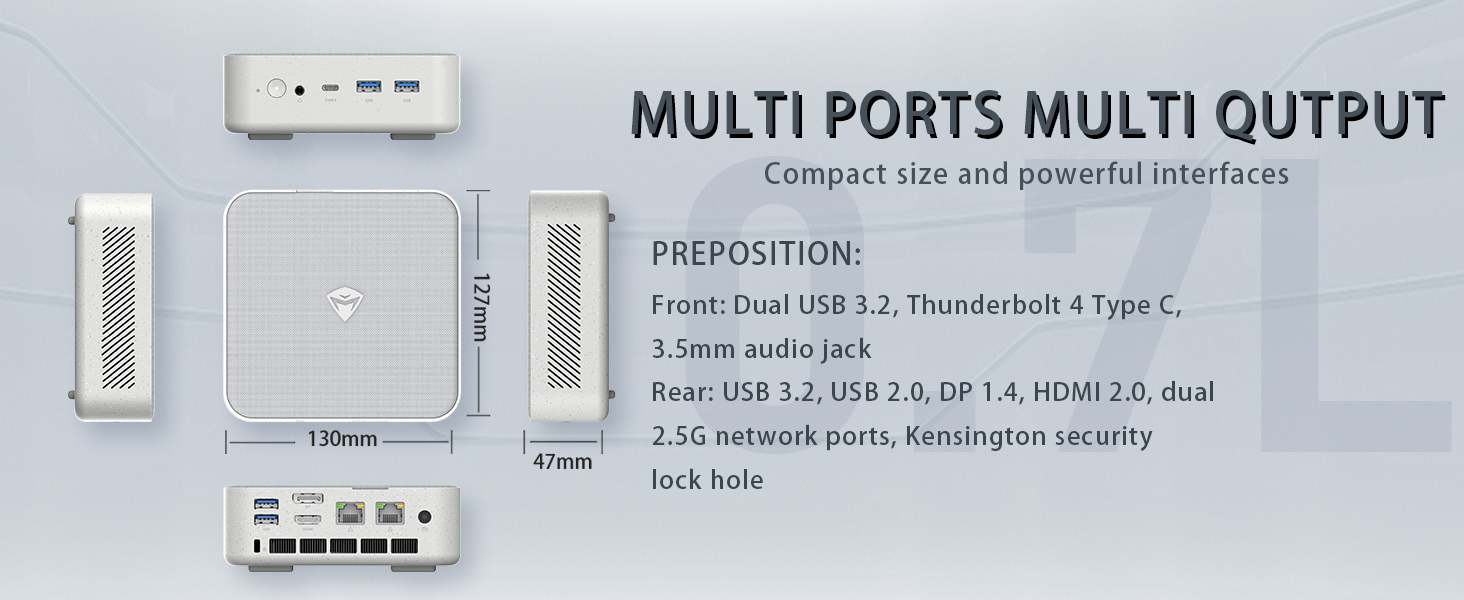
Image: Illustration of PCIe 4.0 SSD and memory slots, indicating support for up to 64GB DDR5 RAM and up to 4TB PCIe SSD expansion.
2. Installationsanleitung
2.1 Auspacken des Geräts
Nehmen Sie alle Komponenten vorsichtig aus der Verpackung. Stellen Sie sicher, dass folgende Teile vorhanden sind:
- Machenike Machcreator Mini Desktop (Model 4762H)
- Netzteil
- Benutzerhandbuch (dieses Dokument)
- (Optional) VESA-Montagesatz
2.2 Anschließen von Peripheriegeräten
Schließen Sie vor dem Einschalten Ihre wichtigsten Peripheriegeräte an:
- Anzeige: Connect your monitor(s) to the HDMI 2.0 or DisplayPort 1.4 ports on the rear of the mini PC. The USB Type-C port also supports video output.
- Tastatur und Maus: Connect your USB keyboard and mouse to any of the available USB 3.2 Gen2 Type-A ports.
- Netzwerk: For a wired connection, connect an Ethernet cable to one of the RJ45 ports. For wireless, ensure your Wi-Fi network is available.
- Leistung: Connect the power adapter to the DC-in port on the mini PC, then plug the adapter into a power outlet.
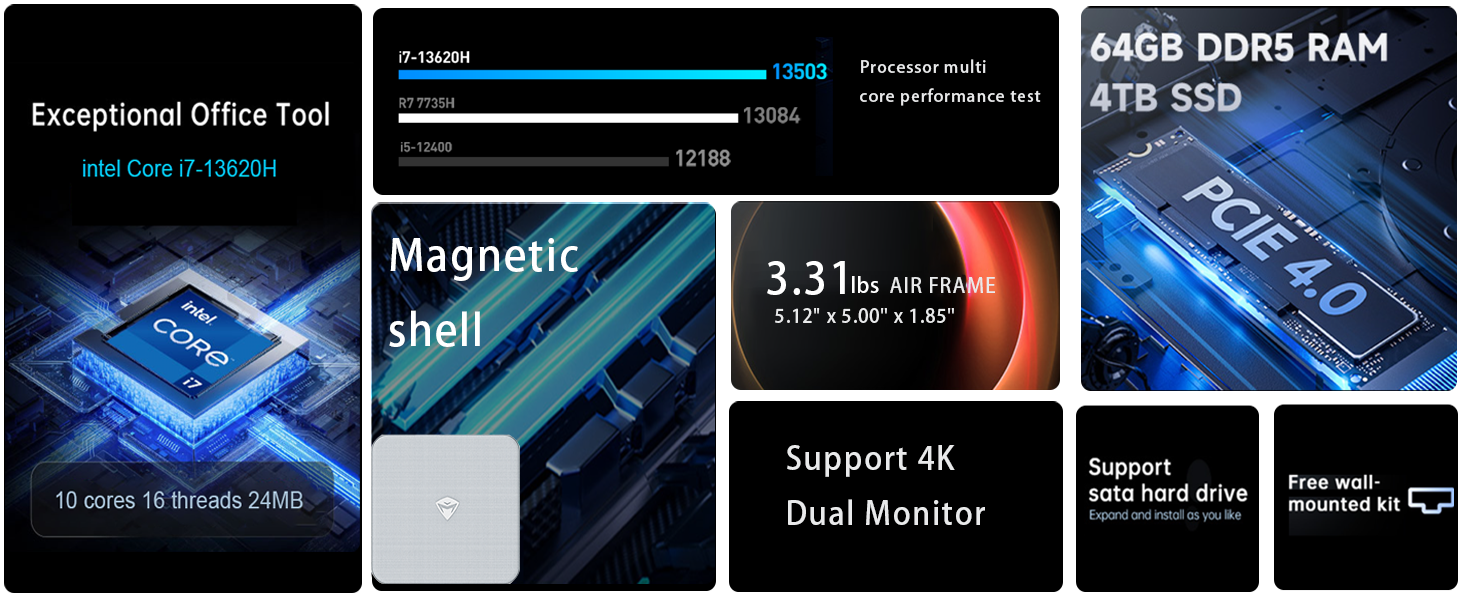
Bild: Detailliert view of the mini PC's front and rear ports, including USB 3.2 Gen2 Type-A, USB Type-C, 3.5mm Audio Jack, HDMI 2.0, DisplayPort 1.4, and RJ45 Ethernet ports. Dimensions are also shown.
2.3 Erster Start und Windows 11 Pro-Einrichtung
- Drücken Sie den Netzschalter an der Vorderseite des Mini-PCs.
- The system will boot into the Windows 11 Pro setup wizard. Follow the on-screen instructions to configure your language, region, network, and user account.
- Once setup is complete, your mini PC is ready for use.
3. Bedienungsanleitung
3.1 Ein-/Ausschalten
- Einschalten: Drücken Sie einmal die Einschalttaste.
- Abschalten: Klicken Sie in Windows auf die Schaltfläche „Start“ und wählen Sie dann „Ein/Aus“ > „Herunterfahren“.
- Neustart: Klicken Sie in Windows auf die Schaltfläche „Start“ und wählen Sie dann „Ein/Aus“ > „Neustart“.
- Schlafen: Klicken Sie in Windows auf die Schaltfläche „Start“ und wählen Sie dann „Ein/Aus“ > „Ruhezustand“.
3.2 Anzeigekonfiguration
The mini PC supports up to two 4K displays simultaneously. To configure display settings:
- Klicken Sie mit der rechten Maustaste auf den Desktop und wählen Sie „Anzeigeeinstellungen“.
- Here you can detect multiple displays, arrange them, change resolution, and adjust scaling.
3.3 Netzwerkverbindungen
- W-lan: Klicken Sie auf das Netzwerksymbol in der Taskleiste, wählen Sie Ihr WLAN-Netzwerk aus, geben Sie das Passwort ein und stellen Sie die Verbindung her.
- Ethernet: Wenn ein Ethernet-Kabel angeschlossen ist, sollte das System automatisch eine kabelgebundene Netzwerkverbindung herstellen.
3.4 Cooling System Modes
The mini PC features an advanced cooling system with adjustable modes via the BIOS to optimize performance and noise levels. These modes include:
- Ruhemodus: Prioritizes quiet operation, suitable for light tasks.
- Balance-Modus: Offers a good balance between performance and noise.
- Leistungsmodus: Maximizes performance (up to 65W power release), ideal for demanding applications.
To change these settings, access the BIOS during startup (typically by pressing Del or F2 repeatedly after powering on) and navigate to the relevant power or performance settings.
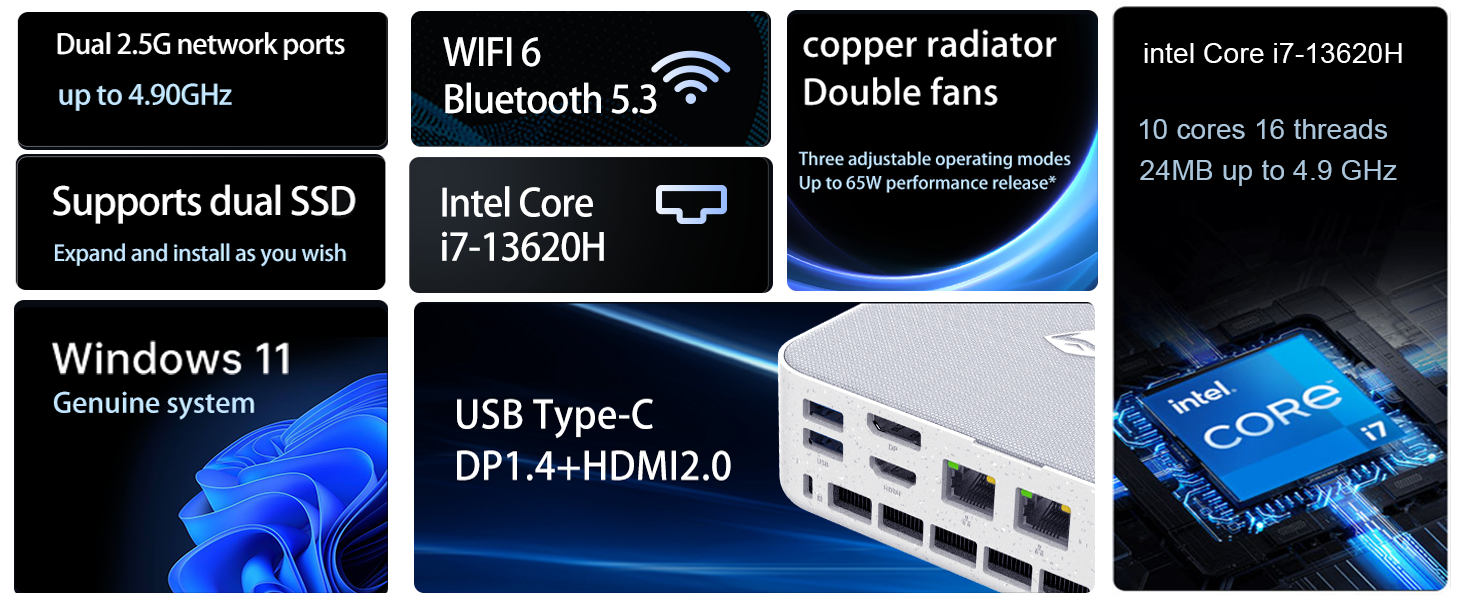
Image: Illustration of the twin turbine cooling fan and deluxe all-copper radiator, explaining how it prevents slowdowns due to overheating and offers silence, balance, and performance modes.
4. Wartung
4.1 Gerät reinigen
Um optimale Leistung und Langlebigkeit zu gewährleisten, reinigen Sie Ihren Mini-PC regelmäßig:
- Power off the device and disconnect it from the power outlet.
- Verwenden Sie ein weiches, trockenes Tuch, um die Außenseite abzuwischen.
- Use compressed air to gently clear dust from ventilation openings. Do not insert any objects into the vents.
4.2 Softwareaktualisierungen
Halten Sie Ihr Windows 11 Pro-Betriebssystem und Ihre Treiber auf dem neuesten Stand, um Sicherheit und Leistung zu gewährleisten:
- Windows-Updates: Go to Start > Settings > Windows Update and check for updates.
- Treiber-Updates: Visit the Machenike official webHier finden Sie die neuesten Treiber für Ihr spezifisches Modell.
4.3 Speicher- und Arbeitsspeichererweiterung
The Machenike Machcreator Mini Desktop supports upgrades for both RAM and storage:
- RAM: The device has 2 SODIMM slots and supports up to 64GB DDR5 RAM.
- Lagerung: It supports dual PCIe M.2 SSDs, allowing for significant storage expansion up to 4TB.
Notiz: Opening the device for upgrades may void your warranty. Consult a qualified technician or refer to specific upgrade guides from Machenike if available.
5. Fehlerbehebung
Dieser Abschnitt behandelt häufig auftretende Probleme. Bei komplexeren Problemen wenden Sie sich bitte an den Kundensupport.
5.1 Kein Strom
- Stellen Sie sicher, dass das Netzteil sowohl mit dem Mini-PC als auch mit einer funktionierenden Steckdose fest verbunden ist.
- Überprüfen Sie die Funktionsfähigkeit der Steckdose, indem Sie ein anderes Gerät anschließen.
- Prüfen Sie das Netzteil auf sichtbare Beschädigungen.
5.2 Keine Displayausgabe
- Vergewissern Sie sich, dass der Monitor eingeschaltet ist und die richtige Eingangsquelle ausgewählt ist.
- Ensure the HDMI or DisplayPort cable is securely connected to both the mini PC and the monitor.
- Versuchen Sie es gegebenenfalls mit einem anderen Displaykabel oder Monitor.
- Wenn Sie mehrere Bildschirme verwenden, schließen Sie jeweils nur einen Bildschirm an.
5.3 Probleme mit der Netzwerkverbindung
- Kabelgebunden (Ethernet): Check if the Ethernet cable is properly connected to both the mini PC and the router/modem. Verify router/modem status.
- Drahtlos (Wi-Fi): Ensure Wi-Fi is enabled in Windows settings. Restart your router/modem. Check if other devices can connect to the Wi-Fi network.
- Run Windows Network Troubleshooter (Start > Settings > Network & internet > Advanced network settings > Network troubleshooter).
6. Spezifikationen
Detailed technical specifications for the Machenike Machcreator Mini Desktop, Model 4762H:
| Besonderheit | Spezifikation |
|---|---|
| Marke | Machenike |
| Modellnummer | 4762H |
| Betriebssystem | Windows 11 Pro |
| CPU Modell | Intel Core i7-13620H |
| CPU-Geschwindigkeit | Up to 4.9 GHz (Max Turbo Frequency) |
| Größe des installierten RAM-Speichers | 16 GB DDR5 (erweiterbar auf 64 GB) |
| Speichertaktfrequenz | 4800 MHz |
| Verfügbare Speichersteckplätze | 2 |
| Speicherkapazität | 512 GB PCIe M.2 SSD (Supports dual M.2, up to 4TB) |
| Grafik-Coprozessor | Intel UHD-Grafik (integriert) |
| Videoausgangsschnittstelle | HDMI 2.0, DisplayPort 1.4, USB Type-C |
| Maximale Bildschirmauflösung | 3840x2160 (4K) |
| Hardware-Schnittstelle | 3.5mm Audio, Bluetooth, DisplayPort, Ethernet (2x RJ45), HDMI, USB, USB Type C |
| Kabellose Konnektivität | Wi-Fi 6 (802.11ax), Bluetooth |
| Artikelabmessungen (LxBxH) | 5.12 x 5 x 1.85 Zoll |
| Artikelgewicht | 49.8 Pfund (Note: This weight may be a data entry error; actual weight for a mini PC is typically much less.) |
| UPC | 193200587317 |
7. Garantie und Support
7.1 Garantieinformationen
Machenike products typically come with a limited manufacturer's warranty. Please refer to the warranty card included with your purchase or visit the official Machenike website for detailed warranty terms and conditions specific to your region and product model. Keep your proof of purchase for warranty claims.
7.2 Kundendienst
For technical assistance, troubleshooting beyond this manual, or warranty inquiries, please contact Machenike customer support:
- Online-Hilfe: Besuchen Sie die offizielle Machenike-Website. webSeite? ˅ (www.machenike.com - exampDer Link (tatsächlicher Link kann abweichen)) und navigieren Sie zum Supportbereich.
- E-Mail-Support: Die genaue E-Mail-Adresse des Supports finden Sie in der Dokumentation Ihres Produkts.
- Telefonischer Support: Check the Machenike webWebseite für regionale Telefonnummern des Kundendienstes.
When contacting support, please have your product model number (4762H) and serial number ready.