
ShanWan Q36-XPS-KABRILAN
ShanWan Bluetooth Gamepad Mini-Controller im Schlüsselanhängerformat – Benutzerhandbuch
Model: Q36-XPS-KABRILAN
1. Einleitung
This manual provides comprehensive instructions for the ShanWan Bluetooth Gamepad Keychain Sized Mini Controller. Please read this manual carefully before use to ensure proper operation and to maximize your gaming experience. This device is designed for use with Android phones and tablets, PS4/Slim/Pro, iPhone, iPad, Nintendo Switch, and Windows PCs.
2. Produktüberschreitungview
The ShanWan Mini Controller is a compact and versatile gamepad designed for portability and multi-platform compatibility. It features 17 buttons and a D-Pad, all within a keychain-sized form factor.
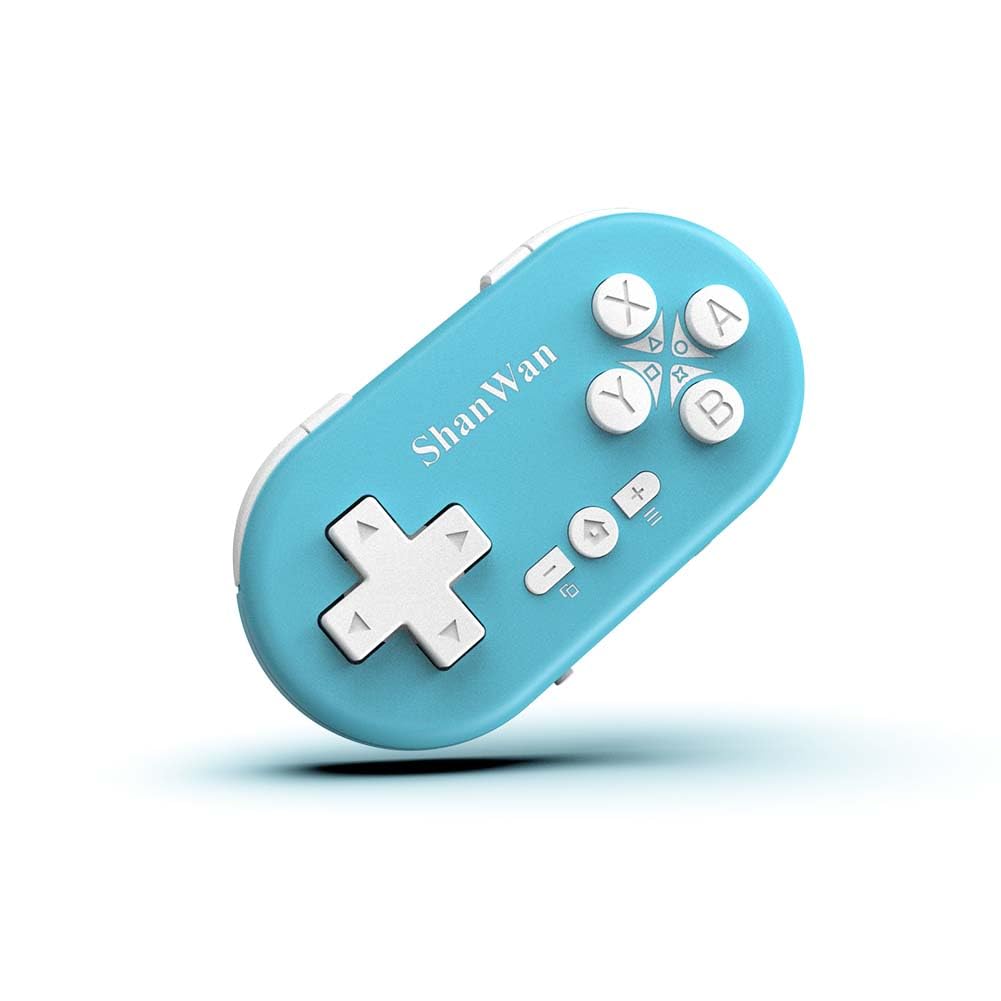
Figure 2.1: ShanWan Mini Bluetooth Gamepad, showcasing dank seines kompakten Designs und der Tastenanordnung.

Figure 2.2: Dimensions of the ShanWan Mini Bluetooth Gamepad, measuring 2.83 inches in length, 1.57 inches in width, and 0.55 inches in thickness.
2.1 Packungsinhalt
- ShanWan Bluetooth Gamepad Keychain Sized Mini Controller
- USB-Ladekabel
- Benutzerhandbuch (dieses Dokument)
3. Spezifikationen
| Besonderheit | Detail |
|---|---|
| Modellnummer | Q36-XPS-KABRILAN |
| Konnektivität | Kabellose Bluetooth-Verbindung |
| Kompatibilität | Android, iOS, Windows, Nintendo Switch, PlayStation 4 |
| Batteriekapazität | 180 mAh Lithium-Polymer-Akku (im Lieferumfang enthalten) |
| Ladezeit | Ungefähr 1 Stunde |
| Betriebsdauer | Bis zu 5-6 Stunden |
| Drahtlose Reichweite | Bis zu 10 Meter (33 Fuß) |
| Technische Daten | 2.83 x 1.57 x 0.55 Zoll |
| Artikelgewicht | 1.44 Unzen (ca. 41 Gramm) |
| Besondere Merkmale | Gyroscope motion sensing, One-button wake-up function |
4. Einrichtung und Kopplung
4.1 Laden des Controllers
Before first use, fully charge the controller. Connect the provided USB charging cable to the controller's charging port and the other end to a USB power source (e.g., computer, USB wall adapter). The charging indicator light will show the charging status and turn off when fully charged. A full charge typically takes about 1 hour.
4.2 Ein-/Ausschalten
- Einschalten: Press and hold the Home button (usually the button with a house icon) for a few seconds until the indicator lights turn on.
- Ausschalten: Press and hold the Home button for approximately 5 seconds until the indicator lights turn off. The controller will also automatically power off after a period of inactivity to conserve battery.
4.3 Anleitung zur Bluetooth-Kopplung
The controller supports multiple platforms. Ensure the mode switch on the controller is set to the correct platform before pairing.
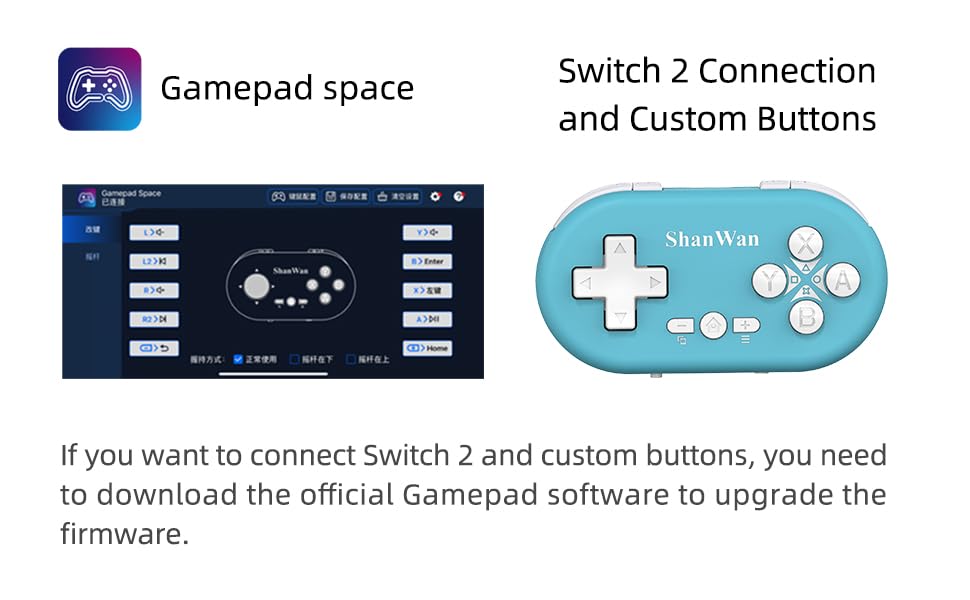
Figure 4.1: The mode switch on the controller, allowing selection between X (Xbox/PC), S (Switch), and P (PlayStation) modes for multi-device compatibility.
4.3.1 Kopplung mit Nintendo Switch
- Navigiere auf deiner Nintendo Switch zum HOME-Menü.
- Wählen Sie „Controller“ und dann „Griff/Reihenfolge ändern“.
- Set the controller's mode switch to "S" (Switch mode).
- Press and hold the "Pair" button on the controller until the indicator lights begin to blink rapidly.
- The Switch will detect the controller. Once paired, the LED indicator on the controller will remain solid, and the controller will be displayed on the Switch host screen.

Figure 4.2: Visual guide for connecting the controller to a Nintendo Switch, showing menu navigation and the pairing button location.
4.3.2 Pairing with Android/iOS Devices
- Set the controller's mode switch to the appropriate mode (e.g., "X" for Android, or a specific iOS mode if available, refer to device-specific instructions).
- Öffnen Sie auf Ihrem Android- oder iOS-Gerät die Bluetooth-Einstellungen.
- Stellen Sie sicher, dass Bluetooth aktiviert ist.
- Press and hold the "Pair" button on the controller until the indicator lights blink rapidly.
- Select "ShanWan Controller" or a similar name from the list of available devices on your phone/tablet.
- Sobald die Verbindung hergestellt ist, leuchtet die Kontrollleuchte am Controller dauerhaft.
4.3.3 Pairing with PS4
- Set the controller's mode switch to "P" (PlayStation mode).
- On your PS4, go to "Settings" > "Devices" > "Bluetooth Devices".
- Press and hold the "Pair" button on the controller until the indicator lights blink rapidly.
- Select "ShanWan Controller" or a similar name from the list of available devices on your PS4.
- Sobald die Verbindung hergestellt ist, leuchtet die Kontrollleuchte am Controller dauerhaft.
4.3.4 Pairing with Windows PC
- Set the controller's mode switch to "X" (Xbox/PC mode).
- Gehen Sie auf Ihrem Windows-PC zu „Einstellungen“ > „Geräte“ > „Bluetooth & andere Geräte“.
- Ensure Bluetooth is enabled and click "Add Bluetooth or other device".
- Select "Bluetooth".
- Press and hold the "Pair" button on the controller until the indicator lights blink rapidly.
- Select "ShanWan Controller" or a similar name from the list of available devices.
- Sobald die Verbindung hergestellt ist, leuchtet die Kontrollleuchte am Controller dauerhaft.
5. Bedienungsanleitung
5.1 Tastenfunktionen
The controller features standard gamepad buttons. Their specific function may vary slightly depending on the platform and game.
- Steuerkreuz: Richtungseingang.
- A-, B-, X-, Y-Tasten: Aktionsschaltflächen.
- L1-, L2-, R1-, R2-Tasten: Schulter- und Triggerknöpfe.
- Home "Button: Power on/off, return to home screen (platform dependent).
- Plus (+) / Minus (-) Tasten: Start-/Auswahl- oder Menüfunktionen.
- Pair-Taste: Startet die Bluetooth-Kopplung.
5.2 Sonderfunktionen
5.2.1 One-Button Wake-Up Function
After initial pairing, you can wake up the controller and reconnect it to the last paired device by simply pressing the Home button. This feature allows for quick resumption of gameplay.
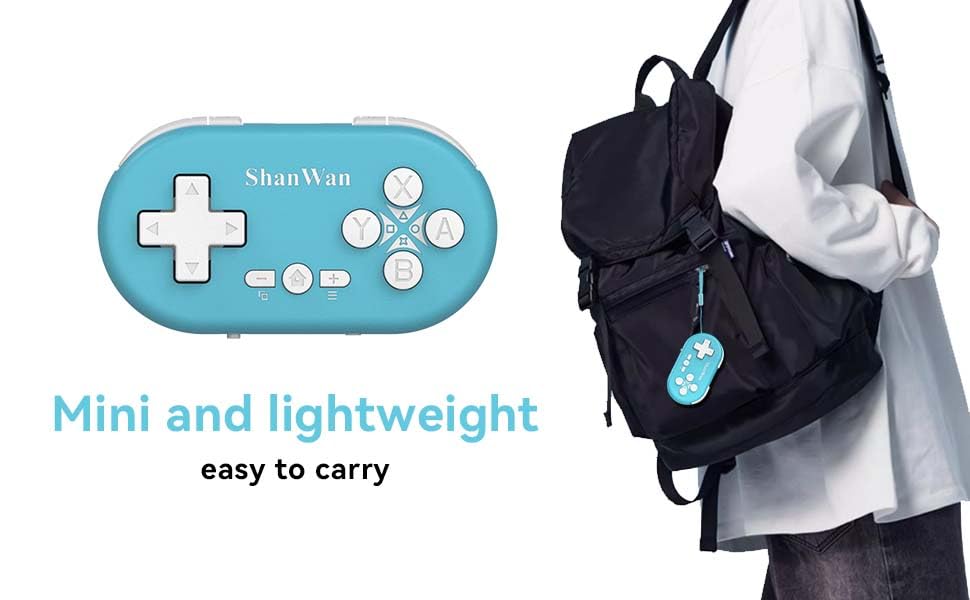
Figure 5.1: Illustration of the one-button wake-up function, highlighting the Home button used to quickly reactivate the controller.
5.2.2 Gyroscope Motion Sensing
The controller is equipped with a gyroscope for motion sensing effects, providing an immersive gaming experience in supported games, particularly on platforms like Nintendo Switch.
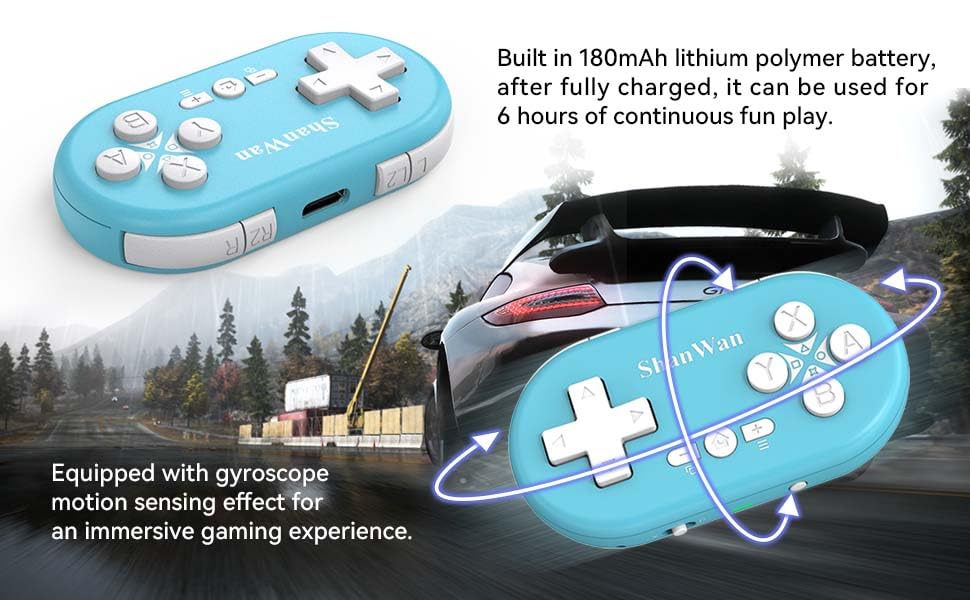
Figure 5.2: Visual representation of the gyroscope motion sensing effect, showing the controller being tilted to influence in-game actions.
5.2.3 Firmware Upgrade for Switch 2 and Custom Buttons
For compatibility with Switch 2 and to customize button mappings, it may be necessary to download the official Gamepad software and upgrade the controller's firmware. Refer to the manufacturer's official webWebsite für die neueste Software und Anleitungen.

Figure 5.3: Screenshot illustrating the "Gamepad Space" software interface, used for firmware upgrades and custom button configurations, particularly for Switch 2 compatibility.
6. Wartung
- Reinigung: Reinigen Sie den Controller mit einem weichen, trockenen Tuch. Vermeiden Sie die Verwendung von scharfen Chemikalien oder Scheuermitteln.
- Lagerung: Bewahren Sie den Controller an einem kühlen, trockenen Ort fern von direkter Sonneneinstrahlung und extremen Temperaturen auf.
- Batteriepflege: Um die Akkulaufzeit zu verlängern, vermeiden Sie häufiges vollständiges Entladen des Akkus. Laden Sie den Controller regelmäßig auf, auch wenn er längere Zeit nicht benutzt wird.
- Auswirkungen vermeiden: Der Controller darf nicht fallen gelassen oder starken Stößen ausgesetzt werden, da dies zu Schäden an den internen Bauteilen führen kann.
7. Fehlerbehebung
7.1 Controller lässt sich nicht einschalten
- Stellen Sie sicher, dass der Controller vollständig aufgeladen ist. Schließen Sie ihn an eine Stromquelle an und lassen Sie ihn mindestens 15 Minuten lang aufladen, bevor Sie versuchen, ihn wieder einzuschalten.
- Verify that the charging cable and power source are functioning correctly.
7.2 Unable to Pair Controller
- Ensure the controller is in pairing mode (indicator lights blinking rapidly).
- Check that the mode switch on the controller is set to the correct platform (S for Switch, X for Android/Windows, P for PS4).
- Make sure Bluetooth is enabled on your device (Switch, phone, PC, PS4).
- Move the controller closer to the device you are trying to pair with.
- Entfernen Sie alle zuvor verbundenen Controller-Kopplungen aus den Bluetooth-Einstellungen Ihres Geräts und versuchen Sie es erneut.
- Starten Sie sowohl den Controller als auch Ihr Gerät neu.
7.3 Eingangsverzögerung oder -unterbrechungen
- Ensure the controller is within the 10-meter wireless range of your device.
- Minimieren Sie Störungen durch andere drahtlose Geräte (Wi-Fi-Router, andere Bluetooth-Geräte).
- Ensure the controller is fully charged. Low battery can affect connection stability.
- Versuchen Sie, den Controller erneut mit Ihrem Gerät zu koppeln.
- Update the controller's firmware if available (refer to Section 5.2.3).
7.4 Tasten reagieren nicht richtig
- Test the controller on a different game or application to determine if the issue is game-specific.
- Stellen Sie sicher, dass die Firmware des Controllers auf dem neuesten Stand ist.
- Perform a factory reset if possible (refer to manufacturer's support for specific instructions, as this model may not have a dedicated reset button).
8. Garantie und Support
ShanWan products are designed for reliability and performance. For warranty information, technical support, or further assistance, please visit the official ShanWan webBesuchen Sie die Website oder kontaktieren Sie den Kundenservice. Bewahren Sie Ihren Kaufbeleg als Kaufnachweis für Garantieansprüche auf.
Offizieller ShanWan-Shop: ShanWan Store on Amazon
9. Weitere Informationen
The ShanWan Mini Controller's compact and lightweight design makes it highly portable, allowing users to carry it easily and enjoy gaming on the go.

Figure 9.1: The ShanWan Mini Bluetooth Gamepad attached to a backpack, illustrating its keychain-sized portability and ease of transport.

Figure 9.2: The ShanWan Mini Bluetooth Gamepad being used outdoors with a portable screen, demonstrating its ease of transport and use anywhere.