
1. Einleitung
The VEGER Snap CAM is a multi-functional accessory designed to enhance smartphone photography. It combines a comfortable handheld grip with a Bluetooth shutter button, a MagSafe-compatible magnetic attachment system, and an integrated 2200mAh wireless power bank. This device also functions as a smartphone stand, supporting both vertical and horizontal orientations.
2. Sicherheitshinweise
- Setzen Sie das Gerät keinen extremen Temperaturen, direkter Sonneneinstrahlung oder hoher Luftfeuchtigkeit aus.
- Lassen Sie das Gerät nicht fallen und setzen Sie es keinen starken Stößen aus.
- Außerhalb der Reichweite von Kindern aufbewahren.
- Versuchen Sie nicht, das Gerät zu zerlegen, zu reparieren oder zu modifizieren.
- Verwenden Sie zum Aufladen ausschließlich das mitgelieferte Ladekabel oder ein zertifiziertes USB-Typ-C-Kabel.
- Ensure proper ventilation when charging or using the wireless charging function.
- Das Gerät und seine Batterie sind gemäß den örtlichen Vorschriften zu entsorgen.
3. Packungsinhalt
Überprüfen Sie, ob alle Artikel im Paket vorhanden sind:
- VEGER Snap CAM (UQ-W0569-SC)
- Charging cable (USB Type-C to Type-A)
- Magnetic ring sticker
- Gurt
- Bedienungsanleitung
4. Produktdiagramm
Familiarize yourself with the components of your VEGER Snap CAM.
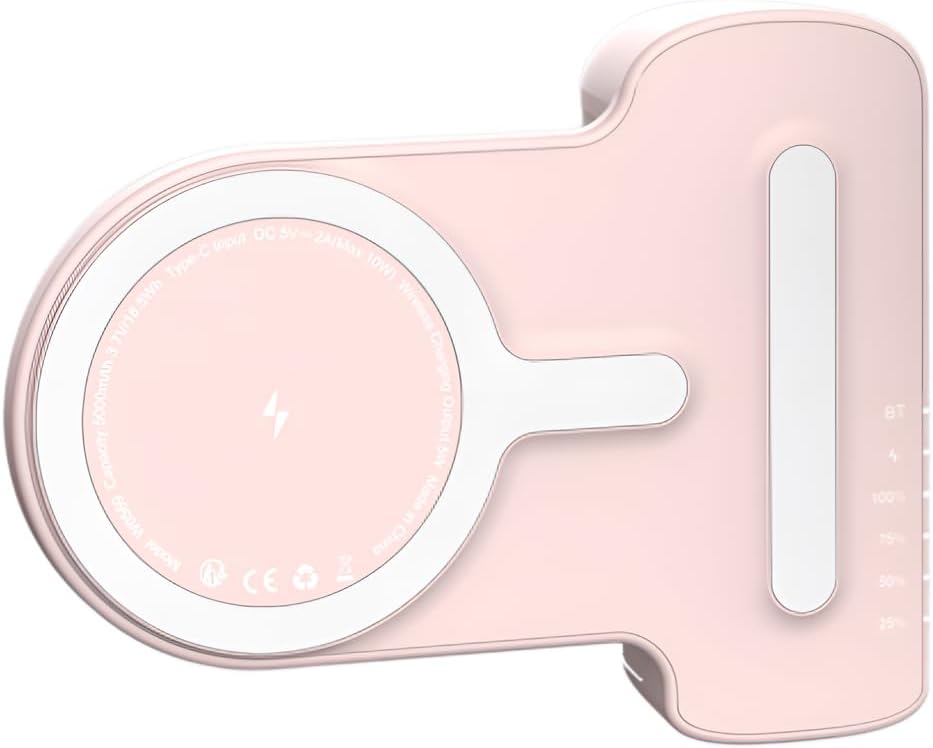
Abbildung 4.1: Draufsicht view of the VEGER Snap CAM, highlighting the wireless charging coil, Type-C input port, and LED indicators for battery and Bluetooth status.

Abbildung 4.2: Nahaufnahme views of the VEGER Snap CAM, detailing the reset button, power button, Type-C charging port, and the multi-color LED indicator system.
- Auslöser: Located on the grip for capturing photos.
- Magnetische Oberfläche: MagSafe-compatible area for attaching to smartphones.
- Typ-C-Eingangsanschluss: For charging the Snap CAM.
- Netzschalter: Activates wireless charging and checks battery status.
- LED-Anzeigen: Displays Bluetooth connection status, charging mode, and battery level.
- Riemenloch: For attaching the included strap.
5. Einrichtung
5.1 Charging the Snap CAM
Before first use, fully charge your VEGER Snap CAM.
- Connect the provided USB Type-C to Type-A charging cable to the Type-C input port on the Snap CAM.
- Verbinden Sie das andere Ende des Kabels mit einem USB-Netzteil (nicht im Lieferumfang enthalten) oder einem USB-Anschluss Ihres Computers.
- The LED indicators will show the charging status. A full charge is indicated when all battery LEDs are solid.
5.2 Anbringen an Ihrem Smartphone
The Snap CAM is designed for MagSafe-compatible smartphones (e.g., iPhone 12 series and newer) or smartphones using a MagSafe-compatible case.

Figure 5.1: The Snap CAM magnetically attaching to the back of a smartphone, demonstrating the MagSafe compatibility.
- Align the magnetic surface of the Snap CAM with the MagSafe area on the back of your smartphone or MagSafe-compatible case.
- The strong magnets will securely attach the Snap CAM to your phone.
- You can attach it vertically or horizontally and rotate it as needed.
Using the Magnetic Ring Sticker (for non-MagSafe phones)
If your smartphone is not MagSafe-compatible and you do not use a MagSafe-compatible case, you can use the included magnetic ring sticker.
- Reinigen Sie die Rückseite Ihres Smartphones oder Ihrer Handyhülle gründlich.
- Peel off the adhesive backing from the magnetic ring sticker.
- Carefully center and apply the sticker to the back of your phone or case. Ensure it is flat and secure.
- Once the sticker is applied, the Snap CAM can be magnetically attached to this ring.
5.3 Bluetooth-Kopplung
To use the shutter button, the Snap CAM must be paired with your smartphone via Bluetooth.
- Ensure the Snap CAM is charged.
- Turn on the Snap CAM by pressing the power button. The Bluetooth LED indicator will start blinking, indicating it's in pairing mode.
- Öffne die Bluetooth-Einstellungen auf deinem Smartphone.
- Suchen nach available devices and select "VEGER Snap CAM" (or similar name) from the list.
- Once paired, the Bluetooth LED indicator on the Snap CAM will become solid.
- The Snap CAM will automatically reconnect to the last paired device when turned on and within range.
6. Bedienungsanleitung
6.1 Using as a Shutter Grip
After successful Bluetooth pairing, you can use the Snap CAM's shutter button to control your smartphone's camera.

Figure 6.1: A smartphone attached to the Snap CAM, displaying the camera interface, with a hand comfortably holding the grip, ready to press the shutter button.

Figure 6.2: A hand demonstrating the ergonomic grip of the VEGER Snap CAM, with a finger positioned on the integrated shutter button for easy photo capture.
- Attach your smartphone to the Snap CAM.
- Ensure the Snap CAM is powered on and Bluetooth is connected.
- Öffnen Sie die Kamera-App Ihres Smartphones.
- Press the shutter button on the Snap CAM grip to take a photo or start/stop video recording (functionality may vary slightly depending on your phone's camera app).
6.2 Verwendung als drahtlose Powerbank
The Snap CAM has a built-in 2200mAh battery for wireless charging Qi-compatible smartphones.
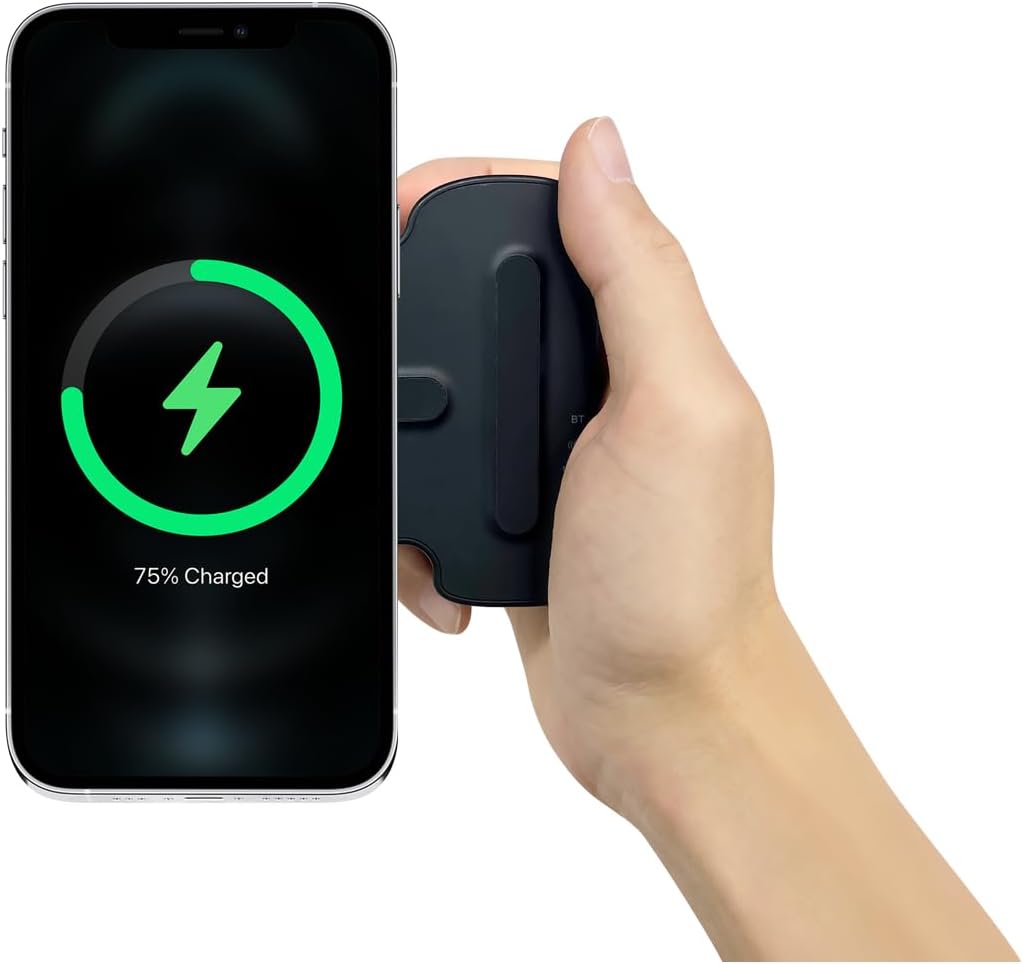
Figure 6.3: A smartphone attached to the VEGER Snap CAM, displaying a charging icon on its screen, indicating active wireless charging.
- Attach your Qi-compatible smartphone to the Snap CAM's magnetic surface.
- Press the power button on the Snap CAM to activate wireless charging.
- The charging indicator on the Snap CAM will illuminate, and your smartphone should display a charging status.
- Note: Wireless charging is only compatible with Qi-standard devices.
6.3 Using as a Smartphone Stand
The ergonomic design of the Snap CAM allows it to function as a stable stand for your smartphone.

Figure 6.4: Two VEGER Snap CAM units, one supporting a smartphone in horizontal orientation and another in vertical orientation, demonstrating its versatility as a stand.
- Attach your smartphone to the Snap CAM.
- Place the Snap CAM on a flat surface. The grip part acts as a stable base.
- Adjust your phone's orientation (vertical or horizontal) as desired for viewInhalt.
6.4 LED-Anzeigen-Leitfaden
The Snap CAM features multi-color LED indicators to provide status information:
- Bluetooth-LED:
- Blinkend: Verbindungsmodus.
- Solide: Bluetooth verbunden.
- Battery Level LEDs: Indicate the remaining battery capacity (e.g., 25%, 50%, 75%, 100%).
- Lade-LED: Illuminates when the Snap CAM is being charged or is wirelessly charging a device.
7. Wartung
- Reinigung: Reinigen Sie das Gerät mit einem weichen, trockenen Tuch. Verwenden Sie keine scharfen Chemikalien oder Scheuermittel.
- Lagerung: Store the Snap CAM in a cool, dry place away from direct sunlight and extreme temperatures.
- Batteriepflege: Um eine optimale Akkulaufzeit zu gewährleisten, vermeiden Sie häufiges vollständiges Entladen des Geräts. Laden Sie es regelmäßig auf, auch wenn es längere Zeit nicht benutzt wird.
8. Fehlerbehebung
- Gerät lässt sich nicht einschalten: Stellen Sie sicher, dass das Gerät aufgeladen ist. Verbinden Sie es mit dem USB-C-Kabel mit einer Stromquelle.
- Bluetooth stellt keine Verbindung her:
- Ensure the Snap CAM is in pairing mode (Bluetooth LED blinking).
- Check your smartphone's Bluetooth settings and ensure Bluetooth is enabled.
- Vergessen Sie das Gerät in den Bluetooth-Einstellungen Ihres Telefons und versuchen Sie, es erneut zu koppeln.
- Ensure the Snap CAM is within range of your smartphone.
- Auslöser funktioniert nicht:
- Verify Bluetooth is connected (solid Bluetooth LED).
- Ensure your smartphone's camera app is open and active.
- Some camera apps may require specific settings for external shutter control.
- Kabelloses Laden funktioniert nicht:
- Ensure your smartphone is Qi-compatible.
- Press the power button on the Snap CAM to activate wireless charging.
- Ensure the phone is correctly aligned on the magnetic charging surface.
- Entfernen Sie alle dicken Handyhüllen, die das kabellose Laden beeinträchtigen könnten.
- Die magnetische Haftung ist schwach:
- Stellen Sie sicher, dass Ihr Telefon oder Ihre Hülle MagSafe-kompatibel ist.
- If using the magnetic ring sticker, ensure it is properly applied and centered.
9. Spezifikationen
| Produktname | VEGER SNAPCAM |
| Modell Nr. | UQ-W0569-SC |
| Batteriekapazität | 2,200 mAh (3.7 V/18.5 Wh) |
| Kabelloser Ladeausgang | 5W |
| Typ-C-Eingang | 5 V/2 A |
| Material | Plastik |
| Maße | 110.6 x 86.8 x 39.3 mm (4.3 x 3.4 x 1.5 Zoll) |
| Gewicht | 152 g |
| Kompatible Geräte | MagSafe-compatible iPhones (12 series and newer), Android phones with magnetic ring sticker or MagSafe-compatible case. |
| Hersteller | VEGER |
| Radio Law Certification | Zertifiziert (210-231596) |
10. Garantie und Support
The VEGER Snap CAM comes with a 1 Jahr Garantie Ab Kaufdatum. Diese Garantie deckt Herstellungsfehler bei normalem Gebrauch ab.
For warranty claims or technical support, please contact the seller, Unique Co., Ltd, or your point of purchase with your proof of purchase.
Bitte bewahren Sie Ihren Kaufbeleg für Garantiezwecke auf.