
Vandlion V15Pro
Vandlion V15Pro 128GB Diktiergerät – Benutzerhandbuch
Model: V15Pro | Brand: Vandlion
1. Produktüberschreitungview
The Vandlion V15Pro is a compact and powerful digital voice recorder designed for high-quality audio capture in various settings, including meetings, classes, and interviews. Featuring a durable metal casing and a large 128GB internal memory, it offers extended recording capabilities and ease of use.
Key features include one-touch recording, long battery life for up to 35 hours of continuous recording, and Voice Activated Recording (VOR) for efficient memory and battery usage. Its lightweight and portable design makes it an ideal tool for professionals and students alike.

Image: The Vandlion V15Pro Dictaphone, a small, black, rectangular device, held between a thumb and forefinger, highlighting its portability. A black lanyard is attached to the device.
2. Packungsinhalt
Bitte kreuzen Sie das Kästchen für die folgenden Elemente an:
- Vandlion V15Pro Digital Dictaphone
- USB-A auf USB-C Lade-/Datenkabel
- USB-A zu USB-C Adapter
- Kabelgebundene Fernbedienung
- Headphones (3.5mm jack)
- Handschlaufe
- Benutzerhandbuch (dieses Dokument)
3. Geräteaufbau und Abmessungen
Familiarize yourself with the physical features of your Vandlion V15Pro dictaphone.

Image: A detailed diagram of the Vandlion V15Pro Dictaphone, illustrating its compact dimensions (approximately 5.33 cm length, 3.18 cm width, 0.58 cm thickness) and highlighting its metal body, noise reduction chip, Voice Activated Recording (VOR) capability, and lightweight design (21g).
The device features a simple ON/OFF slide switch for recording, a USB-C port for charging and data transfer, and a small indicator light. The microphone is integrated into the device's body.
4. Ersteinrichtung
4.1 Aufladen des Geräts
Before first use, fully charge the dictaphone. A full charge takes approximately 2 hours.
- Connect the provided USB-C cable to the dictaphone's USB-C port.
- Verbinden Sie das andere Ende des Kabels mit einem USB-Netzteil (nicht im Lieferumfang enthalten) oder einem USB-Anschluss Ihres Computers.
- During charging, the red indicator light will flash. Once fully charged, the blue light will illuminate.
- If recording while charging, the indicator light may not illuminate, which is normal.
4.2 Datum und Uhrzeit einstellen
Um eine genaue Zeitangabe zu gewährleistenamps for your recordings, set the device's date and time:
- Connect the dictaphone to a computer using the USB-C cable.
- Locate the 'SetTime' application or a text file (e.g., 'time.txt') on the device's storage.
- Follow the instructions within the application or edit the text file to synchronize the device's time with your computer's system time.
- Wichtig: It is recommended to back up the original 'SetTime' file oder Text file on your computer before making any changes.
5. Bedienungsanleitung
5.1 Grundlegende Aufnahmefunktionen
The Vandlion V15Pro features simple one-touch recording:
- Um die Aufnahme zu starten, schieben Sie den EIN/AUS-Schalter auf die Position ON position. The indicator light will briefly illuminate and then turn off, indicating that recording has begun discreetly.
- To save the recording and stop, slide the ON/OFF switch to the AUS position. The device will automatically save the current recording file.
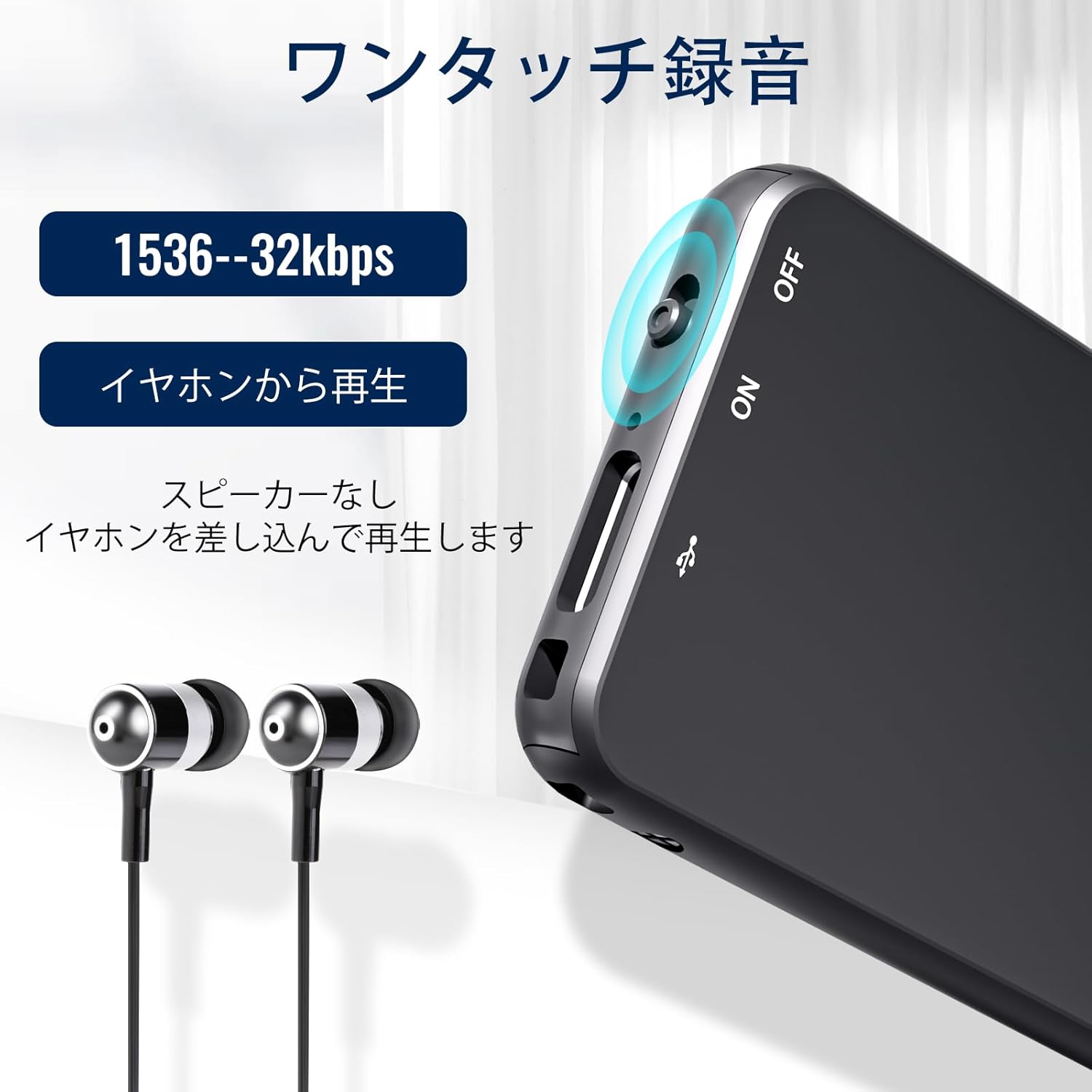
Bild: Eine Nahaufnahme view of the Vandlion V15Pro Dictaphone, highlighting the ON/OFF slide switch on the side and the USB-C port. This illustrates the one-touch recording functionality.
5.2 Wiedergabe
You can listen to your recordings directly from the device or by transferring them to a computer.
- Direkte Wiedergabe: Connect the provided headphones to the device via the remote control. Use the remote control to navigate and play back recordings.
- Computerwiedergabe: Connect the dictaphone to your computer. The device will appear as a removable drive. Navigate to the 'RECORD' folder to access and play your MP3 audio files.
5.3 Sprachaktivierte Aufnahme (VOR)
The V15Pro supports Voice Activated Recording, which automatically starts recording when sound is detected and pauses when there is silence. This feature helps conserve memory and battery life.
- The VOR function can be configured via the device's settings file when connected to a computer. Refer to the 'SetTime' or configuration text file for detailed instructions on adjusting VOR sensitivity.
- When VOR is active, the device will enter standby mode when no sound is detected, resuming recording automatically when sound returns.
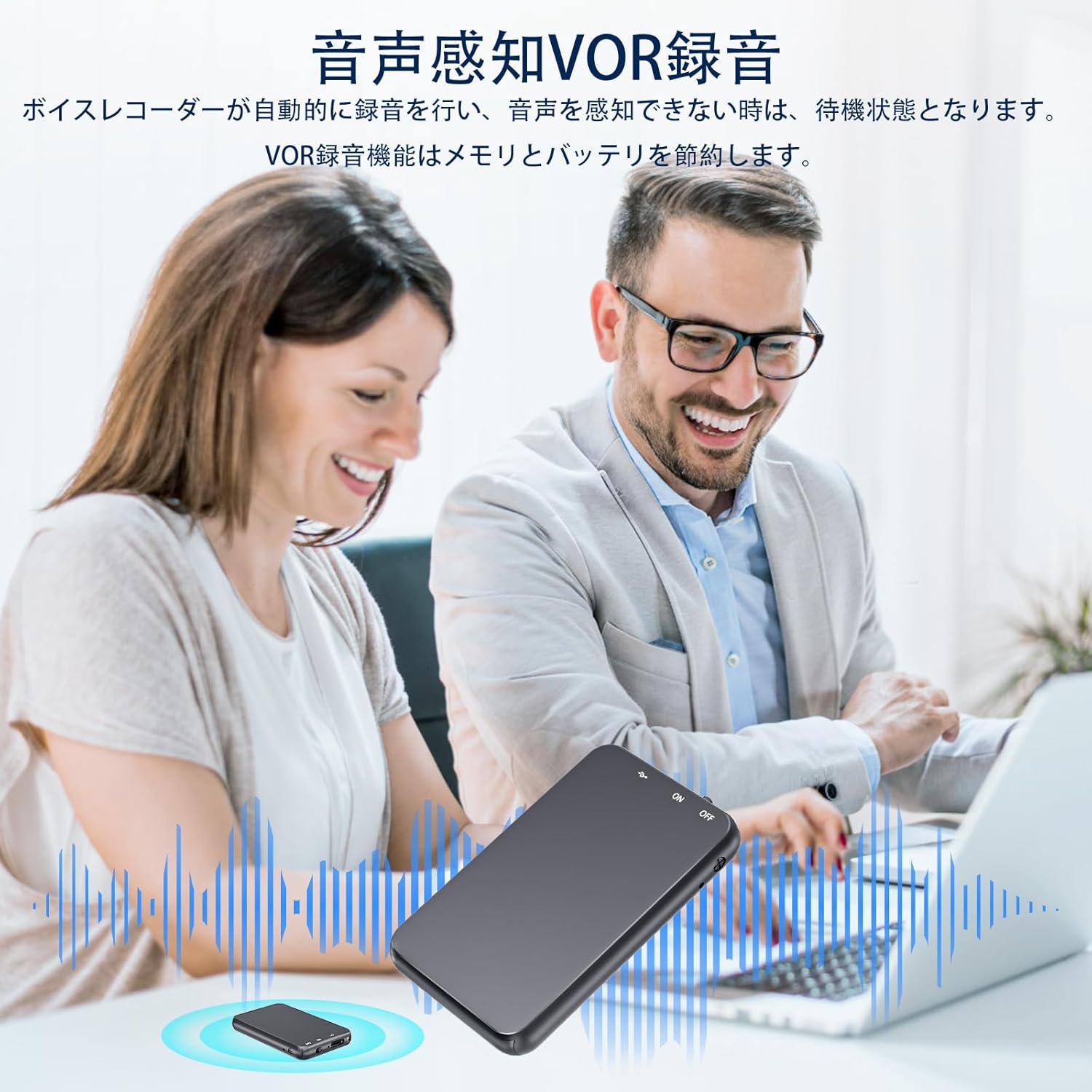
Image: An illustration depicting the Voice Activated Recording (VOR) feature, showing the dictaphone on a table during a meeting with two individuals. Sound waves emanate from the device, indicating active recording when voices are present, and silence when they are not, demonstrating how VOR saves memory and battery.
5.4 Anschließen an einen Computer
Übertragen files or configure settings, connect your dictaphone to a computer:
- Ensure the dictaphone is turned AUS vor dem Anschließen.
- Connect the dictaphone to your computer using the provided USB-C cable.
- Wait 20-30 seconds for the computer to recognize the device, especially with large memory capacities.
- The dictaphone will appear as a removable disk drive. You can then drag and drop files zum und vom Gerät.
- Für Mac-Benutzer: You may need to use a USB-C adapter for proper connection.
- Treiberprobleme: If the computer does not recognize the device, it may lack necessary drivers. Search online for "download computer drivers" or contact support.
5.5 Connecting to an Android Phone (with OTG)
You can connect the dictaphone to an Android phone that supports OTG (On-The-Go) functionality:
- Ensure the dictaphone is turned AUS vor dem Anschließen.
- Verify that OTG function is enabled on your Android phone (usually found in Settings by searching for "OTG" or "USB").
- Use an appropriate OTG adapter or cable to connect the dictaphone to your phone.
- The phone should recognize the dictaphone as external storage, allowing you to manage files.
6. Wartung
Proper care will extend the life of your dictaphone:
- Reinigung: Wischen Sie das Gerät mit einem weichen, trockenen Tuch ab. Verwenden Sie keine flüssigen Reiniger oder Lösungsmittel.
- Lagerung: Lagern Sie das Gerät an einem kühlen, trockenen Ort, geschützt vor direkter Sonneneinstrahlung, extremen Temperaturen und hoher Luftfeuchtigkeit.
- Batteriepflege: Um die Lebensdauer des Akkus zu verlängern, vermeiden Sie häufiges vollständiges Entladen. Laden Sie das Gerät regelmäßig auf, auch wenn es längere Zeit nicht benutzt wird.
- Vermeiden Sie physischen Schaden: Das Metall casing provides durability, but avoid dropping the device or exposing it to strong impacts.
7. Fehlerbehebung
If you encounter issues with your Vandlion V15Pro dictaphone, refer to the following common problems and solutions:
| Problem | Lösung |
|---|---|
| Cannot record or recording breaks. |
|
| SetTime software displays errors or viruses. |
|
| Indicator light does not turn on during charging. |
|
| Digital dictaphone cannot connect to a computer or Android phone. |
|
| How to reduce recording noise. |
|
8. Technische Daten
| Marke | Vandel |
| Modellnummer | Vandlion-V15Pro |
| Speicherkapazität | 128 GB |
| Aufnahmeformat | MP3-Audio |
| Akku-Typ | 1 Lithium-ion (included), Rechargeable |
| Kontinuierliche Aufnahmezeit | Up to 35 hours (after 2-hour charge) |
| Ladeschnittstelle | USB Typ C |
| Kopfhöreranschluss | 3.5 mm |
| Mikrofon-Formfaktor | Integriert |
| Artikelgewicht | 19 Gramm |
| Farbe | Schwarz |
| Kompatible Geräte | Computers, Android Phones (with OTG) |
9. Garantie und Support
Vandlion products are manufactured to high-quality standards. For warranty information or technical support, please refer to the contact details provided with your purchase documentation or visit the official Vandlion webBitte bewahren Sie Ihren Kaufbeleg für Garantieansprüche auf.