
1. Einleitung
This manual provides detailed instructions for the installation, operation, and maintenance of your XTRONS DIE123L 10.1-inch Android Car Stereo. Please read this manual thoroughly before using the product to ensure proper functionality and to prevent damage. Keep this manual for future reference.
2. Sicherheitshinweise
Beachten Sie stets die folgenden Sicherheitsvorkehrungen, um Verletzungen oder Schäden am Gerät zu vermeiden:
- Versuchen Sie nicht, das Gerät zu zerlegen oder zu verändern. Dies kann zu Stromschlägen, Bränden oder anderen Fehlfunktionen führen.
- Ensure proper wiring connections. Incorrect wiring can cause damage to the unit or the vehicle's electrical system.
- Bedienen Sie das Gerät nicht so, dass Sie vom Fahren abgelenkt werden. Die Verkehrssicherheit hat stets oberste Priorität.
- Wenn Sie sich bei einzelnen Installationsschritten unsicher sind, lassen Sie sich von einem qualifizierten Fachmann beraten.
- Das Gerät sollte vor Wasser und übermäßiger Feuchtigkeit geschützt werden.
3. Packungsinhalt
Prüfen Sie vor der Installation, ob alle Elemente im Paket vorhanden sind:
- XTRONS DIE123L Head Unit
- Stromkabel
- GPS-Antenne
- USB-Kabel
- Cinch-Kabel
- 4G-Antenne
- Bedienungsanleitung
- Installation Tools (keys)
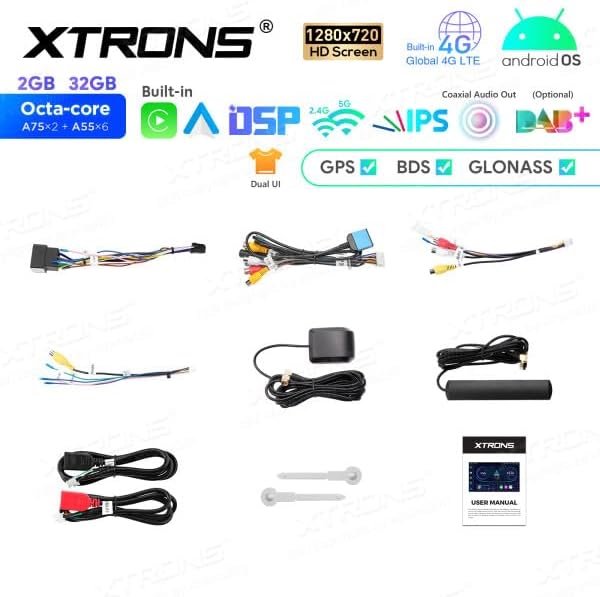
Bild: Überview of the XTRONS DIE123L package contents, including the head unit, various cables (power, USB, RCA), GPS antenna, 4G antenna, and installation tools.
4. Produktüberschreitungview
The XTRONS DIE123L is a 1 DIN car stereo featuring a 10.1-inch HD touchscreen display, powered by an Android operating system. It integrates advanced connectivity and audio processing capabilities for an enhanced in-car experience.
Hauptmerkmale:
- Anzeige: 10.1-inch 1280x720 HD IPS Screen
- Betriebssystem: Android-Betriebssystem
- Prozessor: Octa-core (A75*2 + A55*6)
- Speicher/Speicherung: 2GB RAM, 32GB ROM
- Konnektivität: Built-in 4G LTE, Dual Band WiFi (2.4G/5G), Bluetooth, USB
- Navigation: GPS-, BDS- und GLONASS-Unterstützung
- Audio: Built-in DSP (Digital Sound Processor), Coaxial Audio Out (Optional)
- Smartphone-Integration: Wireless Apple CarPlay, Wireless/Wired Android Auto
- Benutzeroberfläche: Dual UI options
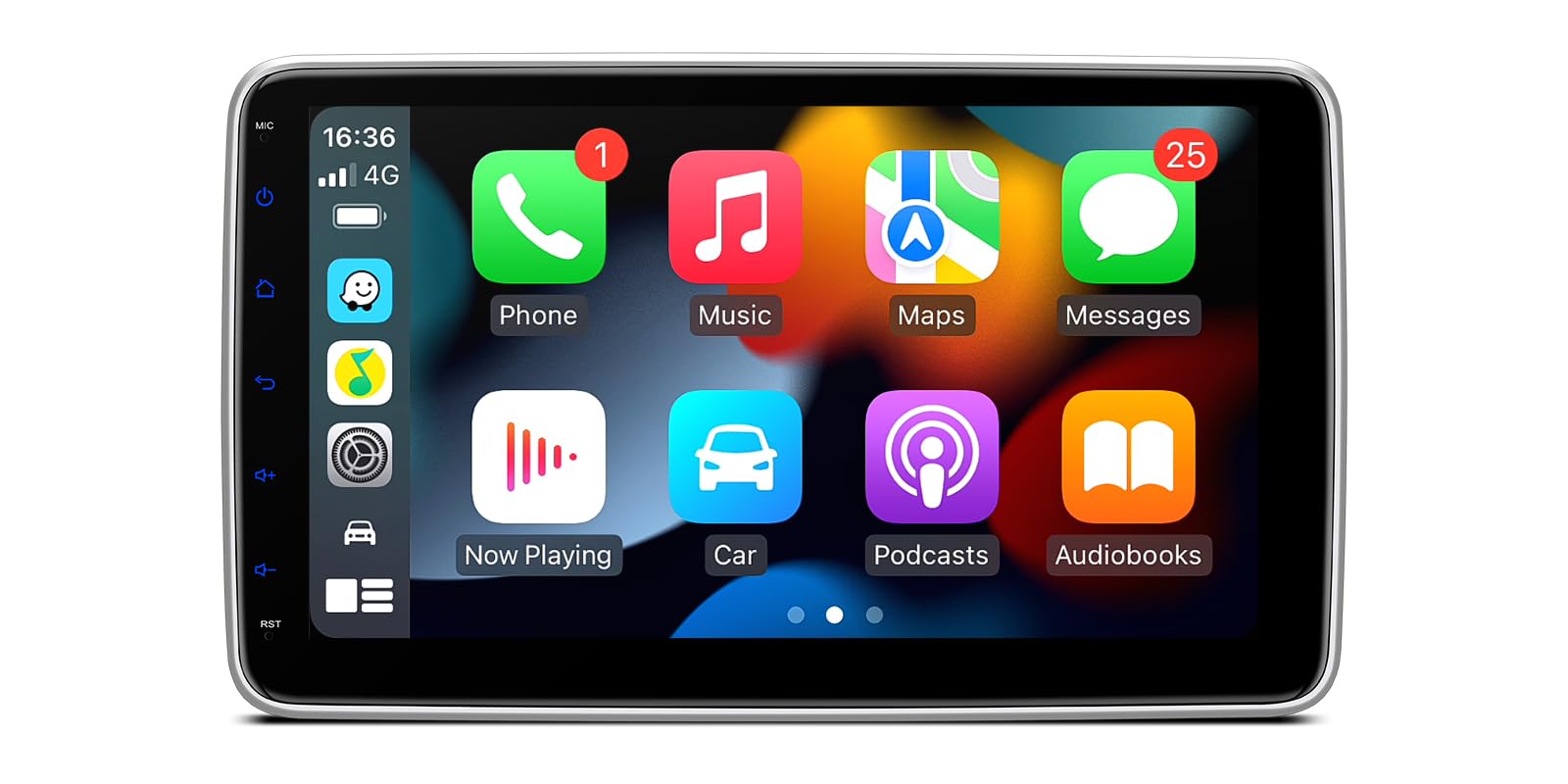
Image: The XTRONS DIE123L head unit displaying its main interface with navigation, media controls, and vehicle speed information.

Image: A visual summary of the XTRONS DIE123L's core features, including 2GB RAM, 32GB storage, Octa-core processor, 1280x720 HD screen, built-in 4G LTE, Android OS, DSP, GPS, BDS, and GLONASS.

Image: The XTRONS DIE123L home screen, showing various application icons such as Navigation, Radio, Video, Music, and other system utilities.
5. Einrichtung und Installation
Professional installation is highly recommended for this product. Incorrect installation can lead to damage to the unit or the vehicle. Ensure the vehicle''s battery is disconnected before beginning installation.
5.1 Physische Abmessungen
Beachten Sie die untenstehende Abbildung, um die Abmessungen des Geräts zu ermitteln und die Kompatibilität mit dem Armaturenbrett Ihres Fahrzeugs sicherzustellen.
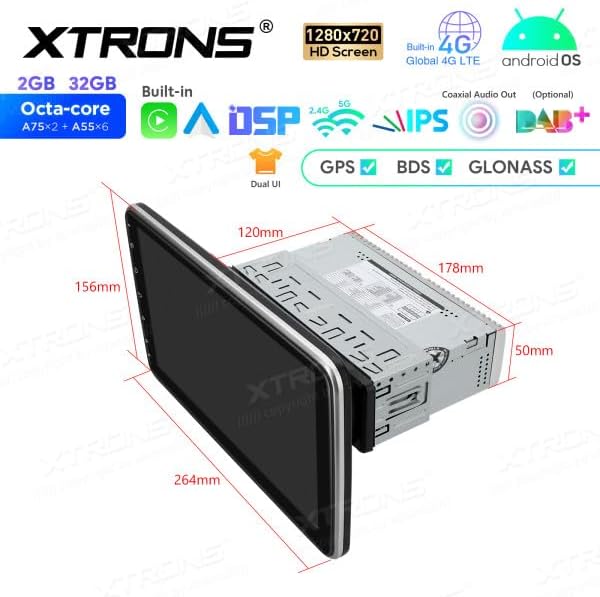
Image: A technical drawing illustrating the dimensions of the XTRONS DIE123L head unit, including screen size (264mm width, 156mm height) and chassis size (178mm width, 50mm height, 120mm depth).
5.2 Kabelverbindungen
Connect the provided cables according to your vehicle's wiring harness. Ensure all connections are secure to prevent intermittent issues.
- Stromkabel: An die Stromversorgung des Fahrzeugs anschließen (ACC, B+, Masse).
- Lautsprecherkabel: Verbinden Sie sich mit den Lautsprechern Ihres Fahrzeugs.
- GPS-Antenne: Montieren Sie das Gerät an einem Ort mit freiem Blick view des Himmels.
- 4G Antenne: Mount for optimal signal reception.
- USB-Kabel: For external USB devices or wired Android Auto.
- RCA-Kabel: Für externe ampVerstärker, Subwoofer oder Videoeingang/-ausgang.
5.3 Erstes Einschalten
After installation, reconnect the vehicle's battery. Turn on the ignition. The unit should power on automatically. Follow the on-screen prompts for initial setup, including language selection and time zone.
6. Bedienungsanleitung
6.1 Grundlegende Bedienung
- Ein-/Ausschalten: Drücken und halten Sie den Netzschalter auf der Vorderseite oder benutzen Sie die Zündung des Fahrzeugs.
- Lautstärkeregelung: Die Einstellungen können über die physischen Tasten oder die Bedienelemente auf dem Bildschirm vorgenommen werden.
- Touch-Screen: Navigate the interface by tapping, swiping, and pinching.
6.2 Navigation
The unit supports GPS, BDS, and GLONASS for accurate positioning. Pre-installed navigation apps or downloaded apps can be used. Ensure the GPS antenna is properly installed for optimal performance.
6.3 Konnektivität
- Bluetooth: Pair your smartphone for hands-free calling and audio streaming. Go to Settings > Bluetooth to enable and pair devices.
- W-lan: Connect to a Wi-Fi hotspot (e.g., from your phone or a dedicated car hotspot) to access online features, download apps, and browse the internet. Go to Settings > Network & Internet > Wi-Fi.
- 4G LTE: Insert a compatible SIM card (if applicable) to enable 4G connectivity for internet access without an external Wi-Fi hotspot.
- USB: Connect USB drives for media playback or use for wired Android Auto.
6.4 Apple CarPlay & Android Auto
The XTRONS DIE123L supports both Apple CarPlay and Android Auto for seamless smartphone integration.

Image: A split image demonstrating both Apple CarPlay (wireless via Bluetooth) and Android Auto (wireless via Bluetooth, wired via USB) interfaces on the XTRONS DIE123L screen, showing typical app layouts.
- Apple CarPlay: Connect wirelessly via Bluetooth. Once paired, CarPlay will launch automatically or can be selected from the main menu.
- Android Auto: Connect wirelessly via Bluetooth or via a USB cable. Follow the on-screen prompts to set up Android Auto.
6.5 Audiofunktionen
- DSP: Utilize the built-in Digital Sound Processor to customize audio settings, including equalizer, balance, fader, and subwoofer controls. Access these settings through the 'Sound' or 'DSP' app.
- Medienwiedergabe: Audio und Video abspielen files from USB drives, SD cards, or streaming services via connected internet.
- Radio: Access FM/AM radio stations.
7. Wartung
- Reinigung: Reinigen Sie den Bildschirm und das Gehäuse des Geräts mit einem weichen, trockenen Tuch. Bei hartnäckigen Flecken leicht andrücken.ampBefeuchten Sie das Tuch mit Wasser. Vermeiden Sie aggressive Chemikalien oder scheuernde Materialien.
- Software-Updates: Periodically check for software updates via the system settings or the XTRONS official webWebsite, um optimale Leistung und Zugriff auf neue Funktionen zu gewährleisten.
- Datensicherung: Sichern Sie regelmäßig wichtige Daten, falls diese auf dem Gerät gespeichert sind.
8. Fehlerbehebung
Sollten Sie auf Probleme stoßen, konsultieren Sie bitte die folgenden häufigen Probleme und Lösungen:
| Problem | Mögliche Ursache | Lösung |
|---|---|---|
| Gerät lässt sich nicht einschalten. | Incorrect power wiring, blown fuse, vehicle ignition off. | Prüfen Sie die Stromanschlüsse, kontrollieren Sie die Fahrzeugsicherungen und stellen Sie sicher, dass die Zündung eingeschaltet ist. |
| Kein Ton aus den Lautsprechern. | Falsche Lautsprecherverkabelung, Lautstärke zu niedrig, Stummschaltung aktiviert ampProbleme mit dem Verstärker. | Verify speaker connections, increase volume, check mute status, test external ampVerstärker, falls verwendet. |
| GPS signal is weak or absent. | Die GPS-Antenne ist nicht ordnungsgemäß installiert oder verdeckt. | Stellen Sie sicher, dass die GPS-Antenne freie Sicht hat. view des Himmels und ist sicher verbunden. |
| Es kann keine Bluetooth-Verbindung hergestellt werden. | Bluetooth nicht aktiviert, Gerät nicht im Kopplungsmodus, Störungen. | Enable Bluetooth on both devices, put device in pairing mode, try pairing in a different location. |
| Touchscreen reagiert nicht. | Systemabsturz, vorübergehender Softwarefehler. | Restart the unit (power cycle), perform a factory reset if necessary (note: this will erase data). |
If the problem persists after attempting these solutions, contact XTRONS customer support or a qualified service technician.
9. Spezifikationen
| Besonderheit | Detail |
|---|---|
| Marke | XTRONS |
| Modellnummer | DIE123L |
| Bildschirmgröße | 10.1 Zoll |
| Bildschirmauflösung | 1280 x 720 HD |
| Betriebssystem | Android |
| Prozessor | Achtkernprozessor |
| RAM | 2 GB |
| Interner Speicher | 32 GB |
| Konnektivitätstechnologie | Bluetooth, USB, WLAN, 4G |
| Besondere Merkmale | Android Auto, Apple CarPlay, Built-in DSP |
| Kompatible Geräte | Smartphone |
| Kontrollmethode | Berühren |
10. Garantie und Support
XTRONS products are covered by a limited warranty. For specific warranty terms and conditions, please refer to the warranty card included with your product or visit the official XTRONS website. For technical support, troubleshooting assistance, or service inquiries, please contact XTRONS customer service through their official channels.