
Einführung
This manual provides detailed instructions for the installation, operation, maintenance, and troubleshooting of your wisecoco 12.6 Inch Bar LCD Screen HDMI Display Monitor. This monitor is specifically designed to integrate seamlessly with the Hyte Y60 PC case, serving as an excellent secondary display for monitoring system performance, displaying custom visuals, or extending your desktop.

Figure 1: The 12.6-inch bar LCD screen displaying real-time system performance data.
Setup und Installation
The wisecoco 12.6 Inch Bar LCD Screen is designed for easy installation, particularly within the Hyte Y60 PC case. The package includes all necessary components for a straightforward setup.
Packungsinhalt
Bitte überprüfen Sie vor Beginn der Installation, ob alle Artikel im Paket vorhanden sind:
- 12.6-inch Bar LCD Screen
- 3.5mm DC Power Cable
- HDMI-zu-Mini-HDMI-Kabel
- Kreuzschraubendreher

Figure 2: Included accessories: DC power cable, HDMI to Mini HDMI cable, and a screwdriver.
Installation Steps (for Hyte Y60 PC Case)
- Bereiten Sie das PC-Gehäuse vor: Ensure your Hyte Y60 PC case is powered off and unplugged. Carefully remove the side panel where the monitor will be installed.
- Montieren Sie den Bildschirm: The screen features a bracket specifically designed to fit the Y60 case panel. Align the screen with the designated slot on the case. Use the provided screwdriver to secure the screen in place. No additional screws are typically required.
- Videokabel anschließen: Connect one end of the HDMI to Mini HDMI cable to the Mini HDMI port on the monitor. Connect the other end to an available HDMI port on your graphics card (GPU) or motherboard.
- Netzkabel anschließen:
- Connect the 3.5mm DC power cable to the DC 3.5mm port on the monitor. The other end of this cable typically connects to a power source within your PC.
- Alternatively, the screen can be powered via a Micro USB A cable (not included). If using Micro USB A, ensure the input is 5V500mA. If using the DC cable, the input should be 5V2A.
- Kabelmanagement: Route the cables neatly within your PC case to avoid interference with fans or other components.
- Einschalten: Once all connections are secure, replace the PC case panel, plug in your PC, and power it on. The monitor should be detected as a secondary display.

Figure 3: Visual guide for installing the secondary monitor into the Hyte Y60 PC case.

Figure 4: The monitor seamlessly integrated into a Hyte Y60 PC case, displaying custom visuals.

Figure 5: Dimensions and port layout of the 12.6-inch bar LCD screen.
Bedienungsanleitung
The wisecoco 12.6 Inch Bar LCD Screen functions as a standard secondary display, compatible with PCs and laptops. It offers versatile display options and user-friendly controls.
Anzeigefunktionen
- Auflösung: 1920x515 IPS panel for clear and vibrant visuals.
- Ansprechzeit: 3-5ms for smooth motion.
- Viewing-Winkel: 178° breit viewing angle ensures consistent image quality from various perspectives.
- Aktualisierungsrate: 60Hz standard refresh rate.
- Kontrastverhältnis: 1000:1 für tiefes Schwarz und helles Weiß.
- Eingebaute Lautsprecher: Integrated dual speakers provide audio output.

Figure 6: The monitor features a 178° full viewing angle and IPS technology for superior image quality.
Figure 7: The Wisecoco monitor includes built-in speakers for convenience.
Anzeigemodi
The monitor supports both landscape and portrait modes, allowing for flexible integration into your setup. You can adjust the display orientation through your operating system's display settings.

Figure 8: The monitor supports both portrait and landscape display orientations.
Bedienelemente für das Bildschirmdisplay (OSD)
The monitor features physical buttons on the back for accessing the OSD menu and controlling basic functions:
- Quelle: Switches between available video inputs (e.g., Mini HDMI 1, Mini HDMI 2).
- Lautstärke +/-: Adjusts the audio output level of the built-in speakers.
- Speisekarte: Accesses the OSD menu for advanced settings (brightness, contrast, color, etc.).
- Leistung: Schaltet den Monitor ein oder aus.
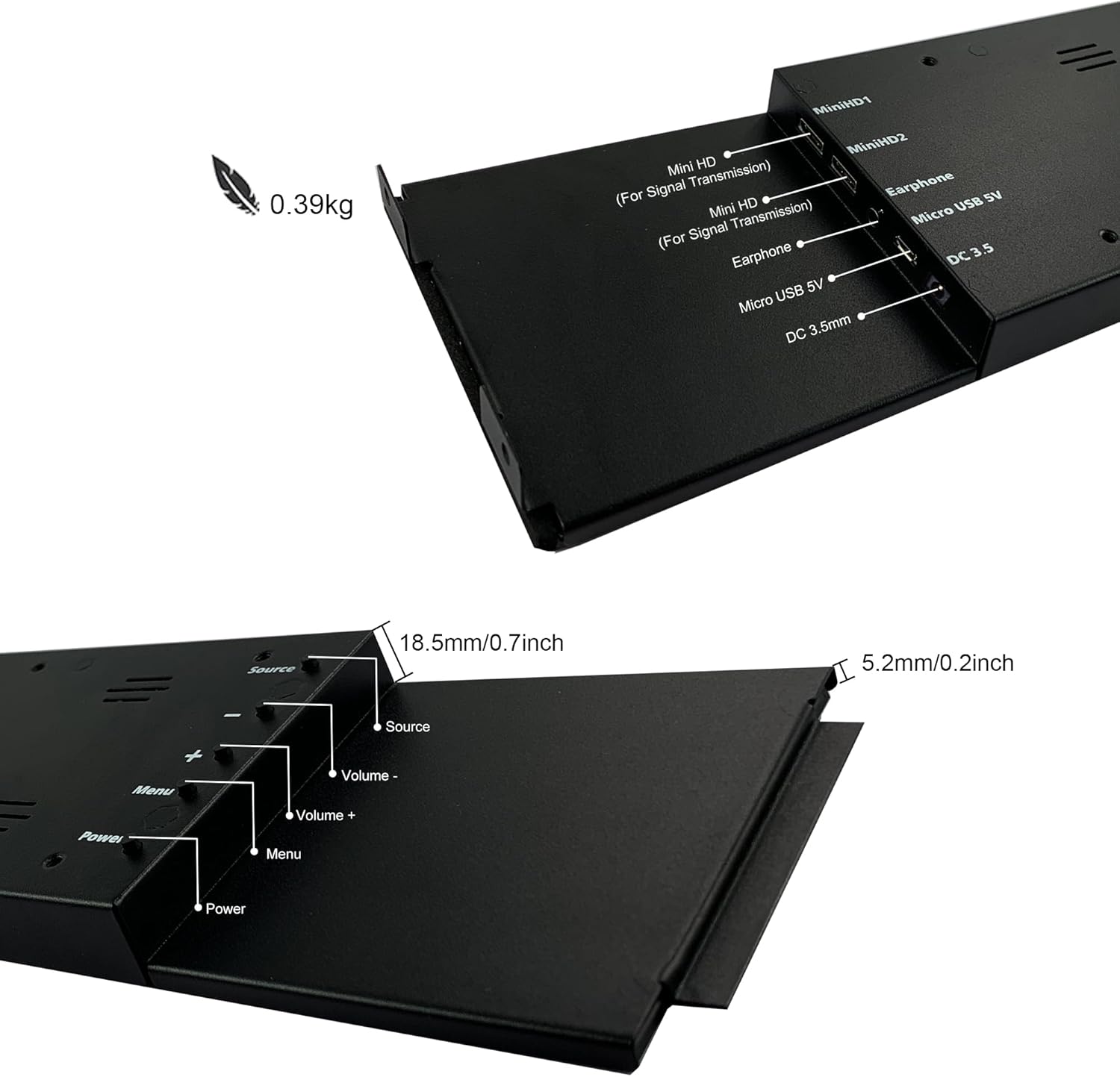
Figure 9: Location of control buttons and ports on the side of the monitor.
Wartung
Durch sachgemäße Wartung wird die Langlebigkeit und optimale Leistung Ihres Monitors sichergestellt.
- Reinigen des Bildschirms: Verwenden Sie ein weiches, fusselfreies Tuch, das speziell für Elektronikgeräte entwickelt wurde. Bei hartnäckigen Flecken leicht andrücken.ampBefeuchten Sie das Tuch mit Wasser oder einem Siebreinigungsmittel. Vermeiden Sie aggressive Chemikalien, Scheuermittel oder das direkte Besprühen des Siebs mit Flüssigkeit.
- Allgemeine Reinigung: Wischen Sie die Oberfläche des Monitors ab.asinmit einem weichen, trockenen Tuch abwischen.
- Belüftung: Um eine Überhitzung zu vermeiden, stellen Sie sicher, dass die Lüftungsöffnungen des Monitors nicht blockiert sind.
- Umgebungsbedingungen: Avoid exposing the monitor to extreme temperatures, high humidity, or direct sunlight.
- Ausschalten bei Nichtgebrauch: For extended periods of inactivity, it is recommended to power off the monitor.
Fehlerbehebung
If you encounter issues with your wisecoco monitor, refer to the following common problems and solutions:
| Problem | Mögliche Ursache | Lösung |
|---|---|---|
| Keine Anzeige / Meldung „Kein Signal“ |
|
|
| Screen flashes red, blue, or green when PC sleeps | Specific display settings or driver interaction. | Access the monitor's OSD menu and navigate through settings. Sometimes simply accessing and exiting the menu can resolve this. Ensure GPU drivers are updated. |
| Kein Ton aus den eingebauten Lautsprechern |
|
|
| Half of the screen not working | Hardware defect or severe connection issue. |
|
Produktspezifikationen
Detailed technical specifications for the wisecoco 12.6 Inch Bar LCD Screen HDMI Display Monitor:
| Besonderheit | Spezifikation |
|---|---|
| Technische Daten | 1 x 4 x 13 Zoll |
| Artikelgewicht | 1.74 Pfund |
| Hersteller | Wisecoco |
| Artikelmodellnummer | R126F01-HB |
| Anzeigegröße des Standbildschirms | 12.6 Zoll |
| Seitenverhältnis | 32:9 |
| Bandtage | 5 Volt (DC) |
| Auflösung | 1920 x 515 |
| Marke | wisecoco |
| Bildschirmgröße | 12.6 Zoll |
| Beschreibung der Bildschirmoberfläche | Glänzend |
Garantie und Support
Wisecoco is committed to providing high-quality products and customer satisfaction.
- Garantie: Für dieses Produkt gilt eine Garantie von 12 Monaten ab Kaufdatum.
- Geld-Zurück-Garantie: Es wird eine 30-Tage-Geld-zurück-Garantie angeboten.
- Kundendienst: Unser Kundendienst steht Ihnen rund um die Uhr für Fragen und Unterstützung zur Verfügung.
For warranty claims, technical support, or any other questions, please contact Wisecoco customer service through the official channels provided at the point of purchase or on the Wisecoco brand webWebsite.

Figure 10: Wisecoco's commitment to customer satisfaction.