
Elektronik CTIPC-640C-Z16
Ctronics 4K 8MP 16X Optischer Zoom PTZ WiFi Außenkamera – Benutzerhandbuch
Modell: CTIPC-640C-Z16
Einführung
This manual provides comprehensive instructions for the installation, operation, and maintenance of your Ctronics 4K 8MP 16X Optical Zoom PTZ WiFi Outdoor Security Camera. This advanced camera offers superior surveillance capabilities with its high-resolution imaging, extensive zoom, and intelligent detection features. Please read this manual thoroughly before using the product to ensure optimal performance and safety.
Packungsinhalt
Bitte überprüfen Sie, ob alle unten aufgeführten Artikel in Ihrem Paket enthalten sind:
- 1 x Ctronics 4K 16X Camera
- 1 x 3m Power Cable (with plug)
- 1 x Netzwerkkabel
- 1 x Accessories Kit (screws, anchors, etc.)
- 1 x Benutzerhandbuch
Produkt überview und Hauptmerkmale
The Ctronics CTIPC-640C-Z16 camera is designed for robust outdoor surveillance, offering a range of advanced features:
4K 8MP Ultra HD & 16X Optical Zoom
Experience crystal-clear imaging with 4K Ultra HD resolution. The 16X optical zoom allows you to magnify distant objects without compromising image quality, enabling clear identification of faces or license plates.

Image: Ctronics 4K 8MP 16X Optical Zoom PTZ WiFi Outdoor Security Camera, showing the camera unit and a smartphone screen displaying 4K 8MP resolution and 16x zoom capability.
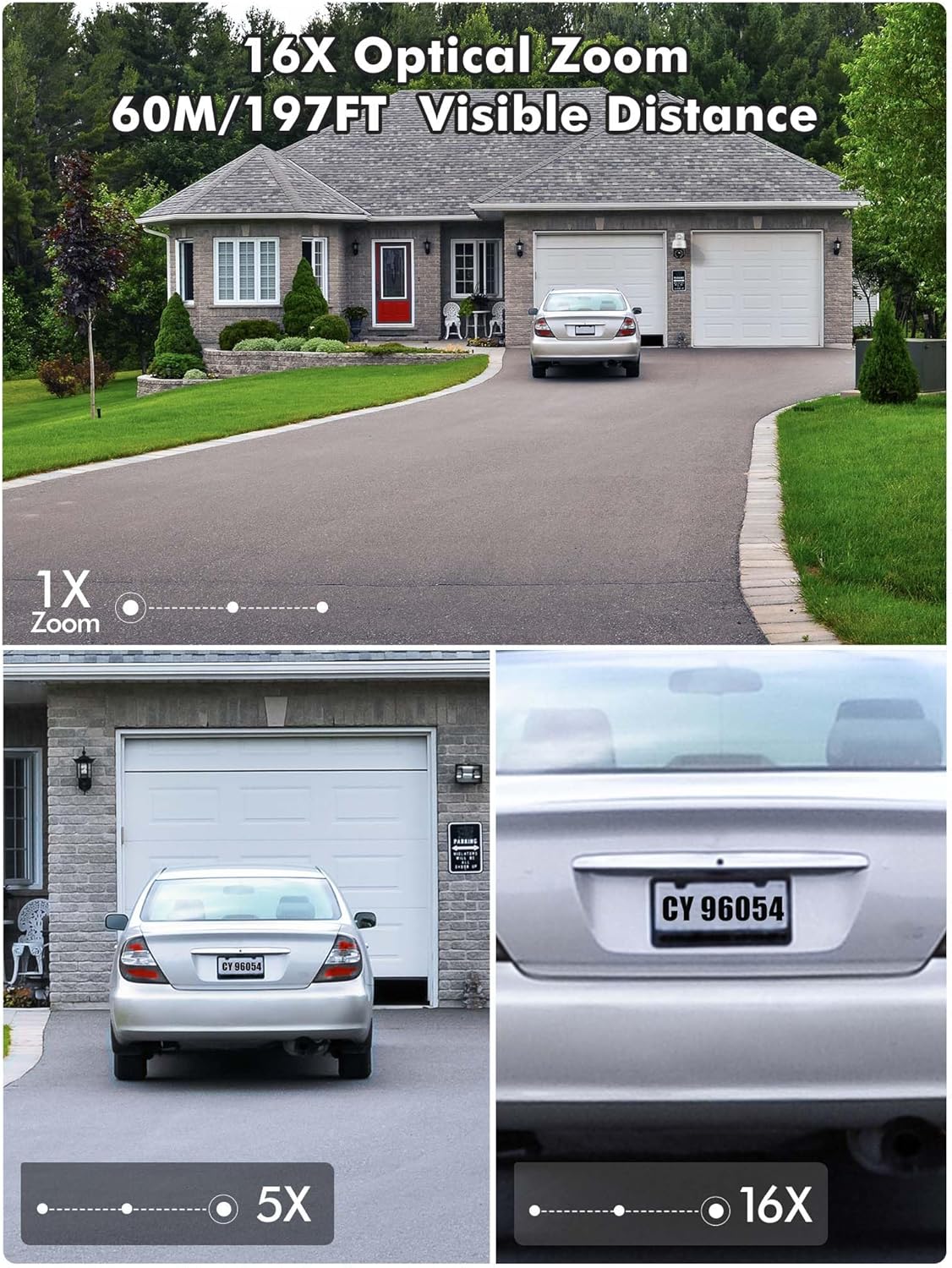
Image: Demonstration of 16X optical zoom, showing a car's license plate clearly visible at 16x magnification compared to 1x and 5x zoom levels. The visible distance is up to 60 meters (197 feet).

Image: Intelligent Optical Zoom feature, demonstrating auto-zoom within 1 second and auto-tracking. A person is shown being zoomed in on as they move, with magnification automatically adjusted based on distance.
Fortschrittliche Nachtsicht
Equipped with a starlight lens and Sony sensors, the camera provides clear night vision up to 60m (infrared) and color night vision up to 45m, ensuring visibility even in complete darkness.
Video: Product presentation highlighting features like full metal housing, 4K UHD video, human/vehicle/pet detection, 360-degree field of view, cruise control, auto-tracking, 60m infrared night vision, 45m color night vision, 2.4GHz & 5GHz WiFi connection, and red/blue light acoustic alarms. Please note that while the video mentions 30X optical zoom, this product features 16X optical zoom. This video is titled "640C-Z16 Product Presentation".
355° Pan & 90° Tilt (PTZ) with Auto Cruise/Tracking
Eliminate blind spots with a full 355° horizontal and 90° vertical coverage. The camera supports automatic cruise control with up to 30 preset points, and automatically tracks and zooms in on moving objects for ultimate convenience.

Image: Automatic Zoom Cruise feature, illustrating the camera's 355° pan and 90° tilt capabilities with multiple preset points around a house.
Video: Demonstration of setting up automatic tracking (Suivi automatique) by saving a preset position. The video shows a person walking and the camera automatically tracking their movement. This video is titled "640C-Z16 Product Presentation".
Intelligent Detection & Two-Way Audio
The camera can distinguish between people, vehicles, and pets, significantly reducing false alarms. With built-in two-way audio, you can listen and speak in real-time to deter intruders or communicate with visitors.
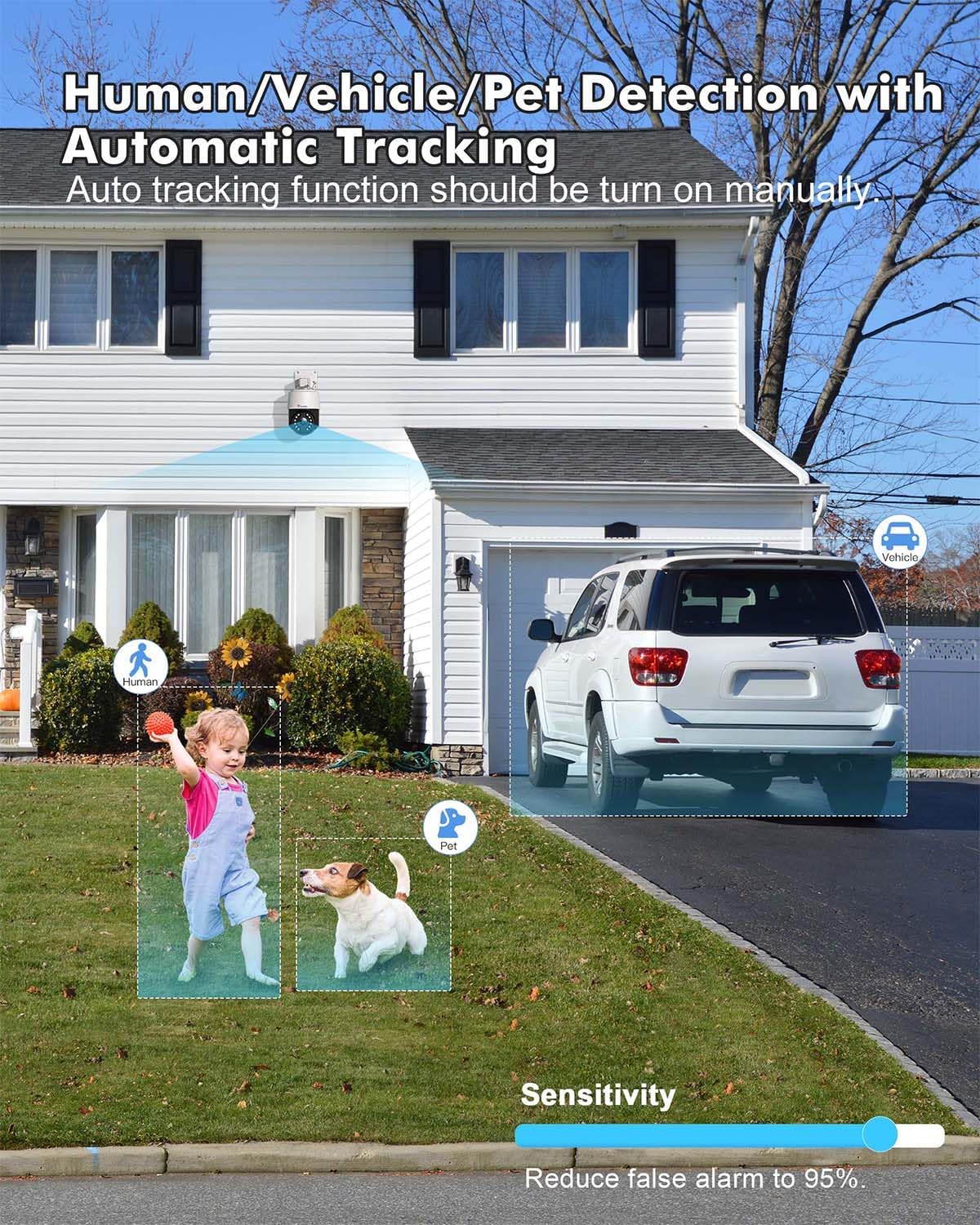
Image: Human/Vehicle/Pet Detection feature, showing the camera identifying a child, a dog, and a vehicle with bounding boxes, and a sensitivity slider to reduce false alarms.

Image: Instant Alarm and 24-Hour Monitoring, showing a person running past the camera at night, triggering sound and light alarms, and a notification on a smartphone.
Multiple Recording Options & IP66 Weather Resistance
Supports 24/7 continuous recording, or scheduled recording, with videos automatically saved to the cloud or a TF card (up to 256GB, not included). Constructed from metal, the camera boasts IP66 weather resistance for durability in various outdoor conditions.

Image: Various storage options available for the camera, including up to 256GB TF card, NVR/NAS 24/7 recording, FTP, and Ctronics Cloud storage.
Dual-Band WiFi & Broad Compatibility
Connects via 2.4GHz for longer transmission range or 5GHz for stronger network connection. Compatible with iOS, Android, Windows, and Mac OS via the Ctronics Pro app and HIP2P Client.

Image: Dual-band WiFi connectivity, showing the camera installed on a house with circles indicating 5GHz for stronger connection and 2.4GHz for longer transmission range.

Image: Broad compatibility of the camera with various operating systems and applications, including iOS, Android, Windows, Mac OS, Ctronics Pro, and HIP2P Client, showing a laptop, tablet, and smartphone displaying camera feeds.
Installationshandbuch
1. Erste Verbindung
For the initial setup, it is recommended to connect the camera to your router via an Ethernet cable for a stable connection. Once configured, you can switch to Wi-Fi.
- Schließen Sie die Kamera mithilfe des mitgelieferten Netzteils an eine Steckdose an.
- Connect one end of the network cable to the camera's Ethernet port and the other end to your router.
- Wait for the camera to power on and initialize (indicated by a status light, refer to the camera's LED indicator guide for details).
2. App-Installation und -Kopplung
Download the Ctronics Pro app on your smartphone or tablet. The app is available for both iOS and Android devices.
- Suchen nach "Ctronics Pro" in your device's app store (Apple App Store for iOS, Google Play Store for Android).
- Installieren Sie die App und erstellen Sie ein Konto, falls Sie noch keins haben.
- Open the app and follow the on-screen instructions to add your camera. This typically involves scanning a QR code on the camera or manually entering its UID.
- Once the camera is detected, follow the prompts to connect it to your Wi-Fi network (2.4GHz or 5GHz).
3. Montage der Kamera
The camera supports wall or ceiling mounting. Choose a location that provides optimal viewing coverage and is within range of your Wi-Fi signal and power source.
- Use the provided mounting template (if included) or mark the drill holes on the desired surface.
- Bohren Sie Löcher und setzen Sie die Wandanker ein.
- Befestigen Sie die Montagehalterung mit den mitgelieferten Schrauben an der Wand/Decke.
- Befestigen Sie die Kamera an der Montagehalterung und achten Sie darauf, dass sie fest sitzt.
- Stellen Sie den Kamerawinkel so ein, dass der gewünschte Bereich abgedeckt wird.
Bedienungsanleitung
1. Leben View und Wiedergabe
Greifen Sie auf Live-Video-Feeds zu und review aufgenommenes footage through the Ctronics Pro app or desktop client.
- Live View: Öffnen Sie die App und wählen Sie Ihre Kamera aus der Geräteliste aus. view der Echtzeit-Feed.
- Wiedergabe: Navigate to the playback section in the app to access recorded videos from your TF card or cloud storage.
2. PTZ Control and Optical Zoom
Control the camera's pan, tilt, and zoom functions directly from the app.
- Use the directional controls in the app to pan (horizontal movement) and tilt (vertical movement) the camera.
- Use the zoom in/out buttons to activate the 16X optical zoom.
3. Auto Cruise and Preset Points
Set up automated patrol routes for comprehensive area coverage.
- In the app, move the camera to a desired position and save it as a preset point. You can set up to 30 preset points.
- Configure an auto-cruise route by selecting the desired preset points and the order in which the camera should visit them.
- Activate the auto-cruise function to have the camera automatically patrol the defined route.
4. Intelligent Detection Configuration
Customize detection settings to receive accurate alerts.
- Access the detection settings in the app.
- Enable human, vehicle, or pet detection as needed.
- Passen Sie die Empfindlichkeitseinstellungen an, um Fehlalarme zu minimieren.
- Enable automatic tracking to have the camera follow detected objects.
5. Zwei-Wege-Audio
Kommunizieren Sie über die Kamera mithilfe der Zwei-Wege-Audiofunktion.
- Im Live viewTippen Sie auf das Mikrofonsymbol, um über den Lautsprecher der Kamera zu sprechen.
- Tippen Sie auf das Lautsprechersymbol, um den Ton vom Mikrofon der Kamera zu hören.
6. Aufnahmeeinstellungen
Manage how your footage is recorded and stored.
- Configure 24/7 continuous recording or set specific recording schedules.
- Choose your preferred storage method: TF card, NVR/NAS, or cloud storage.
- Ensure your TF card is properly inserted and formatted if using local storage.
Wartung
1. Reinigung
Regularly clean the camera lens and housing to ensure clear image quality and proper operation.
- Verwenden Sie ein weiches,amp Tuch zum Abwischen der Außenseite der Kamera.
- Verwenden Sie für die Linse ein spezielles Linsenreinigungstuch und eine spezielle Linsenreinigungslösung, um Kratzer zu vermeiden.
- Verwenden Sie keine aggressiven Chemikalien oder scheuernden Materialien.
2. Firmware-Updates
Keep your camera's firmware updated to benefit from the latest features, security enhancements, and bug fixes.
- Check for firmware updates periodically through the Ctronics Pro app.
- Follow the app's instructions carefully during the update process. Ensure a stable power supply and internet connection during updates.
3. Weather Resistance Care
While the camera is IP66 weather-resistant, proper installation and occasional checks can prolong its lifespan.
- Ensure all cables are properly sealed and protected from moisture.
- Die Stabilität der Montage sollte regelmäßig überprüft werden, insbesondere nach extremen Wetterbedingungen.
Fehlerbehebung
If you encounter issues with your Ctronics camera, refer to the following common troubleshooting steps:
- Kein Strom: Stellen Sie sicher, dass das Netzteil sowohl mit der Kamera als auch mit einer funktionierenden Steckdose fest verbunden ist.
- Keine Netzwerkverbindung:
- Überprüfen Sie, ob Ihr WLAN-Passwort korrekt ist.
- Stellen Sie sicher, dass sich die Kamera in Reichweite Ihres WLAN-Routers befindet.
- Versuchen Sie, Ihren Router und die Kamera neu zu starten.
- For initial setup, try connecting via Ethernet cable first.
- Schlechte Bildqualität:
- Reinigen Sie das Kameraobjektiv.
- Überprüfen Sie Ihre Netzwerkgeschwindigkeit; eine langsame Verbindung kann die Streaming-Qualität beeinträchtigen.
- Ensure the camera's resolution setting in the app is set to 4K/HD.
- Falscher Alarm:
- Passen Sie die Erkennungsempfindlichkeit in der App an.
- Ensure human/vehicle/pet detection is enabled if you wish to filter out other movements.
- Aufnahmeprobleme:
- Check if the TF card is inserted correctly and is not full.
- Format the TF card if necessary (this will erase all data).
- Verify your cloud storage subscription status if using cloud recording.
Für weitere Unterstützung wenden Sie sich bitte an den Kundendienst von Ctronics.
Technische Daten
| Besonderheit | Detail |
|---|---|
| Auflösung der Videoaufzeichnung | 4K |
| Farbe | Weiß |
| Anzahl der Artikel | 1 |
| Drahtlose Kommunikationstechnologie | W-lan |
| Viewing-Winkel | 355 Grad (Pfanne), 90 Grad (Neigung) |
| Nachtsichtbereich | 60 Meter (IR), 45 Meter (Farbe) |
| Material | Metall, Acrylnitril-Butadien-Styrol (ABS) |
| Bandtage | 12 Volt |
| Leistung | 24 Watt |
| Artikelabmessungen (L x B x H) | 17 x 15 x 15 Zentimeter |
| Wasserbeständigkeit | Wasserdicht (IP66) |
| Optischer Zoom | 16X Multiplier |
| Besondere Merkmale | Auto Cruise/Tracking/Zoom, Night Vision, 4K Ultra HD, Human, Vehicle, Animal Detection |
| Modell | CTIPC-640C-Z16 |
| Effektive Standbildauflösung | 8 Megapixel |
| Empfohlene Verwendung | Sicherheit im Außenbereich |
| Konnektivitätstechnologie | W-lan |
| Innen-/Außenbereich | Im Freien |
| Kompatible Geräte | Smartphone |
| Stromquelle | Kabelgebundene Elektrik |
| Montagetyp | Wandmontage, Deckenmontage |
Garantie und Support
Ctronics bietet ein drei Jahre Garantie on this product. For any technical assistance, inquiries, or warranty claims, please contact Ctronics customer support. Many users have reported positive experiences with their support team, specifically mentioning helpful representatives like Eric and Candy.
You can typically find contact information on the official Ctronics webWebsite oder innerhalb der Ctronics Pro-Anwendung.
Ask a question about this manual
Ask about setup, troubleshooting, compatibility, parts, safety, or missing instructions. Manuals+ will review the question and use this page’s manual context to help answer it.