
1. Einleitung
This user manual provides detailed instructions for the Rocketek PC/SC USB Smart Card Reader. This device is designed to facilitate secure digital interactions, including online identification, digital signatures, and access to various smart card applications. Please read this manual thoroughly before using the product to ensure proper functionality and longevity.
2. Produktüberschreitungview
The Rocketek PC/SC USB Smart Card Reader is a versatile device supporting a wide range of smart cards. It features a compact design and a standard USB interface for easy connectivity.
2.1 Packungsinhalt
- Rocketek PC/SC USB Smart Card Reader
- Benutzerhandbuch (dieses Dokument)
2.2 Gerätemerkmale
The card reader includes dedicated slots for different card types and an indicator light for operational status.
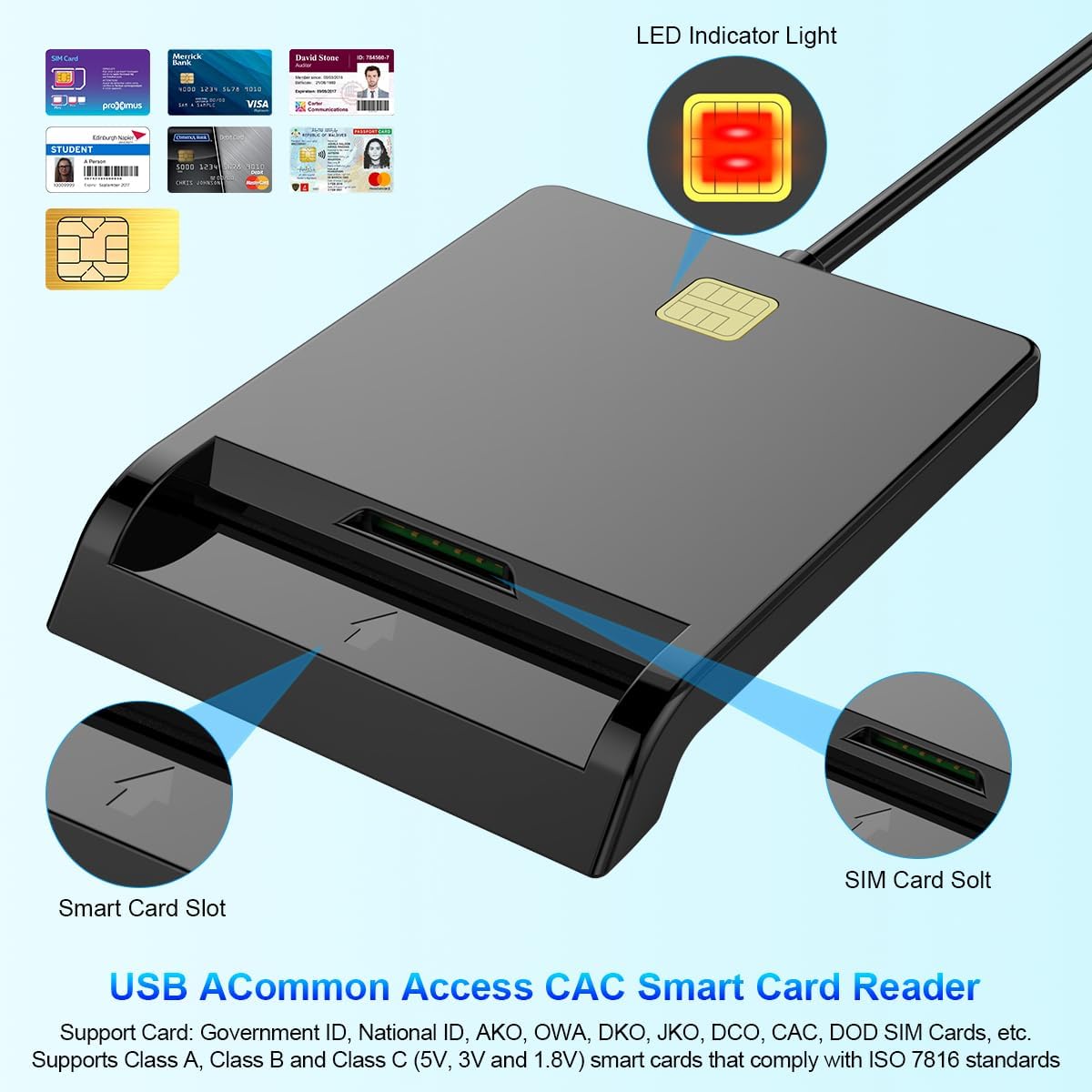
Abbildung 1: Front view of the Rocketek Smart Card Reader, highlighting the LED indicator light, the main smart card slot, and the SIM card slot.

Abbildung 2: The Rocketek Smart Card Reader shown with its USB connector, a SIM card, and a standard debit card, illustrating its multi-card compatibility.
3. Einrichtung
Follow these steps to set up your Rocketek PC/SC USB Smart Card Reader.
3.1 Systemanforderungen
- Betriebssystem: Windows 98 / Me / 2000 / NT 4.0 / XP / CE / Vista / 7 / 8 / 8.1 / 10 / 11, Chromebook OS, Linux, Ubuntu, Mac OS.
- Schnittstelle: Verfügbarer USB-Anschluss.

Abbildung 3: The card reader is compatible with various operating systems, including different versions of Windows and Linux.
3.2 Anschließen des Geräts
- Suchen Sie einen freien USB-Anschluss an Ihrem Computer oder Laptop.
- Plug the USB connector of the Rocketek Smart Card Reader into the USB port.
- The device is generally Plug & Play for Windows systems, meaning it should be recognized automatically without manual driver installation. For Mac OS and Linux, or for specific smart card applications (e.g., Belgian eID, CAC cards), additional drivers or official software may be required. Refer to the card issuer's website for necessary software.
4. Bedienungsanleitung
Using the Rocketek PC/SC USB Smart Card Reader is straightforward.
4.1 Einlegen einer Smartcard
- Ensure the card reader is connected to your computer.
- For standard smart cards (e.g., ID cards, bank cards), insert the card into the main smart card slot with the chip facing upwards and towards the reader.
- For SIM cards, insert the SIM card into the dedicated SIM card slot.
- The LED indicator light on the reader will illuminate or flash to indicate card detection and activity.
4.2 Verwenden des Kartenlesers
- Once the card is inserted and recognized, you can use it with compatible software for tasks such as:
- Online-Banking
- Digitale Signaturen
- Online tax declarations
- Accessing government services (e.g., Belgian eID)
- CAC, AKO, OWA, DKO, JKO, NKO, BOL, GKO, Marinenet, AF-Portal, Pure Edge Viewer Anwendungen
- Wichtig: The reader is designed to read only one card at a time. Do not attempt to insert multiple cards simultaneously into different slots if they are intended for active use.

Abbildung 4: The card reader supports high-speed data transmission but can only process one smart card or SIM card at any given moment.
5. Wartung
To ensure optimal performance and extend the lifespan of your card reader, follow these maintenance guidelines:
- Halten Sie das Gerät sauber und staubfrei. Verwenden Sie zum Reinigen ein weiches, trockenes Tuch.
- Vermeiden Sie es, den Leser extremen Temperaturen, hoher Luftfeuchtigkeit oder direkter Sonneneinstrahlung auszusetzen.
- Do not insert foreign objects into the card slots.
- Handle the USB cable gently to prevent damage.
- Store the reader in a safe place when not in use.
6. Fehlerbehebung
If you encounter issues with your Rocketek Smart Card Reader, refer to the following common problems and solutions:
6.1 Gerät nicht erkannt
- USB-Verbindung prüfen: Ensure the reader is firmly plugged into a working USB port. Try a different USB port or a different computer if possible.
- Starte den Computer neu: Manchmal lassen sich Erkennungsprobleme durch einen einfachen Neustart beheben.
- Treiberinstallation: While the device is generally plug-and-play for Windows, some specific smart cards (e.g., certain government IDs, health cards) or operating systems (Mac OS, Linux) may require dedicated drivers or middleware. Visit the official website of your smart card issuer or the Rocketek support page for driver downloads.
6.2 Karte wird nicht gelesen
- Richtiges Einsetzen: Ensure the smart card is inserted correctly with the chip facing the right direction and fully seated in the slot.
- Kartenzustand: Check the smart card for any visible damage or dirt on the chip. Clean the chip gently with a soft, dry cloth if necessary.
- Software-Kompatibilität: Verify that you have the correct software installed for the specific type of smart card you are trying to read (e.g., eID software for Belgian ID cards).
- Single Card Rule: Ensure only one card is inserted into the reader at a time.
6.3 Langsame Leistung
- USB-Anschluss: Ensure you are using a high-speed USB port (e.g., USB 2.0 or 3.0).
- Systemressourcen: Close unnecessary applications running in the background that might be consuming system resources.
7. Spezifikationen
| Marke | Rocketek |
| Modell | B0C5LR8DTN |
| Konnektivitätstechnologie | USB |
| Kompatible Geräte | Computer, Laptops |
| Betriebssysteme | Windows 98 / Me / 2000 / NT 4.0 / XP / CE / Vista / 7 / 8 / 8.1 / 10 / 11, Chromebook OS, Linux, Ubuntu, Mac OS |
| Besonderheit | Plug & Play |
| Unterstützte Kartentypen | Smart, ID, CAC, CRS, CNS, IC, SIM, etc. (ISO 7816 Class A, B, C for 5V, 3V and 1.8V smart cards) |
| Abmessungen (ca.) | 84 mm (L) x 65 mm (B) x 9.5 mm (H) |
| Cable Length (Approx.) | 95 cm |

Abbildung 5: Approximate dimensions of the Rocketek Smart Card Reader and its integrated USB cable.
8. Garantie und Support
Rocketek stands behind the quality of its products.
8.1 Herstellergarantie
All Rocketek USB CAC smart card readers come with a worry-free 12 Monate Herstellergarantie ab Kaufdatum. Diese Garantie deckt Material- und Verarbeitungsfehler bei normalem Gebrauch ab.
8.2 Kundendienst
If you have any questions, require technical assistance, or experience issues with your product, please do not hesitate to contact Rocketek customer support directly. Refer to the product packaging or the Rocketek official webWebsite für Kontaktinformationen.