
1. Einleitung
This manual provides detailed instructions for the Hexgears GK715 Mechanical Gaming Keyboard. Please read this manual thoroughly before using the product to ensure proper operation and to maximize your experience.

Image 1.1: The Hexgears GK715 Mechanical Gaming Keyboard.
2. Hauptmerkmale
- 104-Tasten-Layout: Tastatur in voller Größe für umfassende Funktionalität.
- Kailh Box Switches: Durable and responsive mechanical switches.
- Blaue Hintergrundbeleuchtung: Verbessert die Sichtbarkeit und die ästhetische Wirkung.
- Hot-Swap-fähiges Design: Ermöglicht einen einfachen Schalteraustausch ohne Löten.
- Double Shot ABS Keycaps: Ensures legends do not fade over time and provides a premium feel.
- Anti-Ghosting: Guarantees accurate registration of multiple simultaneous key presses.
- Wasserdichte Konstruktion: Bietet Schutz vor versehentlichem Verschütten.

Image 2.1: The GK715 keyboard showcasing its 104-key layout and anti-ghosting capability.

Abbildung 2.2: Detailansicht view of the double-shot ABS keycaps and blue backlighting on the GK715 keyboard.
3. Einrichtung
- Auspacken der Tastatur: Carefully remove the Hexgears GK715 keyboard from its packaging.
- Mit PC verbinden: Plug the USB cable from the keyboard into an available USB port on your computer. The keyboard is a corded electric device and requires a USB connection.
- Treiberinstallation: Ihr Betriebssystem sollte die benötigten Treiber automatisch erkennen und installieren. In der Regel ist keine zusätzliche Softwareinstallation erforderlich.
- Tastaturwinkel anpassen: The keyboard features dual-segment foot support. Adjust the feet on the underside of the keyboard to your preferred typing angle for ergonomic comfort.
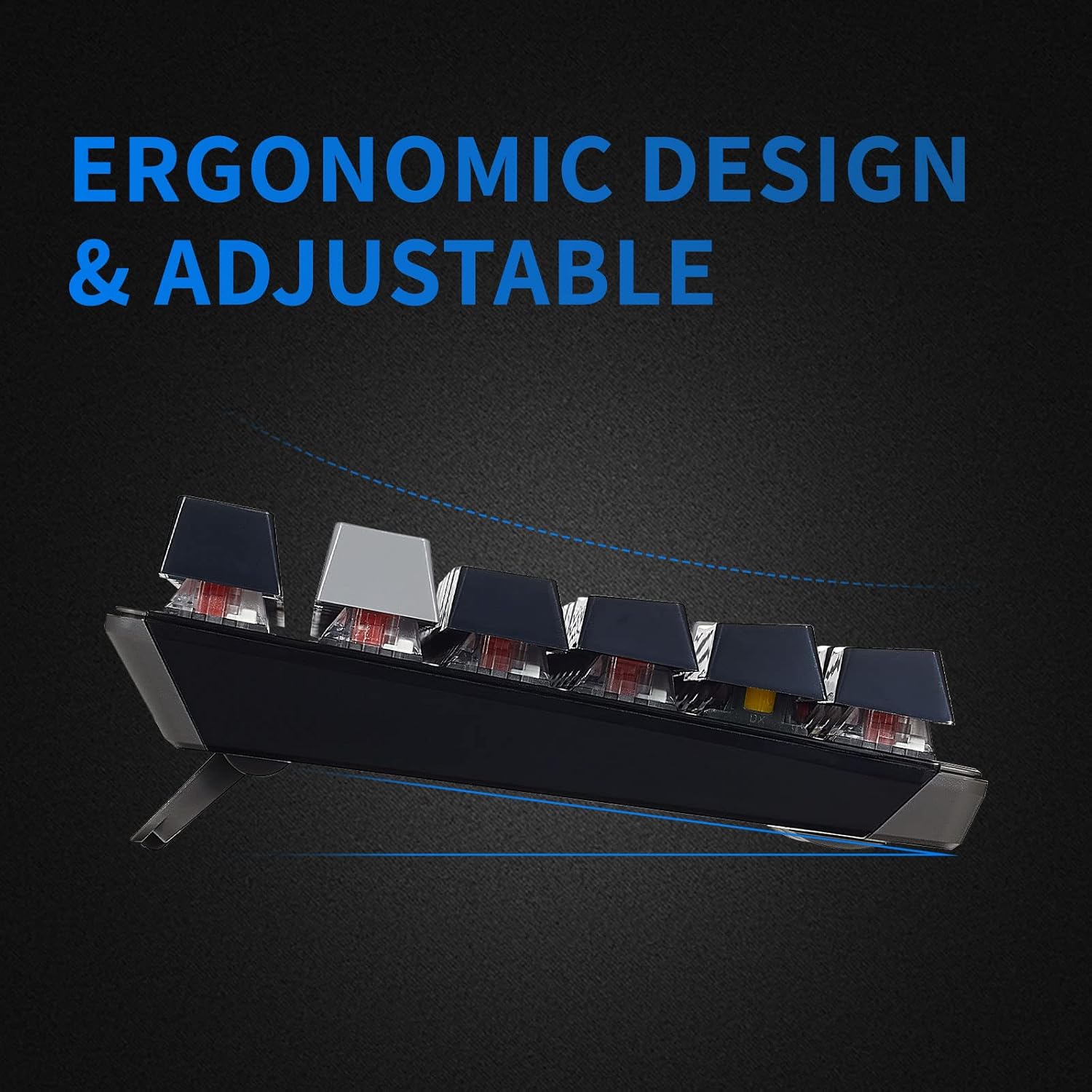
Image 3.1: The adjustable feet of the GK715 keyboard, allowing for ergonomic customization.

Image 3.2: The GK715 keyboard in a typical computer setup, demonstrating its wired connection and blue backlighting.
4. Bedienungsanleitung
4.1 Grundlegende Verwendung
The Hexgears GK715 functions as a standard 104-key mechanical keyboard. Simply begin typing after connecting it to your PC. The indicator lights (Caps Lock, Num Lock, Scroll Lock) will illuminate to show their active status.
4.2 Hintergrundbeleuchtungssteuerung
The keyboard features blue backlighting. Specific key combinations (often involving the 'Fn' key) are used to adjust brightness or switch between lighting modes. Refer to the keycap legends for specific function key assignments related to lighting.
4.3 Hot-Swap-fähige Schalter
The GK715 supports hot-swappable Kailh Box switches, allowing you to change switches without soldering. Use the included keycap puller and switch puller tools for this process.
- Verwenden Sie den Tastenkappenabzieher, um die gewünschte Tastenkappe vorsichtig zu entfernen.
- Use the switch puller to carefully grip and pull out the switch from the PCB.
- Richten Sie die Stifte des neuen Schalters an den Löchern auf der Leiterplatte aus und drücken Sie ihn fest, bis er einrastet.
- Tauschen Sie die Tastenkappe aus.
Video 4.1: Demonstration of hot-swapping Kailh Box switches on the Hexgears GK715 keyboard, including keycap and switch removal and installation.
Video 4.2: Endeview of the GK715 Black Grey keyboard, showcasing its design, backlighting, and typing experience.
5. Wartung
5.1 Reinigung
To clean the keyboard, disconnect it from your computer. Use a soft, dry cloth to wipe down the keycaps and chassis. For deeper cleaning, you may remove keycaps using a keycap puller and clean underneath with compressed air or a small brush. Avoid using harsh chemicals or abrasive materials.
5.2 Wasserdichtigkeit
The GK715 is designed with waterproof features to protect against accidental spills. While it offers protection, it is not recommended to submerge the keyboard in liquid. In case of a spill, disconnect the keyboard immediately, wipe off any liquid, and allow it to air dry completely before reconnecting.
6. Fehlerbehebung
- Tastatur reagiert nicht:
- Stellen Sie sicher, dass das USB-Kabel sowohl mit der Tastatur als auch mit dem Computer fest verbunden ist.
- Versuchen Sie, die Tastatur an einen anderen USB-Anschluss anzuschließen.
- Starten Sie Ihren Computer neu.
- Hintergrundbeleuchtung funktioniert nicht/ist zu schwach:
- Check if the backlight is turned off or set to the lowest brightness level using the designated function keys (e.g., Fn + arrow keys or other indicated keys).
- Stellen Sie sicher, dass die Tastatur über den USB-Anschluss ausreichend mit Strom versorgt wird.
- Schlüssel werden nicht registriert:
- If individual keys are not working, ensure the switch underneath is properly seated. If you have hot-swapped switches, try re-seating or replacing the affected switch.
- Entfernen Sie jeglichen Schmutz, der sich unter der Tastenkappe oder dem Schalter befinden könnte.
- Connection Issues After Sleep Mode:
- If the keyboard experiences connection issues after the computer enters sleep mode, try unplugging and re-plugging the USB cable.
- Ensure your computer's USB power management settings are not set to turn off USB devices to save power.
7. Spezifikationen
| Besonderheit | Detail |
|---|---|
| Marke | Hexgears |
| Modellname | GK715 |
| Konnektivitätstechnologie | USB (kabelgebunden) |
| Kompatible Geräte | PC |
| Anzahl der Schlüssel | 104 |
| Schaltertyp | Kailh BOX |
| Besonderheit | Waterproof, Hot-Swappable |
| Produktabmessungen (L x B x H) | 17.2" x 5.08" x 1.42" |
| Handausrichtung | Beidhändig |

Bild 7.1: Überview of various Kailh BOX switch types, highlighting their tactile and linear characteristics.
8. Garantie und Support
For warranty information and technical support, please refer to the official Hexgears webBesuchen Sie die Website oder kontaktieren Sie direkt den Kundenservice. Bewahren Sie Ihren Kaufbeleg als Kaufnachweis für eventuelle Garantieansprüche auf.