1. Einleitung
This manual provides instructions for the installation, operation, and maintenance of your AMOCAM Wireless Video Doorbell Intercom System. This system includes a 1080P HD metal camera doorbell and a 7-inch monitor with a 32GB SD card for recording. It supports 2.4G WiFi connectivity and integrates with the Tuya APP for remote access and control.
2. Packungsinhalt
Bitte prüfen Sie, ob alle unten aufgeführten Artikel in Ihrem Paket enthalten sind. Sollten Artikel fehlen oder beschädigt sein, kontaktieren Sie bitte unseren Kundenservice.
- 1x 1080P HD Metal Doorbell Camera (IP65 rated)
- 1x 7-inch TFT Touch WiFi Monitor
- 1x 32GB Micro SD Card (pre-installed in monitor)
- 1x Power Adapter for Monitor
- Befestigungsschrauben und Dübel
- Kabelbäume
- Benutzerhandbuch (dieses Dokument)

Abbildung 2.1: System components including the doorbell, indoor monitor, smartphone interface, and a 32GB SD card.
3. Einrichtung und Installation
3.1 Verkabelung des Systems
The doorbell camera connects to the indoor monitor using an RVV4 cable or Ethernet cable (up to 300 ft). The indoor monitor powers the doorbell, eliminating the need for separate doorbell batteries. Ensure all connections are secure before powering on the system.

Abbildung 3.1: Wiring connections for the doorbell, monitor, optional electric lock, and WiFi router.
3.2 Montage der Türklingelkamera
The doorbell camera is designed for wall mounting and features an IP65 waterproof rating with a rain cover. Select a suitable location at your entrance, ensuring clear visibility and protection from direct heavy rain if possible. Use the provided screws and wall plugs for secure installation.

Abbildung 3.2: Doorbell camera dimensions and component identification, including built-in mic, 2MP HD lens, IR lights, doorbell button, and speaker.
3.3 Platzierung des Innenmonitors
Install the 7-inch TFT touch monitor indoors in a convenient location. Ensure it is within range of your 2.4G WiFi network for optimal performance with the Tuya APP. The monitor supports wall mounting.

Abbildung 3.3: Indoor monitor dimensions and key features like the 7-inch touch screen and built-in microphone.
3.4 Tuya-App-Verbindung
The monitor supports 2.4G WiFi connectivity. Download the Tuya APP from your smartphone's app store (Google Play or Apple App Store). Follow the in-app instructions to add the monitor to your account. This enables remote communication, unlocking, and notifications.

Abbildung 3.4: System connectivity with 2.4G WiFi and Tuya APP for remote access.
4. Bedienung
4.1 Answering a Visitor
When a visitor presses the doorbell, both the indoor monitor and your smartphone (via Tuya APP) will ring. You can answer the call from either device. The system provides two-way audio for communication.

Abbildung 4.1: Simultaneous ringing on the indoor monitor and smartphone when a visitor arrives.
4.2 Two-Way Audio and Remote Unlock
Engage in real-time conversation with visitors using the built-in microphone and speaker on both the doorbell and monitor. If an electronic lock is connected, you can remotely unlock the door via the indoor monitor or the Tuya APP.

Abbildung 4.2: The 7-inch TFT display monitor interface showing various functions.
4.3 Aufzeichnung und Bewegungserkennung
The system records video to the 32GB micro SD card (smart loop storage) when the doorbell is rung or motion is detected. Notifications are sent to your mobile phone via the Tuya APP.
4.4 Nachtsicht
The doorbell features 6-IR LEDs that automatically activate for night vision, providing clear visibility of visitors in low-light conditions.
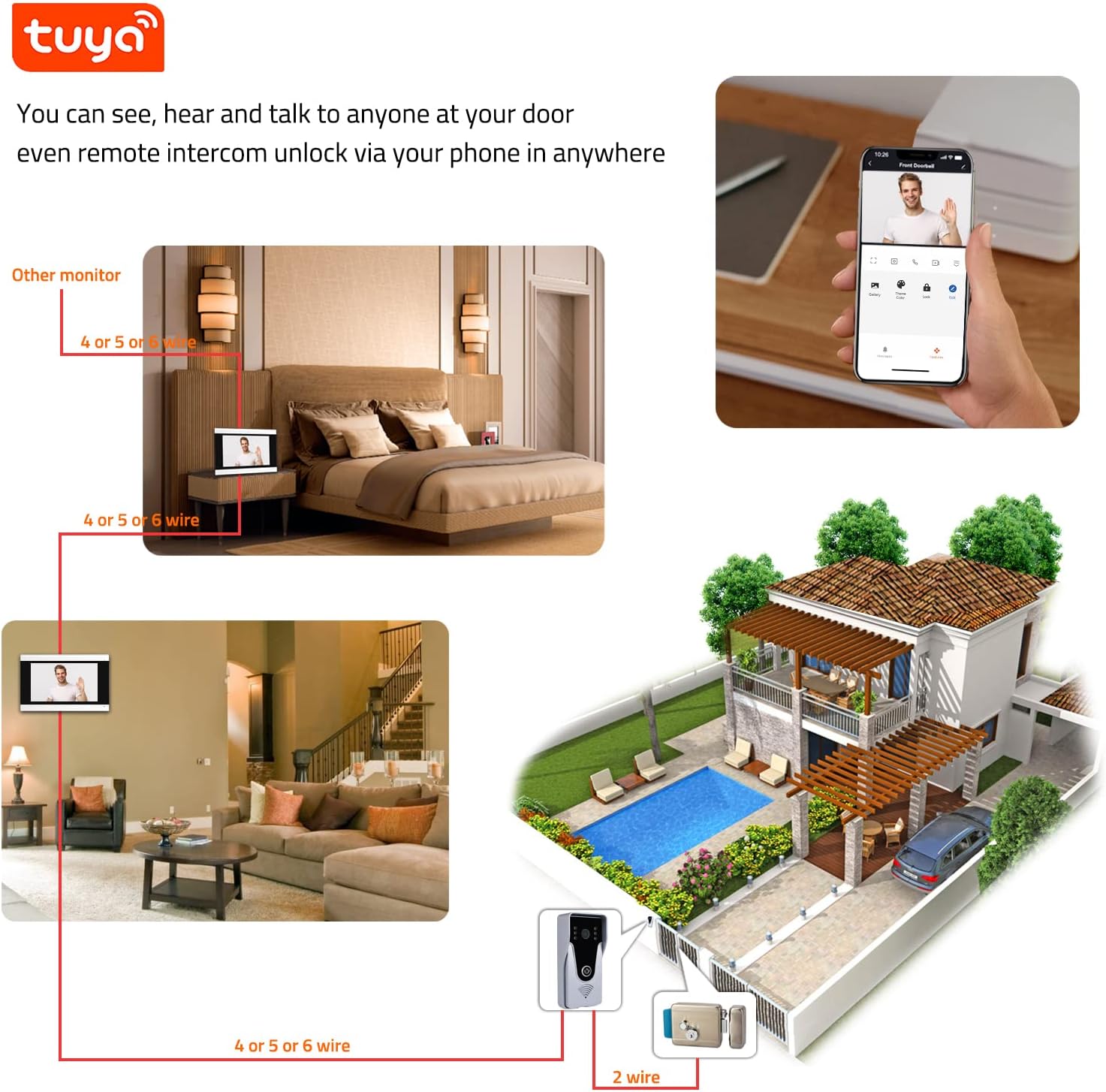
Abbildung 4.3: IP65 waterproof doorbell with IR night vision capability.
5. Wartung
5.1 Reinigung
Wipe the doorbell camera and indoor monitor with a soft, damp cloth. Do not use harsh chemicals or abrasive cleaners. Ensure the camera lens is clean for optimal image quality.
5.2 Firmware-Updates
Periodically check the Tuya APP for available firmware updates for your system. Keeping the firmware updated ensures optimal performance and security.
5.3 SD-Kartenverwaltung
The system uses smart loop storage on the 32GB micro SD card. Regularly review aufgenommenes footage and back up important clips. If the card becomes full, older recordings will be overwritten.
6. Fehlerbehebung
| Problem | Mögliche Ursache | Lösung |
|---|---|---|
| Kein Bild auf dem Monitor/in der App | Loose wiring; Power issue; Camera malfunction. | Check all cable connections. Ensure monitor is powered. Restart the system. |
| No sound during two-way audio | Microphone/speaker blocked; Volume too low; Connection issue. | Check for obstructions. Adjust volume settings on monitor/app. Verify wiring. |
| Tuya APP not receiving notifications | Monitor not connected to 2.4G WiFi; App notification settings disabled; Poor WiFi signal. | Ensure monitor is connected to 2.4G WiFi. Check app notification permissions. Improve WiFi signal strength. |
| Doorbell rings without visitor (false alarms) | Motion detection sensitivity too high; Environmental factors (e.g., moving branches). | Adjust motion detection sensitivity in monitor settings or Tuya APP. |
| Tür lässt sich nicht per Fernzugriff entriegeln | Electric lock not properly connected; Lock malfunction; System communication error. | Verify electric lock wiring. Test the lock manually. Restart the system. |
7. Spezifikationen
- Marke: AMOCAM
- Modellnummer: 352-505-SR
- Konnektivitätsprotokoll: Wi-Fi (nur 2.4 GHz)
- Auflösung der Videoaufnahme: 1080p
- Doorbell IP Rating: IP65 (wasserdicht)
- Monitorgröße: 7-Zoll-TFT-Touchscreen
- Lagerung: 32 GB Micro-SD-Karte (im Lieferumfang enthalten)
- Audio: Zwei-Wege-Audio
- Nachtsicht: 6-IR LED automatic activation
- Energiequelle: Indoor monitor powered, no doorbell batteries required
- Abmessungen (Türklingel): Ungefähr 5.2 cm H x 2.4 cm B x 1.0 cm T
- Abmessungen (Monitor): Ungefähr 5.0 Zoll hoch x 7.9 Zoll breit
- Kompatible App: Tuya APP
- Betriebslautstärketage: 240 Volts (for power adapter)
- Artikelgewicht: 2.01 Pfund (Gesamtsystem)
8. Garantie und Support
8.1 Garantieinformationen
AMOCAM Technology Inc. provides after-sales support and services. Specific warranty details may vary; please refer to your purchase documentation or contact AMOCAM customer service for precise warranty terms.
8.2 Kundendienst
For technical assistance, troubleshooting, or warranty inquiries, please contact AMOCAM customer support. You can find contact information on the official AMOCAM webWebsite oder über Ihren Händler.
AMOCAM Technology Inc. is committed to protecting your privacy and ensuring data security.