
Introduction
Thank you for choosing the Anweller Smart Biometric Fingerprint Padlock. This advanced security device offers multiple unlocking methods, robust construction, and long-lasting battery performance. This manual provides detailed instructions to help you set up, operate, and maintain your padlock for optimal performance and security.

Figure 1: Anweller Smart Biometric Fingerprint Padlock with app interface and physical keys.
Product Features
- Bluetooth App Unlock: Configure administrator and user access, and grant remote unlocking permissions via the dedicated Bluetooth connection app.
- Fingerprint Unlock: Advanced biometric technology allows for 0.2-second fingerprint recognition, supporting up to 20 unique fingerprints.
- Durable and High Security: Constructed with a robust zinc alloy body for strength and durability, and a hardened steel shackle for cut resistance. Includes a weatherproof cover for outdoor protection.
- Long Battery Life: Features a 160mAh rechargeable lithium battery, providing up to 9 months of standby time or approximately 3000 unlocks on a full charge. Equipped with a USB-C port for fast charging.
- Multiple Unlocking Methods: Supports fingerprint, mobile app, Apple Watch, and traditional physical key unlocking.
Setup Guide
1. Initial Charging
Before first use, fully charge the padlock using the provided USB-C cable. The charging port is typically located at the bottom or side of the lock, often protected by a rubber cover. A full charge usually takes a few hours.
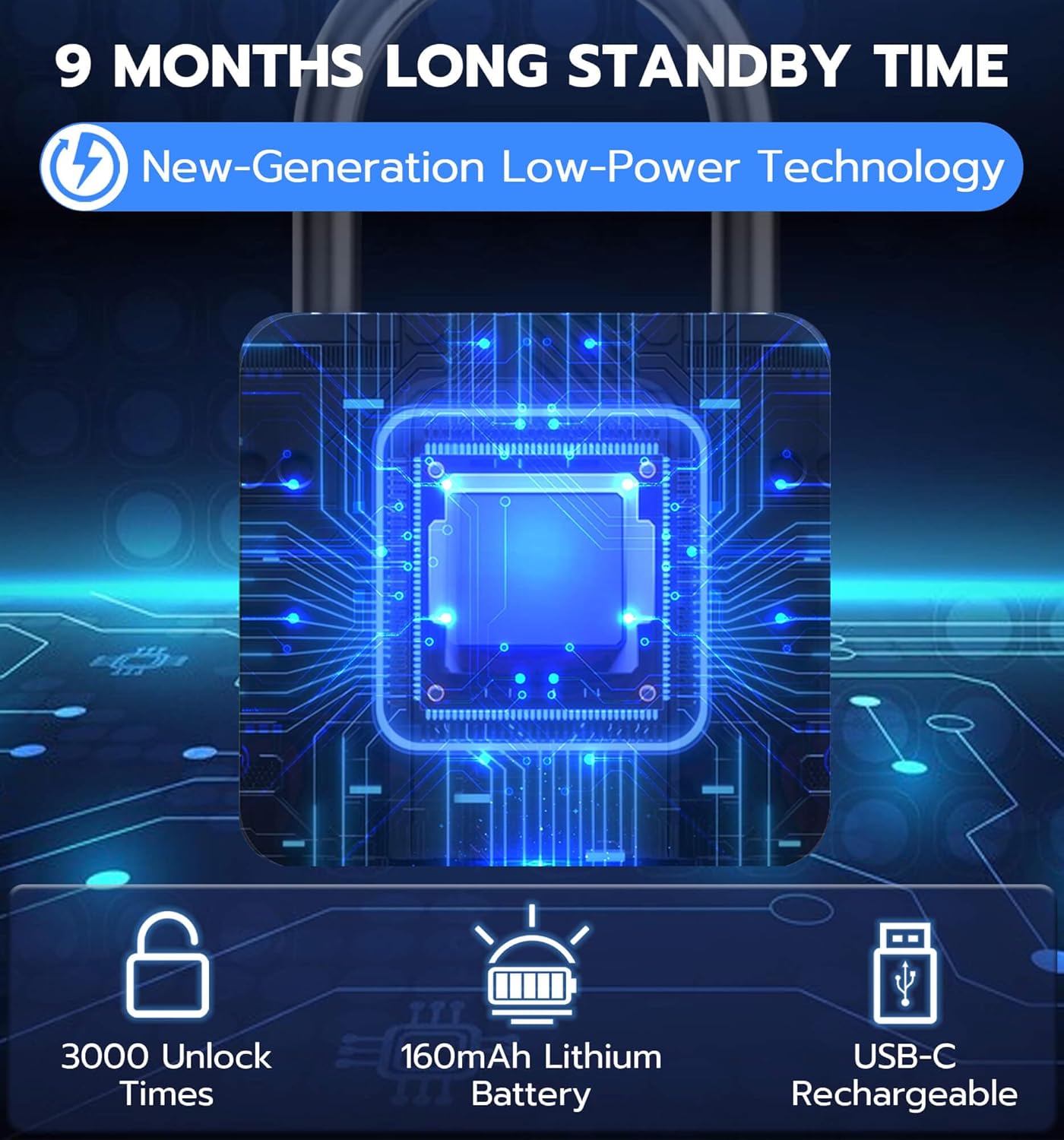
Figure 2: Battery specifications and USB-C charging.
2. App Installation and Pairing
- Download the official Anweller app from your smartphone's app store (iOS or Android).
- Open the app and create an account if prompted.
- Ensure your phone's Bluetooth is enabled.
- Follow the in-app instructions to search for and pair with your Anweller padlock. You may need to briefly touch the fingerprint sensor on the padlock to activate pairing mode.
- Once paired, you can set up the padlock's administrator and manage user permissions through the app.
3. Fingerprint Registration
The padlock supports up to 20 unique fingerprints. The first registered fingerprint will typically be the administrator fingerprint.
- Access the fingerprint management section within the Anweller app.
- Select "Add Fingerprint" or similar option.
- Place your finger on the padlock's fingerprint sensor. You will be prompted to lift and place your finger multiple times from different angles to ensure accurate registration.
- Repeat the process for all desired fingerprints. Ensure to register multiple angles of the same finger for better recognition.
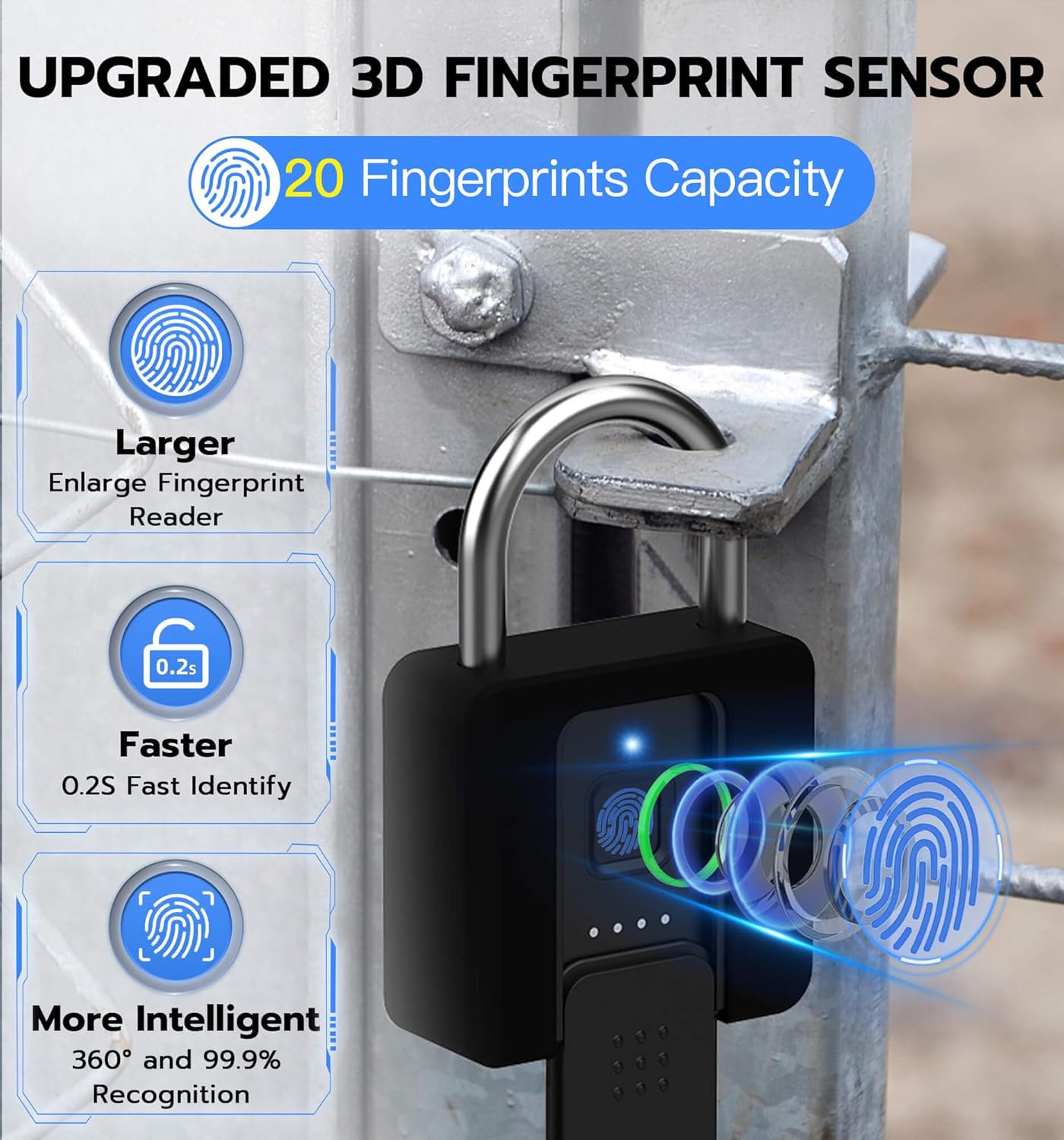
Figure 3: Upgraded 3D Fingerprint Sensor for quick and accurate recognition.
Operating Instructions
Unlocking the Padlock

Figure 4: Four convenient ways to unlock your Anweller padlock.
- Fingerprint Unlock: Place a registered finger firmly on the fingerprint sensor. The lock will unlock within 0.2 seconds if the fingerprint is recognized. A green light or audible click typically indicates successful unlocking.
- Mobile App Unlock: Open the Anweller app on your smartphone. Ensure Bluetooth is active and you are within range of the padlock. Tap the "Unlock" button within the app interface.
- Apple Watch Unlock: If configured, use the Anweller app on your Apple Watch to unlock the padlock.
- Spare Key Unlock: In case of battery depletion or other issues, insert one of the provided physical keys into the keyhole and turn to unlock. The keyhole is designed for pick-resistance.
Locking the Padlock
To lock the padlock, simply push the shackle down firmly until it clicks into place. The lock will automatically secure itself.
Maintenance
- Charging: Recharge the padlock when the battery indicator shows low power. Use the provided USB-C cable. Avoid using damaged cables or chargers.
- Cleaning: Wipe the padlock body and fingerprint sensor with a soft, dry cloth. Do not use abrasive cleaners or solvents, as they may damage the finish or electronic components.
- Weather Protection: While the padlock is weatherproof, ensure the weatherproof cover for the keyhole and charging port is properly sealed when not in use, especially in harsh weather conditions.
- Shackle Lubrication: Periodically apply a small amount of silicone-based lubricant to the shackle mechanism to ensure smooth operation, especially if used in dusty or humid environments.
Troubleshooting
- Fingerprint Not Recognized:
- Ensure your finger is clean and dry.
- Place your finger firmly and cover the entire sensor area.
- Try different angles or another registered finger.
- If recognition consistently fails, re-register your fingerprint or use the app/key to unlock.
- Padlock Not Responding (No Lights/Sound):
- The battery may be depleted. Connect the padlock to a power source using the USB-C cable.
- Use the physical spare key to unlock the padlock.
- Bluetooth Connection Issues:
- Ensure Bluetooth is enabled on your smartphone and the app has necessary permissions.
- Make sure you are within close proximity to the padlock.
- Restart the app or your phone.
- If issues persist, try unpairing and re-pairing the device in the app settings.
- Factory Reset: If you encounter persistent issues or wish to clear all data (e.g., before returning or selling), perform a factory reset. Refer to the app's settings or the padlock's specific reset procedure (often involves a combination of button presses or app commands). Note: Performing a factory reset will delete all registered fingerprints and settings.
Specifications
| Brand | Anweller |
| Model | 1.5" Shackle with Removable Case |
| Dimensions (L x W x H) | 9.65 x 6.1 x 2.29 cm (3.8 x 2.4 x 0.9 inches) |
| Weight | 362.87 grams (12.8 oz) |
| Material | Zinc Alloy Body, Hardened Steel Shackle |
| Color | Black |
| Battery Type | 160mAh Lithium-ion (Rechargeable via USB-C) |
| Battery Life | Up to 9 months standby, approx. 3000 unlocks per charge |
| Fingerprint Capacity | Up to 20 fingerprints |
| Unlock Speed | 0.2 seconds (fingerprint) |
| Special Features | Biometric Lock, Bluetooth Connectivity, Weatherproof Design, Removable Case |

Figure 5: Durable and High-Security Construction.

Figure 6: Padlock dimensions and shackle size comparison.
Warranty and Support
Anweller provides a 6-month warranty for this product, covering manufacturing defects and malfunctions under normal use. Additionally, lifetime technical support is available to assist you with any questions or issues you may encounter.
For warranty claims, technical assistance, or any other inquiries, please contact Anweller customer service through the contact information provided on the product packaging or the official Anweller website. When returning the product, please ensure you restore it to factory settings if possible.

