
Einführung
Welcome to the RedThunder K10 Gaming Keyboard and Mouse Combo user manual. This guide provides detailed instructions for setting up, operating, and maintaining your new gaming peripherals. The RedThunder K10 features an AZERTY layout keyboard with customizable RGB backlighting, anti-ghosting technology, and an ergonomic gaming mouse with up to 7200 DPI, designed to enhance your gaming and computing experience.
Packungsinhalt
Bitte überprüfen Sie, ob alle Artikel in Ihrem Paket vorhanden sind:
- RedThunder K10 Gaming-Tastatur
- RedThunder Gaming-Maus
- Abnehmbare Handgelenkauflage
- Benutzerhandbuch (dieses Dokument)
Installationsanweisungen
Follow these steps to connect your RedThunder K10 combo to your computer:
- Schließen Sie die Tastatur an: Stecken Sie den USB-Stecker der Tastatur in einen freien USB-Port Ihres Computers.
- Schließen Sie die Maus an: Stecken Sie den USB-Stecker der Maus in einen anderen freien USB-Anschluss Ihres Computers.
- Handgelenkauflage montieren: Align the detachable wrist rest with the bottom edge of the keyboard and attach it securely.
- Treiberinstallation: The keyboard and mouse are plug-and-play devices. Your operating system (Windows, Mac OS, Linux) should automatically detect and install the necessary drivers. No additional software installation is typically required.

Image: RedThunder K10 Keyboard and Mouse showing product dimensions and compatibility with Windows, Mac OS, and Linux operating systems.
Bedienungsanleitung
Tastaturfunktionen
The RedThunder K10 keyboard features a full AZERTY layout with 104 keys, including multimedia shortcuts and customizable RGB backlighting.
- Anti-Ghosting: The keyboard supports 19 non-conflicting keys, ensuring accurate input during intense gaming sessions.
- Multimedia-Hotkeys: Verwenden FN + F1 Zu F12 for quick access to media controls, volume adjustments, and other functions.
- Interchangeable Keys: Der Z/Q/S/D keys can be interchanged for personalized gaming setups.
RGB-Hintergrundbeleuchtungssteuerung
The keyboard offers various RGB lighting modes and customization options:
- Switch Gradient Light Mode: Drücken FN + Einfügen to cycle through different gradient lighting effects.
- Switch Monochromatic Light Mode: Drücken FN + to change between various single-color lighting modes.
- Change Custom Lighting Mode: Drücken FN + > to switch between personalized lighting modes.
- Change Streamer Mode: Drücken FN + Entf to activate or change the streamer lighting effect.
- Switch Breathing Light Mode: Drücken FN + Ende to toggle the breathing light effect.
- Lichtgeschwindigkeit anpassen: Drücken FN + +/- to increase or decrease the speed of dynamic lighting effects.
- Lichthelligkeit anpassen: Drücken FN + Page Up / Page Down to adjust the brightness level of the backlighting.
Video: Demonstration of the RedThunder K10 keyboard's RGB lighting modes and how to adjust them using FN key combinations. It also shows the detachable wrist rest.
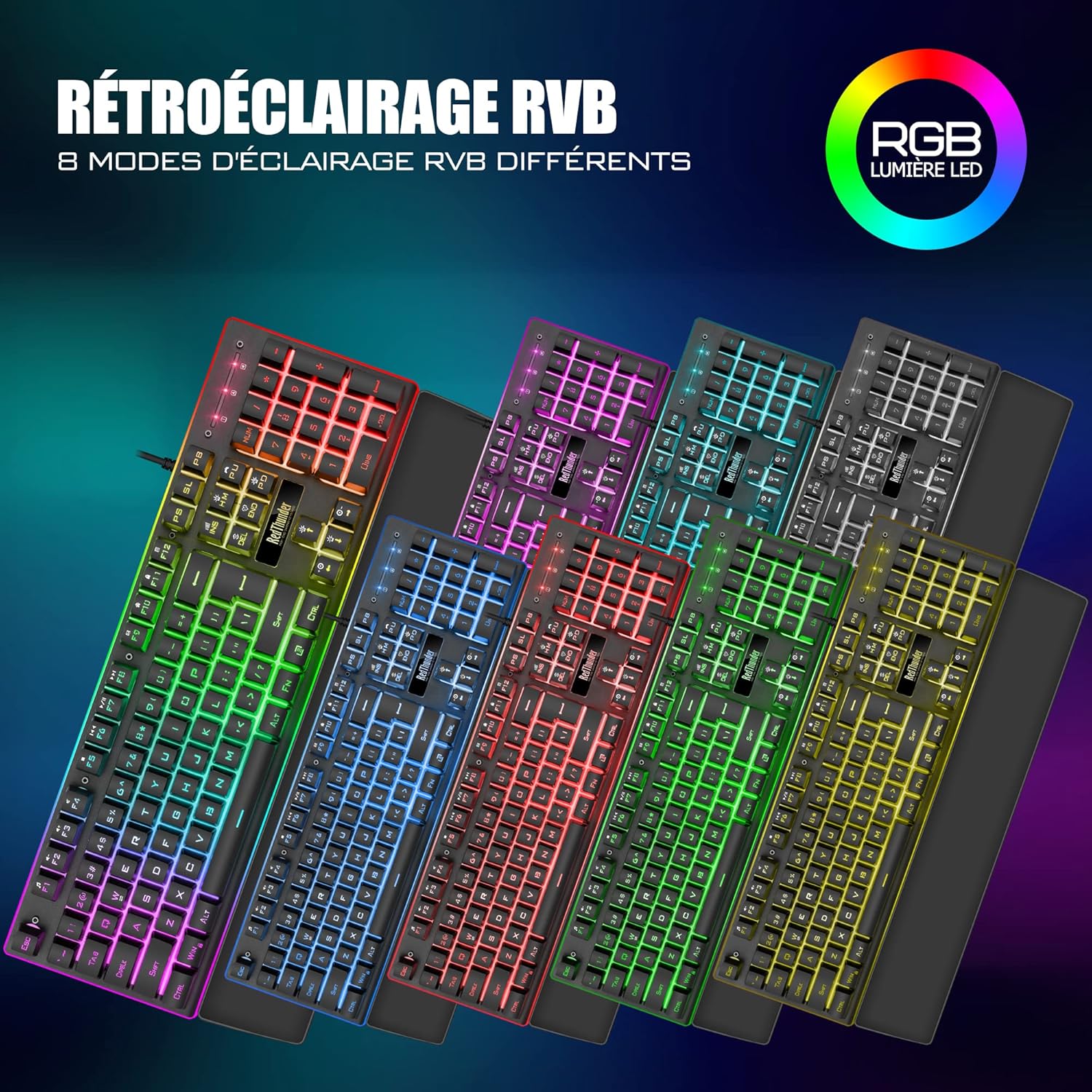
Image: The RedThunder K10 keyboard displaying 8 different RGB lighting modes, highlighting the customizable backlighting zones.
Mausfunktionen
The ergonomic gaming mouse provides precise control and customizable features.
- DPI-Einstellungen: The mouse offers up to 7200 DPI for high precision and responsiveness. DPI can typically be adjusted via a dedicated button on the mouse.
- Ergonomisches Design: Designed to fit comfortably in your palm, reducing hand fatigue during extended use.
- RGB-Beleuchtung: Die Maus verfügt über dynamische RGB-Beleuchtungseffekte.
- 7 Tasten: Includes standard left/right click, scroll wheel, DPI adjustment, and side buttons for forward/backward navigation or custom assignments.
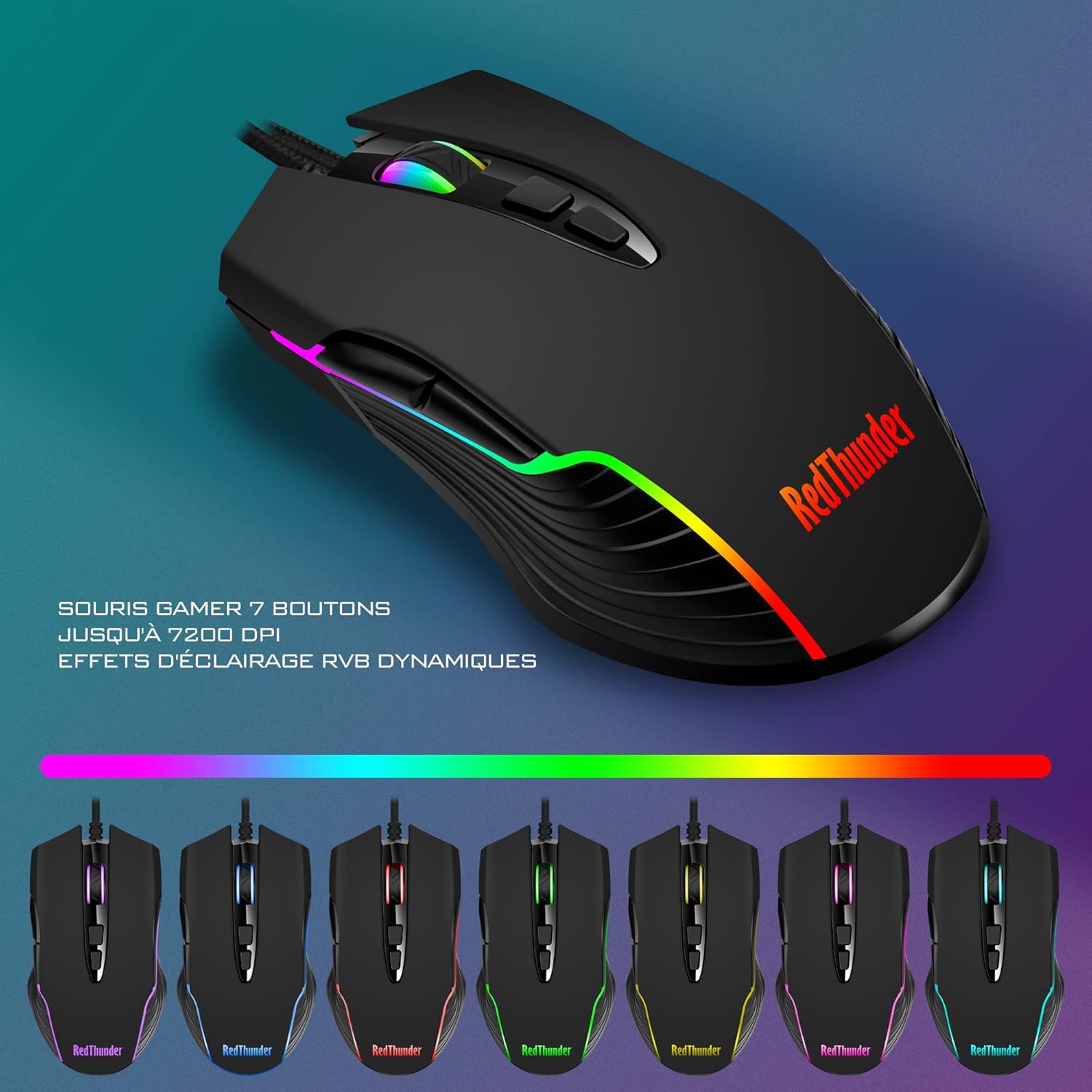
Image: The RedThunder gaming mouse, illustrating its 7-button layout, up to 7200 DPI capability, and dynamic RGB lighting effects.

Bild: Nahaufnahme view of the ergonomic design of the RedThunder K10 keyboard and mouse, demonstrating comfortable hand and wrist positioning for prolonged use.
Wartung
Proper maintenance ensures the longevity and optimal performance of your RedThunder K10 combo.
- Reinigung: Use a soft, dry cloth to wipe down the keyboard and mouse. For deeper cleaning, a slightly damp Man kann ein Tuch mit milder Seife verwenden, wobei darauf zu achten ist, dass keine Flüssigkeit in die Geräte gelangt.
- Staubentfernung: Use compressed air to remove dust and debris from between the keyboard keys and mouse sensors.
- Vermeiden Sie Flüssigkeiten: Do not expose the devices to excessive moisture or liquids.
- Lagerung: Store the keyboard and mouse in a cool, dry place when not in use.

Image: The detachable wrist rest, made from a soft, leather-like material, designed to provide comfort and reduce wrist strain. Anti-slip pads are visible on the underside.
Fehlerbehebung
If you encounter any issues with your RedThunder K10 combo, please refer to the following common solutions:
- Gerät nicht erkannt:
- Stellen Sie sicher, dass die USB-Kabel fest in die USB-Anschlüsse Ihres Computers eingesteckt sind.
- Versuchen Sie, die Geräte an verschiedene USB-Anschlüsse anzuschließen.
- Starten Sie Ihren Computer neu.
- Überprüfen Sie im Geräte-Manager (Windows) bzw. in den Systeminformationen (Mac), ob die Geräte dort aufgeführt sind.
- Tastatur/Maus reagiert nicht:
- Überprüfen Sie die USB-Verbindung.
- Test the devices on another computer to rule out a computer-specific issue.
- RGB-Beleuchtung funktioniert nicht/ist fehlerhaft:
- Stellen Sie sicher, dass die Tastatur ordnungsgemäß angeschlossen ist.
- Cycle through the lighting modes using the FN key combinations as described in the "Operating Instructions" section.
- Passen Sie die Helligkeit an mit FN + Page Up / Page Down.
- Der Mauszeiger springt oder ist ungenau:
- Reinigen Sie den Maussensor mit einem weichen Tuch.
- Stellen Sie sicher, dass Sie die Maus auf einer geeigneten Oberfläche (z. B. einem Mauspad) verwenden.
- Adjust the DPI settings using the mouse's DPI button.
Technische Daten
Detailed technical specifications for the RedThunder K10 Gaming Keyboard and Mouse Combo:
| Besonderheit | Spezifikation |
|---|---|
| Marke | Roter Donner |
| Modell | K10 |
| Konnektivitätstechnologie | USB (kabelgebunden) |
| Kompatible Geräte | Computer (Windows, Mac OS, Linux) |
| Tastaturlayout | AZERTY (Französisch) |
| Tastaturtyp | Gaming, Mechanical feel |
| Tastatur Hintergrundbeleuchtung | RGB, anpassbar |
| Anti-Ghosting | 19 non-conflicting keys |
| Anzahl der Tastaturtasten | 104 |
| Tastaturmaterial | Metall |
| Maus-DPI | Bis zu 7200 DPI |
| Maustasten | 7 Tasten |
| Mausausrichtung | Rechtshändig |
| Farbe | Schwarz |
| Artikelgewicht | 1.19 Kilograms (Keyboard and Mouse combined) |
| Stromquelle | Kabelgebundener Strom (USB) |
Garantie und Support
RedThunder products are designed for durability and performance. For any warranty claims, technical support, or further assistance, please contact RedThunder customer service through the retailer where you purchased the product or visit the official RedThunder webBewahren Sie Ihren Kaufbeleg zur Überprüfung der Garantie auf.
Rückgaberecht: This product typically comes with a 30-day return/replacement policy from the date of purchase. Please refer to your retailer's specific return policy for details.