
1. Einleitung
Thank you for choosing the IVEOPPE Bluetooth Keyboard Case. This product is designed to enhance your tablet experience by providing a protective case and a functional, detachable Bluetooth keyboard. Please read this manual carefully before use to ensure proper operation and to maximize the lifespan of your device.
2. Packungsinhalt
- 1 x IVEOPPE Bluetooth Keyboard Case
- 1 x Detachable Bluetooth Keyboard (AZERTY)
- 1 x USB-Ladekabel
- 1 x Benutzerhandbuch
3. Kompatibilität
Diese Tastaturhülle wurde speziell für die folgenden Samsung Galaxy Tab Modelle entwickelt:
- Samsung Galaxy Tab S7 FE 12.4" (Model: SM-T730/T733/T736/T738)
- Samsung Galaxy Tab S7+ / S7 Plus 12.4" (Model: SM-T970/T975/T976/T978)
- Samsung Galaxy Tab S8+ / S8 Plus 12.4" (Model: SM-X800/X806)

Figure 1: Compatible Tablet Models
4. Funktionen
- Detachable Magnetic Bluetooth Keyboard: Provides quiet, smooth, and responsive typing.
- 7-farbige Hintergrundbeleuchtung: Adjustable keyboard backlight with seven colors and three brightness modes for comfortable typing in various lighting conditions.
- Ganzkörperschutz: Durable PU leather exterior, microfiber lining, and a hard back cover protect your tablet from dust, scratches, stains, splashes, and drops.
- Einstellbar Viewing-Winkel: Integrated multi-functional stand offers optimal angles (130°, 125°, 120°) for reading, typing, or viewing.
- Automatic Sleep/Wake Function: Extends tablet battery life by automatically putting the tablet to sleep when the case is closed and waking it when opened.
- Integrierter Stifthalter: Bietet sicheren Stauraum für Ihren S Pen.
- Wiederaufladbarer Akku: Built-in 430 mAh Li-ion battery provides up to 120 hours of continuous use or 100 days of standby on a 5-hour charge.

Figure 2: Multi-Angle Design
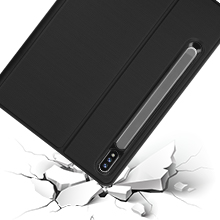
Figure 3: Bluetooth Connectivity and Keyboard Features

Figure 4: Protective Features and Auto Sleep/Wake
5. Einrichtung
5.1 Aufladen der Tastatur
- Schließen Sie das mitgelieferte USB-Ladekabel an den Ladeanschluss der Tastatur an.
- Stecken Sie das andere Ende des USB-Kabels in ein USB-Netzteil (nicht im Lieferumfang enthalten) oder in einen USB-Anschluss Ihres Computers.
- The charging indicator light will illuminate. Once fully charged (approximately 5 hours), the light will turn off or change color.
5.2 Einlegen Ihres Tablets
- Gently align your Samsung Galaxy Tab with the case's frame.
- Press the tablet firmly into the case, ensuring all edges are securely seated and all ports and buttons are accessible through the precise cutouts.
- Place the S Pen into the designated holder if applicable.
5.3 Koppeln der Tastatur über Bluetooth
- Ensure the keyboard is charged and turned on. The power switch is usually located on the side or top edge of the keyboard.
- Drücken Sie die Verbinden button on the keyboard (often indicated by a Bluetooth symbol). The Bluetooth indicator light will start blinking.
- Gehen Sie auf Ihrem Samsung Galaxy Tab zu Einstellungen > Anschlüsse > Bluetooth.
- Schalten Sie Bluetooth ein und suchen Sie nach verfügbaren Geräten.
- Select "Bluetooth Keyboard" (or a similar name) from the list of available devices.
- Folgen Sie den Anweisungen auf dem Bildschirm, um den Kopplungsvorgang abzuschließen. Sobald die Kopplung erfolgreich war, hört die Bluetooth-Anzeigeleuchte an der Tastatur auf zu blinken.

Figure 5: AZERTY Keyboard Layout and Multi-Device Compatibility
6. Bedienungsanleitung
6.1 Verwenden der Tastatur
- Once paired, the keyboard functions like a standard computer keyboard.
- Use the function keys (Fn) in combination with other keys for shortcuts specific to your tablet's operating system.
6.2 Einstellen der Tastatur-Hintergrundbeleuchtung
- Drücken Sie die Glühbirne key (often near the spacebar or function keys) to turn the backlight on/off.
- Drücken Sie die RGB key (or a similar key) to cycle through the seven available backlight colors.
- Verwenden Fn + Glühbirne (or similar combination) to adjust backlight brightness levels.

Figure 6: 7-Color Backlit Keyboard
6.3 Verwendung der Standfunktion
- Fold the case cover to create a triangular stand.
- Adjust the tablet to one of the three available angles (130°, 125°, 120°) for optimal viewing or typing comfort.
7. Wartung
7.1 Reinigung des Gehäuses und der Tastatur
- Wischen Sie die Außenseite des Gehäuses mit einem weichen, fusselfreien Tuch ab.amp Tuch. Vermeiden Sie aggressive Chemikalien.
- For the keyboard, use a soft, dry cloth. A small brush or compressed air can be used to clean between keys.
- Stellen Sie sicher, dass die Tastatur vor der Reinigung ausgeschaltet ist.
7.2 Speicherung
- When not in use for extended periods, ensure the keyboard is fully charged and then powered off.
- Store the case and keyboard in a cool, dry place away from direct sunlight and extreme temperatures.
8. Fehlerbehebung
8.1 Tastatur verbindet sich nicht
- Überprüfen Sie die Leistung: Stellen Sie sicher, dass die Tastatur eingeschaltet ist und über ausreichend Akkuladung verfügt.
- Reparatur: Delete the keyboard from your tablet's Bluetooth device list and attempt to pair it again (refer to Section 5.3).
- Tablet-Bluetooth: Stellen Sie sicher, dass Bluetooth auf Ihrem Tablet aktiviert ist und ordnungsgemäß funktioniert.
- Distanz: Make sure the keyboard is within the 10-meter Bluetooth range of your tablet.
8.2 Tasten reagieren nicht
- Aufladezeit: The keyboard battery might be low. Charge it fully.
- Wieder verbinden: Turn the keyboard off and on, then try re-pairing.
- Sauber: Achten Sie darauf, dass sich keine Fremdkörper unter den Tasten befinden.
8.3 Hintergrundbeleuchtung funktioniert nicht
- Überprüfen Sie die Leistung: Stellen Sie sicher, dass die Tastatur aufgeladen ist.
- Toggle: Press the backlight key to ensure it's not simply turned off.
9. Spezifikationen
| Marke | IVEOPPE |
| Modellname | Tastatur-hülle |
| Kompatible Geräte | Samsung Galaxy Tab S7 FE/S7 Plus/S8+ 12.4" |
| Konnektivitätstechnologie | Bluetooth |
| Tastaturlayout | AZERTY |
| Anzahl der Schlüssel | 105 |
| Besondere Merkmale | Rechargeable, 7-Color Backlit |
| Batteriekapazität | 430 mAh Lithium-Ionen-Akku |
| Ladezeit | Ca. 5 Stunden |
| Dauergebrauchszeit | Bis zu 120 Stunden |
| Standby-Zeit | Bis zu 100 Tage |
| Produktabmessungen (L x B x H) | 29 x 20 x 2 cm |
| Innenmaterial | Polyurethan (PU) |
| Lieferumfang | USB-Kabel |
10. Garantie und Support
For warranty information and customer support, please refer to the product packaging or contact IVEOPPE customer service through the retailer where you purchased the product. Please retain your proof of purchase for warranty claims.