
Einführung
This manual provides essential information for setting up, operating, maintaining, and troubleshooting your HP 2022 14-inch HD Laptop. Please read this guide thoroughly to ensure proper use and to maximize the performance and longevity of your device.
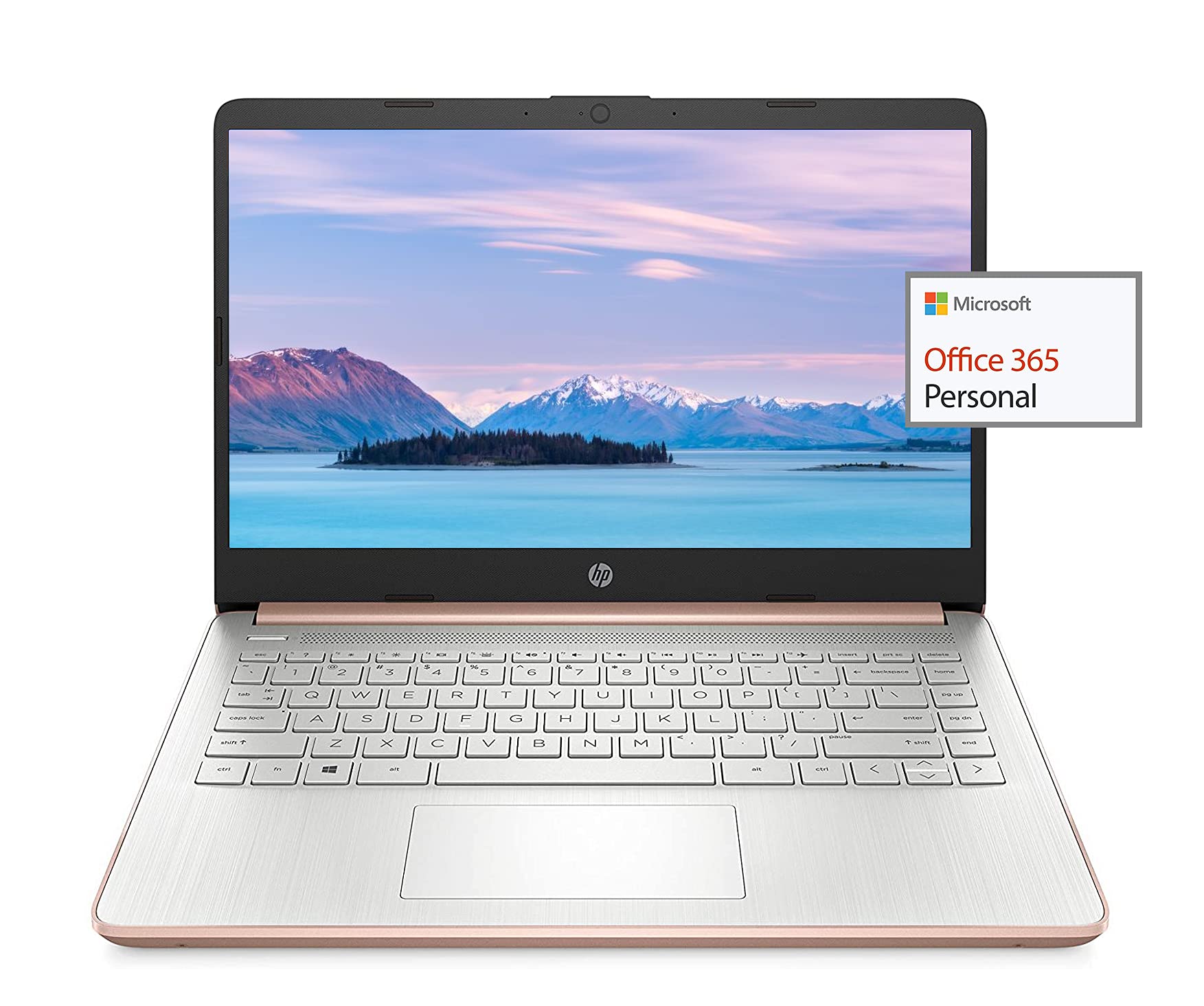
Image: The HP 14-inch HD Laptop, showcasing sein elegantes Design.
Aufstellen
1. Erstes Einschalten
Connect the power adapter to the laptop and a power outlet. Open the laptop lid. The laptop should power on automatically or by pressing the power button, typically located on the keyboard deck.
2. Betriebssystem-Setup
Follow the on-screen prompts to complete the Windows 10 setup. This includes selecting your region, connecting to a Wi-Fi network, and creating a user account.
3. Activating Microsoft Office 365
Your laptop includes a 1-year subscription to Microsoft Office 365. To activate:
- Launch any Office application (e.g., Word, Excel).
- Sign in with your Microsoft account. If you do not have one, create a new account.
- Click "Activate Office" and follow the subsequent prompts.
- Complete steps 1, 2, and 3 as instructed.
- Click "Refresh" once Office is ready.
- Open a document and accept the license agreement to finalize activation.

Image: The HP laptop displaying Microsoft Office 365 applications.
4. Switching Out of Windows 10 S Mode
Windows 10 in S mode is designed for security and performance, exclusively running apps from the Microsoft Store. If you need to install apps from outside the Microsoft Store, you can switch out of S mode. This is a one-way switch and cannot be undone.
- Gehe zu Einstellungen > Update & Sicherheit > Aktivierung.
- Im Abschnitt „Zu Windows 10 Home wechseln“ oder „Zu Windows 10 Pro wechseln“ wählen Sie aus Gehe zum Geschäft.
- Auf der Schalten Sie aus dem S-Modus aus. (oder eine ähnliche) Seite, die im Microsoft Store angezeigt wird, klicken Sie auf die Erhalten Taste.
- After confirming, you will be able to install apps from outside the Microsoft Store.
5. Peripheriegeräte anschließen
Ihr Laptop verfügt über verschiedene Anschlüsse zum Verbinden externer Geräte:
- USB Type-A & Type-C: Zum Anschließen von USB-Geräten wie externen Festplatten, Mäusen und Tastaturen.
- HDMI: Zum Anschluss an externe Displays oder Projektoren.
- Kombinierte Kopfhörer-/Mikrofonbuchse: Für Audio-Ein-/Ausgabe.
- Medienkartenleser: For inserting SD cards.

Abbildung: Seite view of the HP laptop, highlighting the SuperSpeed USB Type-A, USB Type-C, HDMI 1.4b, and headphone/microphone combo ports.

Abbildung: Gegenüberliegende Seite view of the HP laptop, showing the media card reader slot.
Bedienungsanleitung
1. Energieverwaltung
- Einschalten: Drücken Sie die Einschalttaste.
- Schlafmodus: Schließen Sie den Deckel oder drücken Sie kurz den Netzschalter.
- Abschalten: Gehen Sie zu Start > Ein/Aus > Ausschalten.
- Neustart: Gehen Sie zu Start > Ein/Aus > Neustart.
2. Anzeigenutzung
The laptop features a 14-inch HD (1366 x 768) display with a micro-edge bezel design and WLED-backlit BrightView technology. Adjust brightness using the function keys (F2/F3) or through Windows display settings.

Image: The HP laptop display showcasing its micro-edge bezel and HD resolution.
3. Tastatur und Touchpad
The standard keyboard provides comfortable typing. The integrated touchpad supports multi-touch gestures for navigation. Refer to Windows settings for customizing touchpad sensitivity and gestures.
4. WebKamera und Audio
The HP True Vision 720p HD camera with integrated dual array digital microphones is suitable for video calls. The laptop features HP custom-tuned dual speakers for clear audio output.

Image: The HP laptop showing the webcam in use and highlighting the dual speaker setup.
5. Drahtlose Konnektivität
- Wi-Fi 5 (1x1): Connect to wireless networks for internet access. Manage Wi-Fi connections via the network icon in the taskbar.
- Bluetooth 5.0: Pair with Bluetooth-enabled devices such as headphones, speakers, or mice. Access Bluetooth settings via Windows Settings > Devices > Bluetooth & other devices.
Wartung
1. Batteriepflege
The laptop's battery provides up to 10.5 hours of video playback and up to 9 hours of wireless streaming. To prolong battery life:
- Vermeiden Sie extreme Temperaturen.
- Entladen Sie den Akku nicht häufig vollständig.
- Utilize HP Fast Charge for quick recharging.
- Passen Sie die Energieeinstellungen in Windows an, um die Batterienutzung zu optimieren.
2. Speicherverwaltung
Your laptop is equipped with 256GB SSD and 64GB eMMC storage. Regularly manage your files to ensure sufficient free space. Use Disk Cleanup and Storage Sense features in Windows to remove unnecessary files.
3. Reinigung des Laptops
- Mit einem weichen, fusselfreien Tuch leichtampMit Wasser oder einem Bildschirmreiniger für das Display reinigen.
- Reinigen Sie Tastatur und Gehäuse mit einem weichen Tuch. Vermeiden Sie aggressive Chemikalien.
- Vor der Reinigung unbedingt sicherstellen, dass der Laptop ausgeschaltet und vom Stromnetz getrennt ist.
4. Software-Updates
Keep your operating system and drivers updated. Windows Update automatically handles system updates. Check the HP support webWebseite für Treiberaktualisierungen speziell für Ihr Modell.
Fehlerbehebung
Häufige Probleme und Lösungen:
- Laptop lässt sich nicht einschalten: Vergewissern Sie sich, dass das Netzteil fest angeschlossen ist und der Akku ausreichend geladen ist. Versuchen Sie es mit einer anderen Steckdose.
- Anzeigeprobleme: Check display cable connections if using an external monitor. Adjust brightness settings.
- Kein Ton: Verify volume levels, check audio output device settings in Windows, and ensure headphones are properly connected.
- WLAN-Verbindungsprobleme: Restart your router and laptop. Check Wi-Fi settings and ensure airplane mode is off.
- Langsame Leistung: Schließen Sie unnötige Anwendungen. Überprüfen Sie Hintergrundprozesse. Stellen Sie sicher, dass ausreichend Speicherplatz frei ist.
For more detailed troubleshooting or persistent issues, refer to the HP support webBesuchen Sie die Website oder kontaktieren Sie den HP Kundendienst.
Technische Daten
| Besonderheit | Spezifikation |
|---|---|
| Marke | HP |
| Modellname | HP 2022 |
| Bildschirmgröße | 14 Zoll |
| Prozessor | AMD 3020e (2 Cores, 4 Threads, 1.2GHz Base, 2.6GHz Max Boost) |
| RAM | 8 GB DDR4 |
| Lagerung | 256GB SSD + 64GB eMMC (Total 320 GB) |
| Grafik | Integrierte AMD Radeon-Grafik |
| Betriebssystem | Windows 10 Home in S mode (upgradeable) |
| Konnektivität | Wi-Fi 5 (1x1), Bluetooth 5.0 |
| Häfen | USB Type-A, USB Type-C, HDMI 1.4b, Headphone/Microphone Combo, Media Card Reader |
| WebNocken | HP True Vision 720p HD Camera |
| Akkulaufzeit (Standby) | Bis zu 10.5 Stunden (Videowiedergabe) |
| Gewicht | 3.24 Pfund |
| Abmessungen (L x B x T) | 8.86 Zoll L x 12.76 Zoll B x 0.71 Zoll T |

Bild: Überview of the HP 14 laptop's key features including AMD 3020e processor, battery life, Windows 10 S mode, HP Fast Charge, and Wi-Fi 5 & Bluetooth 5.0.
Garantie und Support
Your HP laptop comes with a standard manufacturer's warranty. Please refer to the warranty documentation included with your purchase for specific terms and conditions. For technical support, driver downloads, and service information, visit the official HP support website or contact HP customer service directly.
Für zusätzlichen Schutz sollten Sie den Kauf in Betracht ziehenasing extended protection plans from your retailer.