
1. Einleitung
This manual provides essential information for the safe and efficient operation of your iProda 2 in 1 Laptop, Model M1169YM. Please read this manual thoroughly before using the device and retain it for future reference. This convertible laptop features an 11.6-inch touchscreen, powered by an Intel N4100 processor, and runs on Windows 10 Pro.

Image: The iProda 2 in 1 Laptop can be used in multiple configurations, including traditional laptop, tent, stand, and tablet modes, showcasing seine Vielseitigkeit.
2. Sicherheitshinweise
Beachten Sie die folgenden Sicherheitsvorkehrungen, um Schäden an Ihrem Gerät oder Verletzungen zu vermeiden:
- Setzen Sie das Gerät keinen extremen Temperaturen, direkter Sonneneinstrahlung oder hoher Luftfeuchtigkeit aus.
- Vermeiden Sie es, das Gerät fallen zu lassen oder starken Stößen auszusetzen.
- Verwenden Sie zum Laden ausschließlich das mitgelieferte oder zugelassene Netzteil.
- Halten Sie das Gerät von Wasser und anderen Flüssigkeiten fern.
- Versuchen Sie nicht, das Gerät selbst zu zerlegen oder zu reparieren. Wenden Sie sich an qualifiziertes Servicepersonal.
3. Packungsinhalt
Überprüfen Sie, ob alle Artikel in Ihrem Paket vorhanden sind:
- iProda 2 in 1 Laptop (Model M1169YM)
- Netzteil
- Benutzerhandbuch (dieses Dokument)
4. Produktüberschreitungview
The iProda 2 in 1 Laptop is designed for versatility, offering multiple usage modes and essential connectivity options.
4.1. Hauptmerkmale
- 11.6-Zoll-IPS-Touchscreen: A responsive 10-point precision touchscreen with 1920x1080 resolution for interactive use.
- Cabrio-Design: 360-degree hinge allows seamless transition between laptop, tablet, tent, and stand modes.
- Intel N4100 Prozessor: Provides efficient performance for daily tasks.
- Windows 10 Pro: Pre-installed operating system for productivity and security.
- Erweiterbarer Speicher: Supports M.2 2242 SSD for additional storage capacity.

Image: Key features of the iProda laptop, including its touchscreen, operating system, display specifications, and camera resolution.

Image: The laptop's 360-degree hinge allows it to convert into a tablet, enabling direct interaction via its precision touchscreen.
4.2. Anschlüsse und Tasten
Familiarize yourself with the various ports and buttons on your laptop:
- Typ C-Anschluss: Used for power supply and data transfer.
- Mikro-HDMI: Zum Anschluss externer Displays.
- Micro-USB: Zum Anschließen von USB-Geräten.
- TF-Karten-Slot: Zur Speichererweiterung mit einer TF-Karte (MicroSD).
- Netzschalter: Zum Ein-/Ausschalten des Geräts oder zum Versetzen in den Ruhemodus.
- Lautstärketasten: Zur Anpassung der Audioausgabe.
- Kopfhörerbuchse: Zum Anschluss von Kopfhörern oder externen Lautsprechern.

Bild: Eine detaillierte view of the laptop's side panels, indicating the location and function of each port and button for easy identification.
5. Einrichtung
5.1. Laden des Akkus
Before first use, fully charge the laptop's battery. Connect the provided power adapter to the Type-C port on the laptop and plug it into a power outlet. The charging indicator light will illuminate.
5.2. Erster Start und Windows-Einrichtung
- Halten Sie den Ein-/Ausschalter gedrückt, bis sich der Bildschirm einschaltet.
- Folgen Sie den Anweisungen auf dem Bildschirm, um die Ersteinrichtung von Windows 10 Pro abzuschließen, einschließlich Sprachauswahl, Netzwerkverbindung und Erstellung des Benutzerkontos.
6. Bedienung Ihres Laptops
6.1. Verwenden des Touchscreens
The 10-point precision touchscreen allows for intuitive interaction with Windows 10 Pro. Use gestures such as tapping, swiping, pinching, and stretching to navigate, zoom, and interact with applications.
6.2. Tastatur und Touchpad
The integrated keyboard and touchpad provide traditional input methods. The touchpad supports multi-touch gestures for scrolling, zooming, and switching applications.

Image: The laptop's full-size American keyboard and responsive touchpad, designed for comfortable typing and navigation.
6.3. Convertible Modes
The 360-degree hinge allows you to switch between various modes:
- Laptop-Modus: Standardkonfiguration für optimale Tippgeschwindigkeit und Produktivität.
- Tablet-Modus: Fold the screen back completely for a tablet experience, ideal for browsing or drawing.
- Zeltmodus: Position the laptop like a tent for media consumption or presentations.
- Standmodus: Flip the keyboard face down to use the screen as a display, suitable for watching videos.

Image: The laptop configured in tent mode, demonstrating its flexibility for viewing content without the keyboard in the way.
7. Speichererweiterung
The laptop comes with 64GB eMMC storage. You can expand the storage capacity by installing an M.2 2242 SSD (128GB/256GB/512GB, not included).
7.1. Installing an M.2 2242 SSD
To install an M.2 2242 SSD:
- Power off the laptop and disconnect the power adapter.
- Carefully open the back cover of the laptop.
- Locate the M.2 slot.
- Insert the M.2 2242 SSD into the slot and secure it with the appropriate screw (if provided).
- Bringen Sie die hintere Abdeckung wieder an.
- Upon booting, you may need to initialize and format the new SSD through Windows Disk Management.
Note: If you are unsure about this procedure, it is recommended to seek professional assistance.

Image: Visual representation of the M.2 SSD slot, illustrating how additional storage can be integrated into the laptop.
8. Konnektivität
8.1. WiFi Verbindung
The laptop supports dual-frequency 2.4GHz/5GHz Wi-Fi. To connect to a wireless network:
- Klicken Sie auf das WLAN-Symbol in der Taskleiste.
- Wählen Sie das gewünschte Netzwerk aus der Liste aus.
- Geben Sie gegebenenfalls das Netzwerkpasswort ein und klicken Sie auf „Verbinden“.
8.2. External Display (Micro HDMI)
Connect an external monitor or TV using a Micro HDMI to HDMI cable. Once connected, you can configure display settings (duplicate, extend, second screen only) through Windows display settings.
8.3. USB-Geräte
Use the Micro USB port or the Type-C port (with an appropriate adapter) to connect peripherals such as a mouse, keyboard, or external storage devices.
9. Wartung
9.1. Reinigung
To clean the laptop, power it off and disconnect the power adapter. Use a soft, lint-free cloth slightly dampened with water or a screen cleaner for the display. Avoid harsh chemicals or abrasive materials.
9.2. Batteriepflege
So verlängern Sie die Akkulaufzeit:
- Vermeiden Sie häufiges vollständiges Entladen des Akkus.
- Do not expose the laptop to high temperatures.
- Wenn Sie den Laptop über einen längeren Zeitraum lagern, stellen Sie sicher, dass der Akku zu etwa 50-70 % geladen ist.
10. Fehlerbehebung
Hier finden Sie Lösungen für häufig auftretende Probleme:
| Problem | Lösung |
|---|---|
| Der Laptop lässt sich nicht einschalten. | Ensure the battery is charged. Connect the power adapter and try again. If still unresponsive, perform a hard reset by holding the power button for 10-15 seconds. |
| Der Bildschirm ist leer oder flackert. | Restart the laptop. Check if an external display is connected and interfering. Update display drivers if possible. |
| Probleme mit der WLAN-Verbindung. | Stellen Sie sicher, dass WLAN aktiviert ist. Starten Sie Ihren Router und Ihren Laptop neu. Überprüfen Sie die Netzwerkeinstellungen in Windows. |
| Der Touchscreen reagiert nicht. | Restart the laptop. Ensure the screen is clean. Check for any pending Windows updates or driver updates for the touchscreen. |
11. Spezifikationen
Technical specifications for the iProda 2 in 1 Laptop (Model M1169YM):
| Besonderheit | Detail |
|---|---|
| Marke | iProda |
| Modellnummer | M1169YM |
| Betriebssystem | Windows 10 Pro |
| Bildschirmgröße | 11.6 Zoll |
| Bildschirmauflösung | 1920 x 1080 Pixel (1080p) |
| Prozessor | Intel N4100 (up to 2.4 GHz Burst Frequency) |
| RAM | 4 GB DDR4 |
| Festplatte | 64 GB eMMC |
| Grafikkarte | Integrated (UHD 600 Graphics) |
| Kabelloser Typ | 2.4 GHz / 5 GHz Dual-frequency Wi-Fi |
| Durchschnittliche Akkulaufzeit | 8 Hours (3500mAh, 27Wh) |
| Artikelgewicht | 3.63 Pfund |
| Technische Daten | 11.99 x 11.6 x 0.5 Zoll |
| Konnektivitätstechnologie | HDMI, USB Type-C, Micro USB |
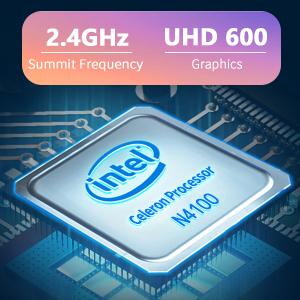
Image: The Intel Celeron N4100 processor, central to the laptop's performance, highlighting its clock speed and integrated graphics capabilities.

Image: The laptop's battery specifications, indicating its power capacity for extended use.
12. Garantie und Support
For warranty information and technical support, please refer to the documentation included with your purchase or visit the official iProda website. Contact information for customer service can typically be found on the manufacturer's support page.