
1. Einleitung
Thank you for choosing the EMPIRE GAMING Hellhounds Gaming Pack. This comprehensive kit includes a semi-mechanical gaming keyboard, a high-precision gaming mouse, and a durable mousepad, designed to enhance your gaming experience. This manual provides detailed instructions for setup, operation, maintenance, and troubleshooting to ensure optimal performance of your new gaming peripherals.

Figure 1: EMPIRE GAMING Hellhounds Gaming Mouse lineup.
2. Packungsinhalt
Bitte vergewissern Sie sich, dass alle Artikel in Ihrem Paket vorhanden sind:
- EMPIRE GAMING Hellhounds Semi-Mechanical Gaming Keyboard
- EMPIRE GAMING Hellhounds Gaming Mouse
- EMPIRE GAMING Hellhounds Mousepad
- Benutzerhandbuch (dieses Dokument)
3. Installationsanleitung
3.1 Anschließen von Tastatur und Maus
- Suchen Sie einen verfügbaren USB-Anschluss an Ihrem Computer.
- Plug the USB connector of the EMPIRE GAMING Hellhounds Keyboard into the USB port.
- Plug the USB connector of the EMPIRE GAMING Hellhounds Mouse into another available USB port.
- Ihr Betriebssystem sollte die notwendigen Treiber automatisch erkennen und installieren.
3.2 Mouse Weight Adjustment
The Hellhounds Gaming Mouse features adjustable weights for personalized feel and control.
- Carefully open the weight compartment located on the underside of the mouse.
- Add or remove weights as desired to achieve your preferred mouse balance and feel.
- Close the weight compartment securely.

Figure 2: Hellhounds Gaming Mouse with adjustable weights.
3.3 Softwareinstallation
To unlock the full customization potential of your Hellhounds Gaming Pack, including macro programming and advanced RGB lighting effects, download and install the dedicated software from the official EMPIRE GAMING webWebsite: www.empiregaming.eu.
- Besuchen www.empiregaming.eu.
- Navigate to the 'Support' or 'Downloads' section.
- Locate the software for the Hellhounds Gaming Pack (Model OE-KB-88DE3).
- Download and run the installer, following the on-screen instructions.
- Starten Sie Ihren Computer neu, wenn Sie dazu aufgefordert werden.

Figure 3: EMPIRE GAMING Macro Manager software interface.
4. Bedienungsanleitung
4.1 Tastaturfunktionen
The Hellhounds Keyboard offers advanced features for gaming and productivity.
- Programmable Macros: The keyboard supports up to 33 configurable macros across three distinct profiles. Use the dedicated software to record and assign complex key sequences to the macro keys (M1, M2, M3, G1-G5).
- Multimedia-Verknüpfungen: Access multimedia controls directly using function key combinations (e.g., Fn + F5-F11 for music settings).
- Windows-Tastensperre: Prevent accidental interruptions during gaming by disabling the Windows key.
- Adjustable Wrist Rest: The integrated wrist rest and adjustable feet provide comfort during extended gaming sessions.
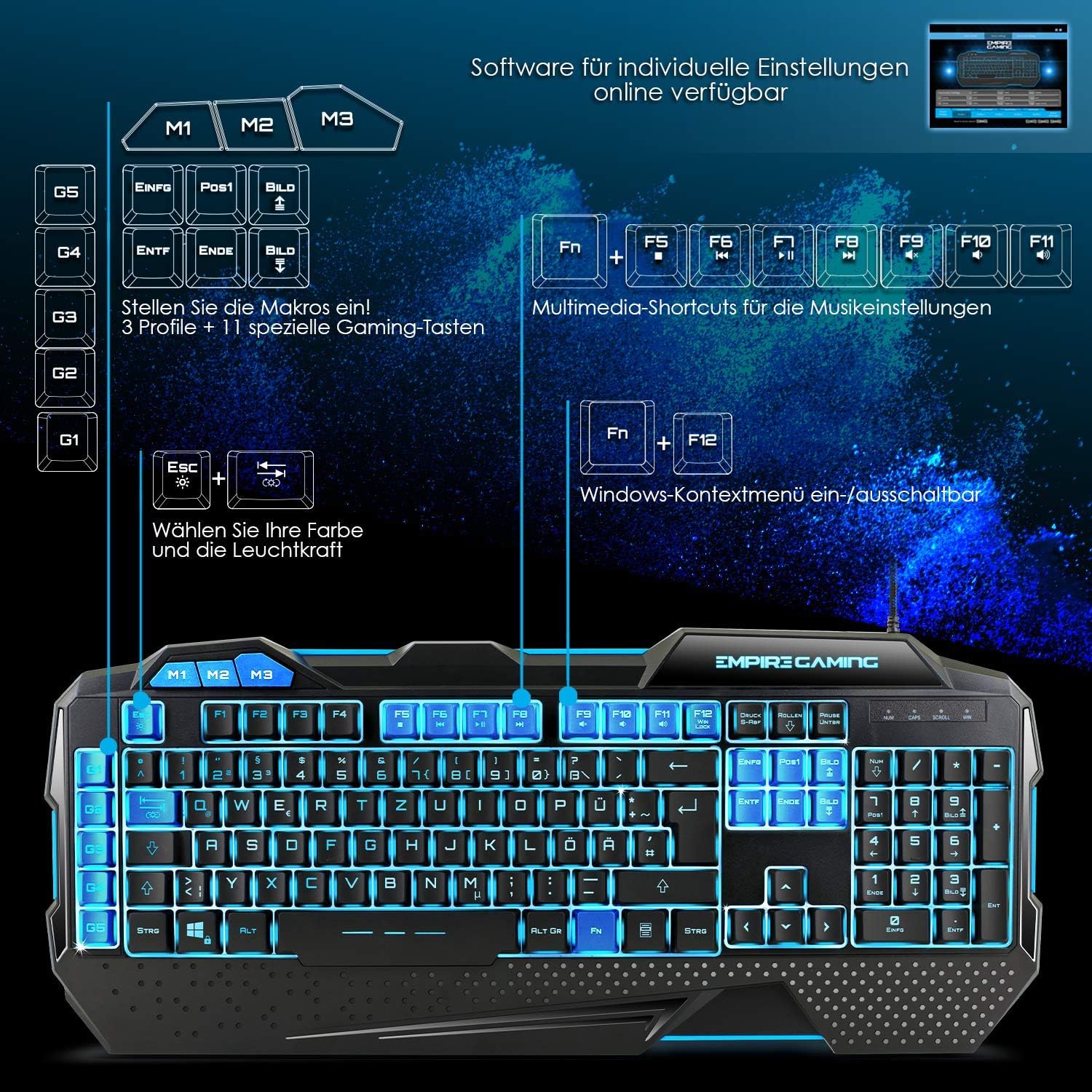
Figure 4: Hellhounds Keyboard layout highlighting macro and multimedia keys.
4.2 Mausfunktionen
The Hellhounds Mouse is designed for precision and comfort.
- Einstellbare DPI: Cycle through DPI settings up to 7200 DPI for precise cursor control. DPI levels can be adjusted via dedicated buttons on the mouse or through the software.
- Programmierbare Tasten: The mouse features 7 programmable buttons. Utilize the software to assign custom functions, macros, or rapid-fire commands to these buttons.
- Ergonomisches Design: Ergonomic finger rests and adjustable weights contribute to comfortable handling during long gaming sessions.
4.3 RGB-Beleuchtungssteuerung
Both the keyboard and mouse feature customizable RGB LED backlighting.
- Tastaturbeleuchtung: The keyboard offers seven colors and various lighting effects. Adjustments can be made directly on the keyboard using function key combinations (e.g., Fn + Esc for brightness, Fn + PrtSc for mode) or through the dedicated software.
- Mouse Backlight: Customize the mouse's LED backlight colors and effects using the dedicated software.

Figure 5: Hellhounds Keyboard showcasing verschiedene RGB-Beleuchtungsoptionen.

Figure 6: Software interface for assigning custom functions to keys.
5. Wartung
Proper maintenance ensures the longevity and performance of your gaming pack.
- Reinigung: Use a soft, dry cloth to wipe down the keyboard, mouse, and mousepad regularly. For deeper cleaning, a slightly damp Man kann ein Tuch mit milder Seife verwenden, wobei darauf zu achten ist, dass keine Flüssigkeit in die Geräte gelangt.
- Staubentfernung: Use compressed air to remove dust and debris from between keyboard keys and mouse sensors.
- Vermeiden Sie Flüssigkeiten: Die Geräte dürfen keiner übermäßigen Feuchtigkeit ausgesetzt oder in Wasser eingetaucht werden.
- Lagerung: Bewahren Sie die Geräte bei Nichtgebrauch an einem kühlen, trockenen Ort fern von direkter Sonneneinstrahlung und extremen Temperaturen auf.
6. Fehlerbehebung
If you encounter issues with your EMPIRE GAMING Hellhounds Pack, refer to the following common solutions:
- Gerät nicht erkannt:
- Ensure the USB cables are securely plugged into your computer's USB ports.
- Try plugging the devices into different USB ports.
- Starte deinen Computer neu.
- Check your operating system's Device Manager to see if the devices are listed and drivers are installed correctly. - Tastaturtasten reagieren nicht:
- Check for any physical obstructions under the keys.
- Ensure the keyboard is not in a locked mode (e.g., gaming mode disabling certain keys).
- Reinstall the keyboard software. - Mouse Cursor Lag or Inaccuracy:
- Clean the mouse sensor with a soft cloth.
- Ensure the mousepad surface is clean and free of debris.
- Adjust the DPI settings of the mouse.
- Try the mouse on a different surface.
- Reinstall the mouse software. - RGB-Beleuchtung funktioniert nicht:
- Ensure the software is installed and running.
- Check the lighting settings within the software.
- For the keyboard, try cycling through lighting modes and brightness levels using the dedicated function key combinations. - Softwareprobleme:
- Ensure you have downloaded the correct software version for your model (OE-KB-88DE3) from www.empiregaming.eu.
- Run the software as an administrator.
- Temporarily disable antivirus software during installation if issues persist.
7. Spezifikationen
Technical specifications for the EMPIRE GAMING Hellhounds Gaming Pack:
| Besonderheit | Spezifikation |
|---|---|
| Marke | EMPIRE GAMING |
| Modellnummer | OE-KB-88DE3 |
| Farbe | Schwarz |
| Konnektivitätstechnologie | USB |
| Kompatible Geräte | PCs, Laptops |
| Betriebssystem | Windows 10, Windows XP (and newer versions) |
| Tastaturtyp | Semi-mechanical, Gaming |
| Tastaturlayout | QWERTZ (German layout) |
| Keyboard Macros | 33 configurable macros across 3 profiles |
| Maus-DPI | Bis zu 7200 DPI (einstellbar) |
| Maustasten | 7 programmierbare Tasten |
| Hintergrundbeleuchtung | RGB LED (7 colors, various effects) |
| Besondere Merkmale | Ergonomic design, adjustable mouse weights, dedicated software |

Figure 7: Dimensions of the Hellhounds Keyboard and Mouse.
8. Garantie und Support
For warranty information, technical support, and to download the latest software and drivers, please visit the official EMPIRE GAMING webWebsite:
EMPIRE GAMING is committed to providing high-quality products and customer satisfaction. If you have any questions or require further assistance, please do not hesitate to contact our support team through the webWebsite.