
1. Einleitung
Thank you for choosing the Gembird MUS-6B-01 Optical USB Mouse. This manual provides essential information for setting up, operating, maintaining, and troubleshooting your new mouse. Please read these instructions carefully to ensure optimal performance and longevity of your device.

Image: The official Gembird brand logo, featuring the company name in a stylized font with a geometric design.
2. Produktüberschreitungview
The Gembird MUS-6B-01 is a reliable 6-button optical USB mouse designed for comfortable and precise navigation. Its ambidextrous design makes it suitable for both left and right-handed users.
Hauptmerkmale:
- Optische Nachführung: Provides smooth and accurate cursor control.
- 6 Tasten: Includes standard left/right click, scroll wheel, DPI adjustment, and two side buttons for enhanced functionality.
- USB-Konnektivität: Simple plug-and-play connection to your computer.
- Beidhändiges Design: Sowohl für Links- als auch für Rechtshänder geeignet.
Komponenten:
- Linksklick-Taste
- Rechtsklick-Taste
- Scroll Wheel (also functions as a middle click button)
- DPI-Einstelltaste
- Vorwärtstaste (Seite)
- Rückwärtstaste (Seite)
- Optical Sensor (underside)
- USB Connector (at the end of the cable)
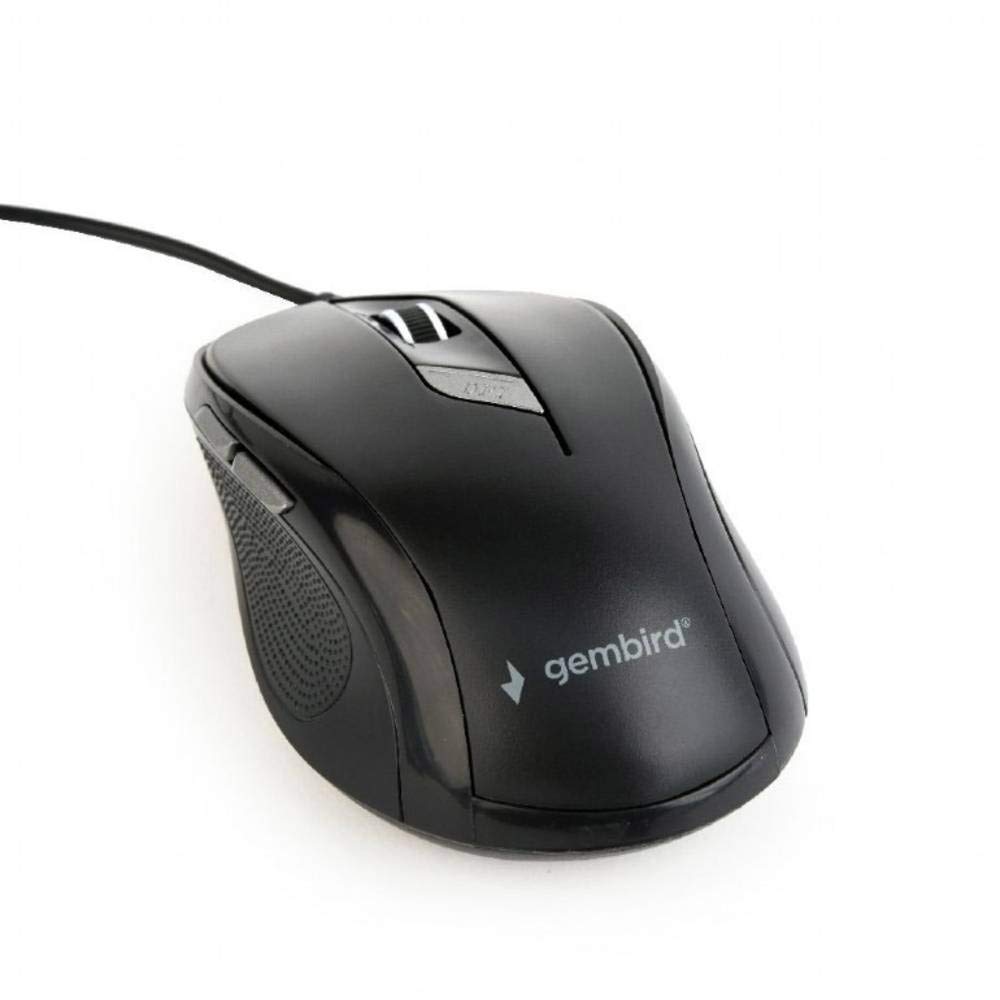
Bild: Eine Draufsicht view of the Gembird MUS-6B-01 optical USB mouse. The mouse is black with a matte finish, featuring a scroll wheel, left and right click buttons, a DPI button, and two side buttons. A black USB cable extends from the front of the mouse.
3. Einrichtung
Setting up your Gembird MUS-6B-01 mouse is a simple plug-and-play process.
Installationsschritte:
- Suchen Sie einen verfügbaren USB-Anschluss an Ihrem Computer.
- Plug the USB connector of the Gembird MUS-6B-01 mouse firmly into the USB port.
- Your operating system (Windows, Linux) will automatically detect and install the necessary drivers. This process may take a few moments.
- Sobald die Treiber installiert sind, ist die Maus einsatzbereit.
Für die grundlegende Funktionalität ist in der Regel keine zusätzliche Softwareinstallation erforderlich.
4. Bedienungsanleitung
Familiarize yourself with the functions of each button on your Gembird MUS-6B-01 mouse.
Grundfunktionen:
- Links Klick: Primary action, selecting items, opening files.
- Rechtsklick: Opens context menus, provides additional options.
- Scrollrad: Scrollen Sie in den Dokumenten nach oben oder unten und web Seiten.
- Mittlerer Klick (Scrollrad drücken): Often used to open links in new tabs or for specific application functions.
Erweiterte Funktionen:
- DPI-Einstelltaste: Located behind the scroll wheel, this button allows you to cycle through different sensitivity (DPI) settings. Press it to change the cursor speed to suit your preference.
- Vorwärtstaste (Seite): Navigiert typischerweise vorwärts in web Browser bzw file Entdecker.
- Zurück-Taste (Seite): Navigiert typischerweise rückwärts in web Browser bzw file Entdecker.
The functionality of the side buttons may vary depending on the application or operating system settings. Some operating systems allow customization of these buttons.
5. Wartung
Proper care will help extend the life of your Gembird MUS-6B-01 mouse.
Reinigung:
- Trennen Sie die Maus vor der Reinigung von Ihrem Computer.
- Benutzen Sie ein weiches, leichtamp, fusselfreies Tuch zum Abwischen der Oberfläche der Maus.
- For stubborn dirt, a small amount of mild soap solution can be applied to the cloth (not directly to the mouse).
- Use a cotton swab or compressed air to clean around the scroll wheel and between buttons.
- Ensure the optical sensor on the underside is clean and free of dust or debris.
- Verwenden Sie keine scharfen Chemikalien oder scheuernden Reinigungsmittel und tauchen Sie die Maus nicht in Wasser.
Lagerung:
When not in use for extended periods, store the mouse in a clean, dry environment away from extreme temperatures and direct sunlight.
6. Fehlerbehebung
If you encounter issues with your Gembird MUS-6B-01 mouse, try the following troubleshooting steps:
| Problem | Mögliche Lösung |
|---|---|
| Maus reagiert nicht |
|
| Erratic or jumpy cursor movement |
|
| Tasten funktionieren nicht |
|
7. Spezifikationen
Detailed technical specifications for the Gembird MUS-6B-01 Optical USB Mouse:
| Besonderheit | Spezifikation |
|---|---|
| Marke | Edelsteinvogel |
| Modellname | MUS-6B-01 |
| Konnektivitätstechnologie | Kabelgebunden (USB) |
| Bewegungserkennungstechnologie | Optisch |
| Anzahl der Tasten | 6 |
| Handausrichtung | Beidhändig |
| Kompatible Betriebssysteme | Linux, Windows 7, Windows XP (und neuere Versionen) |
| Hardware-Plattform | Personalcomputer |
| Kabellänge | 5.0 Meter |
| Artikelgewicht | 74 Gramm |
| Material | Plastik |
| Farbe | Schwarz |
| Batterien erforderlich | NEIN |
8. Sicherheitshinweise
Bitte beachten Sie die folgenden Sicherheitshinweise:
- Die Maus darf weder Wasser noch übermäßiger Feuchtigkeit ausgesetzt werden.
- Vermeiden Sie, die Maus fallen zu lassen oder starken Stößen auszusetzen.
- Versuchen Sie nicht, die Maus selbst zu zerlegen oder zu reparieren. Wenden Sie sich an qualifiziertes Servicepersonal.
- Halten Sie das Gerät von extremen Temperaturen und direkter Sonneneinstrahlung fern.
- Elektronikschrott muss gemäß den örtlichen Vorschriften verantwortungsvoll entsorgt werden.
9. Garantie und Support
Gembird products are designed for reliability and performance. For specific warranty terms and conditions, please refer to the warranty card included with your product or visit the official Gembird website. For technical support or further assistance, please contact your retailer or the Gembird customer service department.