
1. Einleitung
Welcome to the user manual for your RugGear RG910 Rugged 8-inch Tablet. This document provides essential information for setting up, operating, maintaining, and troubleshooting your device. The RG910 is engineered for demanding environments, offering superior durability and connectivity for outdoor work and extreme conditions.
Please read this manual carefully to ensure proper use and to maximize the lifespan of your tablet.
2. Produktüberschreitungview
The RugGear RG910 is a robust tablet featuring an 8-inch WUXGA touchscreen, designed to withstand harsh conditions. It incorporates advanced sealing technology for high water and dust resistance, and is built to endure drops and impacts.

Abbildung 2.1: Vorderseite view of the RugGear RG910 rugged tablet, showcasing dank seiner robusten Konstruktion und Anzeige.
Key features include Push-to-Talk (PTT) functionality, a long-lasting 6000 mAh battery, and an Android 8 (Oreo) operating system optimized for performance and power efficiency. The device is IP68 certified, allowing submersion in water up to 1.2 meters for 60 minutes, and is drop-resistant up to 1.5 meters.

Figure 2.2: Infographic highlighting the RG910's reliable performance, PTT capability, long battery life, Android 8 optimization, IP68 rating, and dual stereo speakers.
Connectivity options include 4G LTE, Wi-Fi 802.11b/g/n, and Bluetooth 4.0. It also features 8MP and 2MP cameras, GPS, A-GPS, GLONASS, and Beidou for navigation. The display is protected by Corning Gorilla Glass for enhanced durability and readability in sunlight.
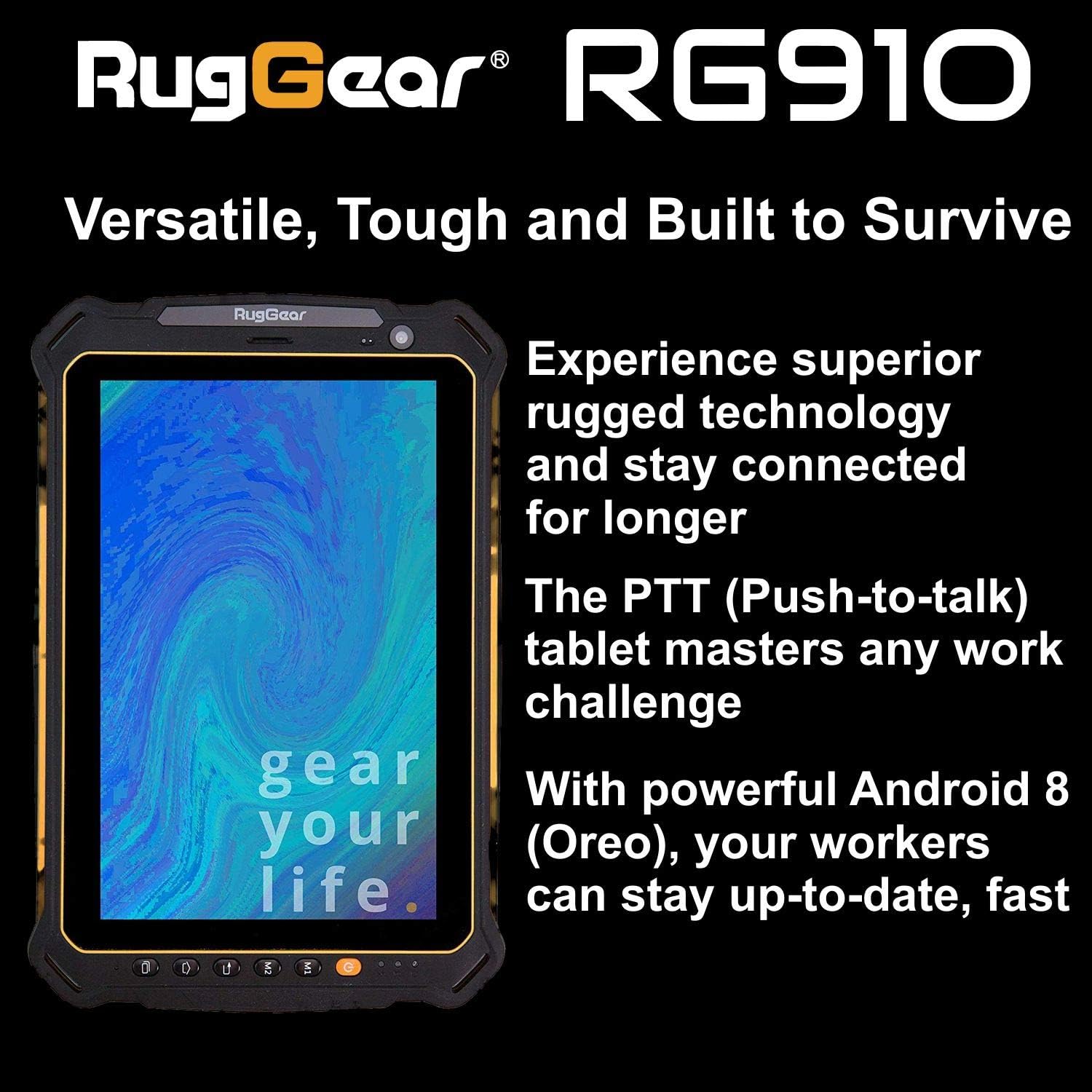
Figure 2.3: The RugGear RG910 tablet being used, illustrating its robust construction and suitability for various tasks.
3. Einrichtung
3.1 Aufladen des Geräts
Before initial use, fully charge the tablet using the provided charger and USB cable. Connect the charger to a power outlet and the USB cable to the tablet's charging port. The charging indicator will show the charging status.
3.2 Einlegen von SIM- und Micro-SD-Karten
- Locate the SIM/Micro-SD card slot cover on the side of the tablet.
- Öffnen Sie den Deckel vorsichtig.
- Insert the Nano-SIM card into the designated slot with the gold contacts facing down, ensuring it is correctly oriented.
- If using, insert a Micro-SD card (up to 64GB) into its dedicated slot.
- Close the cover securely to maintain the device's water and dust resistance.
3.3 Erste Inbetriebnahme und Einrichtung
Press and hold the Power button until the RugGear logo appears. Follow the on-screen instructions to complete the initial setup, which includes selecting your language, connecting to a Wi-Fi network, and setting up your Google account.
4. Bedienungsanleitung
4.1 Ein-/Ausschalten
- So schalten Sie das Gerät ein: Halten Sie den Ein-/Ausschalter gedrückt, bis der Bildschirm aufleuchtet.
- So schalten Sie das Gerät aus: Press and hold the Power button until the power options appear, then select 'Power off'.
- Neustarten: Halten Sie die Ein-/Aus-Taste gedrückt, bis die Energieoptionen angezeigt werden, und wählen Sie dann „Neustart“.
4.2 Grundlegende Navigation
The RG910 uses a capacitive touchscreen. Use standard Android gestures:
- Klopfen: Wählen Sie ein Element aus oder öffnen Sie eine Anwendung.
- Wischen: Durchblättern Sie Listen oder wechseln Sie zwischen Startbildschirmen.
- Prise: Bilder vergrößern oder verkleinern und web Seiten.
- Lange drücken: Kontextmenüs aufrufen oder Symbole verschieben.
4.3 Push-to-Talk (PTT) Functionality
The RG910 supports Push-to-Talk (PTT) communication. A dedicated PTT button may be present on the device. Consult your service provider or PTT application instructions for specific setup and usage details.
4.4 Kamerabetrieb
To use the cameras:
- Öffnen Sie die Kamera-App vom Startbildschirm oder aus der App-Übersicht.
- Tippen Sie auf den Bildschirm, um zu fokussieren.
- Tippen Sie auf den Auslöser, um ein Foto aufzunehmen oder die Videoaufnahme zu starten/stoppen.
- Wechseln Sie mithilfe des Kamera-Umschaltsymbols zwischen Front- und Rückkamera.
4.5 Konnektivität
- W-lan: Gehe zu Einstellungen > Netzwerk & Internet > WLAN um eine Verbindung zu verfügbaren Netzwerken herzustellen.
- 4G LTE: Ensure your SIM card is inserted and mobile data is enabled in Einstellungen > Netzwerk & Internet > Mobilfunknetz.
- Bluetooth: Bluetooth aktivieren Einstellungen > Verbundene Geräte > Bluetooth zur Kopplung mit anderen Geräten.
5. Wartung
5.1 Gerät reinigen
Verwenden Sie zum Reinigen Ihres Tablets ein weiches, feuchtes Tuch.amp cloth. Avoid using harsh chemicals, abrasive cleaners, or solvents, as these can damage the device's ruggedized coating and seals. Ensure all port covers are securely closed before cleaning with moisture.
5.2 Wasser- und Staubbeständigkeit (IP68)
The RG910 is IP68 certified, meaning it is protected against dust ingress and can withstand submersion in fresh water up to 1.2 meters for 60 minutes. To maintain this rating:
- Ensure all port covers (USB, SIM/Micro-SD slot) are firmly closed before exposure to water or dust.
- Do not expose the device to salt water, chlorinated water, or other liquids.
- If the device gets wet, dry it thoroughly with a clean cloth before opening any covers or charging.
5.3 Batteriepflege
- Vermeiden Sie extreme Temperaturen, da diese die Leistungsfähigkeit der Batterie beeinträchtigen können.
- Verwenden Sie ausschließlich das Original-Ladegerät und -Kabel oder ein zertifiziertes kompatibles Ladegerät und Kabel.
- Die Batterie darf nicht durchstochen, zerlegt oder verändert werden.
5.4 Softwareaktualisierungen
Prüfen Sie regelmäßig, ob Software-Updates verfügbar sind, und installieren Sie diese, um optimale Leistung, Sicherheit und Zugriff auf neue Funktionen zu gewährleisten. Gehen Sie zu Einstellungen > System > Systemupdate.
6. Fehlerbehebung
This section addresses common issues you might encounter with your RugGear RG910 tablet.
| Ausgabe | Mögliche Lösung |
|---|---|
| Gerät lässt sich nicht einschalten | Stellen Sie sicher, dass der Akku geladen ist. Schließen Sie das Ladegerät an und warten Sie einige Minuten, bevor Sie das Gerät erneut einschalten. Sollte das Gerät nicht reagieren, erzwingen Sie einen Neustart, indem Sie den Ein-/Ausschalter 10–15 Sekunden lang gedrückt halten. |
| Der Bildschirm reagiert nicht | Starten Sie das Gerät neu. Sollte das Problem weiterhin bestehen, vergewissern Sie sich, dass der Bildschirm sauber und trocken ist. |
| Verbindung zu WLAN/4G nicht möglich | Check Wi-Fi settings and ensure the network password is correct. For 4G, verify SIM card insertion, mobile data is enabled, and you have network coverage. Restart the tablet. |
| Der Akku entlädt sich schnell | Reduce screen brightness, close unused applications, disable unnecessary connectivity features (Bluetooth, GPS), and check for background app activity in settings. |
| Das Gerät ist langsam oder friert ein. | Close background applications. Clear cache for problematic apps. Restart the device. Consider a factory reset if the issue is persistent (back up data first). |
7. Spezifikationen
Detailed technical specifications for the RugGear RG910 tablet:
| Besonderheit | Beschreibung |
|---|---|
| Marke | RugGear |
| Modellnummer | 98300000 |
| Betriebssystem | Android 8 (Oreo) |
| Anzeige | 8-inch WUXGA (1920 x 1200 pixels) with Corning Gorilla Glass |
| Prozessor | Qualcomm Snapdragon 625 |
| RAM | 3 GB |
| Interner Speicher | 32 GB (expandable up to 64 GB via Micro-SD) |
| Batterie | 6000 mAh Lithium-Ionen- |
| Konnektivität | 4G LTE, Wi-Fi 802.11b/g/n, Bluetooth 4.0, GPRS |
| Kameras | Rückkamera: 8 MP, Frontkamera: 2 MP |
| Navigation | GPS, A-GPS, GLONASS, Beidou |
| Haltbarkeit | IP68 certified (water/dust resistant), Drop-resistant up to 1.5 meters |
| Abmessungen (L x B x H) | 21.3 x 14.1 x 2 cm |
| Gewicht | 906 Gramm |
| Besondere Merkmale | Ruggedized Construction, Push-to-Talk (PTT) functionality, Adjustable back strap |
| Modelljahr | 2018 |
8. Garantie und Support
Your RugGear RG910 tablet is covered by a manufacturer's warranty. Please refer to the warranty card included with your product packaging for specific terms and conditions, including warranty duration and coverage details. For technical support, service, or further assistance, please contact RugGear customer service or your authorized dealer.